Gerelateerde cursussen
Bekijk Alle CursussenBeginner
Claude for Everyday Work
A concise, hands-on course focused on using Claude for real work scenarios. Learn to set up projects, craft effective prompts, manage documents, and build repeatable workflows.

Beginner
Claude Cowork
Learn how to use Cowork as a practical workspace for organizing your work, managing files, creating and editing documents, and conducting research more efficiently. You’ll explore the key tools available in Cowork, understand how they support different types of everyday tasks, and learn how to bring files, information, and workflows together in one place. By the end, you’ll be able to build a personalized Cowork OS that helps you stay organized, work more consistently, and manage your projects from start to finish.
Beginner
Ultimate Claude
Learn how to get the most out of Claude for work, study, and everyday tasks. This course covers everything from writing better prompts and analysing documents to using advanced features such as Projects, Artifacts, Memory, Skills, and Connectors. You'll also explore how Claude integrates with tools like Chrome, Slack, Excel, PowerPoint, and mobile devices. By the end of the course, you'll be able to use Claude confidently to save time, improve productivity, and solve real-world problems more effectively.
How to Learn Claude for Work in 30 Days
A week-by-week plan, from your first useful prompt to handing Claude whole tasks
by Codefinity Team
Editorial team
Oct, 2026・
15 min read


The Short Answer
Last updated: October 2026
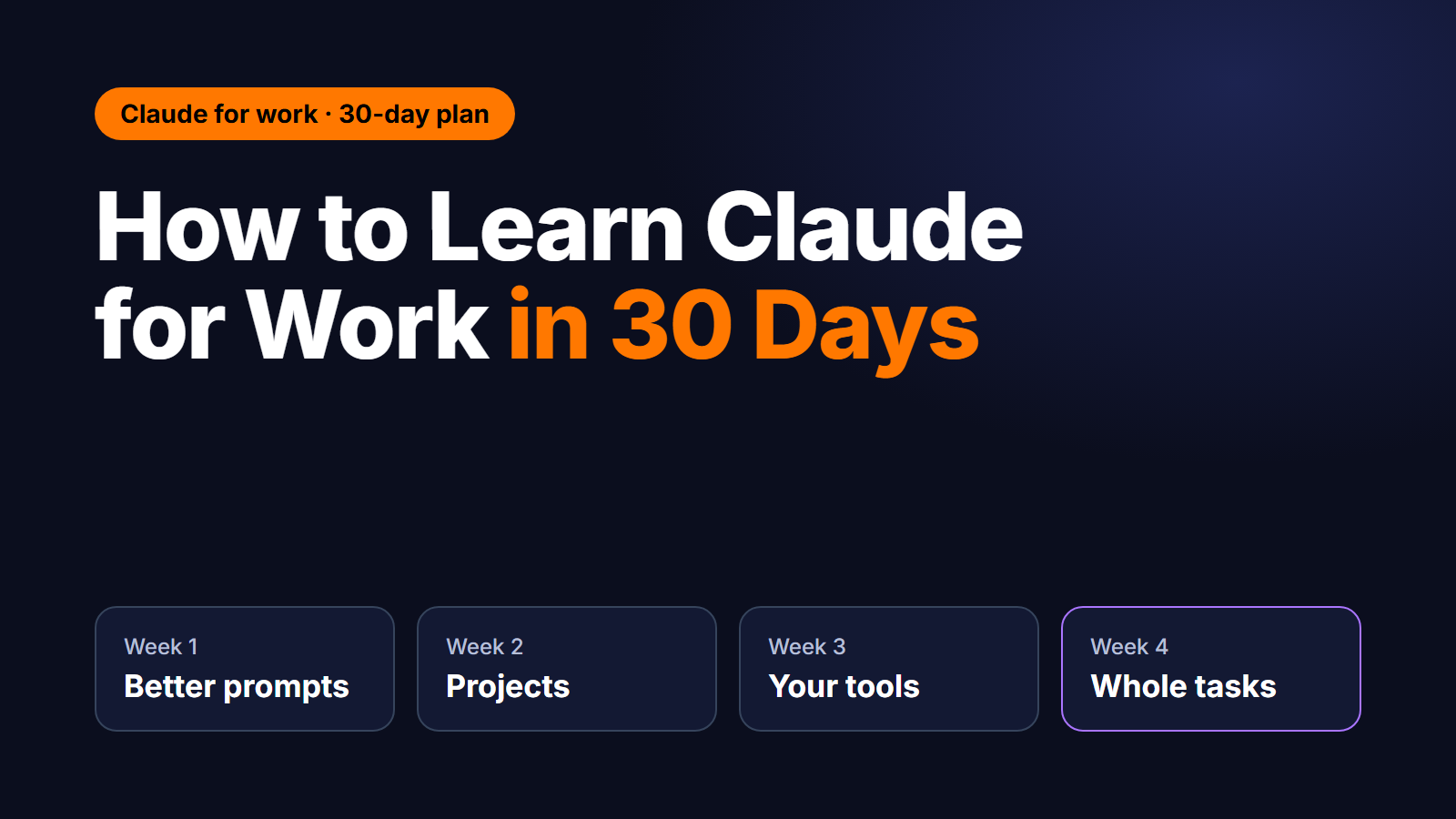
You can learn to use Claude well for work in about 30 days at 20 to 30 minutes a day. Spend week one on prompts that produce work you would actually send, week two on giving Claude your context with Projects, week three on connecting it to the tools you already use, and week four on handing it whole tasks. Each week ends with one real piece of work done faster.
The plan below is built around your own tasks, not practice exercises. That is the part most people skip, and it is why their skills stop at "I asked it a question once".
Who This Plan Is For
This plan is for people who have tried an AI assistant a few times and want to become the person at work who uses it well. You don't need to code. The only technical step is optional and comes in week four.
You need a Claude account. The free plan is enough for weeks one and two. Some later features, including Cowork and higher usage limits, need a paid plan. Plans change often, so check Claude's pricing page for the current limits.
If you will use Claude on company documents, ask first which plan your company approves. Work data belongs in a work account, not a personal one.
Before You Start: Pick Three Real Tasks
Write down three tasks you do every week or every month. Good candidates:
- a status report or weekly update;
- summarising long documents, contracts or meeting notes;
- first drafts of emails, proposals or job descriptions;
- cleaning up or explaining a spreadsheet;
- research on a supplier, a competitor or a topic you need to brief someone on.
Note roughly how long each one takes you today. These three tasks are your practice set for the whole month. Skills you build on your own work transfer straight back to it. Skills you build on generic exercises mostly don't.
Week 1: Write Prompts That Produce Usable Work
The biggest jump in quality comes from one change: give Claude a brief, not a question. A good brief covers five things:
- Who it's for. "My manager, who has two minutes to read this."
- The goal. "Get approval to move the launch by two weeks."
- The material. Paste or upload the document, the numbers, the thread. Don't describe them.
- The constraints. Length, tone, what must not be said.
- The format. "Three bullet points, then a one-line recommendation."
Compare these two prompts:
Weak: Write an email about the delayed launch.
Strong: Draft a short email to my manager asking to move the product launch from 3 to 17 November. The reason is the supplier delay in the attached thread. She cares about cost and customer impact, so lead with those. Keep it under 120 words, friendly but direct, and end with a clear yes/no question.
Three habits to build this week:
- Let Claude ask first. End a brief with: "Before you start, ask me up to five questions you need answered." The questions it asks often show what your brief was missing.
- Edit in the same chat. Don't start over. Say "Shorter, and lead with the decision we need from finance." Claude keeps the context of the conversation.
- Ask for a critique. "Read this as a sceptical finance director. What would you push back on?" It is one of the most useful prompts there is.
Practice: do your first task with Claude every working day this week. Save the briefs that worked in a note. That note becomes your prompt library.
You're done when: you have sent at least one piece of work that Claude drafted and you edited, in about half your usual time.
Run Code from Your Browser - No Installation Required

Week 2: Give Claude Your Context With Projects
Re-explaining your job in every new chat is the main reason people give up on AI assistants. Projects solve it. A Project is a workspace with its own instructions and files, and every chat inside it starts with that context.
Set up one Project per recurring job. For a weekly report, that could be:
- Instructions: who reads the report, the tone, the structure, and the things it must never include.
- Files: your last three reports, the template, and a short glossary of team terms and acronyms.
Three more features are worth learning this week:
- Artifacts. Ask for "an artifact" and Claude builds a document, a checklist or a small interactive tool in a panel next to the chat, which you can edit and reuse.
- Styles. Teach Claude how you write by giving it a few samples, so drafts need fewer edits.
- Memory. If you turn it on, Claude carries useful context between chats. Review what it remembers from time to time.
This is also the week to build the most important habit of all: check the facts. Claude can be wrong with full confidence, especially about numbers, names, dates and quotes. Before anything leaves your hands, verify it against the source. A prompt that helps: "For each figure in your summary, quote the sentence in the document it comes from."
Practice: build a Project for your second task and use it every day.
You're done when: a new chat inside the Project gives you a usable first draft from a one-line request.
Week 3: Connect Claude to the Tools You Already Use
Copying and pasting between Claude and your other tools wastes most of the time you saved. This week removes that step.
- Connectors link Claude to services such as Google Drive, Gmail, Google Calendar, Slack and Notion. Claude can then search and read what it needs, and in some tools act on it. Turn on only what a task needs, and check your company's policy first. You can revoke access at any time.
- File creation. Claude can produce real files: spreadsheets, documents and slide decks. Try "Turn this table into an Excel file with a chart of the monthly totals."
- Skills are packaged instructions that Claude loads when a task calls for them. Turn on the built-in ones for documents and spreadsheets, then write one for a format you repeat, such as "our monthly report". After that, every report starts in your format without a long prompt.
- Microsoft 365. If your company uses it, check whether the Claude add-ins for Excel and PowerPoint are available on your account.
Practice: run your third task end to end: Claude finds the source material through a connector and delivers a finished file.
You're done when: one task goes from source data to a finished file without any copy-paste.
Week 4: Hand Claude Whole Tasks
Up to now you asked and Claude answered. This week you describe the outcome and Claude does the steps.
Cowork runs Claude on your desktop with access to the folders you choose. It can work through a multi-step job and report back. It needs a paid plan. Good first jobs:
- turn a folder of meeting notes into one summary document and an action list;
- sort, rename and file a messy downloads folder;
- research a topic and produce a two-page brief with sources;
- pull the numbers out of a folder of PDFs or receipts into a spreadsheet.
Start with copies of your files, and review the result before anything is sent or deleted.
Claude Code is optional and suits people who don't mind a terminal window. It writes and runs code from plain-English instructions, which makes small internal tools, dashboards and scripts possible without a developer. You don't need to be a programmer to start, but you do need to read what it proposes before you approve it.
Practice: hand over one complete task you did by hand in week one, and compare the time and the result.
You're done when: you have delegated a multi-step task and only reviewed the outcome.
Your 30-Day Plan at a Glance
| Week | Focus | Daily practice (20 to 30 min) | You're done when |
|---|---|---|---|
| 1 | Prompts that produce usable work | Task 1 with a five-part brief | One drafted piece sent in half the time |
| 2 | Projects, Artifacts, checking facts | Task 2 inside its own Project | A one-line request gives a usable draft |
| 3 | Connectors, files, Skills | Task 3 from source to finished file | No copy-paste left in the task |
| 4 | Cowork, optionally Claude Code | Hand over a full task from week 1 | You only review the result |
Start Learning Coding today and boost your Career Potential
Mistakes That Slow People Down
- Asking questions instead of writing briefs. "Write an email about X" gets an average email. A brief gets yours.
- Starting every chat from zero. If you explain the same background twice, it belongs in a Project.
- Trusting numbers without checking. Ask for the source of every figure and verify it.
- Putting work data into a personal account. Use the plan your company approves.
- Collecting features instead of finishing tasks. One task done well with Claude teaches more than ten features tried once.
- Switching tools every week. The skills transfer between assistants, but only once you have built them in one.
How to Know It's Working
Keep a simple log for the month: the task, the minutes it took before, the minutes it takes with Claude, and how much you had to edit. Look at it at the end of each week.
If a task is not clearly faster by week four, the cause is usually the brief or the missing context, not the model. Go back to week one's five-part brief, or move the background into a Project.
Where to Keep Learning
- Anthropic Academy (academy.claude.com) has free courses from Anthropic, Claude's maker, including an introduction to working with AI. They are good for concepts.
- The Claude Help Center (support.claude.com) is where new features and plan changes are announced.
- Codefinity's Claude courses are built for hands-on practice: short lessons, tasks inside every chapter, an AI assistant in each lesson and a certificate at the end. They line up with this plan:
- Claude for Everyday Work (about 2 hours): prompting, documents and repeatable workflows, for weeks one and two.
- Ultimate Claude (about 3 hours): Projects, Artifacts, Memory, Skills and Connectors, for weeks two and three.
- Claude Cowork (about 1.5 hours): handing real work to Cowork, for week four.
- Introduction to Claude Code (about 1.5 hours): planning, building and automating a business dashboard, for the optional part of week four.
Frequently Asked Questions
Do I need to know how to code to learn Claude? No. Weeks one to three involve no code at all, and Cowork works through plain-English instructions. Only Claude Code, the optional part of week four, involves code, and even there Claude writes it.
Is Claude free to use? There is a free plan, and it covers what you need for weeks one and two. Cowork and higher usage limits need a paid plan. Check claude.com/pricing for the current plans.
How long does it take to learn Claude? Most people get useful results in the first week. Confident daily use, where Claude is part of how you work, takes about a month at 20 to 30 minutes a day.
Should I learn Claude or ChatGPT for work? Learn the one your company approves. Most of the skill transfers: writing a brief, giving context, checking facts and delegating tasks work the same way in any assistant.
Can I get a certificate for learning Claude? Yes. Every Codefinity course, including the four Claude courses above, ends with a certificate you can add to your CV or LinkedIn profile.
Was dit artikel nuttig?
Delen:
Was dit artikel nuttig?
Delen:
Gerelateerde cursussen
Bekijk Alle CursussenBeginner
Claude for Everyday Work
A concise, hands-on course focused on using Claude for real work scenarios. Learn to set up projects, craft effective prompts, manage documents, and build repeatable workflows.
Beginner
Claude Cowork
Learn how to use Cowork as a practical workspace for organizing your work, managing files, creating and editing documents, and conducting research more efficiently. You’ll explore the key tools available in Cowork, understand how they support different types of everyday tasks, and learn how to bring files, information, and workflows together in one place. By the end, you’ll be able to build a personalized Cowork OS that helps you stay organized, work more consistently, and manage your projects from start to finish.
Beginner
Ultimate Claude
Learn how to get the most out of Claude for work, study, and everyday tasks. This course covers everything from writing better prompts and analysing documents to using advanced features such as Projects, Artifacts, Memory, Skills, and Connectors. You'll also explore how Claude integrates with tools like Chrome, Slack, Excel, PowerPoint, and mobile devices. By the end of the course, you'll be able to use Claude confidently to save time, improve productivity, and solve real-world problems more effectively.
Supervised vs Unsupervised Learning
Supervised vs Unsupervised Learning

by Andrii Chornyi
Data Scientist, ML Engineer
Dec, 2023・7 min read

Deep Learning vs Machine Learning
Deep Learning vs Machine Learning
by Andrii Chornyi
Data Scientist, ML Engineer
Dec, 2023・6 min read

ChatGPT Free AI Chatbot Innovations
Discover GPT-4o: More Power for Less Cost
by Andrii Chornyi
Data Scientist, ML Engineer
May, 2024・8 min read

Inhoud van dit artikel
