Спеціальне вставлення для підвищення швидкості
Свайпніть щоб показати меню
Стандартна комбінація Ctrl + V вставляє все: значення, формули, форматування, межі, правила перевірки даних. У більшості випадків це зайве. Часто потрібно лише числа, лише формат або, наприклад, помножити цілий стовпець на коефіцієнт без написання формули.
Спеціальна вставка (Paste Special) дає точний контроль над тим, що саме вставляється. Це один із тих інструментів, які здаються незначними, доки не зрозумієш, скільки незручних обхідних шляхів він замінює.
Відкриття спеціальної вставки
Спочатку скопіюйте клітинку або діапазон за допомогою Ctrl + C, потім:
- Клавіатурне скорочення:
Ctrl + Alt + V(Win) абоCtrl + Cmd + V(Mac); - Контекстне меню: Клацніть правою кнопкою миші по місцю вставки → Спеціальна вставка;
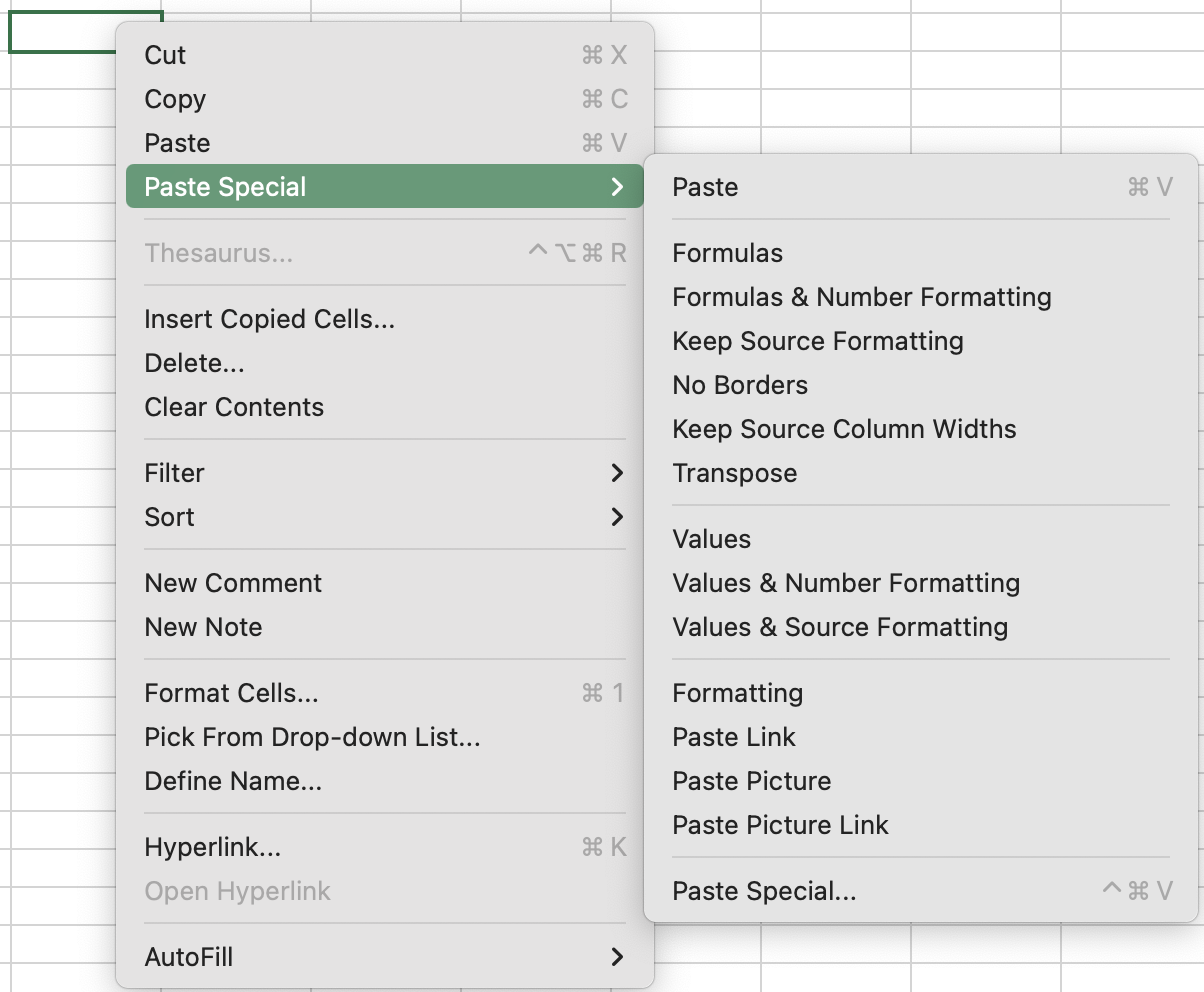
3. Стрічка: Головна → Вставити (випадаюче меню) → Спеціальна вставка.
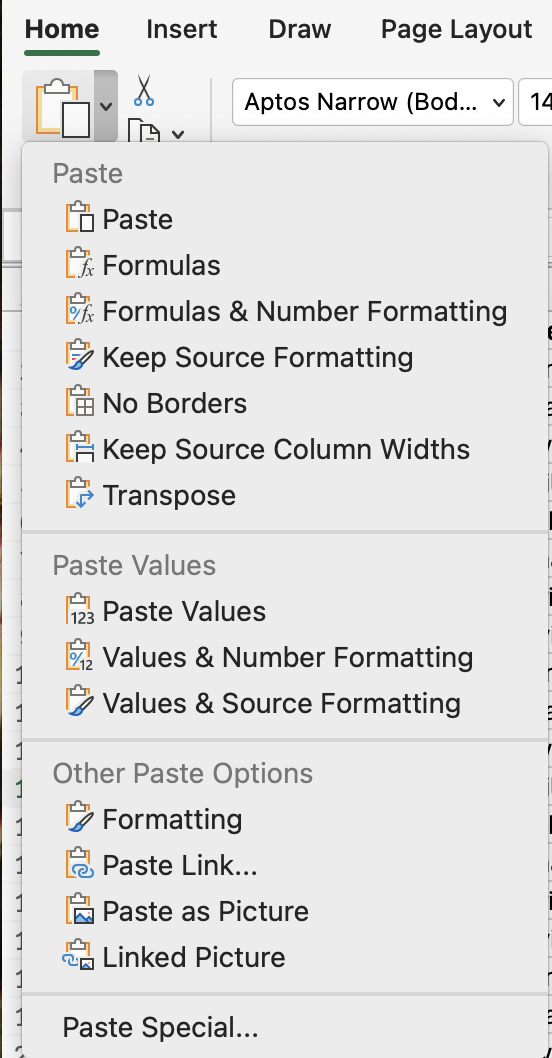
Операція
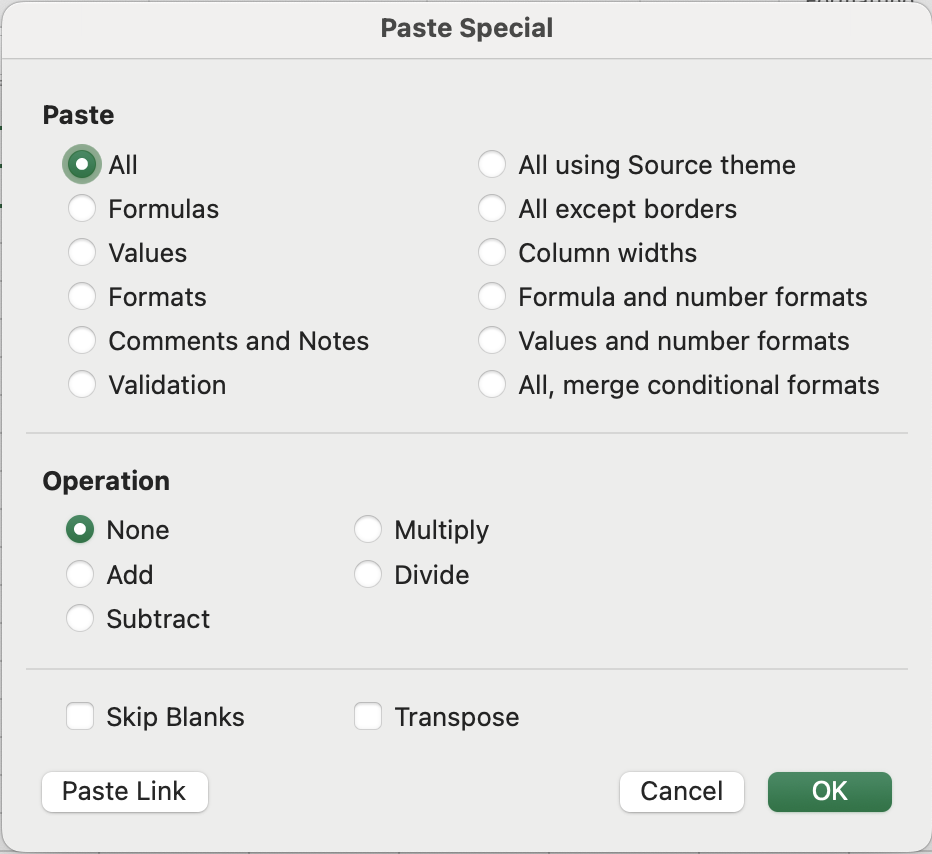
Одна з найменш використовуваних можливостей Спеціальної вставки. Замість простого заміщення вмісту, Excel може виконати арифметичну операцію між двома діапазонами:
- Немає: стандартна заміна (типово);
- Додати: додає скопійоване значення до місця призначення;
- Відняти: віднімає скопійоване значення від місця призначення;
- Помножити: множить місце призначення на скопійоване значення;
- Поділити: ділить місце призначення на скопійоване значення.
Інші параметри
- Пропускати порожні: не перезаписує клітинки призначення, якщо у скопійованому діапазоні є порожні клітинки;
- Транспонувати: обертає дані — рядки стають стовпцями, стовпці стають рядками.
Найкорисніші операції "Вставити спеціально"
- Вставити значення: видалення залежності від формули — вставлення як значень;
- Вставити формати: переноситься лише форматування. Значення в місці призначення залишаються без змін;

Формат за зразком (піктограма пензля) швидший для одноразового, швидкого перенесення форматування. Вставити спеціально → Формати зручніше, якщо потрібно застосувати формат до кількох окремих діапазонів, оскільки скопійований формат залишається в буфері обміну.
- Вставити ширину стовпців: наприклад, ви ретельно налаштували ширину стовпців на одному аркуші й потрібно застосувати таке ж розташування на іншому;
- Вставити з операцією: цей процес уже був продемонстрований у попередньому розділі;
- Транспонування: змінює місцями рядки та стовпці. Якщо дані розташовані горизонтально в рядку, а потрібно у вертикальному стовпці (або навпаки), Транспонування виконує це за один крок.
Масове підвищення цін за допомогою множення
- Введіть
1,15у порожню клітинку (підвищення на 15%). Скопіюйте її. - Виділіть діапазон даних у стовпці Unit Cost.
- Спеціальна вставка → Множити. Переконайтеся, що всі значення Unit Cost збільшилися на 15%.
- Видаліть допоміжну клітинку
1,15.
Дякуємо за ваш відгук!
Запитати АІ

Запитати АІ

Запитайте про що завгодно або спробуйте одне із запропонованих запитань, щоб почати наш чат
Спеціальне вставлення для підвищення швидкості
Стандартна комбінація Ctrl + V вставляє все: значення, формули, форматування, межі, правила перевірки даних. У більшості випадків це зайве. Часто потрібно лише числа, лише формат або, наприклад, помножити цілий стовпець на коефіцієнт без написання формули.
Спеціальна вставка (Paste Special) дає точний контроль над тим, що саме вставляється. Це один із тих інструментів, які здаються незначними, доки не зрозумієш, скільки незручних обхідних шляхів він замінює.
Відкриття спеціальної вставки
Спочатку скопіюйте клітинку або діапазон за допомогою Ctrl + C, потім:
- Клавіатурне скорочення:
Ctrl + Alt + V(Win) абоCtrl + Cmd + V(Mac); - Контекстне меню: Клацніть правою кнопкою миші по місцю вставки → Спеціальна вставка;
3. Стрічка: Головна → Вставити (випадаюче меню) → Спеціальна вставка.
Операція
Одна з найменш використовуваних можливостей Спеціальної вставки. Замість простого заміщення вмісту, Excel може виконати арифметичну операцію між двома діапазонами:
- Немає: стандартна заміна (типово);
- Додати: додає скопійоване значення до місця призначення;
- Відняти: віднімає скопійоване значення від місця призначення;
- Помножити: множить місце призначення на скопійоване значення;
- Поділити: ділить місце призначення на скопійоване значення.
Інші параметри
- Пропускати порожні: не перезаписує клітинки призначення, якщо у скопійованому діапазоні є порожні клітинки;
- Транспонувати: обертає дані — рядки стають стовпцями, стовпці стають рядками.
Найкорисніші операції "Вставити спеціально"
- Вставити значення: видалення залежності від формули — вставлення як значень;
- Вставити формати: переноситься лише форматування. Значення в місці призначення залишаються без змін;
Формат за зразком (піктограма пензля) швидший для одноразового, швидкого перенесення форматування. Вставити спеціально → Формати зручніше, якщо потрібно застосувати формат до кількох окремих діапазонів, оскільки скопійований формат залишається в буфері обміну.
- Вставити ширину стовпців: наприклад, ви ретельно налаштували ширину стовпців на одному аркуші й потрібно застосувати таке ж розташування на іншому;
- Вставити з операцією: цей процес уже був продемонстрований у попередньому розділі;
- Транспонування: змінює місцями рядки та стовпці. Якщо дані розташовані горизонтально в рядку, а потрібно у вертикальному стовпці (або навпаки), Транспонування виконує це за один крок.
Масове підвищення цін за допомогою множення
- Введіть
1,15у порожню клітинку (підвищення на 15%). Скопіюйте її. - Виділіть діапазон даних у стовпці Unit Cost.
- Спеціальна вставка → Множити. Переконайтеся, що всі значення Unit Cost збільшилися на 15%.
- Видаліть допоміжну клітинку
1,15.
Дякуємо за ваш відгук!
