Захист аркушів і комірок
Свайпніть щоб показати меню
Excel дозволяє користувачам захищати робочі аркуші та блокувати важливі клітинки, щоб запобігти випадковому редагуванню. Це особливо корисно, коли спільні книги містять формули, обчислення, шаблони або важливі бізнес-дані.
Захист аркуша допомагає підтримувати точність книги, водночас дозволяючи співпрацівникам взаємодіяти з вибраними ділянками файлу.
Розуміння заблокованих клітинок
У Excel усі клітинки аркуша за замовчуванням позначені як Заблоковані. Однак цей параметр стає активним лише після ввімкнення захисту аркуша.
Це означає, що користувачі можуть зазвичай редагувати заблоковані клітинки, доки аркуш не захищено.
Захищені аркуші зазвичай використовуються для:
- Запобігання видаленню формул;
- Обмеження доступу до редагування;
- Захисту структури звітності;
- Контролю областей введення даних користувачем.
Захист аркуша
Щоб захистити аркуш:
- Відкрити аркуш;
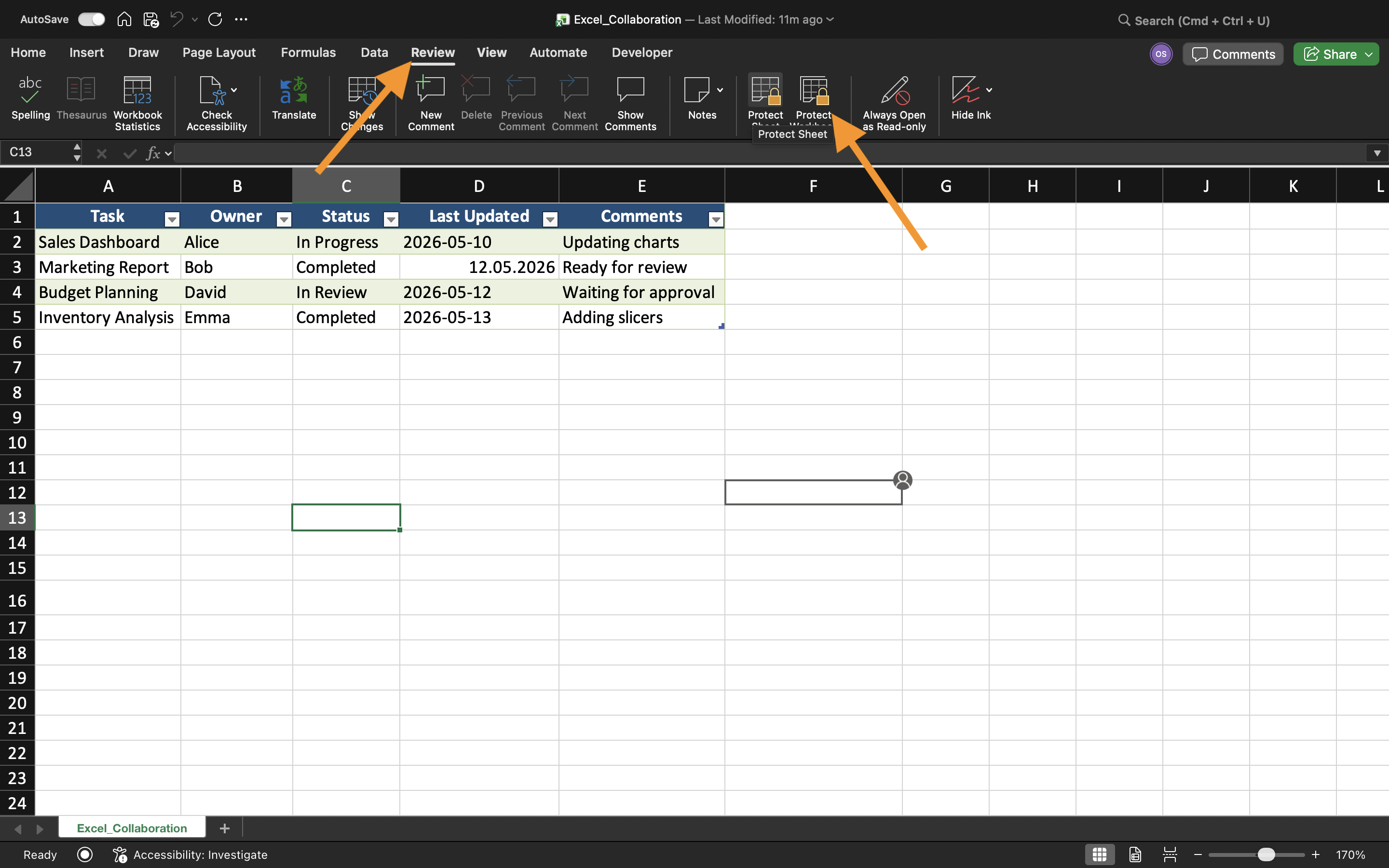
- Вибрати вкладку Рецензування;
- Обрати Захистити аркуш;
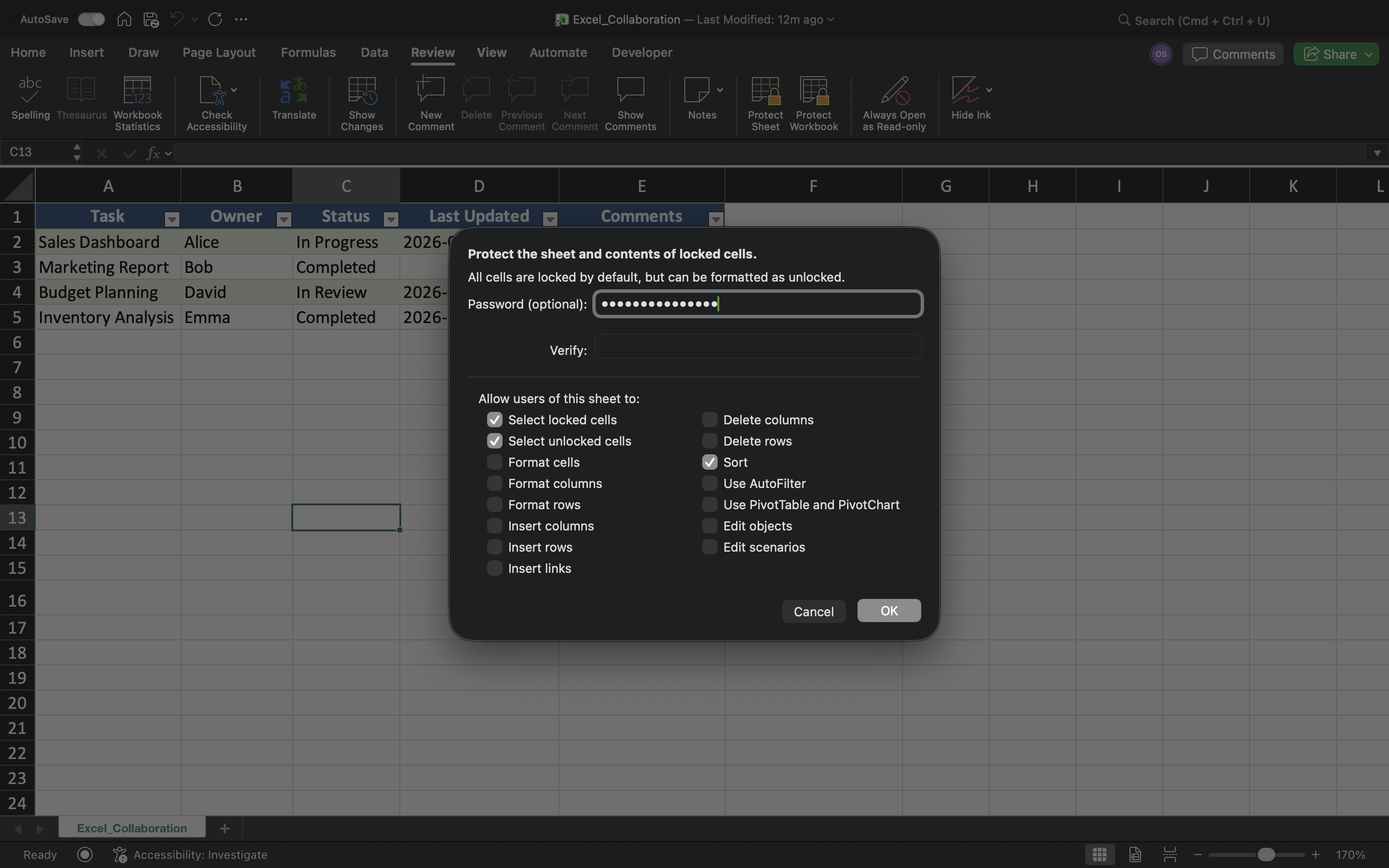
- Налаштувати параметри захисту;
- Застосувати захист.
Excel може обмежувати дії, такі як редагування клітинок, видалення рядків, вставлення стовпців або зміну форматування аркуша.
Дозвіл на редагування окремих областей
Хоча захист аркуша обмежує редагування, певні клітинки можуть залишатися доступними для змін.
Щоб створити області для введення даних:
- Виділити клітинки для введення;
- Відкрити Формат клітинок;
- Вимкнути параметр Захищено;
- Захистити аркуш.
Захист формул
Однією з основних причин захисту аркуша є запобігання випадковим змінам формул.
Без захисту співробітники можуть випадково:
- Видалити формули;
- Перезаписати обчислення;
- Порушити логіку аркуша;
- Змінити важливі посилання.
Обмеження захисту
Захист аркуша підвищує безпеку книги, але не є засобом складного шифрування. Досвідчені користувачі все одно можуть обійти слабкі методи захисту.
Тому захист аркуша слід розглядати переважно як інструмент для запобігання випадковим змінам, а не для повного захисту конфіденційних бізнес-даних.
Завдання
У книзі міститься спільний трекер витрат, яким користуються кілька співробітників. Мета — захистити формули та структуру аркуша, дозволяючи користувачам редагувати лише вибрані області для введення даних.
- Захистити аркуш за допомогою функції Protect Sheet;
- Заблокувати клітинки з формулами;
- Створити області для введення даних;
- Перевірити обмеження на редагування;
- Переконатися, що захищені клітинки не можна змінювати.
Дякуємо за ваш відгук!
Запитати АІ

Запитати АІ

Запитайте про що завгодно або спробуйте одне із запропонованих запитань, щоб почати наш чат
