Керування структурою робочої книги
Свайпніть щоб показати меню
Окрім захисту вмісту аркушів, Excel також дозволяє користувачам захищати загальну структуру книги. Це допомагає запобігти зміні організації аркушів у файлі іншими користувачами.
Захист структури книги часто використовується у спільних звітах, шаблонах, дашбордах і операційних системах, де організація аркушів повинна залишатися стабільною.
Розуміння захисту структури книги
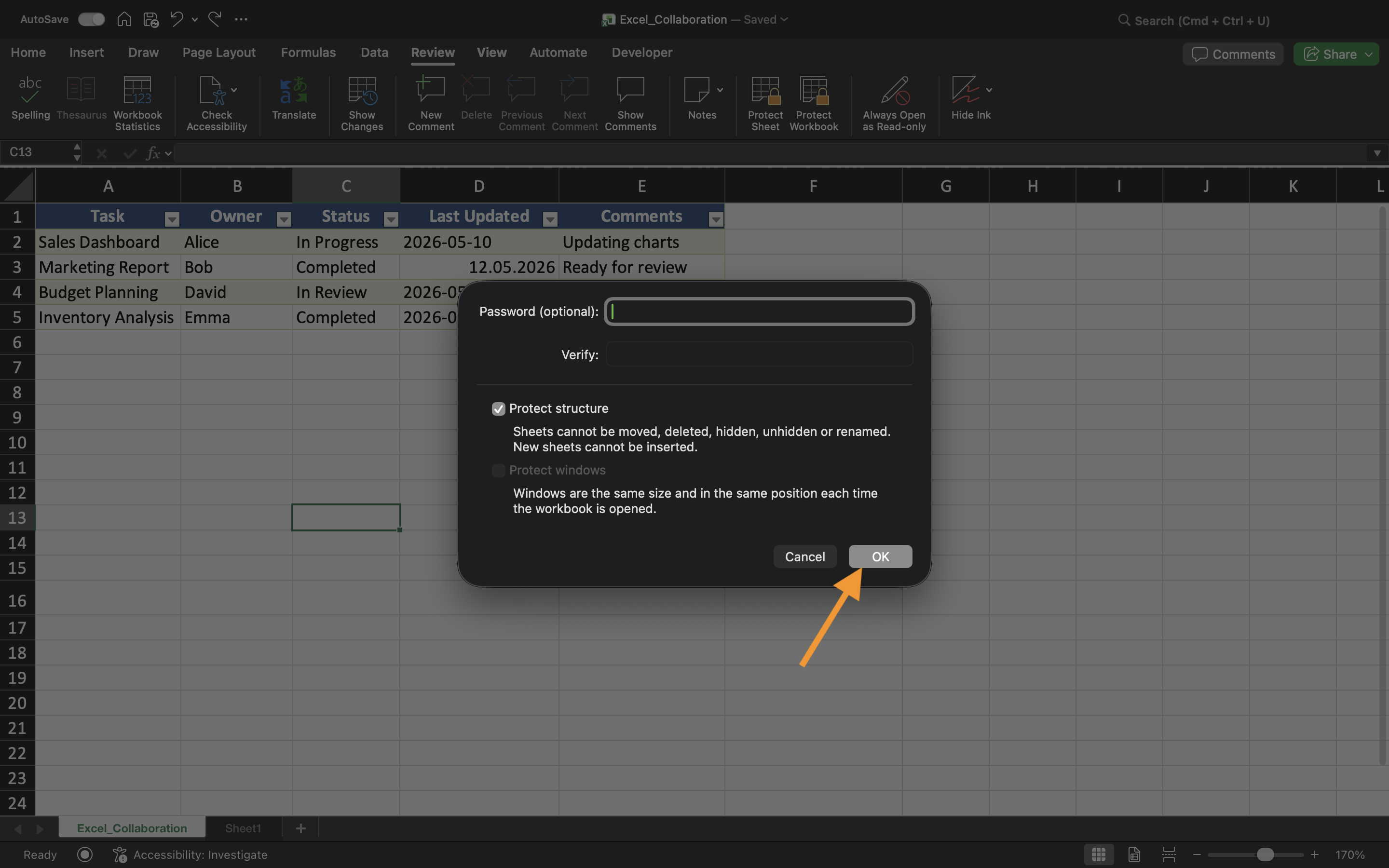
Захист структури книги обмежує дії, які впливають на організацію аркушів. Після ввімкнення користувачі більше не можуть додавати, видаляти, перейменовувати, переміщати, приховувати або відображати аркуші.
Захист структури книги
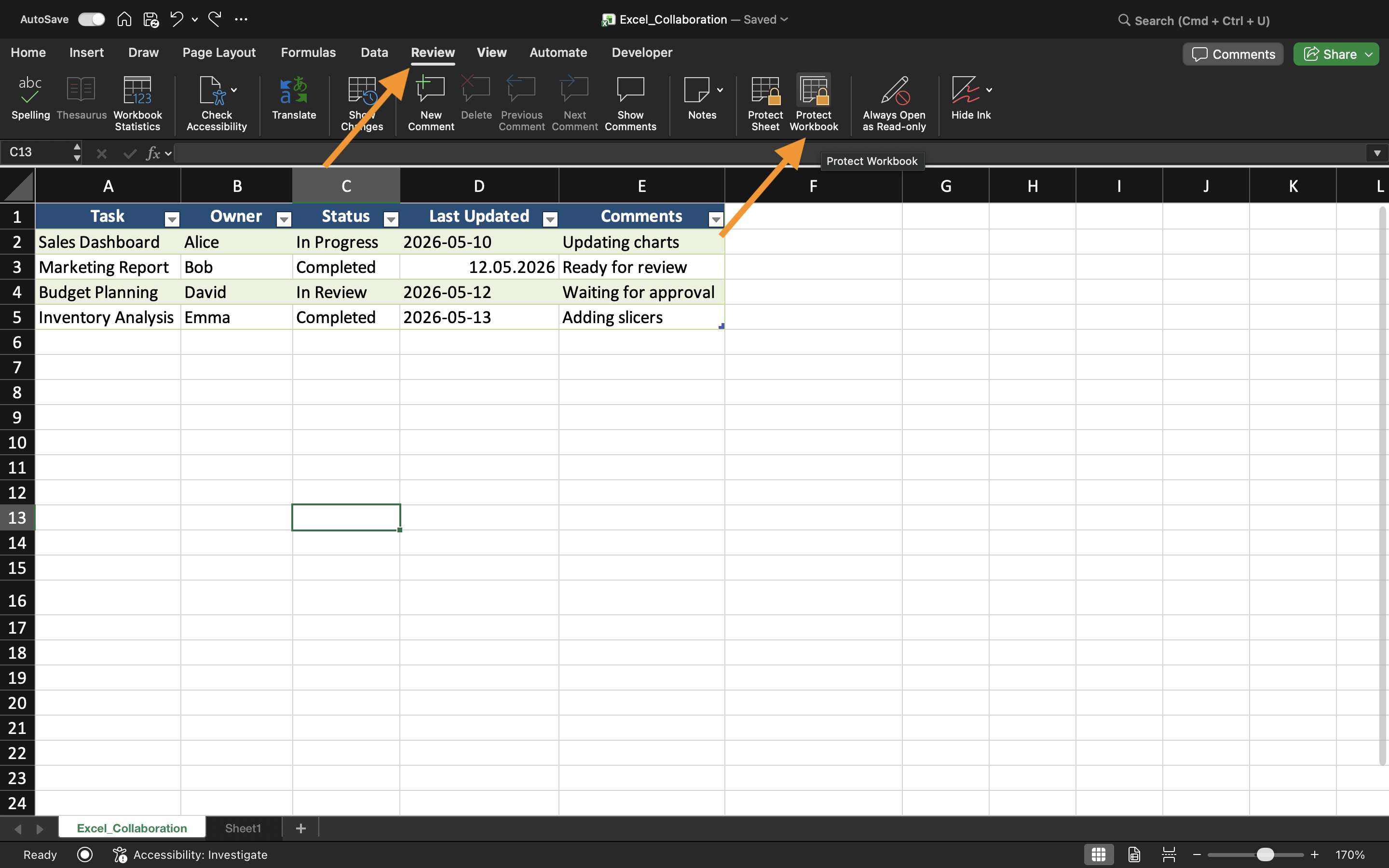
Щоб захистити структуру книги:
- Відкрийте вкладку Рецензування;
- Виберіть Захистити книгу;
- Увімкніть захист Структури;
- Застосуйте налаштування.
Після ввімкнення захисту організація аркушів стає обмеженою для інших користувачів.
Це особливо корисно, коли книга містить ретельно організовані системи звітності або пов’язані структури аркушів.
Приховування аркушів
Excel також дозволяє приховувати аркуші з основного перегляду книги. Приховані аркуші залишаються у книзі, але не відображаються для інших користувачів.
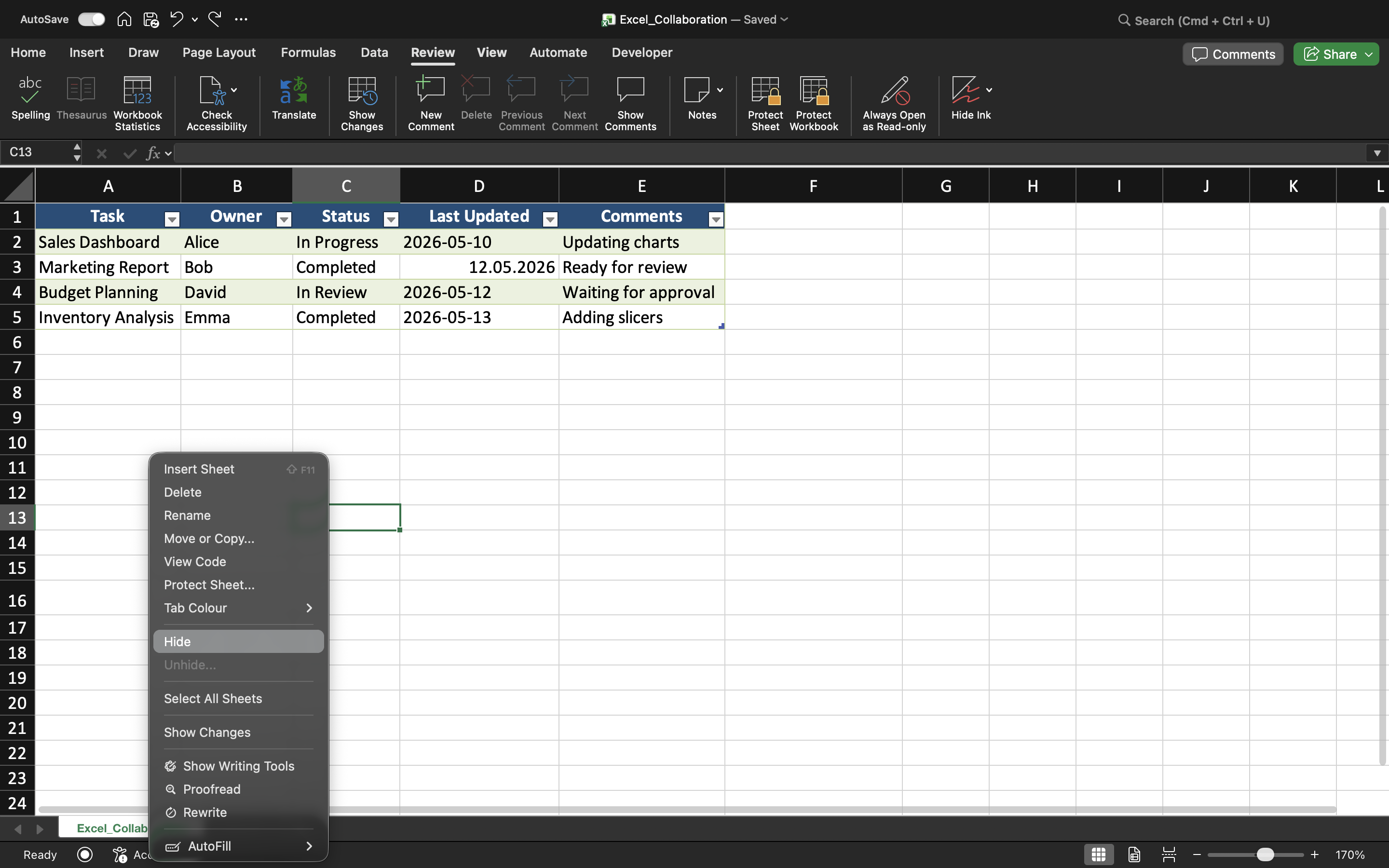
Щоб приховати аркуш:
- Клацніть правою кнопкою миші на вкладці аркуша;
- Виберіть Приховати.
Приховані аркуші часто використовуються для допоміжних обчислень, архівованих даних, службових таблиць або адміністративної інформації. Це допомагає створити чистіший і більш організований інтерфейс книги.
Відображення прихованих аркушів
Якщо захист структури книги вимкнено, приховані аркуші можна відновити за допомогою опції Unhide. Однак, коли захист структури книги активний, співавтори можуть бути позбавлені можливості самостійно відображати аркуші. Це додає додатковий рівень організаційного контролю у спільних книгах.
Коли корисний захист структури книги
Захист структури книги особливо корисний під час командної роботи у складних системах звітності або дашбордах із ретельно організованими аркушами.
Без структурного захисту співавтори можуть випадково змінити порядок вкладок аркушів, видалити важливі аркуші або порушити навігацію у книзі.
Завдання
Книга містить спільну систему звітності з кількома аркушами та прихованими вкладками для обчислень. Мета — захистити організацію книги та запобігти структурним змінам під час співпраці.
- Захистити структуру книги;
- Приховати вибрані аркуші;
- Спробувати перейменувати або перемістити вкладки аркушів;
- Перевірити, що структурні зміни обмежені;
- Перевірити відображення прихованих аркушів до та після захисту.
Дякуємо за ваш відгук!
Запитати АІ

Запитати АІ

Запитайте про що завгодно або спробуйте одне із запропонованих запитань, щоб почати наш чат
Керування структурою робочої книги
Окрім захисту вмісту аркушів, Excel також дозволяє користувачам захищати загальну структуру книги. Це допомагає запобігти зміні організації аркушів у файлі іншими користувачами.
Захист структури книги часто використовується у спільних звітах, шаблонах, дашбордах і операційних системах, де організація аркушів повинна залишатися стабільною.
Розуміння захисту структури книги
Захист структури книги обмежує дії, які впливають на організацію аркушів. Після ввімкнення користувачі більше не можуть додавати, видаляти, перейменовувати, переміщати, приховувати або відображати аркуші.
Захист структури книги
Щоб захистити структуру книги:
- Відкрийте вкладку Рецензування;
- Виберіть Захистити книгу;
- Увімкніть захист Структури;
- Застосуйте налаштування.
Після ввімкнення захисту організація аркушів стає обмеженою для інших користувачів.
Це особливо корисно, коли книга містить ретельно організовані системи звітності або пов’язані структури аркушів.
Приховування аркушів
Excel також дозволяє приховувати аркуші з основного перегляду книги. Приховані аркуші залишаються у книзі, але не відображаються для інших користувачів.
Щоб приховати аркуш:
- Клацніть правою кнопкою миші на вкладці аркуша;
- Виберіть Приховати.
Приховані аркуші часто використовуються для допоміжних обчислень, архівованих даних, службових таблиць або адміністративної інформації. Це допомагає створити чистіший і більш організований інтерфейс книги.
Відображення прихованих аркушів
Якщо захист структури книги вимкнено, приховані аркуші можна відновити за допомогою опції Unhide. Однак, коли захист структури книги активний, співавтори можуть бути позбавлені можливості самостійно відображати аркуші. Це додає додатковий рівень організаційного контролю у спільних книгах.
Коли корисний захист структури книги
Захист структури книги особливо корисний під час командної роботи у складних системах звітності або дашбордах із ретельно організованими аркушами.
Без структурного захисту співавтори можуть випадково змінити порядок вкладок аркушів, видалити важливі аркуші або порушити навігацію у книзі.
Завдання
Книга містить спільну систему звітності з кількома аркушами та прихованими вкладками для обчислень. Мета — захистити організацію книги та запобігти структурним змінам під час співпраці.
- Захистити структуру книги;
- Приховати вибрані аркуші;
- Спробувати перейменувати або перемістити вкладки аркушів;
- Перевірити, що структурні зміни обмежені;
- Перевірити відображення прихованих аркушів до та після захисту.
Дякуємо за ваш відгук!
