Історія версій та відновлення файлів
Свайпніть щоб показати меню
Excel автоматично зберігає попередні версії книги, коли файли зберігаються у OneDrive або SharePoint. Це дозволяє користувачам переглядати попередні стани книги, відновлювати втрачену інформацію та повертати файли після випадкових змін.
Історія версій — одна з найважливіших функцій для спільної роботи, оскільки допомагає командам безпечно керувати спільними книгами з часом.
Розуміння історії версій
Щоразу, коли в хмарній книзі вносяться зміни, Excel автоматично зберігає історичні версії. Ці версії створюють хронологію оновлень книги.
Історія версій допомагає користувачам:
- Відновлювати попередні стани книги;
- Повернути видалену інформацію;
- Переглядати попередні зміни книги;
- Скасувати значні помилки редагування.
Це особливо корисно, коли над одним файлом працює кілька співпрацівників.
Відкриття історії версій
Щоб переглянути історію книги:
- Відкрити спільну книгу;
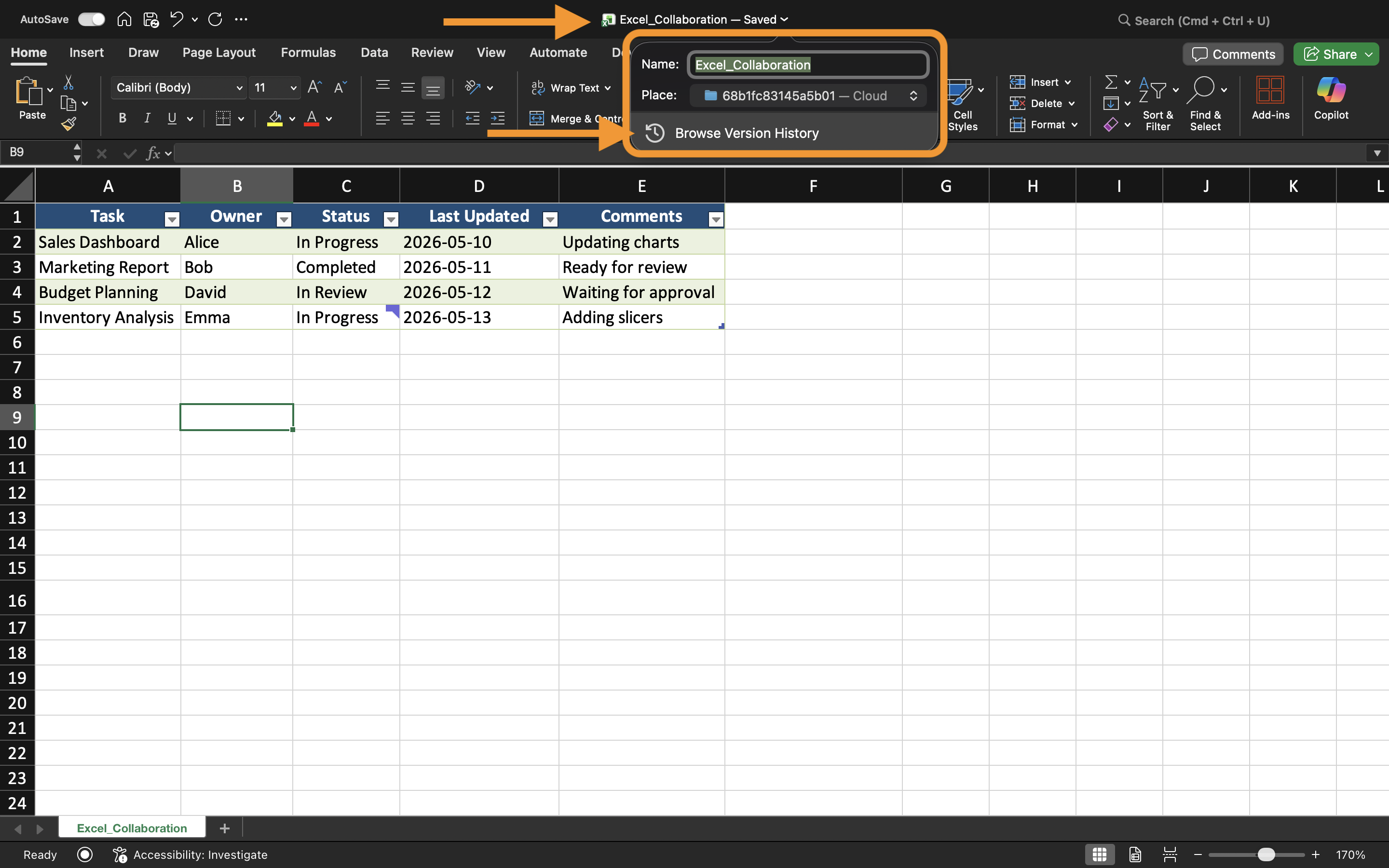
- Вибрати ім'я книги у верхній частині Excel;
- Обрати Історія версій.
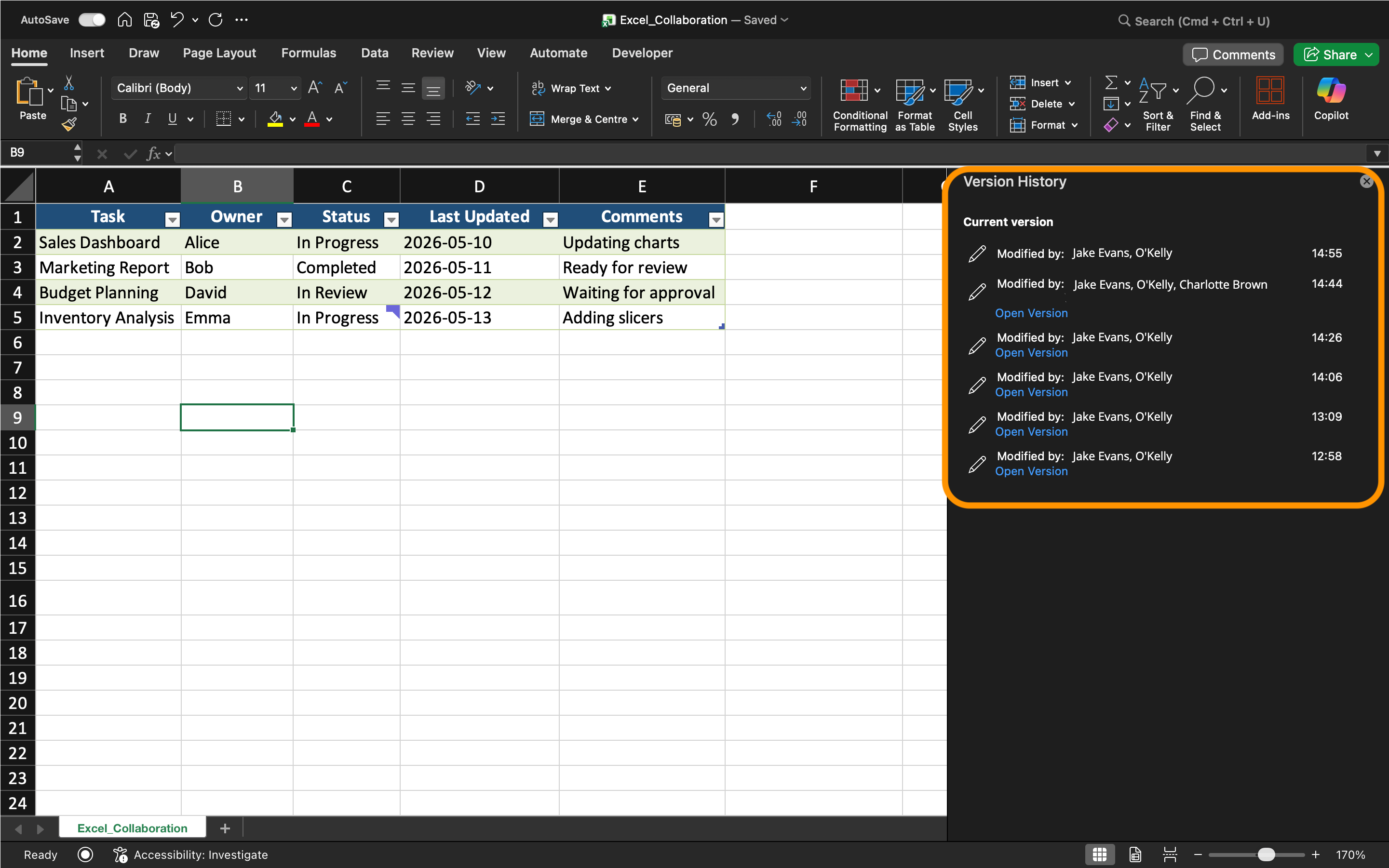
Excel відображає список раніше збережених версій книги разом із часовими мітками та інформацією про співпрацівників.
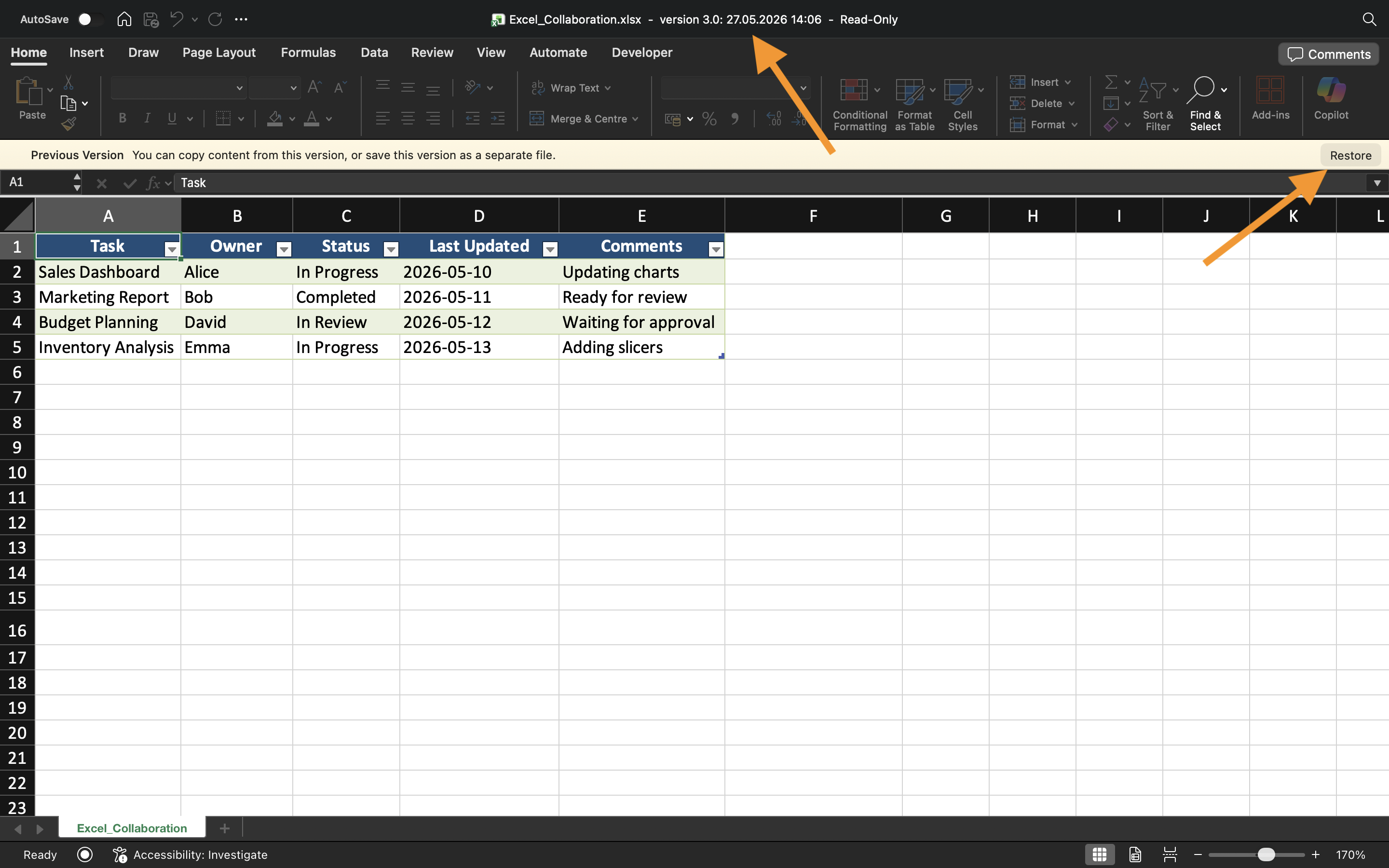
Користувачі можуть відкривати попередні версії без негайної заміни поточної книги.
Відновлення попередніх версій
Якщо дані книги пошкоджені або випадково видалені, можна відновити попередню версію.
Щоб відновити версію:
- Відкрити історію версій;
- Вибрати потрібну версію книги;
- Переглянути вміст книги;
- Обрати Відновити, якщо версія підходить.
Excel замінить поточний стан книги на вибрану історичну версію.
Відновлення версій часто використовується після:
- Випадкових видалень;
- Некоректного імпорту даних;
- Помилок у формулах;
- Великих небажаних змін.
Відновлення незбереженої роботи
Excel також містить функцію AutoRecover, яка допомагає відновити незбережені зміни у книзі після збоїв або неочікуваного завершення роботи.
Коли Excel закривається неочікувано, файли для відновлення можуть з'явитися автоматично під час наступного запуску програми.
AutoRecover відрізняється від Історії версій:
Завдання
У книзі Excel міститься спільний звіт про операції, який був випадково змінений під час співпраці. Мета — переглянути історію книги та відновити попередню версію файлу.
- Відкрити книгу "Історія версій";
- Переглянути доступні версії книги;
- Відкрити попередній стан книги;
- Відновити вибрану версію книги;
- Перевірити функцію AutoRecover, повторно відкривши тимчасову незбережену книгу.
Дякуємо за ваш відгук!
Запитати АІ

Запитати АІ

Запитайте про що завгодно або спробуйте одне із запропонованих запитань, щоб почати наш чат
