Keyword Strategy and Ad Groups
Свайпніть щоб показати меню
Using the Keyword Planner Tool
Keyword research remains the backbone of performance marketing. And your best ally for this is Google's Keyword Planner.
Go to Tools → Planning → Keyword Planner.
You'll see two main options:
- Discover New Keywords: explore new search ideas based on products, services, or websites;
- Get Search Volume and Forecasts: estimate performance and costs for a keyword list you already have.
Discovering New Keywords
You can:
- Specify language (e.g., English) and location (e.g., United States);
- Exclude competitor domains (optional) — though sometimes analyzing them helps reveal keyword gaps;
- Click Get Results to see hundreds of related keyword ideas.
You'll get a detailed table showing:
- Average monthly searches;
- Search trend changes over time;
- Competition level (Low, Medium, High);
- Suggested bid ranges (CPC).
Analyzing Search Volume and Forecasts
Once you've selected potential keywords, paste them into the Search Volume & Forecast tab. This feature shows you:
- Estimated clicks, impressions, and cost;
- Competition level and average CPC;
- Predicted conversions and CPA (Cost Per Acquisition);
- Breakdown by device (mobile, desktop, tablet) and location.
Keyword Planning Sheet
This turns messy research into a structured, data-driven plan.
Understanding Match Types
Now that you can identify the right keywords, it's time to control how those keywords trigger your ads.

Match types tell Google how closely a search query must match your chosen keyword before your ad is shown. They determine your reach, relevance, and cost-efficiency.
There are four main types:
How to Manage Match Types in Google Ads
Step 1: Review and Adjust Keywords
Go to Audiences & Keywords → Keywords. You'll see each keyword's match type indicated by its symbols:
- Broad: no marks → photo;
- Phrase: quotes → "corporate photography";
- Exact: brackets → [commercial photography].
To change types, click the edit icon (✏️) and adjust the syntax. Google Ads will automatically reformat it.
Step 2: Analyze Search Terms
Under Insights & Reports → Search Terms, you can review:
- Which user queries triggered your ads;
- Their match types (added or excluded);
- Performance metrics like clicks, impressions, CTR, CPC, and cost.
Use this data to refine your keyword list and add new negatives where necessary.
Step 3: Add Negative Keywords
Navigate to: Keywords → Negative Keywords → Add Negative Keywords or Create List.
You can apply them to:
- Campaign Level: affects all ad groups;
- Ad Group Level: affects only one product/service segment;
Start with a standard negative list and keep expanding it as real campaign data comes in.
Building Your First Ad Group the Smart Way
An ad group is a "folder" inside a campaign that holds:
- a tight set of related keywords;
- ads written specifically for those keywords.
Why it matters: tight ad groups = higher relevance → better Quality Score, CTR, and conversions (and usually lower cost per click).
Step-By-Step Building a Clean Ad Group
- Create the ad group: name it clearly, e.g.
Running_Shoes_Men_USA; - Add 5–10 tightly related keywords start with Exact and Phrase for control;
- Write 2–3 Responsive Search Ads (RSAs)
- Put the main keyword in Headline 1 (or pin it to position 1).
- Cover benefit + proof in other headlines (e.g. "Free 30-Day Returns", "Size Guide Included", "Ships in 24h").
- Descriptions: promise + proof + CTA (e.g. "Run lighter with pro-grade cushioning. Free shipping today. Shop now")
- Set the landing page: send traffic to the most relevant page (e.g.,
/running-shoes/men), not the homepage; - Add assets (extensions)
- Sitelinks: New Arrivals, Size Guide, Returns;
- Callouts: Free Shipping, 30-Day Returns;
- Structured snippets: Brands (Nike, Adidas, Hoka…).
- Add negatives at campaign level (if broad): block low-intent terms:
free,cheap,jobs,DIY,how to clean shoes, etc.
Writing Ad Copy That Sells (with Frameworks)
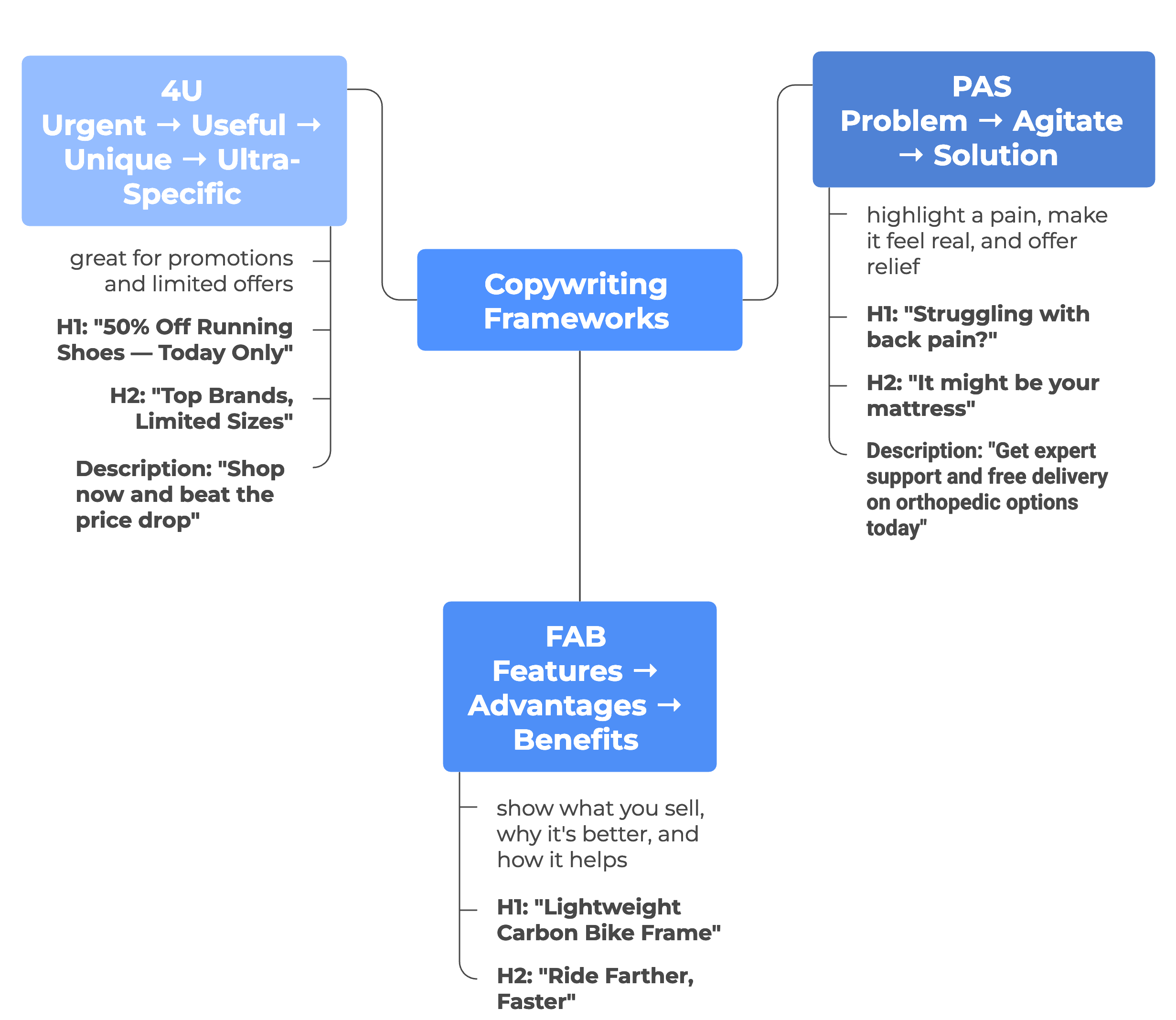
A strong Google Ad does three simple but powerful things:
- Grabs attention: by being relevant to what people just searched for;
- Communicates value: by showing what problem you solve or what benefit they'll get;
- Ends with a clear call-to-action (CTA): what you want people to do next.
Three Proven Copywriting Frameworks
Using Ad Extensions Effectively
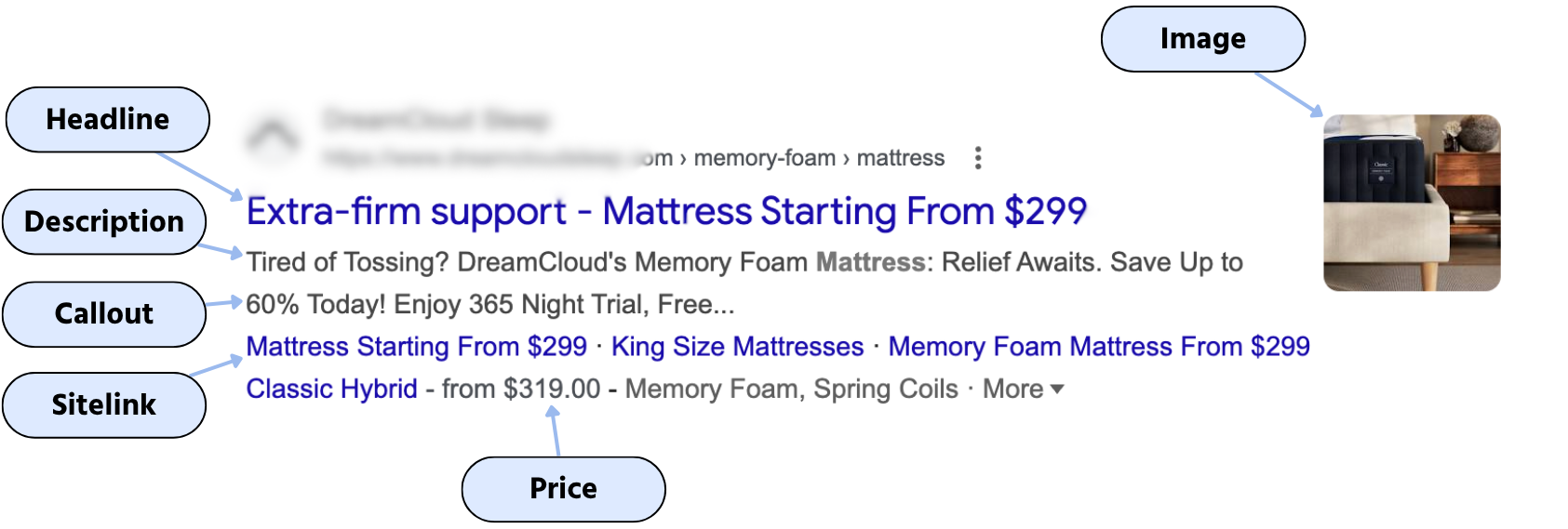
Ad extensions (now called assets in Google Ads) are extra pieces of information that appear under your ad.
They make your ad more useful to the person searching, and more likely to get clicked.
No extra pay for adding them — you only pay for clicks, just like usual.
But ads with extensions usually perform better because they take up more space on the screen — especially on phones.
The Seven Core Types of Ad Extensions
- Sitelink: adds extra links to specific pages on your site;
- Callout: adds short, non-clickable selling points;
- Structured Snippet: lists categories or services under a topic;
- Call: adds a clickable phone number;
- Location: shows your address, map pin, and directions;
- Price: displays product/service pricing directly under your ad;
- App: adds a direct download link for your app.
Ad Approval Best Practices
When you create and submit a new ad, Google runs it through an automated review system. It checks three main things:
- Your ad copy (text and headlines);
- Your landing page (the website link where people will go);
- Your visuals or creative assets.
Most ads are approved within 24 hours, but sometimes Google will send your ad for manual review — especially if it's in a sensitive category like health, finance, or legal services.
If Google finds a violation, your ad can be:
- Disapproved (stopped from running);
- Limited (restricted visibility);
- Or, if repeated, your entire account can be penalized.
Common Reasons Ads Get Disapproved
You can find Google's Ad Policies inside your Ads account or at support.google.com/adspolicy.
How to Check Your Ad Status
- Go to Ads & Extensions (Assets);
- Find the Ad Status column;
- Hover over any ad marked "Disapproved".
Fixing and Appealing Ad Disapprovals
Once you know what caused the issue, you have two options:
- Fix it yourself:
- Edit your ad text, image, or URL;
- Click Resubmit.
- Appeal the decision:
- If you're sure the ad follows the rules, click "Appeal";
- Submit a short explanation and ask for a manual review.
For ongoing or repeated issues, use the Policy Troubleshooter in Google Ads.
1. Which metrics can you analyze in Keyword Planner? (Select two)
2. Which of the following are benefits of using negative keywords? (Select two)
3. Match the keyword type to its example:
4. What is the main role of an ad group in Google Ads?
5. Which of the following can cause ads disapproval? (Select two)
Дякуємо за ваш відгук!
Запитати АІ

Запитати АІ

Запитайте про що завгодно або спробуйте одне із запропонованих запитань, щоб почати наш чат
Keyword Strategy and Ad Groups
Using the Keyword Planner Tool
Keyword research remains the backbone of performance marketing. And your best ally for this is Google's Keyword Planner.
Go to Tools → Planning → Keyword Planner.
You'll see two main options:
- Discover New Keywords: explore new search ideas based on products, services, or websites;
- Get Search Volume and Forecasts: estimate performance and costs for a keyword list you already have.
Discovering New Keywords
You can:
- Specify language (e.g., English) and location (e.g., United States);
- Exclude competitor domains (optional) — though sometimes analyzing them helps reveal keyword gaps;
- Click Get Results to see hundreds of related keyword ideas.
You'll get a detailed table showing:
- Average monthly searches;
- Search trend changes over time;
- Competition level (Low, Medium, High);
- Suggested bid ranges (CPC).
Analyzing Search Volume and Forecasts
Once you've selected potential keywords, paste them into the Search Volume & Forecast tab. This feature shows you:
- Estimated clicks, impressions, and cost;
- Competition level and average CPC;
- Predicted conversions and CPA (Cost Per Acquisition);
- Breakdown by device (mobile, desktop, tablet) and location.
Keyword Planning Sheet
This turns messy research into a structured, data-driven plan.
Understanding Match Types
Now that you can identify the right keywords, it's time to control how those keywords trigger your ads.
Match types tell Google how closely a search query must match your chosen keyword before your ad is shown. They determine your reach, relevance, and cost-efficiency.
There are four main types:
How to Manage Match Types in Google Ads
Step 1: Review and Adjust Keywords
Go to Audiences & Keywords → Keywords. You'll see each keyword's match type indicated by its symbols:
- Broad: no marks → photo;
- Phrase: quotes → "corporate photography";
- Exact: brackets → [commercial photography].
To change types, click the edit icon (✏️) and adjust the syntax. Google Ads will automatically reformat it.
Step 2: Analyze Search Terms
Under Insights & Reports → Search Terms, you can review:
- Which user queries triggered your ads;
- Their match types (added or excluded);
- Performance metrics like clicks, impressions, CTR, CPC, and cost.
Use this data to refine your keyword list and add new negatives where necessary.
Step 3: Add Negative Keywords
Navigate to: Keywords → Negative Keywords → Add Negative Keywords or Create List.
You can apply them to:
- Campaign Level: affects all ad groups;
- Ad Group Level: affects only one product/service segment;
Start with a standard negative list and keep expanding it as real campaign data comes in.
Building Your First Ad Group the Smart Way
An ad group is a "folder" inside a campaign that holds:
- a tight set of related keywords;
- ads written specifically for those keywords.
Why it matters: tight ad groups = higher relevance → better Quality Score, CTR, and conversions (and usually lower cost per click).
Step-By-Step Building a Clean Ad Group
- Create the ad group: name it clearly, e.g.
Running_Shoes_Men_USA; - Add 5–10 tightly related keywords start with Exact and Phrase for control;
- Write 2–3 Responsive Search Ads (RSAs)
- Put the main keyword in Headline 1 (or pin it to position 1).
- Cover benefit + proof in other headlines (e.g. "Free 30-Day Returns", "Size Guide Included", "Ships in 24h").
- Descriptions: promise + proof + CTA (e.g. "Run lighter with pro-grade cushioning. Free shipping today. Shop now")
- Set the landing page: send traffic to the most relevant page (e.g.,
/running-shoes/men), not the homepage; - Add assets (extensions)
- Sitelinks: New Arrivals, Size Guide, Returns;
- Callouts: Free Shipping, 30-Day Returns;
- Structured snippets: Brands (Nike, Adidas, Hoka…).
- Add negatives at campaign level (if broad): block low-intent terms:
free,cheap,jobs,DIY,how to clean shoes, etc.
Writing Ad Copy That Sells (with Frameworks)
A strong Google Ad does three simple but powerful things:
- Grabs attention: by being relevant to what people just searched for;
- Communicates value: by showing what problem you solve or what benefit they'll get;
- Ends with a clear call-to-action (CTA): what you want people to do next.
Three Proven Copywriting Frameworks
Using Ad Extensions Effectively
Ad extensions (now called assets in Google Ads) are extra pieces of information that appear under your ad.
They make your ad more useful to the person searching, and more likely to get clicked.
No extra pay for adding them — you only pay for clicks, just like usual.
But ads with extensions usually perform better because they take up more space on the screen — especially on phones.
The Seven Core Types of Ad Extensions
- Sitelink: adds extra links to specific pages on your site;
- Callout: adds short, non-clickable selling points;
- Structured Snippet: lists categories or services under a topic;
- Call: adds a clickable phone number;
- Location: shows your address, map pin, and directions;
- Price: displays product/service pricing directly under your ad;
- App: adds a direct download link for your app.
Ad Approval Best Practices
When you create and submit a new ad, Google runs it through an automated review system. It checks three main things:
- Your ad copy (text and headlines);
- Your landing page (the website link where people will go);
- Your visuals or creative assets.
Most ads are approved within 24 hours, but sometimes Google will send your ad for manual review — especially if it's in a sensitive category like health, finance, or legal services.
If Google finds a violation, your ad can be:
- Disapproved (stopped from running);
- Limited (restricted visibility);
- Or, if repeated, your entire account can be penalized.
Common Reasons Ads Get Disapproved
You can find Google's Ad Policies inside your Ads account or at support.google.com/adspolicy.
How to Check Your Ad Status
- Go to Ads & Extensions (Assets);
- Find the Ad Status column;
- Hover over any ad marked "Disapproved".
Fixing and Appealing Ad Disapprovals
Once you know what caused the issue, you have two options:
- Fix it yourself:
- Edit your ad text, image, or URL;
- Click Resubmit.
- Appeal the decision:
- If you're sure the ad follows the rules, click "Appeal";
- Submit a short explanation and ask for a manual review.
For ongoing or repeated issues, use the Policy Troubleshooter in Google Ads.
Дякуємо за ваш відгук!
