Creating Presentations and Docs with Magic Design
Свайпніть щоб показати меню
Magic Design turns a short prompt, an uploaded photo, or existing text into a full set of on-brand pages — a presentation, a document, or a social media kit — instead of starting from a blank canvas. It is one of the tools inside Magic Studio, Canva's umbrella name for all of its AI features.

Canva has reorganized its interface several times, so Magic Design is no longer a separate button in the Apps sidebar. It now lives in the search and AI bar on the homepage, and in the Design tab inside the editor. Both paths lead to the same generator.
From the homepage:
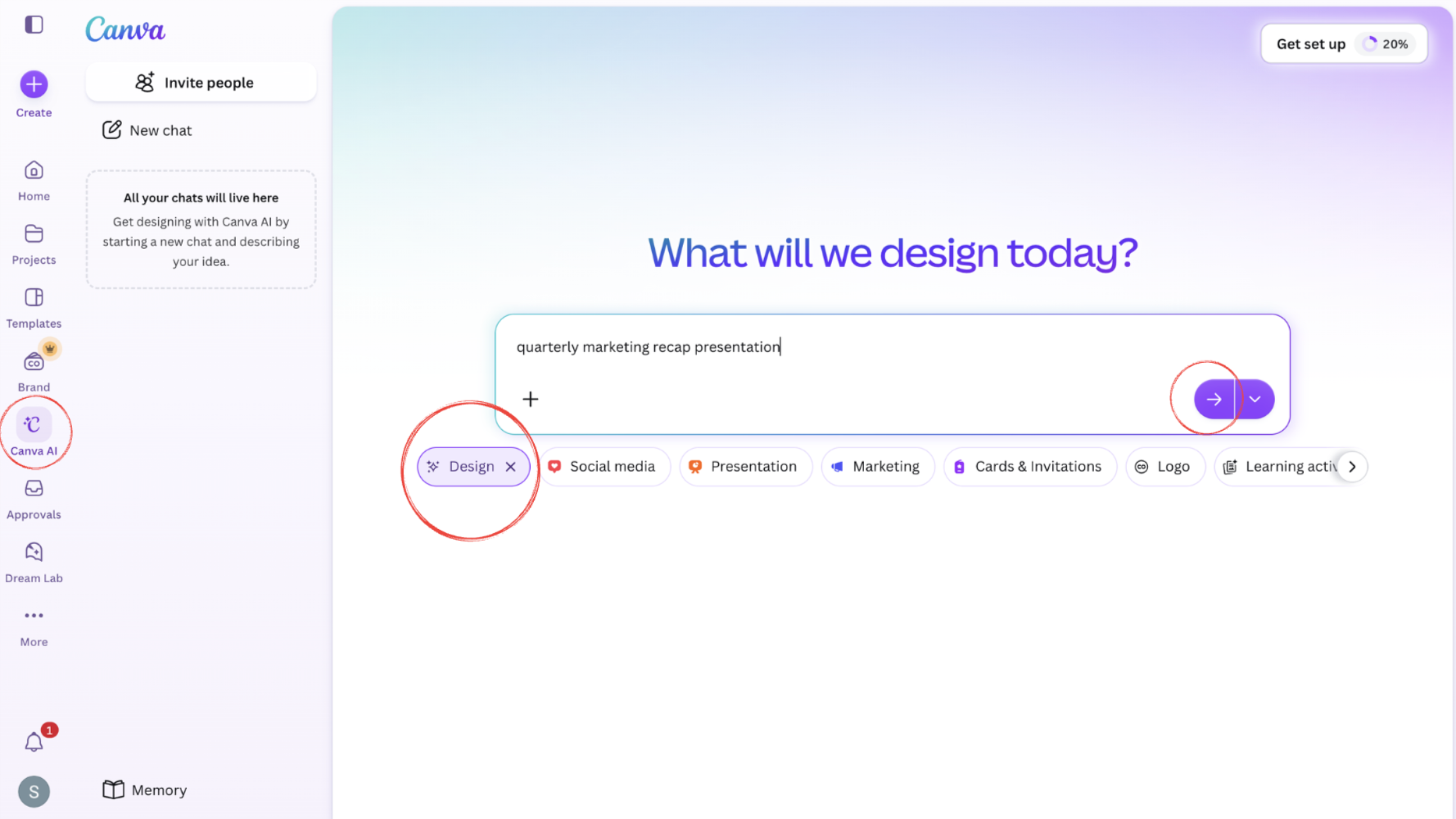
- Open the Canva homepage;
- Select Canva AI in the left sidebar, then choose Design;
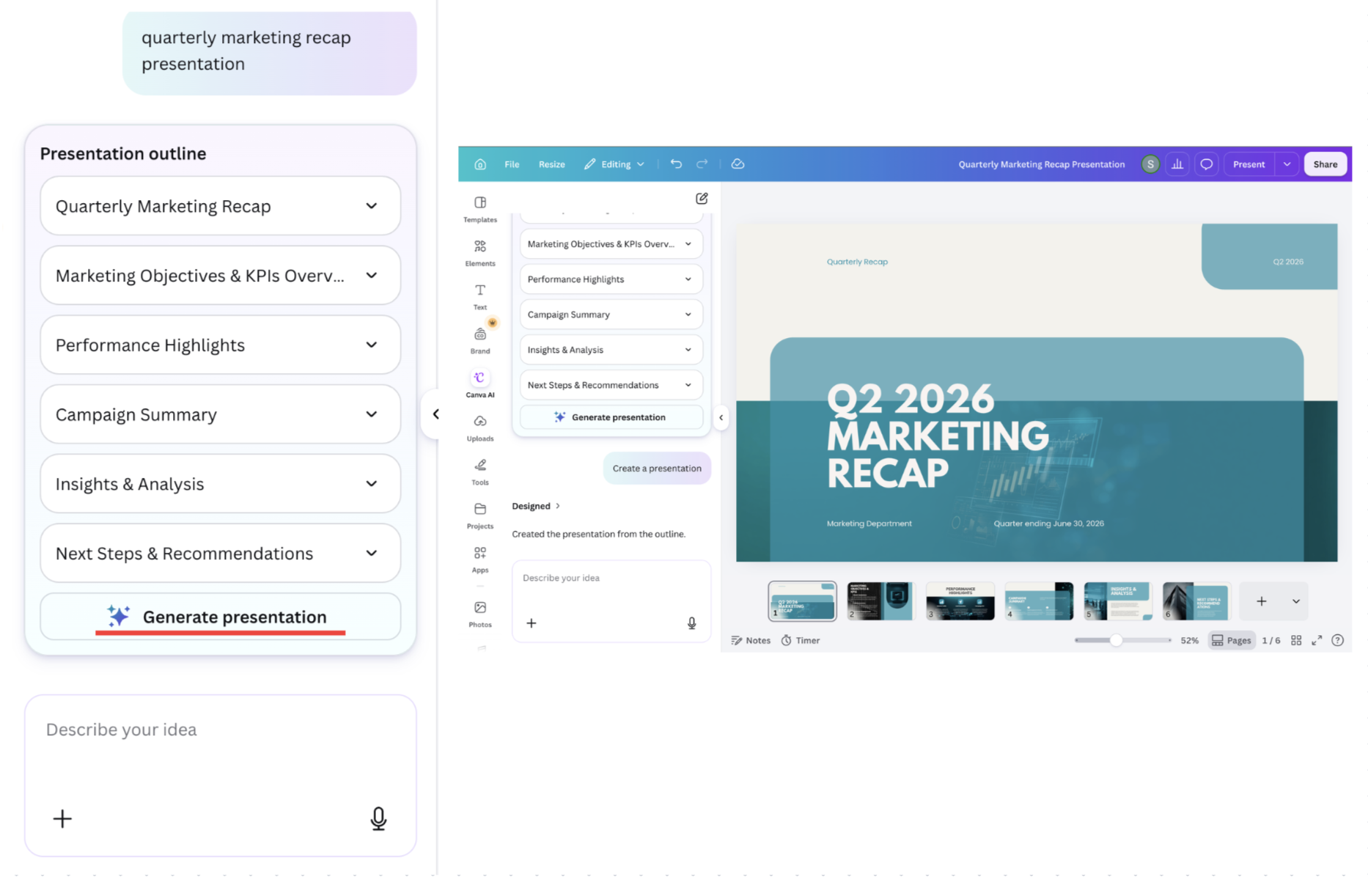
- Type a topic, for instance "quarterly marketing recap presentation";
- Review the generated design suggestions alongside regular templates.
From inside the editor:
- Open or start a design, such as a new presentation;
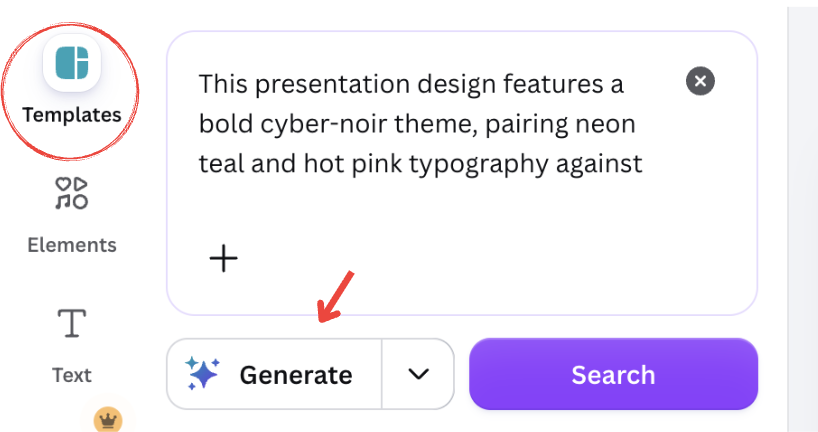
- Click the Templates tab in the left sidebar;
- Type a topic or description into the search bar at the top of that tab;
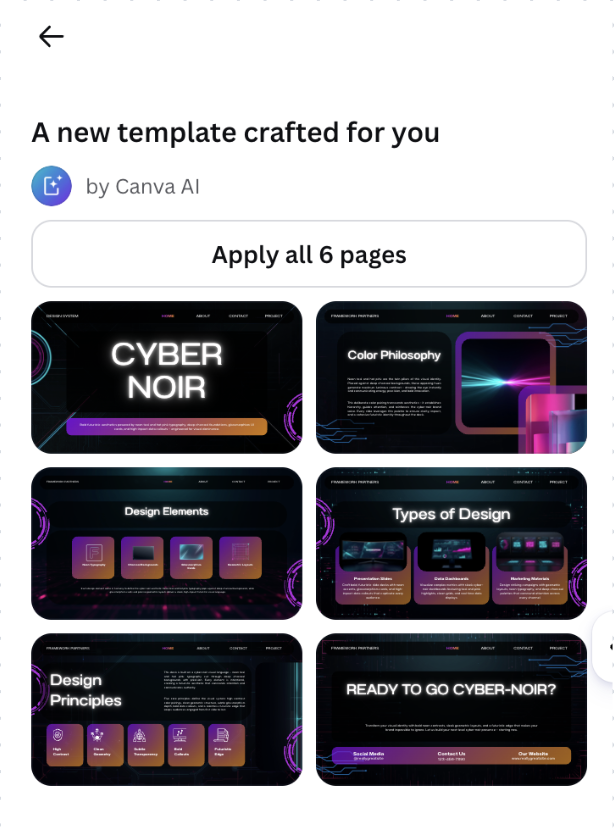
- Press Enter and review the generated slide thumbnails;
- Click a thumbnail to preview it, then Apply all pages to add the full deck to your project.
If your team has set up a Brand Kit, Magic Design automatically applies your saved logo, fonts, and color palette to the generated pages.
Magic Design works the same way for documents, videos, and social kits: the entry points are the same search and AI bar or Design tab, the prompt changes the content, and the review-and-apply workflow stays identical across formats.
Дякуємо за ваш відгук!
Запитати АІ

Запитати АІ

Запитайте про що завгодно або спробуйте одне із запропонованих запитань, щоб почати наш чат
