Extracting Text with LEFT, RIGHT, MID
Свайпніть щоб показати меню
Sometimes you don't need to split the entire text into columns. Instead, you may want to extract only a specific part of a value. This is very common when working with structured text like product codes, IDs, or formatted strings.
For example, a product code like PRD-001 contains two parts: a prefix (PRD) and a number (001). Instead of splitting everything manually, you can extract exactly the part you need using functions.
LEFT, RIGHT, MID Functions
Excel provides three functions for extracting text:
LEFT→ extracts characters from the beginning;RIGHT→ extracts characters from the end;MID→ extracts characters from the middle.
If a cell contains:
"PRD-001"
Then:
=LEFT(A2, 3) → "PRD"
=RIGHT(A2, 3) → "001"
=MID(A2, 5, 3) → "001"
=LEFT(A2, 3) returns the first 3 characters from the beginning of the text, =RIGHT(A2, 3) returns the last 3 characters from the end, and =MID(A2, 5, 3) extracts 3 characters starting from position 5 in the string.
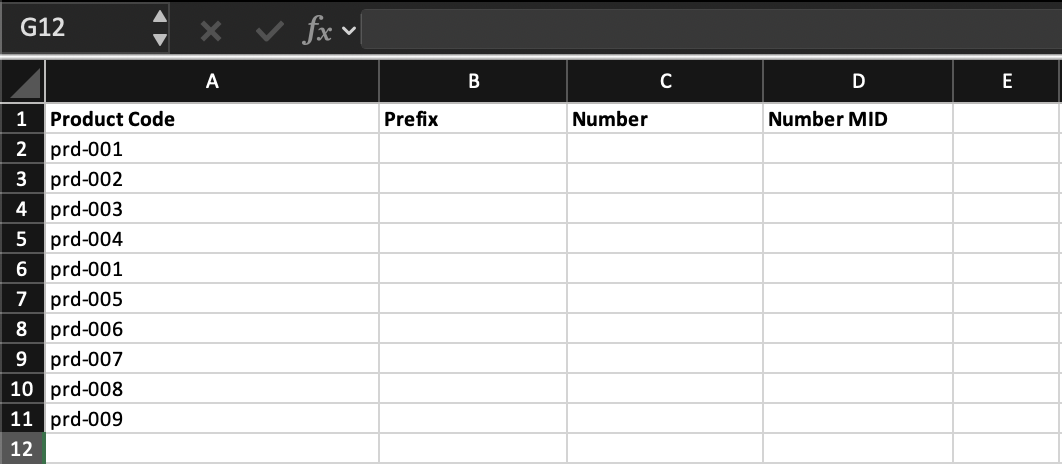
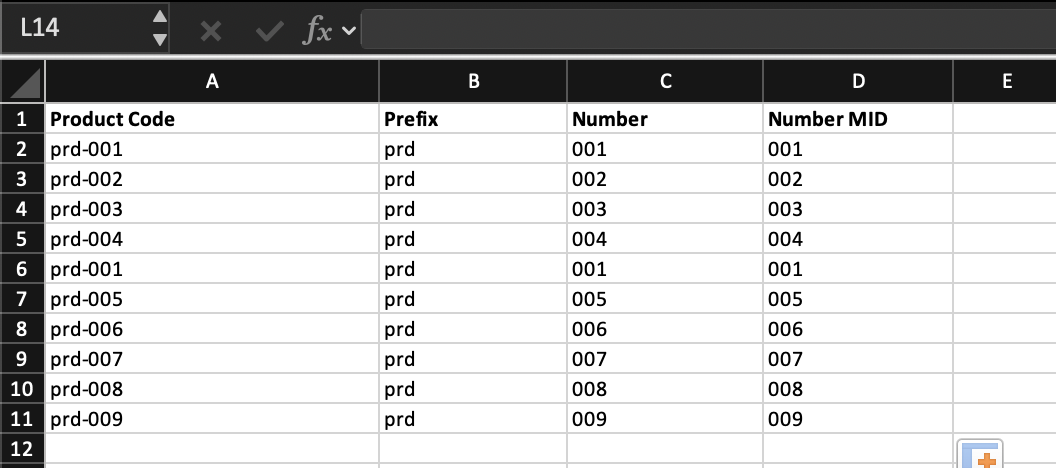
Task
Create two new columns: Product Prefix, Product Number
Extract:
- The first part (
PRD) usingLEFT; - The numeric part (
001) usingRIGHTorMID.
Apply the formulas to all rows.

Use =LEFT(D2,3) for the prefix and =RIGHT(D2,3) or =MID(D2,5,3) for the number, then apply the formulas to all rows.
Дякуємо за ваш відгук!
Запитати АІ

Запитати АІ

Запитайте про що завгодно або спробуйте одне із запропонованих запитань, щоб почати наш чат
