Швидке Формування Даних
Свайпніть щоб показати меню
Текст за стовпцями, режим роздільника
Коли значення зібрані в одній клітинці та розділені однаковим символом — комою, пробілом, дефісом, вертикальною рискою — Текст за стовпцями є відповідним інструментом. Він розділяє вихідну клітинку на стільки стовпців, скільки є сегментів, використовуючи роздільник як точку розрізу.
Візуалізація розділення — роздільник позначає кожне місце розрізу:
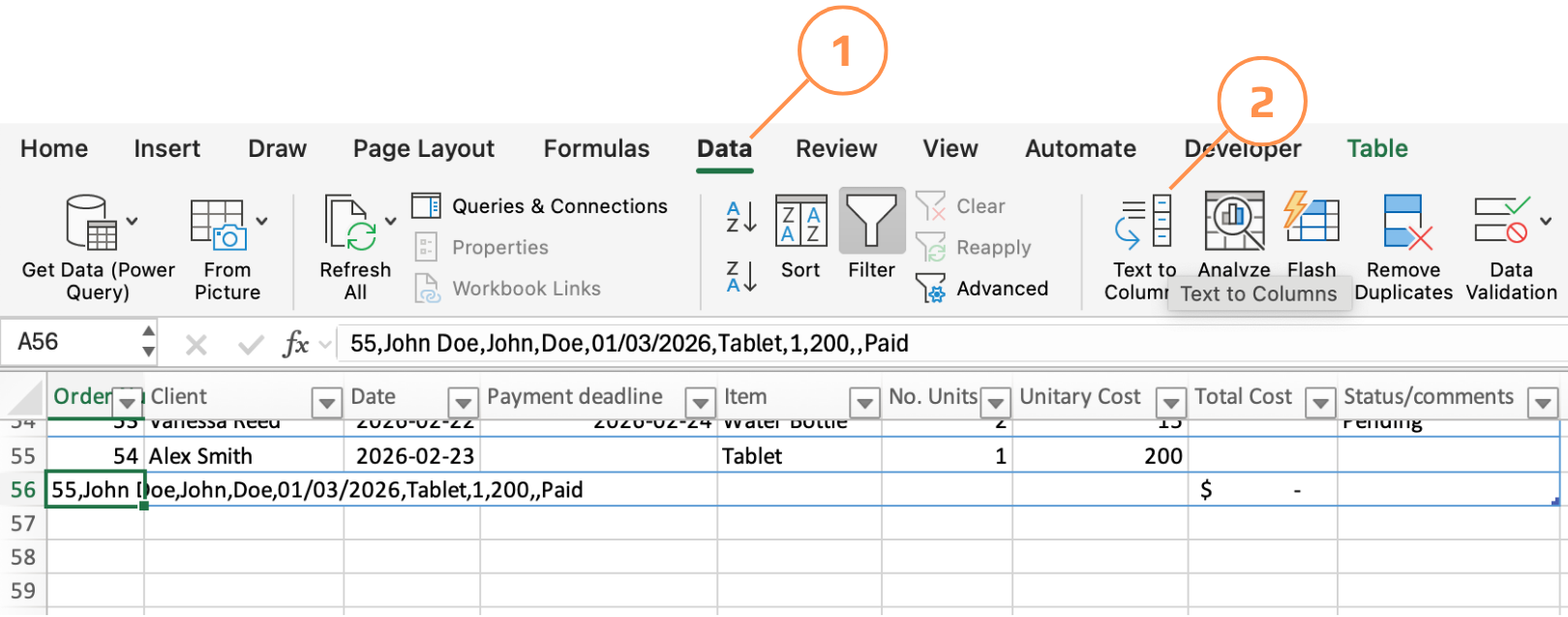
55,John Doe,John,Doe,01/03/2026,Tablet,1,200,,Paid
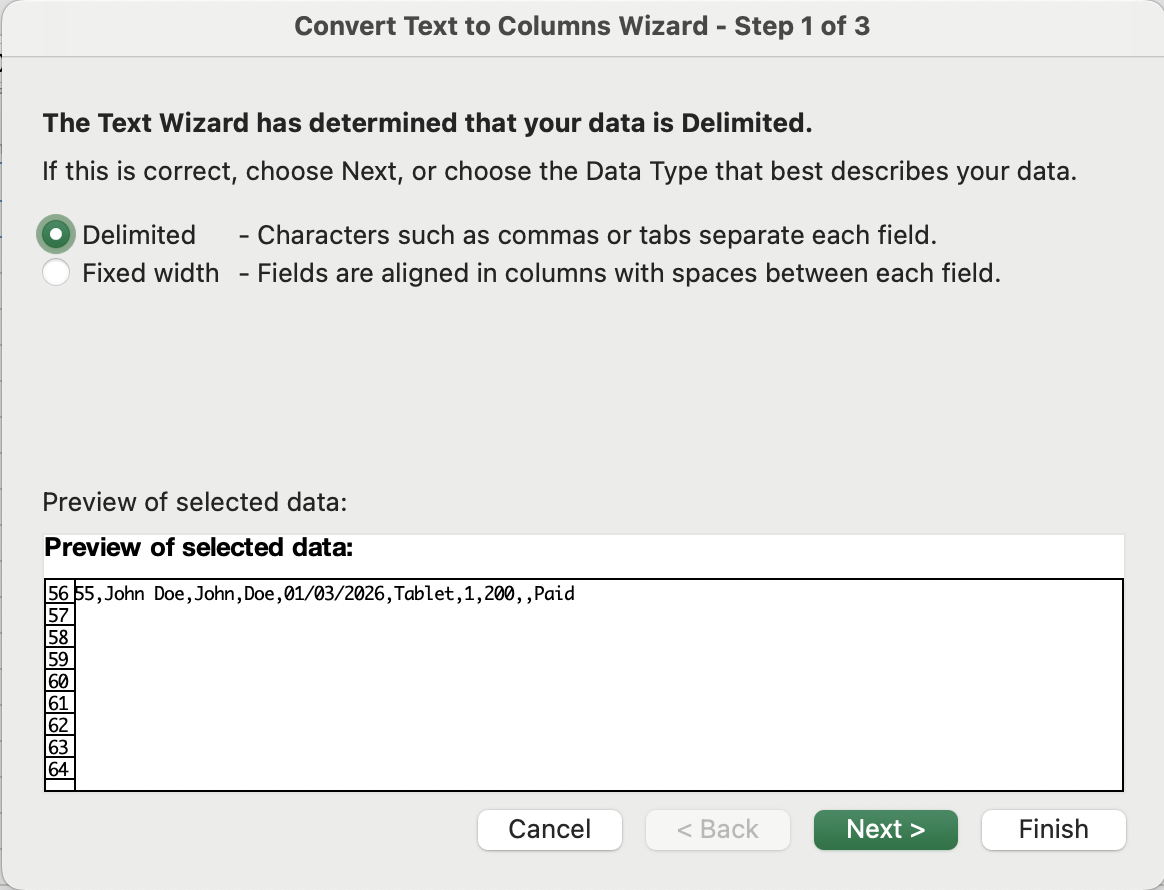
- Виділіть вихідний діапазон → Вкладка Дані → Текст за стовпцями → оберіть З роздільниками → Далі;
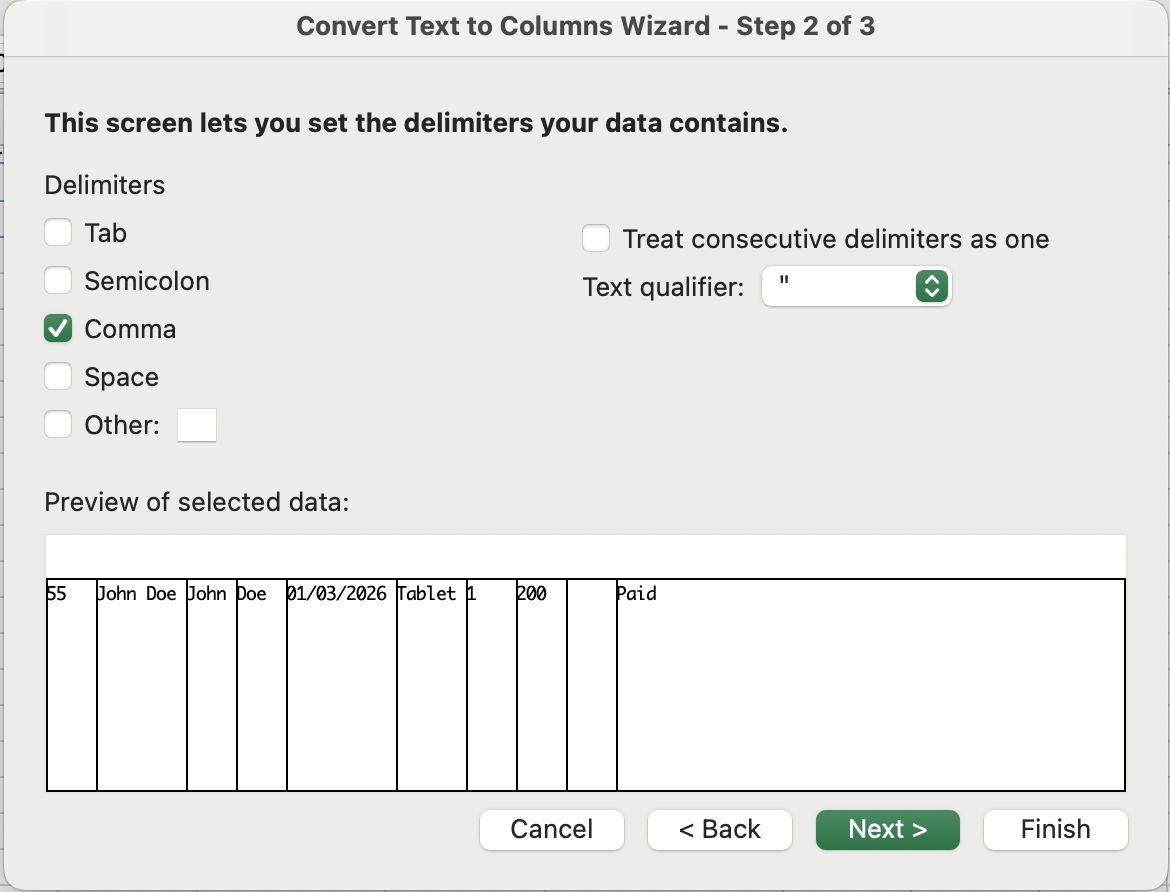
- Вкажіть символ-роздільник (кома, пробіл, табуляція або власний) → попередній перегляд оновлюється в реальному часі → Далі;
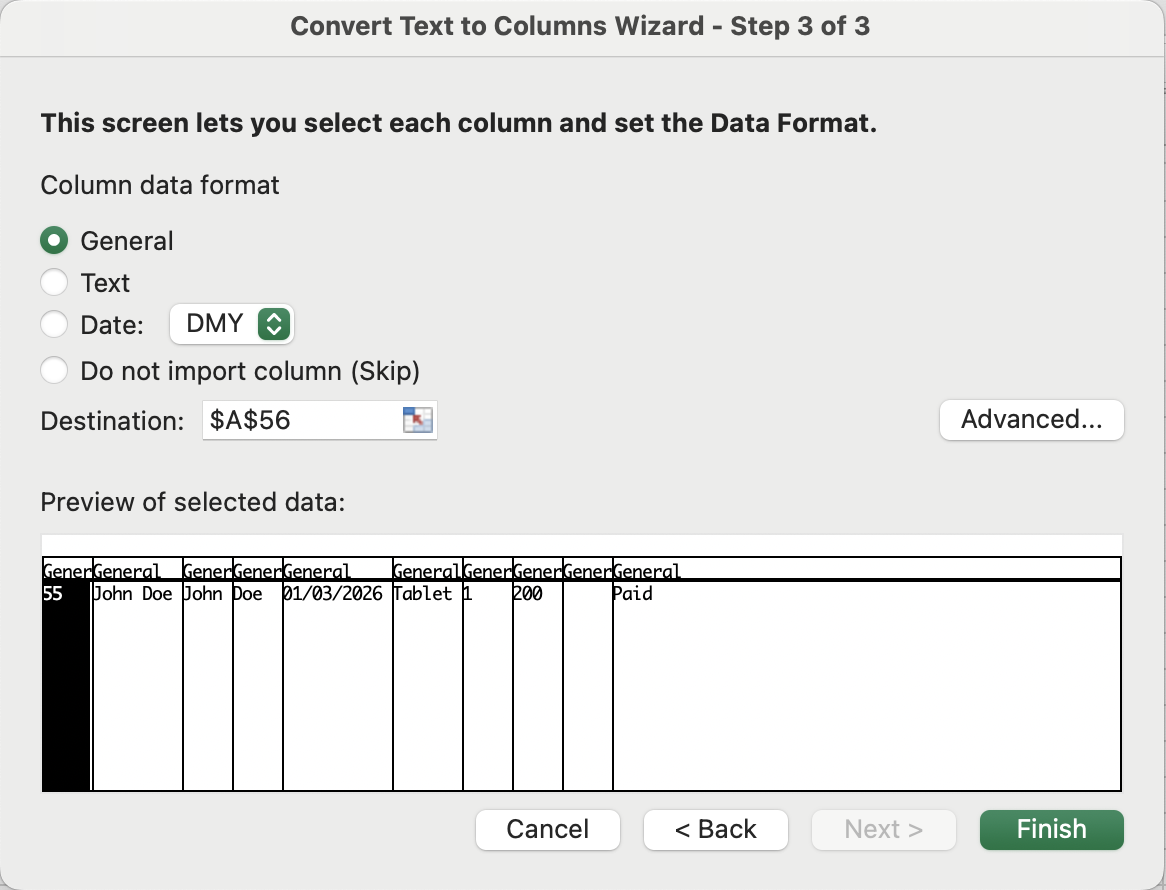
- За бажанням встановіть тип даних для кожного отриманого стовпця (Текст, Дата, Загальний) → Готово;
Текст за стовпцями, фіксована ширина
Режим Текст за стовпцями, у якому ви перетягуєте вертикальні лінії розриву у вікні попереднього перегляду, щоб визначити межі стовпців за позицією символів, а не за роздільником. Структура даних має бути візуально сталою — кожне поле займає однакову кількість символів у кожному рядку.
Оператор &
Амперсанд — це текстовий клей Excel. Він об'єднує будь-які комбінації посилань на клітинки, текстових рядків у лапках та результатів функцій в одне значення.
=C2 & D2 & "@email.com" →
EmilyJohnson@email.com
Дякуємо за ваш відгук!
Запитати АІ

Запитати АІ

Запитайте про що завгодно або спробуйте одне із запропонованих запитань, щоб почати наш чат
Швидке Формування Даних
Текст за стовпцями, режим роздільника
Коли значення зібрані в одній клітинці та розділені однаковим символом — комою, пробілом, дефісом, вертикальною рискою — Текст за стовпцями є відповідним інструментом. Він розділяє вихідну клітинку на стільки стовпців, скільки є сегментів, використовуючи роздільник як точку розрізу.
Візуалізація розділення — роздільник позначає кожне місце розрізу:
55,John Doe,John,Doe,01/03/2026,Tablet,1,200,,Paid
- Виділіть вихідний діапазон → Вкладка Дані → Текст за стовпцями → оберіть З роздільниками → Далі;
- Вкажіть символ-роздільник (кома, пробіл, табуляція або власний) → попередній перегляд оновлюється в реальному часі → Далі;
- За бажанням встановіть тип даних для кожного отриманого стовпця (Текст, Дата, Загальний) → Готово;
Текст за стовпцями, фіксована ширина
Режим Текст за стовпцями, у якому ви перетягуєте вертикальні лінії розриву у вікні попереднього перегляду, щоб визначити межі стовпців за позицією символів, а не за роздільником. Структура даних має бути візуально сталою — кожне поле займає однакову кількість символів у кожному рядку.
Оператор &
Амперсанд — це текстовий клей Excel. Він об'єднує будь-які комбінації посилань на клітинки, текстових рядків у лапках та результатів функцій в одне значення.
=C2 & D2 & "@email.com" →
EmilyJohnson@email.com
Дякуємо за ваш відгук!
