Фільтрація
Свайпніть щоб показати меню
Увімкнення та вимкнення фільтрів
- Клікніть будь-яку клітинку в діапазоні → Вкладка Дані → Фільтр, або натисніть
Ctrl+Shift+L(Win)/Control+Shift+L(Mac). У кожній клітинці заголовка з’являться стрілки випадаючого списку; - Таблиці, створені за допомогою
Ctrl+T, мають фільтри, автоматично увімкнені в рядку заголовка — додаткові дії не потрібні; - Натисніть Фільтр ще раз на стрічці або натисніть
Ctrl+Shift+Lвдруге. Стрілки випадаючого списку будуть видалені з рядка заголовка.
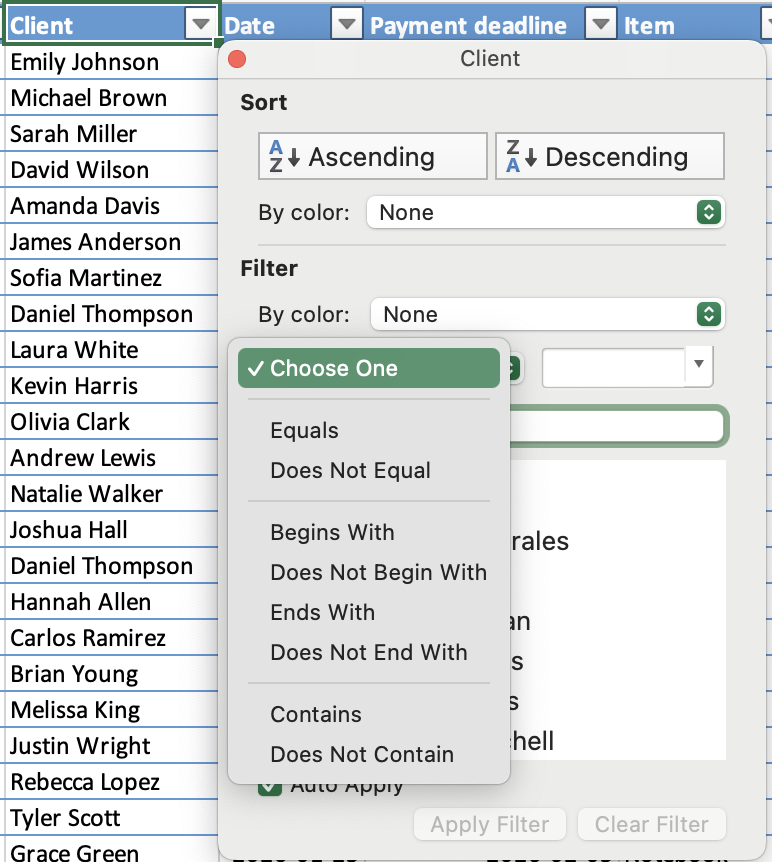
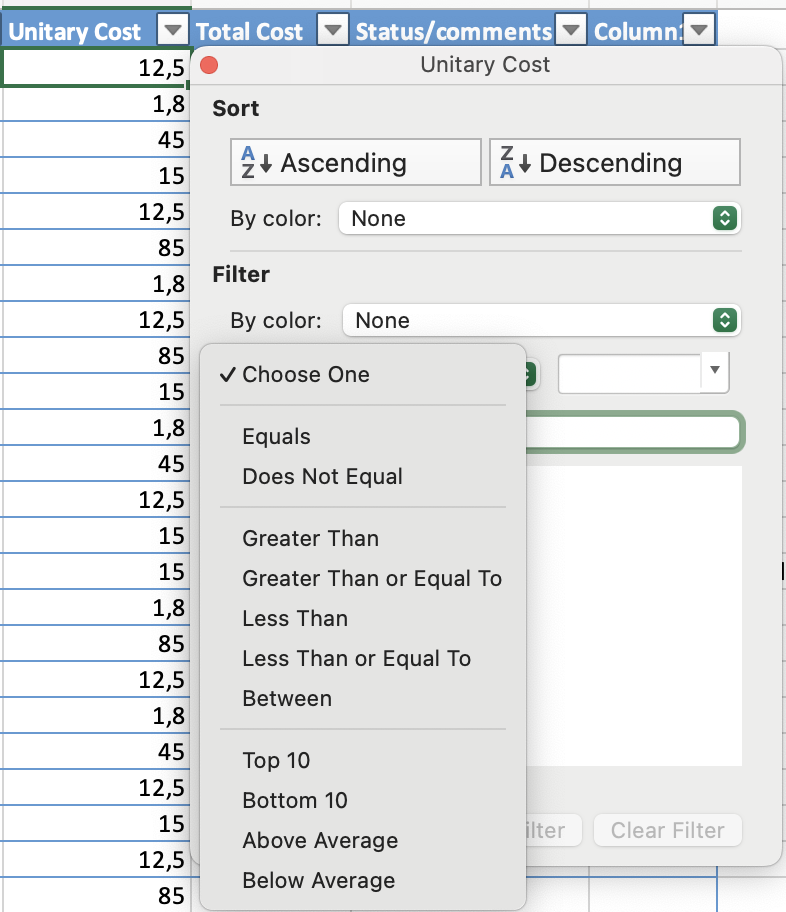
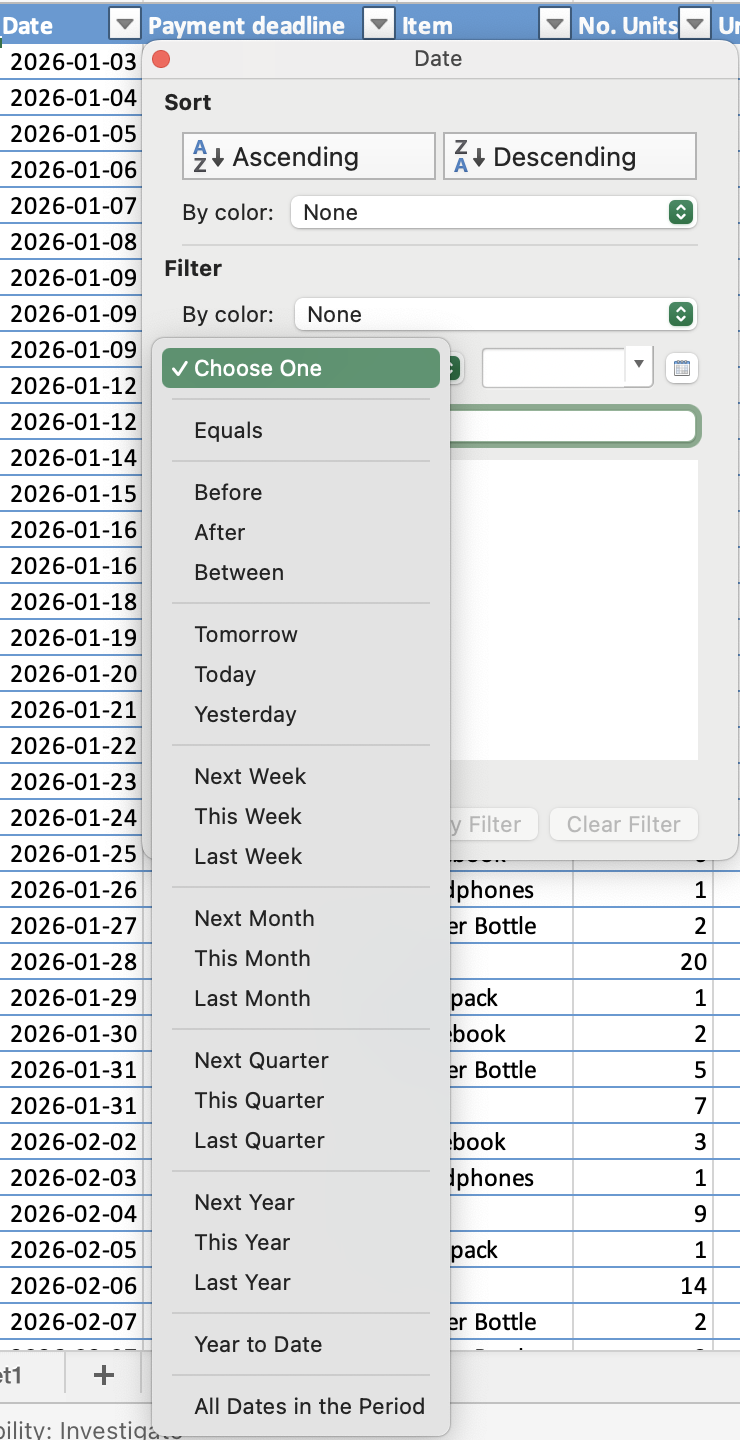
Тип фільтра залежить від типу даних:
- Текстовий фільтр: фільтрація за конкретними значеннями або текстовими умовами;
- Числовий фільтр: фільтрація за умовами, такими як більше, менше або між;
- Фільтр за датою: фільтрація за періодами, наприклад, конкретними датами, місяцями або роками.
Логіка AND / OR для кількох фільтрів
- OR: в межах одного стовпця — рядок відображається, якщо відповідає будь-якому з вибраних значень;
- AND: між різними стовпцями — рядок має відповідати всім активним фільтрам, щоб залишатися видимим.

Комбінація клавіш вимикає всі фільтри одночасно. Натискання Ctrl+Shift+L для вимкнення фільтрів видаляє всі активні умови фільтрації у всіх стовпцях одночасно — не лише в поточному стовпці. Якщо потрібно скинути фільтр лише для одного стовпця, скористайтеся опцією Очистити фільтр у випадаючому меню цього стовпця.
Дякуємо за ваш відгук!
Запитати АІ

Запитати АІ

Запитайте про що завгодно або спробуйте одне із запропонованих запитань, щоб почати наш чат
Фільтрація
Увімкнення та вимкнення фільтрів
- Клікніть будь-яку клітинку в діапазоні → Вкладка Дані → Фільтр, або натисніть
Ctrl+Shift+L(Win)/Control+Shift+L(Mac). У кожній клітинці заголовка з’являться стрілки випадаючого списку; - Таблиці, створені за допомогою
Ctrl+T, мають фільтри, автоматично увімкнені в рядку заголовка — додаткові дії не потрібні; - Натисніть Фільтр ще раз на стрічці або натисніть
Ctrl+Shift+Lвдруге. Стрілки випадаючого списку будуть видалені з рядка заголовка.
Тип фільтра залежить від типу даних:
- Текстовий фільтр: фільтрація за конкретними значеннями або текстовими умовами;
- Числовий фільтр: фільтрація за умовами, такими як більше, менше або між;
- Фільтр за датою: фільтрація за періодами, наприклад, конкретними датами, місяцями або роками.
Логіка AND / OR для кількох фільтрів
- OR: в межах одного стовпця — рядок відображається, якщо відповідає будь-якому з вибраних значень;
- AND: між різними стовпцями — рядок має відповідати всім активним фільтрам, щоб залишатися видимим.
Комбінація клавіш вимикає всі фільтри одночасно. Натискання Ctrl+Shift+L для вимкнення фільтрів видаляє всі активні умови фільтрації у всіх стовпцях одночасно — не лише в поточному стовпці. Якщо потрібно скинути фільтр лише для одного стовпця, скористайтеся опцією Очистити фільтр у випадаючому меню цього стовпця.
Дякуємо за ваш відгук!
