Створення Першого Обчислювального Ресурсу
Свайпніть щоб показати меню

Створення обчислювального ресурсу (Кластера) — це процес надання віртуального апаратного забезпечення в хмарі для виконання ваших задач з обробки даних. Для навчальних цілей використовується конфігурація з одним вузлом (Single Node), щоб збалансувати продуктивність і вартість.
Час увімкнути «двигун». У цьому розділі наведено покрокову інструкцію зі створення вашого першого кластера. Саме цей ресурс дозволить запускати SQL та Python код, який ви будете писати далі в курсі. Дотримуйтесь цих кроків уважно, щоб ваше середовище було налаштовано правильно та економічно ефективно.

Databricks дозволяє створювати більш спеціалізовані кластери, наприклад, job compute, які краще підходять для робочих процесів. Хоча мета цього розділу — ознайомлення з основами, і тому ви розглянете створення універсального кластера (all-purpose cluster), усі принципи застосовуються і до створення та керування іншими категоріями кластерів.
Крок 1: Доступ до меню обчислень
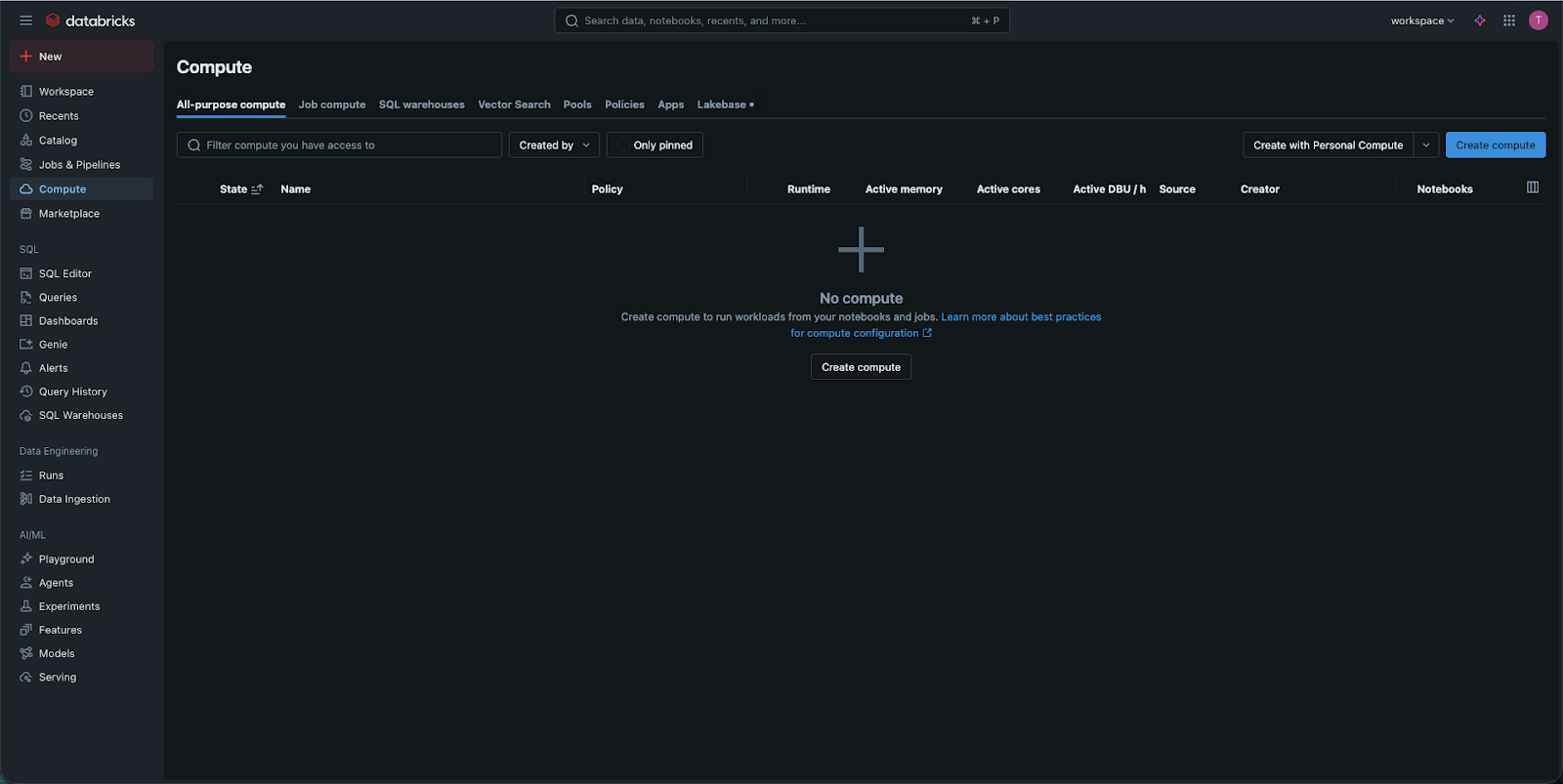
У лівій бічній панелі натисніть на іконку Compute. Це відкриє сторінку огляду обчислювальних ресурсів. У верхньому правому куті натисніть синю кнопку з написом Create Compute.
Крок 2: Вибір типу кластера
У верхній частині ви побачите два основні варіанти: Multi Node та Single Node.
- Виберіть Single Node. Чому? Кластери Multi-node призначені для великих або масштабних корпоративних даних. Для навчання кластер Single Node є значно дешевшим (або навіть безкоштовним у деяких версіях) і забезпечує достатню потужність для наборів даних, які ми будемо використовувати.
Крок 3: Ім'я та версія середовища виконання
- Ім'я: надайте вашому кластеру зрозумілу назву, наприклад,
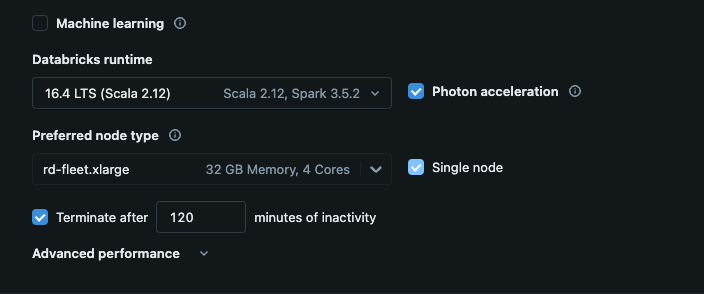
Student_Cluster_1; - Версія Databricks Runtime: цей випадаючий список визначає версію "двигуна". Оберіть найновішу версію з позначкою LTS. LTS означає "Довгострокова підтримка". Це найбільш стабільна версія, яку використовують більшість компаній для реальних проєктів.
Крок 4: Налаштування "обладнання"
У полі Node Type ви побачите список віртуальних машин хмарних провайдерів (наприклад, Standard_DS3_v2 на Azure або i3.xlarge на AWS).
- Для цього курсу зазвичай підходить вибір за замовчуванням;
- Переконайтеся, що обраний тип має щонайменше 15GB пам'яті, якщо плануєте виконувати складніші завдання з data science, але для базового SQL та Python найменший доступний варіант зазвичай достатній.
Крок 5: Найважливіший крок — Автоматичне завершення роботи
Знайдіть прапорець із написом "Terminate after ___ minutes of inactivity."
- Встановіть значення 20 хвилин;
- Як ми обговорювали в попередньому розділі, це ваш захист. Якщо ви завершили роботу й закрили ноутбук, але забули вимкнути кластер, Databricks визначить відсутність виконання коду та автоматично вимкне "двигун" через 20 хвилин, щоб зупинити нарахування коштів.
Крок 6: Створення та очікування
Натисніть Create Compute. Поруч із назвою вашого кластера з’явиться обертове суцільне коло. Зазвичай хмарному провайдеру потрібно 3–5 хвилин, щоб "розігріти" сервери. Коли коло зміниться на зелений прапорець або статус "Running" зеленого кольору, ваш двигун готовий до роботи!
1. Який правильний спосіб відкрити меню для створення нового обчислювального ресурсу (кластера) в Databricks?
2. Чому при налаштуванні першого кластера Databricks для цього курсу слід обрати кластер з одним вузлом, а не з декількома вузлами?
Дякуємо за ваш відгук!
Запитати АІ

Запитати АІ

Запитайте про що завгодно або спробуйте одне із запропонованих запитань, щоб почати наш чат
