Skapa Din Första Pivottabell
Svep för att visa menyn
När dina data är förberedda kan du sammanfatta dem med en pivottabell.
En pivottabell skapas från en befintlig datamängd. För att infoga en pivottabell:
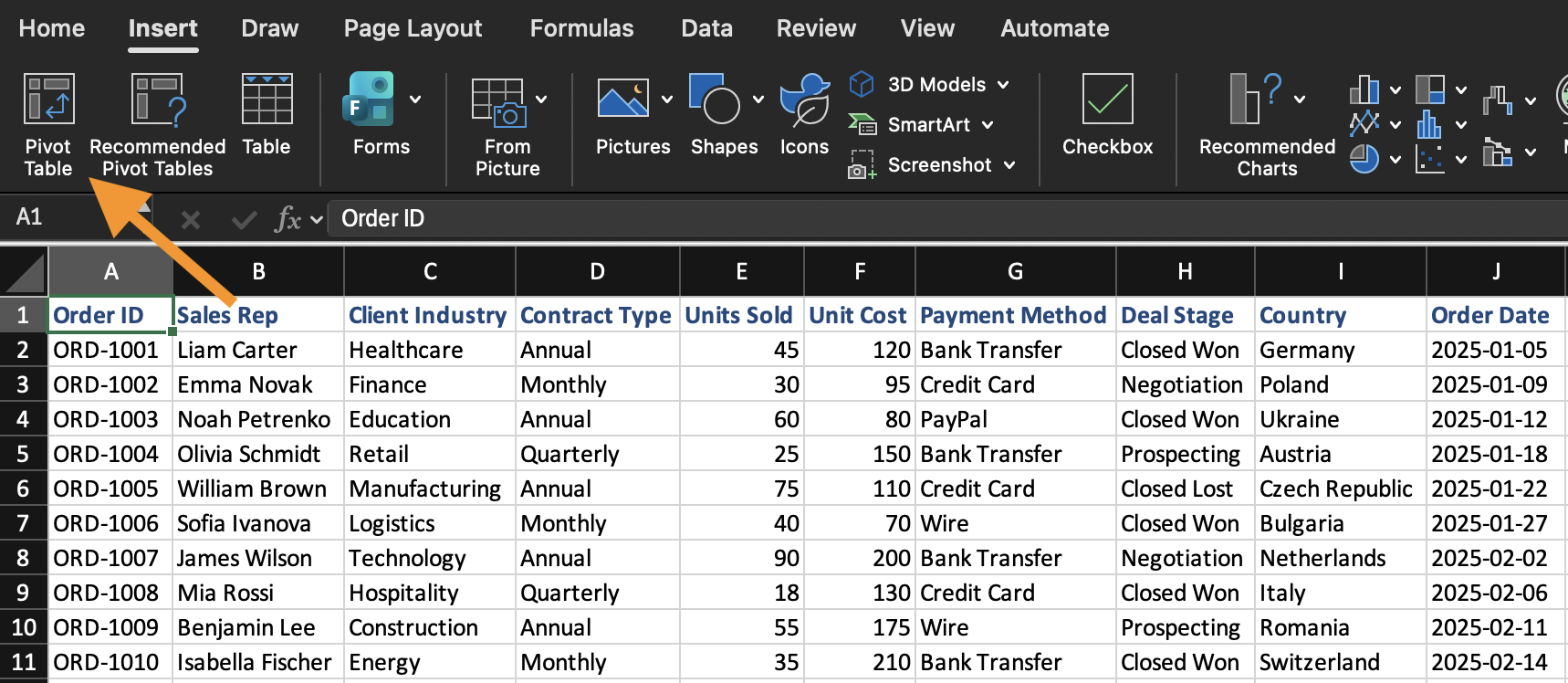
- Markera en valfri cell i datamängden;
- Öppna fliken Infoga;
- Klicka på Pivottabell;
- Bekräfta dataområdet;
- Välj att placera pivottabellen på ett nytt kalkylblad.
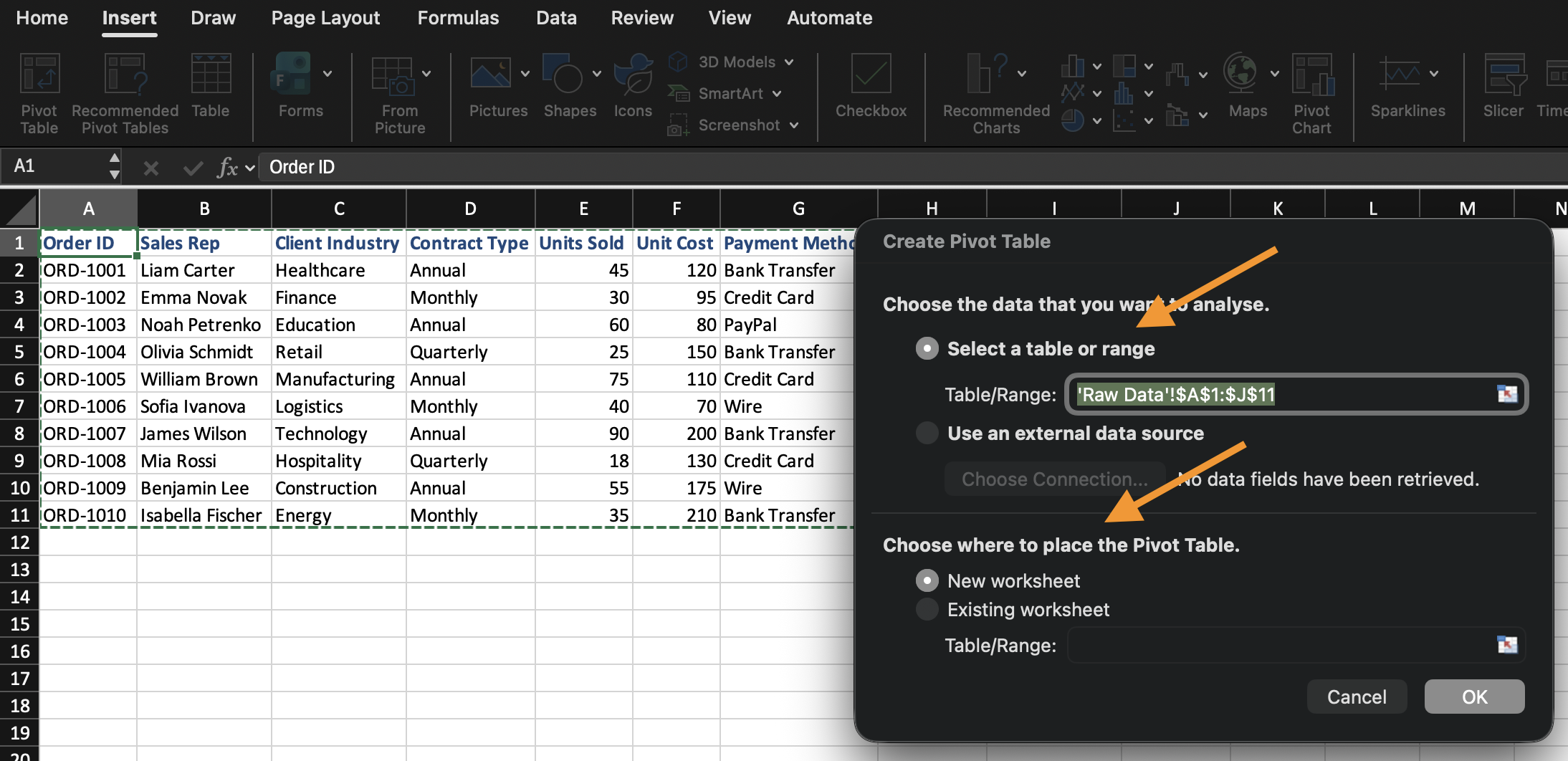
Excel skapar en tom pivottabell och öppnar fältlistan för pivottabellen.
Förståelse för fältlistans områden
Fältlistan styr hur pivottabellen byggs upp. Den består av fyra separata områden, och varje område hanterar fältet du placerar där på olika sätt:
- Rader: definierar gruppering. Fältet som placeras här blir de etiketter som din data delas upp i (t.ex. om du placerar
Categoryhär skapas en rad per kategori); - Kolumner: definierar också gruppering, men överst istället för längs sidan. Fungerar på samma sätt som Rader, men visas horisontellt;
- Värden: definierar beräkningar. Istället för att bara visa fältet, aggregerar Excel det (Summa, Antal, Medelvärde, etc.) utifrån den gruppering som är inställd i Rader/Kolumner;
- Filter: begränsar hela pivottabellen till ett delmängd av data, utan att det fältet syns i själva tabellen.
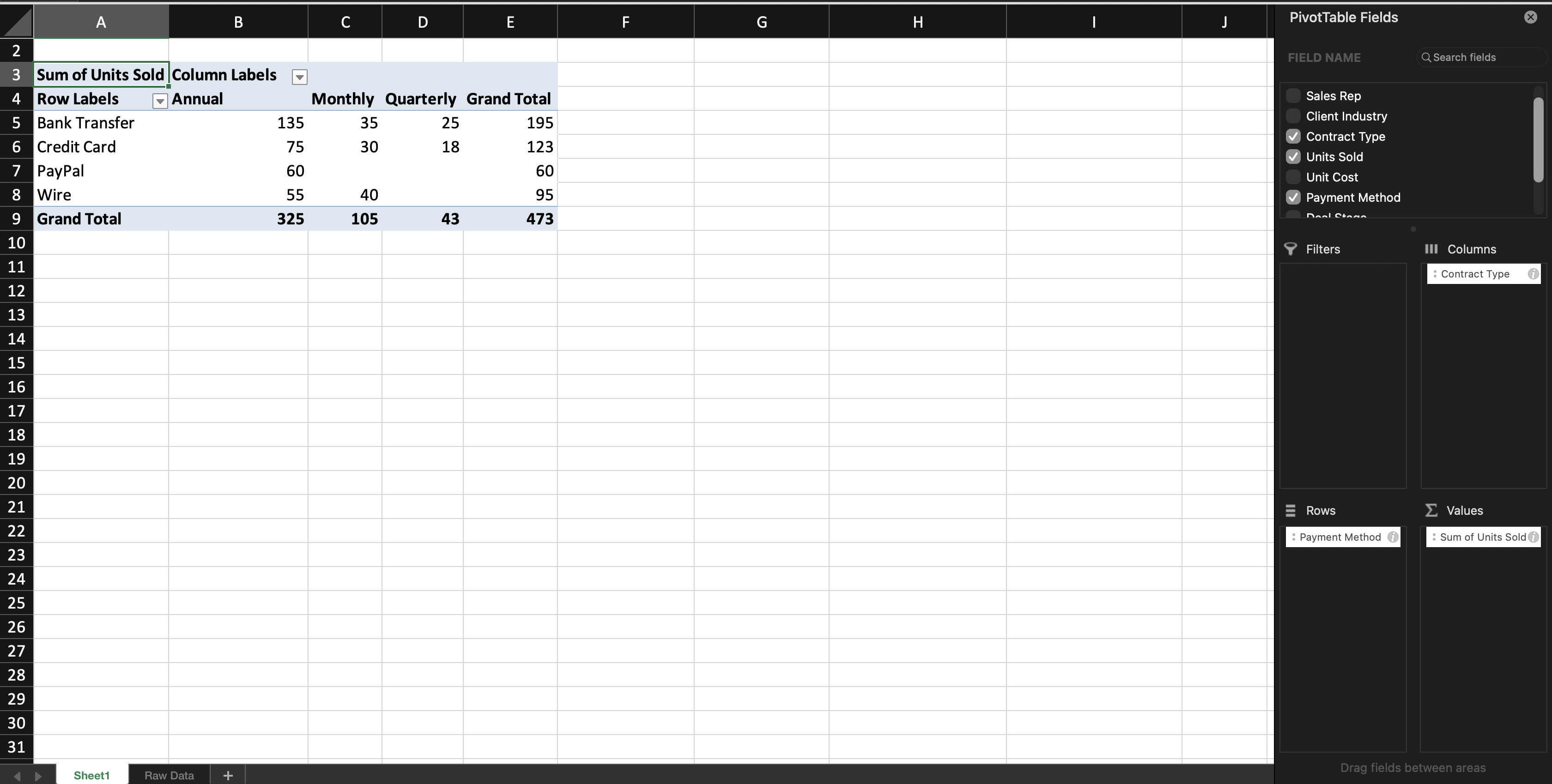
När du lägger till ett textfält i Rader (eller Kolumner) grupperar Excel posterna efter det fältet. När du lägger till ett numeriskt fält i Värden beräknar Excel automatiskt en summa (Summa) — detta standardbeteende baseras på fälttypen: numeriska fält summeras som standard, medan textfält räknas (Count) eftersom textvärden inte kan summeras. Du kommer att lära dig hur du ändrar detta standardvärde i nästa kapitel.
Du kan ändra pivottabellen när som helst genom att flytta fält mellan områden. Källdata ändras inte.

Om panelen Fältlista för pivottabell stängs, klicka någonstans i pivottabellen så visas den automatiskt igen.
Uppgift
Skapa din första pivottabell.
Gör följande:
- Infoga en pivottabell från datamängden;
- Placera Category i rader;
- Placera Sales i värden;
Skapa pivottabellen på ett nytt kalkylblad.
Tack för dina kommentarer!
Fråga AI

Fråga AI

Fråga vad du vill eller prova någon av de föreslagna frågorna för att starta vårt samtal
