Smarta Markeringstekniker
Svep för att visa menyn
Markering är steget som sker före nästan allt annat — före formatering, före kopiering, före att skriva en formel över ett område. Långsam markering är osynlig friktion: det känns normalt tills du lär dig göra det med ett tangenttryck istället för tio sekunders dragande.
I vår försäljningstabell kommer du ständigt behöva markera specifika kolumner för att formatera, hela dataområden för att kopiera eller delmängder av rader för att analysera. Varje teknik i detta kapitel gäller direkt för det arbetsflödet.
Utöka navigering till markering
Du har lärt dig att flytta med Ctrl + Arrow. Den viktiga insikten här är enkel: håll nere Shift för att markera istället för att bara flytta.
Markera hela rader och kolumner
Markera icke-sammanhängande områden
Ibland behöver du markera flera separata områden — till exempel kolumnerna A och E (Date och Revenue) och hoppa över B, C och D.
- Lägg till ett annat område i markeringen: håll ned
Ctrl/Cmdoch klicka eller dra över det extra området; - Lägg till en annan rad/kolumn: håll ned
Ctrl/Cmdoch klicka på rad- eller kolumnrubriken.
-
Klicka på
A1, tryck påShift + Space— bekräfta att hela första raden är markerad. Applicera en ljusgul fyllning: Start → Fyllningsfärg → Gul. -
Klicka på
C1, tryck sedan påCtrl + Shift + ↓/Cmd + Shift + ↓. Ändra teckenfärgen till röd: Start → Teckenfärg → Röd. -
Markera kolumnerna A, B och E genom att hålla ned
Ctrl/Cmdoch klicka på kolumnrubrikerna A, B och E—bekräfta att alla tre hela kolumner är markerade. Gör sedan texten fet genom att klicka på Fetstil-knappen på fliken Start i menyfliksområdet. -
Klicka någonstans utanför dataområdet. Tryck på
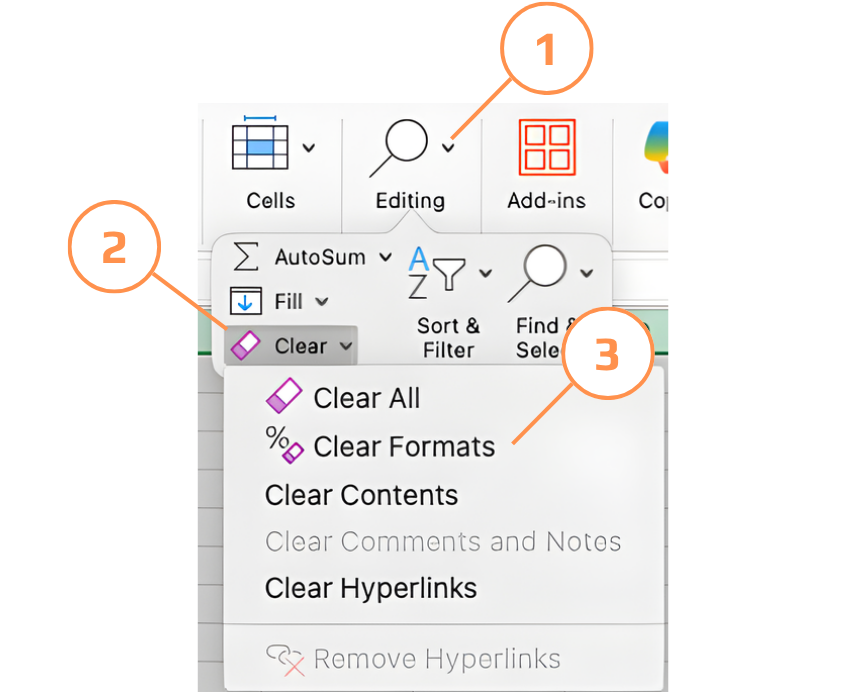
Ctrl + A/Cmd + Aför att markera hela bladet. Gå till Start → Redigering → Rensa → Rensa format.
Nu kan du direkt markera hela kolumner, rader, tabeller och dynamiska dataområden.
Tack för dina kommentarer!
Fråga AI

Fråga AI

Fråga vad du vill eller prova någon av de föreslagna frågorna för att starta vårt samtal
