Lösenordsskydd
Svep för att visa menyn
Excel tillåter användare att använda lösenordsskydd för arbetsböcker för att begränsa obehörig åtkomst. Lösenord hjälper till att skydda känsliga affärsfiler såsom ekonomiska rapporter, personalregister eller konfidentiella planeringsdokument. Lösenordsskydd ger ett extra lager av kontroll när arbetsböcker delas mellan team eller lagras externt.
Förståelse för arbetsbokslösenord
Excel stöder olika typer av lösenordsskydd. Användare kan kräva ett lösenord för att öppna en arbetsbok eller begränsa redigeringsbehörigheter i filen.
Ett arbetsbokslösenord hjälper till att förhindra att obehöriga användare får åtkomst till arbetsbokens innehåll. Redigeringsbegränsningar, å andra sidan, tillåter användare att öppna arbetsboken men begränsar möjligheten att göra ändringar.
Skydda en arbetsbok med lösenord
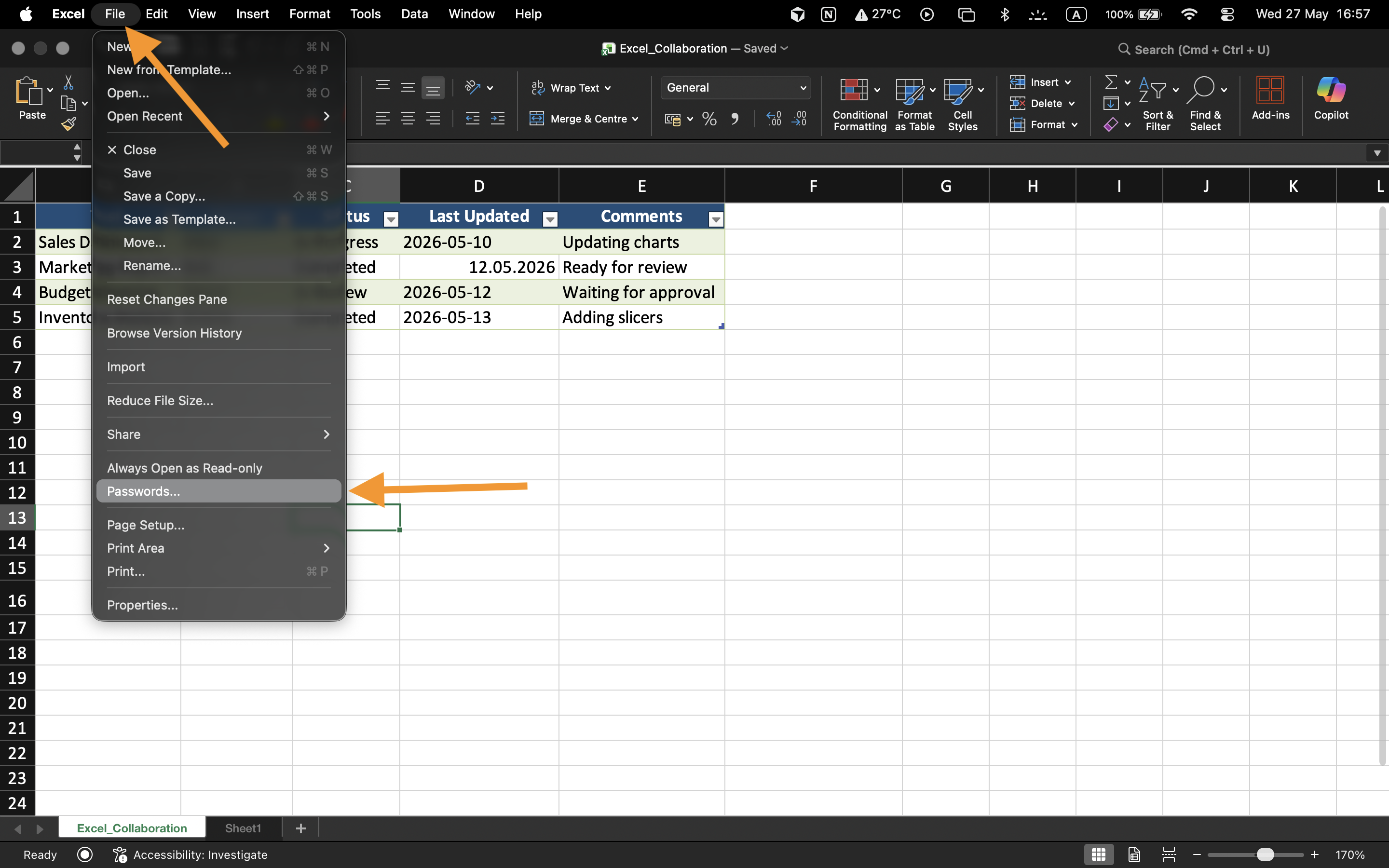
För att använda lösenordsskydd:
- Öppna arbetsboken;
- Välj Arkiv → Info;
- Välj Skydda arbetsbok;
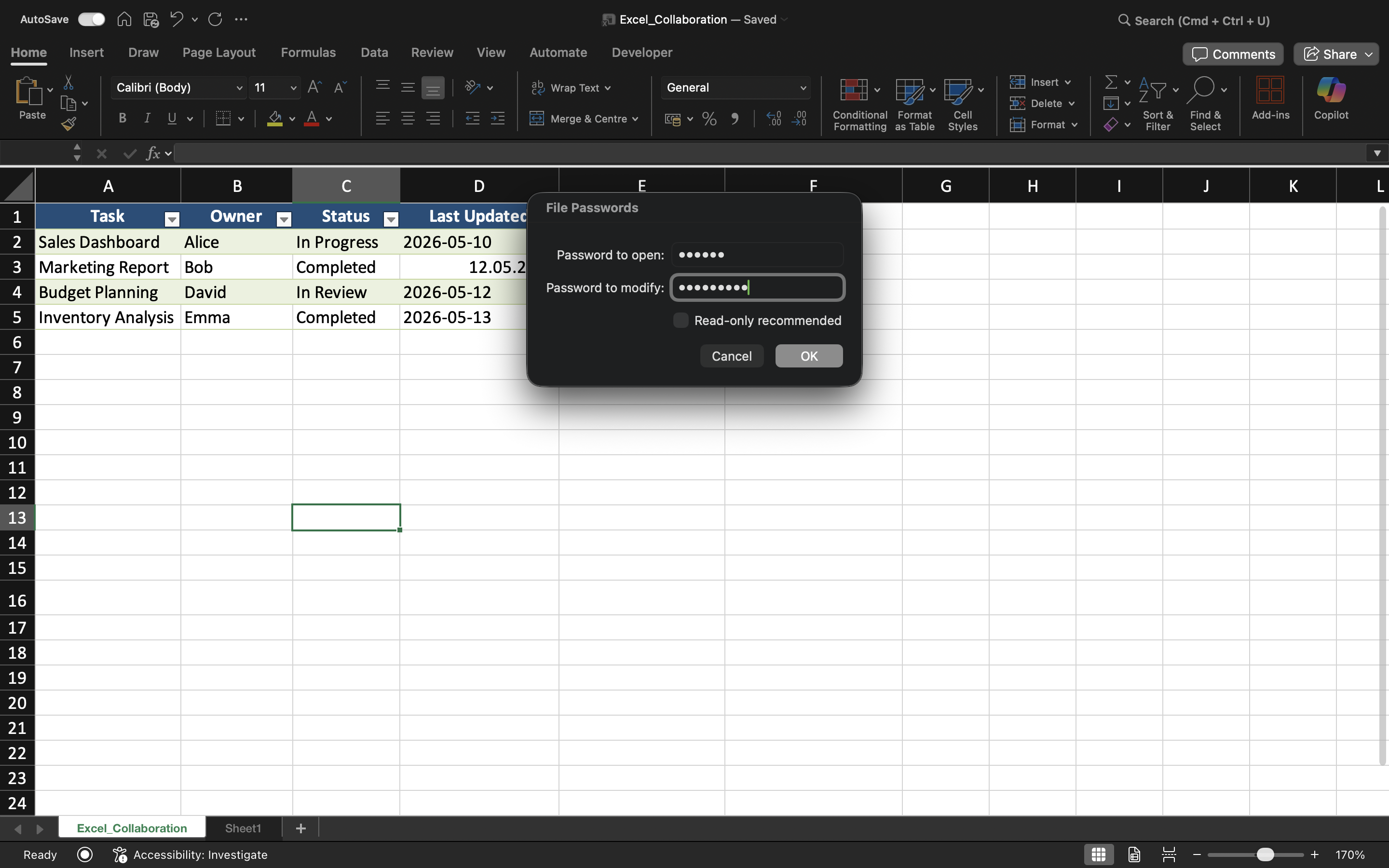
- Välj Kryptera med lösenord;
- Ange och bekräfta lösenordet.
När du har sparat kommer arbetsboken att kräva lösenordet varje gång någon försöker öppna filen.
Förståelse för lösenordsbegränsningar
Arbetsbokslösenord förbättrar filsäkerheten, men svaga lösenord kan fortfarande vara sårbara för obehörig åtkomst.
För bättre skydd:
- Använd starka lösenord;
- Undvik enkla ord eller datum;
- Förvara lösenord på ett säkert sätt;
- Dela endast lösenord med behöriga samarbetspartners.
Redigeringsbegränsningar
Excel kan också skydda arbetsbokens redigering utan att helt blockera filåtkomst. Detta gör det möjligt för användare att granska arbetsbokens innehåll samtidigt som ändringar begränsas.
Denna typ av skydd är användbar för slutgiltiga rapporter, mallar eller delade instrumentpaneler som inte ska ändras av misstag.
När lösenordsskydd är användbart
Lösenordsskydd används ofta när arbetsböcker innehåller konfidentiell finansiell information, personaldata, affärsprognoser eller känsliga operativa rapporter. Det är särskilt viktigt när filer delas utanför organisationen eller lagras på externa enheter.
Uppgift
Arbetsboken innehåller konfidentiell information om anställdas löner som endast ska vara tillgänglig för behöriga chefer. Målet är att skydda arbetsboken med ett lösenord och testa åtkomstbegränsningar.
- Öppna inställningarna för arbetsboksskydd;
- Använd ett arbetsbokslösenord;
- Spara och stäng arbetsboken;
- Öppna filen igen och verifiera lösenordsskyddet;
- Testa redigeringsbegränsningar på den skyddade arbetsboken.
Tack för dina kommentarer!
Fråga AI

Fråga AI

Fråga vad du vill eller prova någon av de föreslagna frågorna för att starta vårt samtal
