Kontrollera Arbetsbokens Struktur
Svep för att visa menyn
Förutom att skydda kalkylbladsinnehåll kan användare i Excel även skydda den övergripande arbetsboksstrukturen. Detta förhindrar att medarbetare ändrar hur kalkylblad är organiserade i filen.
Skydd av arbetsboksstruktur används ofta i delade rapporter, mallar, instrumentpaneler och operativa system där kalkylbladsorganisationen bör förbli stabil.
Förståelse för skydd av arbetsboksstruktur
Skydd av arbetsboksstruktur begränsar åtgärder som påverkar kalkylbladsorganisationen. När det är aktiverat kan användare inte längre lägga till, ta bort, byta namn på, flytta, dölja eller visa kalkylblad.
Skydda arbetsboksstruktur
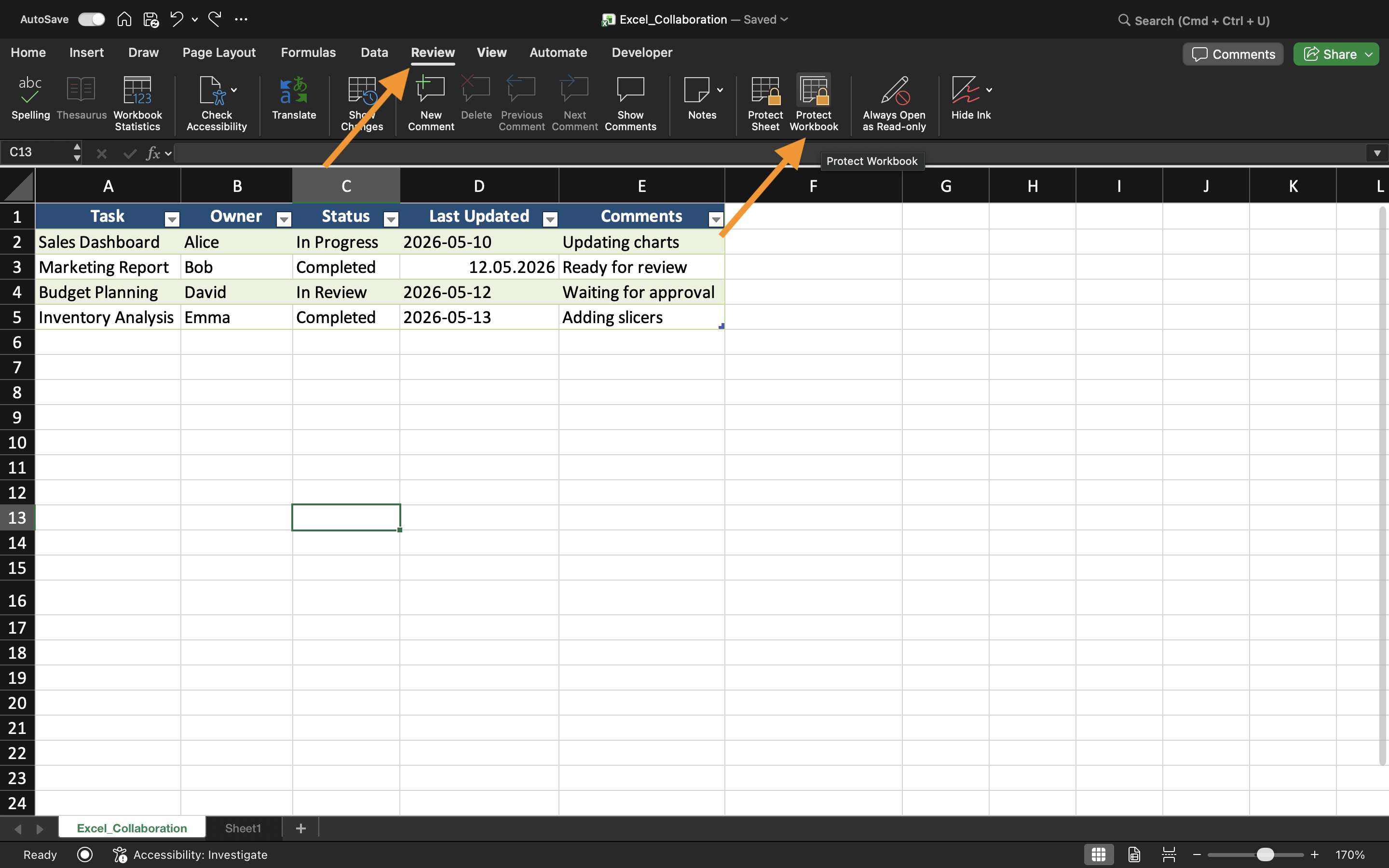
För att skydda arbetsboksstruktur:
- Öppna fliken Granska;
- Välj Skydda arbetsbok;
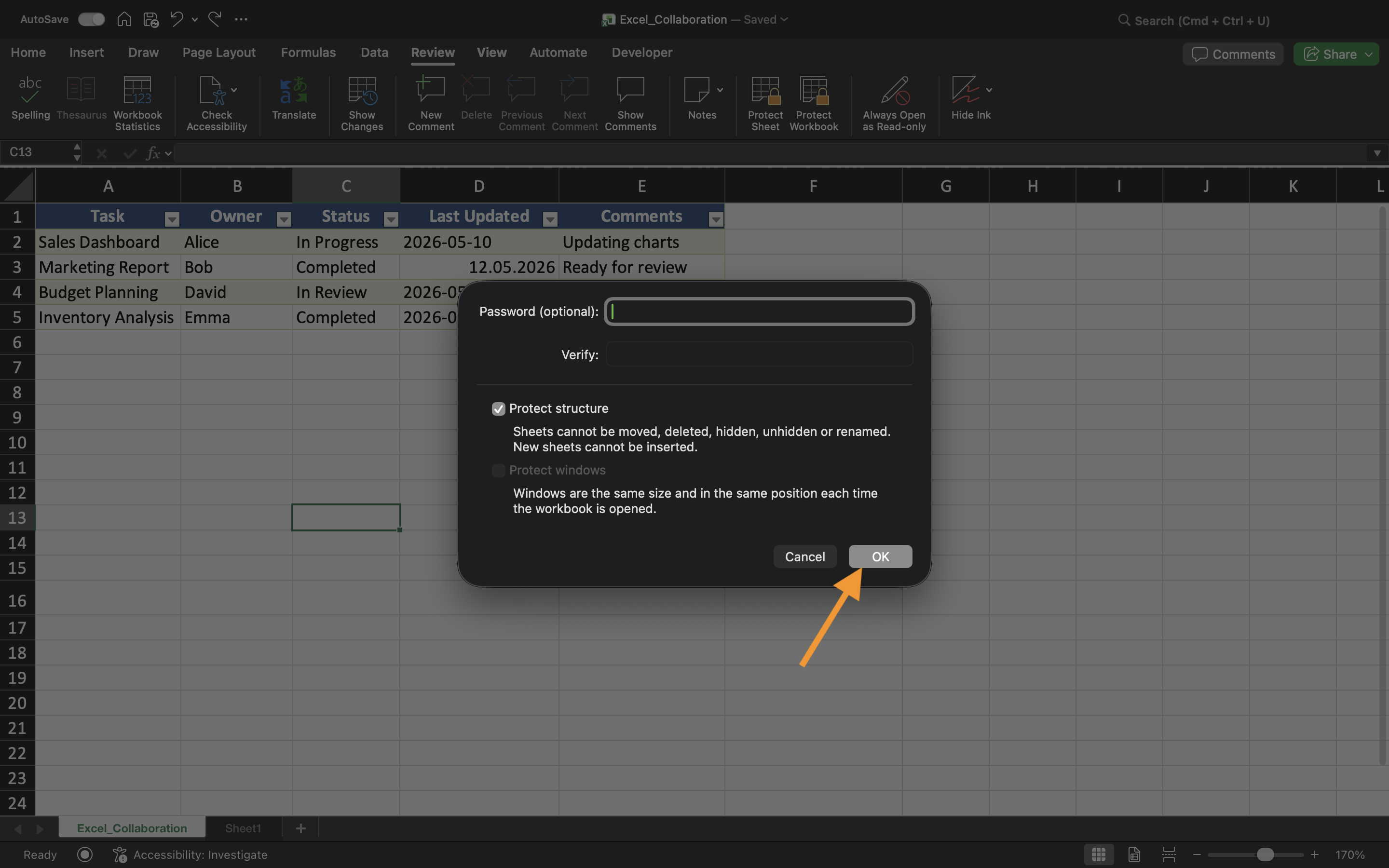
- Aktivera skydd för Struktur;
- Verkställ inställningarna.
När skyddet är aktiverat blir kalkylbladsorganisationen begränsad för medarbetare.
Detta är särskilt användbart när arbetsböcker innehåller noggrant organiserade rapportsystem eller länkade kalkylbladsstrukturer.
Dölja kalkylblad
Excel tillåter även användare att dölja kalkylblad från den normala arbetsboksvisningen. Dolda blad finns kvar i arbetsboken men är inte omedelbart synliga för medarbetare.
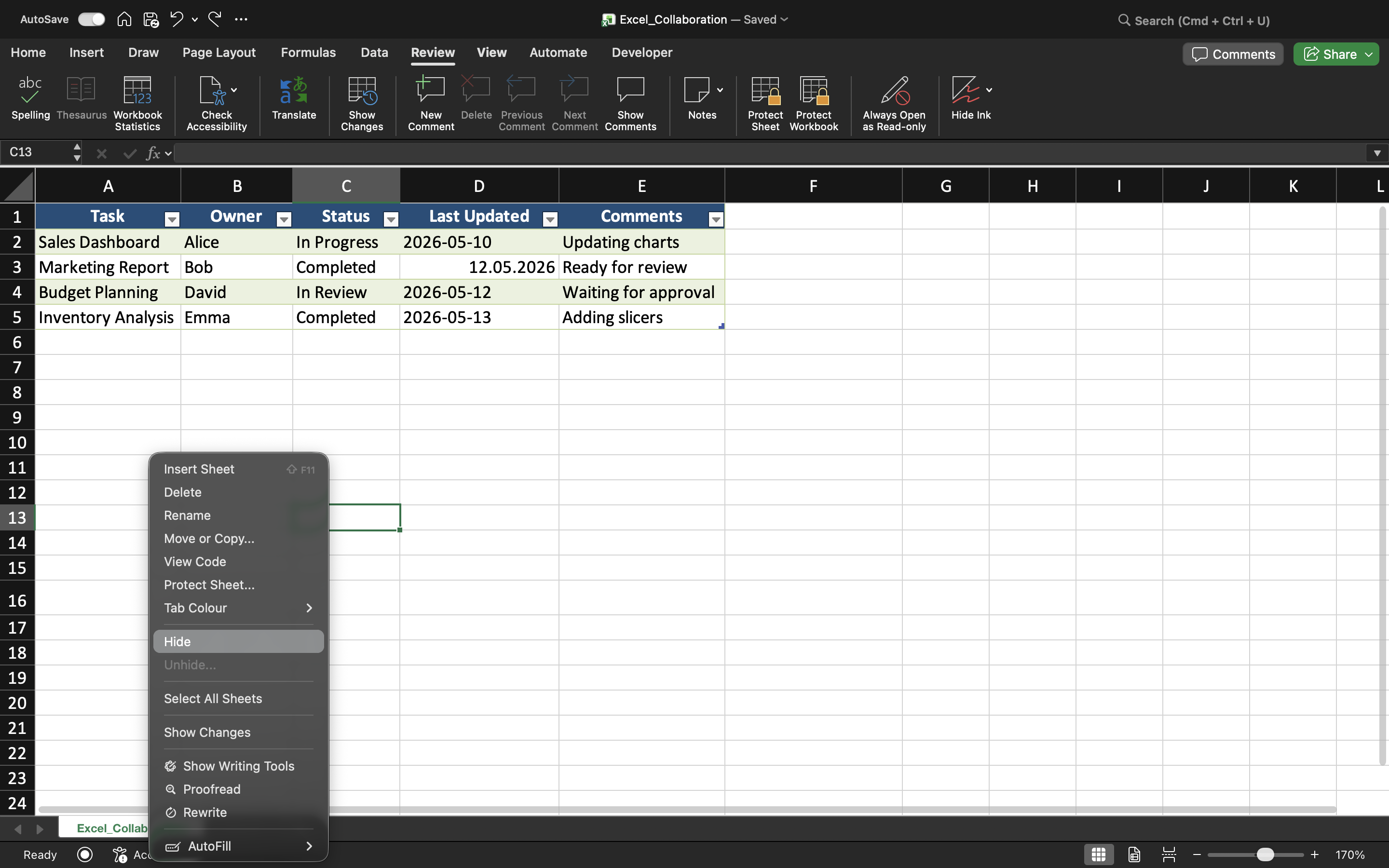
För att dölja ett kalkylblad:
- Högerklicka på kalkylbladets flik;
- Välj Dölj.
Dolda kalkylblad används ofta för stödberäkningar, arkiverad data, hjälptabeller eller administrativ information. Detta bidrar till renare och mer organiserade arbetsboksgränssnitt.
Visa kalkylblad igen
Om skyddet för arbetsbokens struktur är inaktiverat kan dolda kalkylblad återställas via alternativet Visa. När skyddet för arbetsbokens struktur är aktivt kan medarbetare förhindras från att själva visa blad. Detta ger ytterligare ett lager av organisatorisk kontroll i delade arbetsböcker.
När skydd av arbetsbokens struktur är användbart
Skydd av arbetsbokens struktur är särskilt användbart när team samarbetar i komplexa arbetsbokssystem eller instrumentpaneler med noggrant organiserade kalkylbladslayouter.
Utan strukturellt skydd kan medarbetare av misstag omorganisera kalkylbladsflikar, ta bort viktiga blad eller störa arbetsbokens navigering.
Uppgift
Arbetsboken innehåller ett delat rapporteringssystem med flera kalkylblad och dolda beräkningstabbar. Målet är att skydda arbetsbokens organisation och förhindra strukturella ändringar under samarbetet.
- Skydda arbetsbokens struktur;
- Dölj valda kalkylblad;
- Försök att byta namn på eller flytta kalkylbladsflikar;
- Kontrollera att strukturella ändringar är begränsade;
- Testa att visa kalkylblad innan och efter skyddet.
Tack för dina kommentarer!
Fråga AI

Fråga AI

Fråga vad du vill eller prova någon av de föreslagna frågorna för att starta vårt samtal
Kontrollera Arbetsbokens Struktur
Förutom att skydda kalkylbladsinnehåll kan användare i Excel även skydda den övergripande arbetsboksstrukturen. Detta förhindrar att medarbetare ändrar hur kalkylblad är organiserade i filen.
Skydd av arbetsboksstruktur används ofta i delade rapporter, mallar, instrumentpaneler och operativa system där kalkylbladsorganisationen bör förbli stabil.
Förståelse för skydd av arbetsboksstruktur
Skydd av arbetsboksstruktur begränsar åtgärder som påverkar kalkylbladsorganisationen. När det är aktiverat kan användare inte längre lägga till, ta bort, byta namn på, flytta, dölja eller visa kalkylblad.
Skydda arbetsboksstruktur
För att skydda arbetsboksstruktur:
- Öppna fliken Granska;
- Välj Skydda arbetsbok;
- Aktivera skydd för Struktur;
- Verkställ inställningarna.
När skyddet är aktiverat blir kalkylbladsorganisationen begränsad för medarbetare.
Detta är särskilt användbart när arbetsböcker innehåller noggrant organiserade rapportsystem eller länkade kalkylbladsstrukturer.
Dölja kalkylblad
Excel tillåter även användare att dölja kalkylblad från den normala arbetsboksvisningen. Dolda blad finns kvar i arbetsboken men är inte omedelbart synliga för medarbetare.
För att dölja ett kalkylblad:
- Högerklicka på kalkylbladets flik;
- Välj Dölj.
Dolda kalkylblad används ofta för stödberäkningar, arkiverad data, hjälptabeller eller administrativ information. Detta bidrar till renare och mer organiserade arbetsboksgränssnitt.
Visa kalkylblad igen
Om skyddet för arbetsbokens struktur är inaktiverat kan dolda kalkylblad återställas via alternativet Visa. När skyddet för arbetsbokens struktur är aktivt kan medarbetare förhindras från att själva visa blad. Detta ger ytterligare ett lager av organisatorisk kontroll i delade arbetsböcker.
När skydd av arbetsbokens struktur är användbart
Skydd av arbetsbokens struktur är särskilt användbart när team samarbetar i komplexa arbetsbokssystem eller instrumentpaneler med noggrant organiserade kalkylbladslayouter.
Utan strukturellt skydd kan medarbetare av misstag omorganisera kalkylbladsflikar, ta bort viktiga blad eller störa arbetsbokens navigering.
Uppgift
Arbetsboken innehåller ett delat rapporteringssystem med flera kalkylblad och dolda beräkningstabbar. Målet är att skydda arbetsbokens organisation och förhindra strukturella ändringar under samarbetet.
- Skydda arbetsbokens struktur;
- Dölj valda kalkylblad;
- Försök att byta namn på eller flytta kalkylbladsflikar;
- Kontrollera att strukturella ändringar är begränsade;
- Testa att visa kalkylblad innan och efter skyddet.
Tack för dina kommentarer!
