Editing Photos with Magic Edit and Magic Eraser
Svep för att visa menyn
Magic Edit replaces part of a photo based on a text description, while Magic Eraser removes an unwanted object and fills the gap automatically. Both work by painting over the area you want to change.
Using Magic Edit:
- Select a photo already on your canvas;
- Open Edit photo → Magic Edit;
- Paint over the region to replace, such as a plain sky;
- Type what should appear instead, for instance "sunset with orange clouds";
- Click Generate and pick the result you prefer.

Result:

Using Magic Eraser:
- Select the photo;
- Open Edit photo → Magic Eraser;
- Paint over the object to remove, such as a passerby in the background;
- Canva fills the erased area automatically using the surrounding pixels.
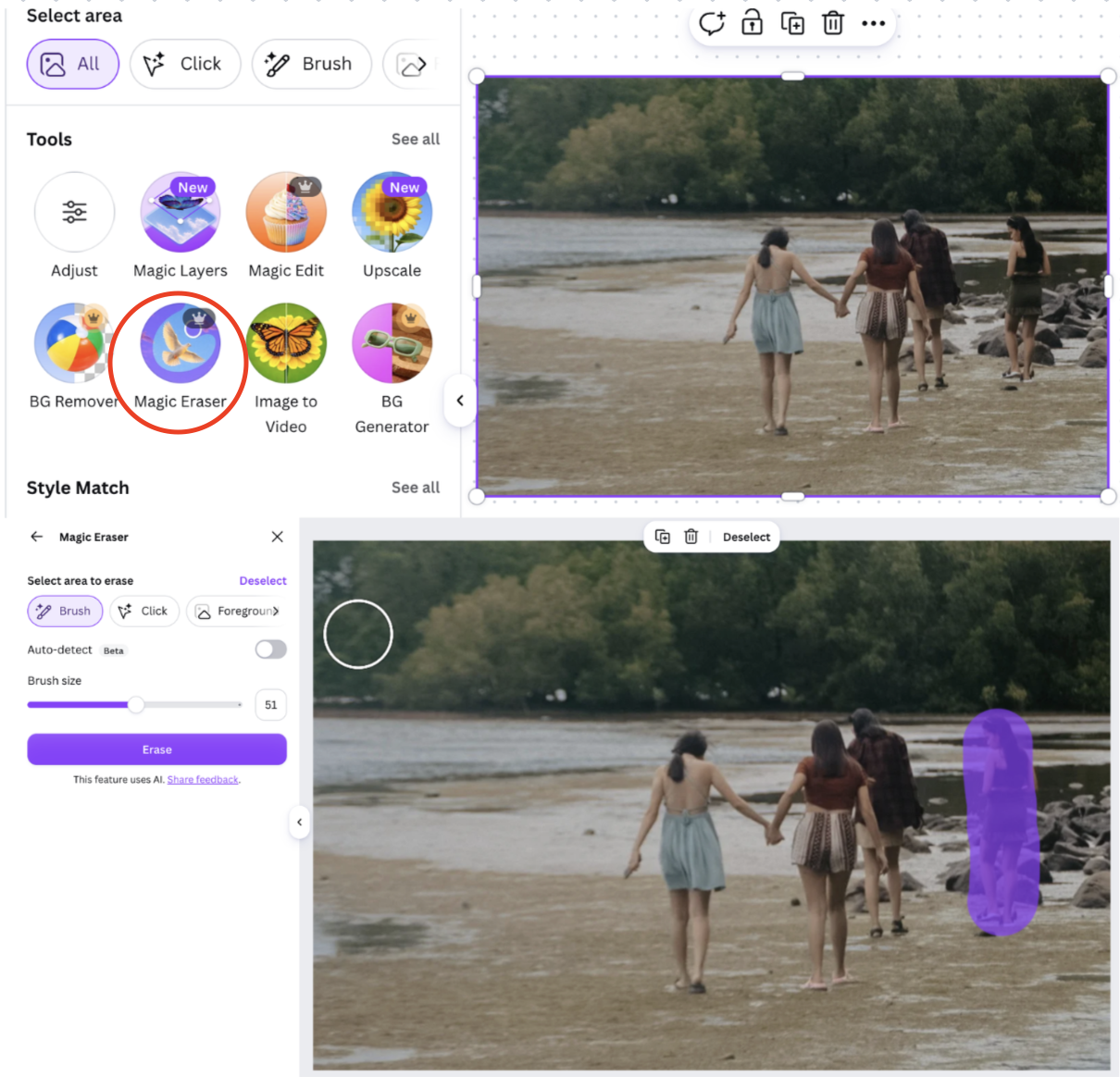
Result:

Both tools work best on areas with a fairly even background; complex textures right at the edge of your selection sometimes need a second pass to blend seamlessly.
Var allt tydligt?
Tack för dina kommentarer!
Avsnitt 1. Kapitel 4
Fråga AI

Fråga AI

Fråga vad du vill eller prova någon av de föreslagna frågorna för att starta vårt samtal
