Notice: This page requires JavaScript to function properly.
Please enable JavaScript in your browser settings or update your browser.
Lära Extracting Text with LEFT, RIGHT, MID | Rensning av textdata
Rensa Data i Excel

Extracting Text with LEFT, RIGHT, MID

Svep för att visa menyn

Sometimes you don't need to split the entire text into columns. Instead, you may want to extract only a specific part of a value. This is very common when working with structured text like product codes, IDs, or formatted strings.

For example, a product code like PRD-001 contains two parts: a prefix (PRD) and a number (001). Instead of splitting everything manually, you can extract exactly the part you need using functions.

LEFT, RIGHT, MID Functions

Excel provides three functions for extracting text:

  • LEFT → extracts characters from the beginning;
  • RIGHT → extracts characters from the end;
  • MID → extracts characters from the middle.

If a cell contains:

"PRD-001"

Then:

=LEFT(A2, 3) → "PRD"
=RIGHT(A2, 3) → "001"
=MID(A2, 5, 3) → "001"

=LEFT(A2, 3) returns the first 3 characters from the beginning of the text, =RIGHT(A2, 3) returns the last 3 characters from the end, and =MID(A2, 5, 3) extracts 3 characters starting from position 5 in the string.
carousel-imgcarousel-img

Task

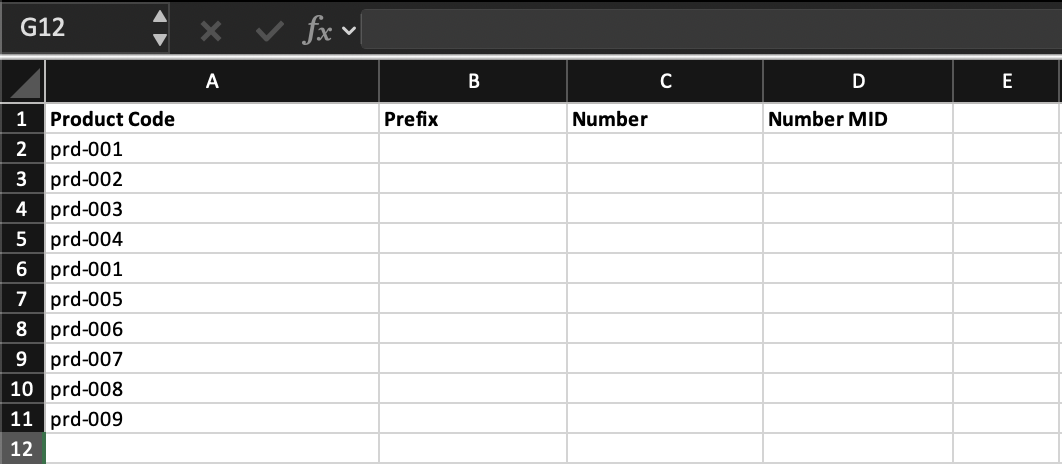
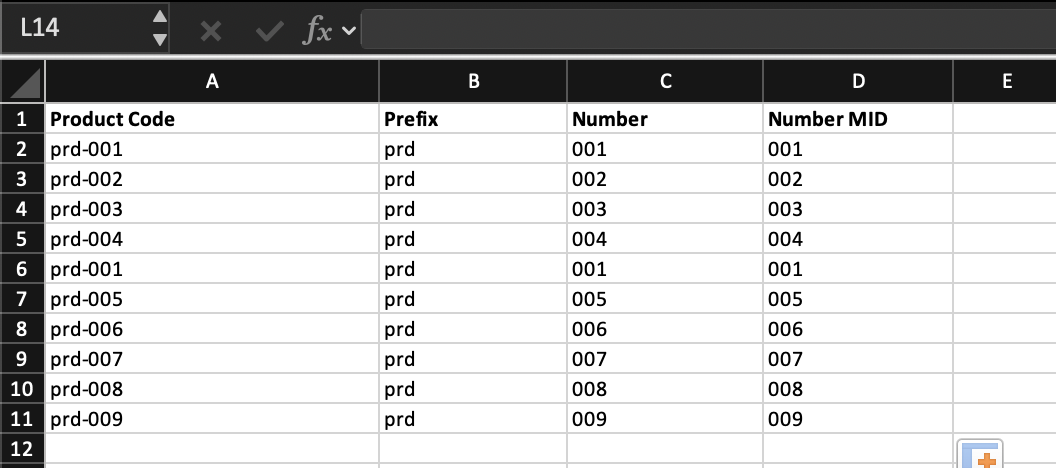
Create two new columns: Product Prefix, Product Number

Extract:

  • The first part (PRD) using LEFT;
  • The numeric part (001) using RIGHT or MID.

Apply the formulas to all rows.

Note
Hint

Use =LEFT(D2,3) for the prefix and =RIGHT(D2,3) or =MID(D2,5,3) for the number, then apply the formulas to all rows.

question mark

Which function extracts text from the middle of a string?

Vänligen välj det korrekta svaret

Var allt tydligt?

Hur kan vi förbättra det?

Tack för dina kommentarer!

Avsnitt 2. Kapitel 5

Fråga AI

expand

Fråga AI

ChatGPT

Fråga vad du vill eller prova någon av de föreslagna frågorna för att starta vårt samtal

Extracting Text with LEFT, RIGHT, MID

Sometimes you don't need to split the entire text into columns. Instead, you may want to extract only a specific part of a value. This is very common when working with structured text like product codes, IDs, or formatted strings.

For example, a product code like PRD-001 contains two parts: a prefix (PRD) and a number (001). Instead of splitting everything manually, you can extract exactly the part you need using functions.

LEFT, RIGHT, MID Functions

Excel provides three functions for extracting text:

  • LEFT → extracts characters from the beginning;
  • RIGHT → extracts characters from the end;
  • MID → extracts characters from the middle.

If a cell contains:

"PRD-001"

Then:

=LEFT(A2, 3) → "PRD"
=RIGHT(A2, 3) → "001"
=MID(A2, 5, 3) → "001"

=LEFT(A2, 3) returns the first 3 characters from the beginning of the text, =RIGHT(A2, 3) returns the last 3 characters from the end, and =MID(A2, 5, 3) extracts 3 characters starting from position 5 in the string.

carousel-imgcarousel-img

Task

Create two new columns: Product Prefix, Product Number

Extract:

  • The first part (PRD) using LEFT;
  • The numeric part (001) using RIGHT or MID.

Apply the formulas to all rows.

Note
Hint

Use =LEFT(D2,3) for the prefix and =RIGHT(D2,3) or =MID(D2,5,3) for the number, then apply the formulas to all rows.

Var allt tydligt?

Hur kan vi förbättra det?

Tack för dina kommentarer!

Avsnitt 2. Kapitel 5
some-alt