Återställa Indexerade Ändringar
Svep för att visa menyn
Ibland är ändringar stagade för commit, men vid närmare eftertanke inser du att vissa modifieringar inte bör inkluderas. Som tur är går det att återställa stagade ändringar i Git, vilket säkerställer att dina commits korrekt återspeglar de avsedda modifieringarna.
Ångra stagade ändringar med git restore
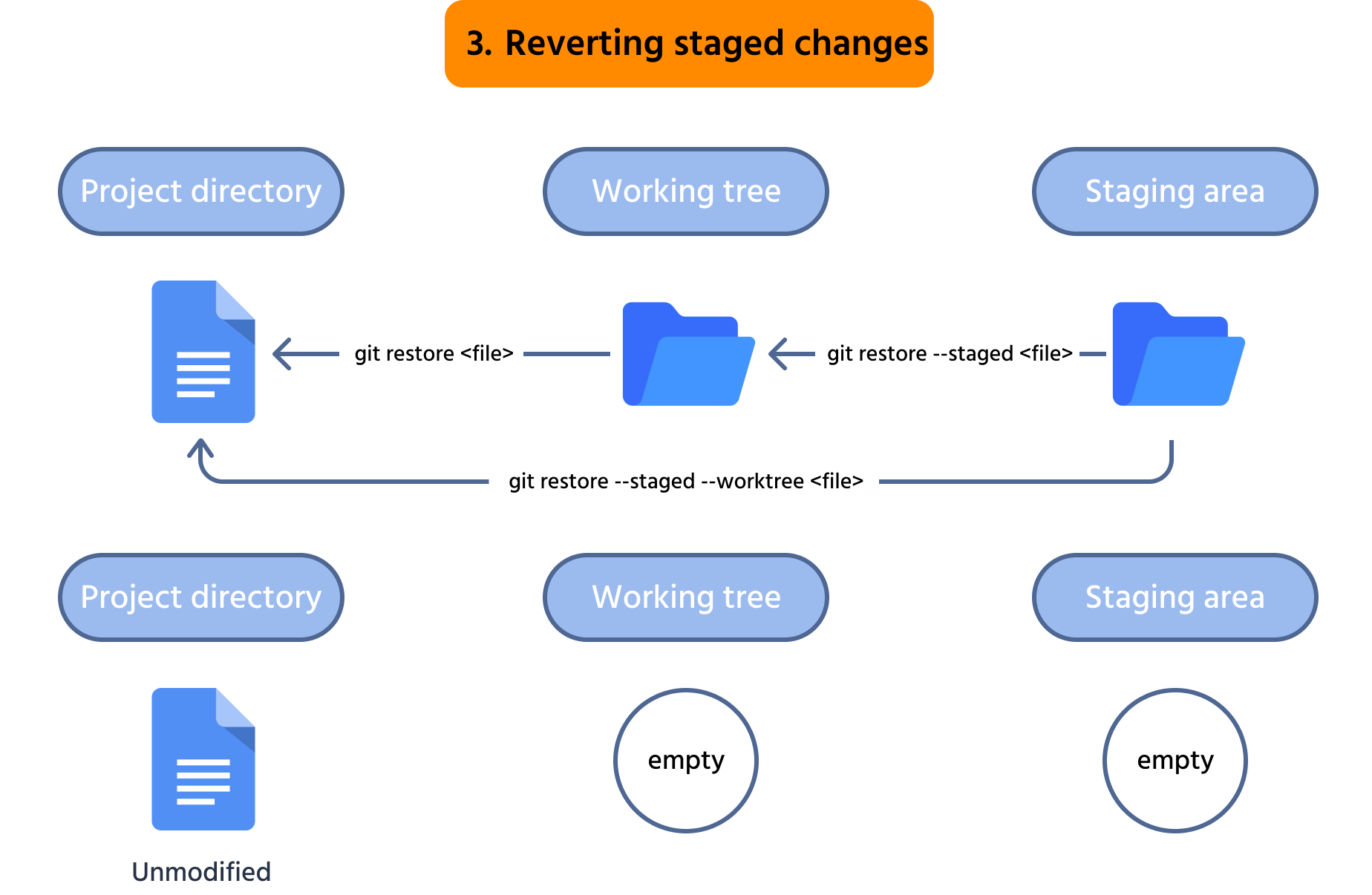
Kommandot git restore är ett kraftfullt verktyg för att återställa stagade ändringar. För att ångra modifieringar i filer som har stagats men ännu inte committats, kan du använda följande kommando:
git restore --staged <file>
Där <file> är namnet på filerna eller dess sökväg relativt till projektkatalogen. Flaggan --staged "säger" här till Git att återställa ändringarna i staging area. Efter att ha kört detta kommando kommer ändringarna i <file> att vara avstagade.

Detta kommando återställer inte ändringarna i arbetskatalogen. Istället avstagar det endast dem.
Om du vill avstage och sedan återställa ändringarna i arbetskatalogen kan du använda följande kommando:
git restore --staged --worktree <file>
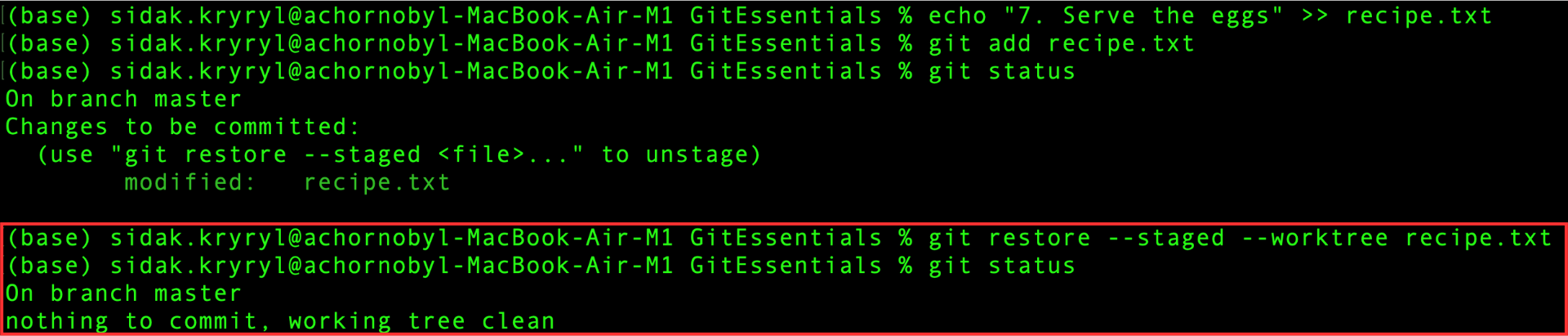
Här är en bild för att förtydliga:
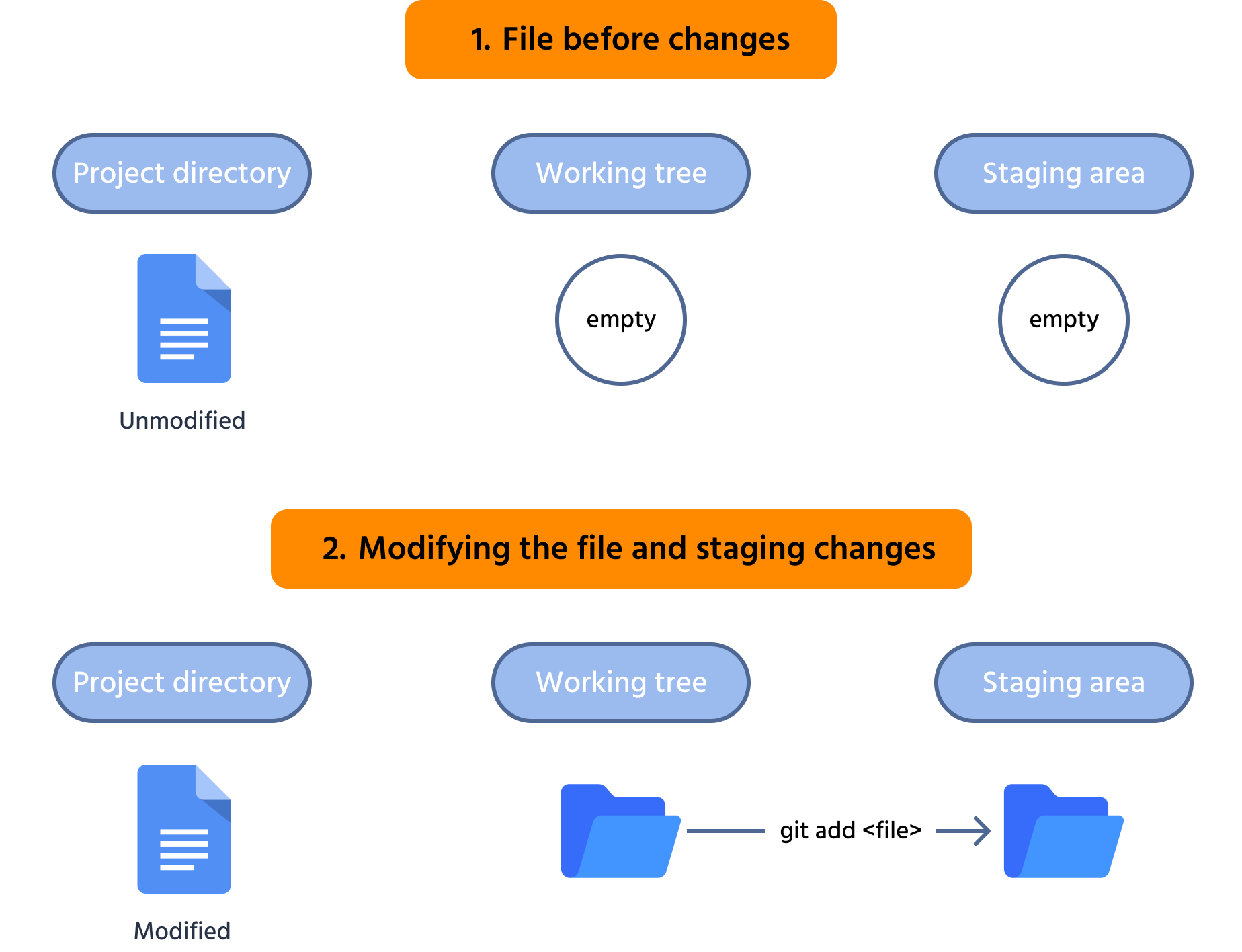
Exempelarbetsflöde
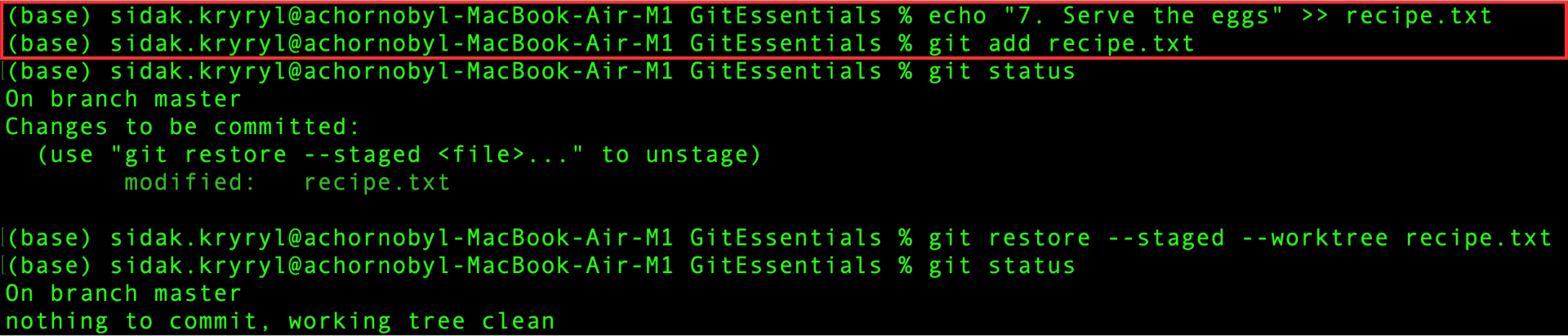
Anta att du vill lägga till en rad med nästa steg i receptet:
echo "7. Serve the eggs" >> recipe.txt
Till skillnad från i föregående kapitel gjordes inget misstag, så lägg till denna ändring i staging:
git add recipe.txt
Efter att ha övervägt igen innan commit, verkar det onödigt att lägga till denna rad i receptfilen. Därför, återställ denna ändring helt. Kontrollera först statusen för arbetskatalogen och stagingområdet:
git status
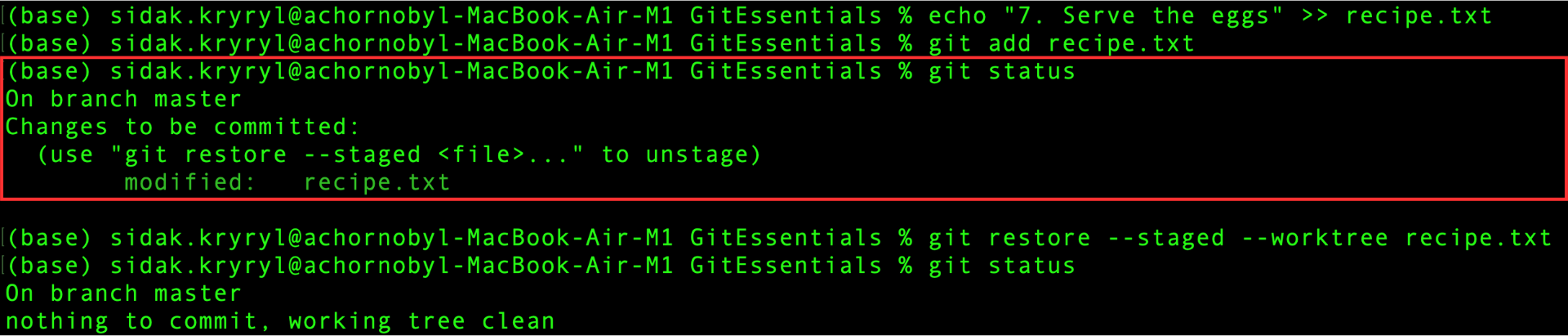
Denna ändring är faktiskt staged, så kör kommandot git restore med lämpliga flaggor för att helt återställa den:
git restore --staged --worktree recipe.txt
Slutligen, verifiera att både arbetskatalogen och staging area är rena:
git status
Tack för dina kommentarer!
Fråga AI

Fråga AI

Fråga vad du vill eller prova någon av de föreslagna frågorna för att starta vårt samtal
