Villkorlig formatering
Svep för att visa menyn
Istället för att du bestämmer vilka celler som ska se ut på ett visst sätt, skriver du en regel och Excel tillämpar formateringen automatiskt på varje cell som uppfyller villkoret och tar bort den så snart villkoret inte längre är uppfyllt.
Du hittar Villkorsstyrd formatering på Startfliken → Grupp för formatmallar. Den tillämpas alltid på ett markerat område — varje cell i området utvärderas mot regeln oberoende av varandra, och formateringen tillämpas endast på celler där villkoret är sant.
Markeringsregler
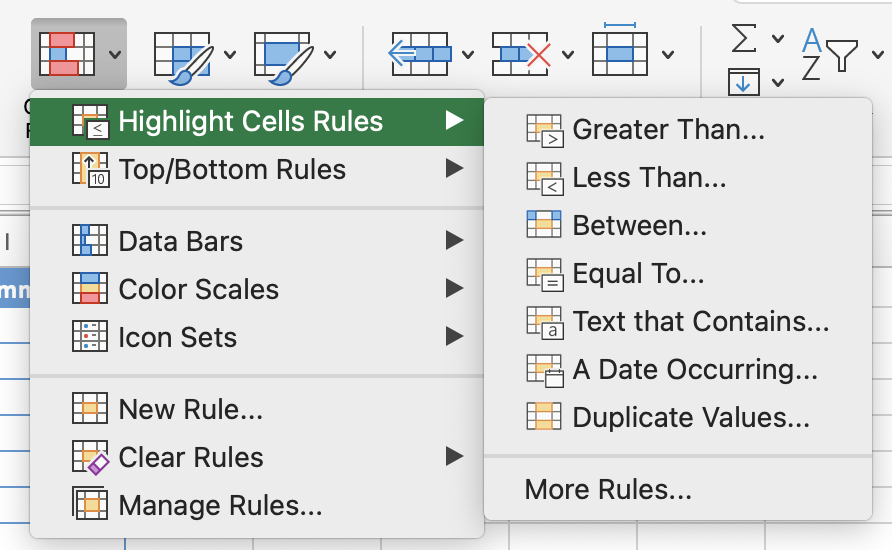
Du definierar ett villkor som större än, mindre än, lika med eller innehåller specifik text och Excel tillämpar det valda formatet på varje cell som matchar. Celler som inte matchar villkoret lämnas oförändrade.
Start → Villkorsstyrd formatering → Regler för att markera celler → Större än / Text som innehåller / etc.
Färgskalor
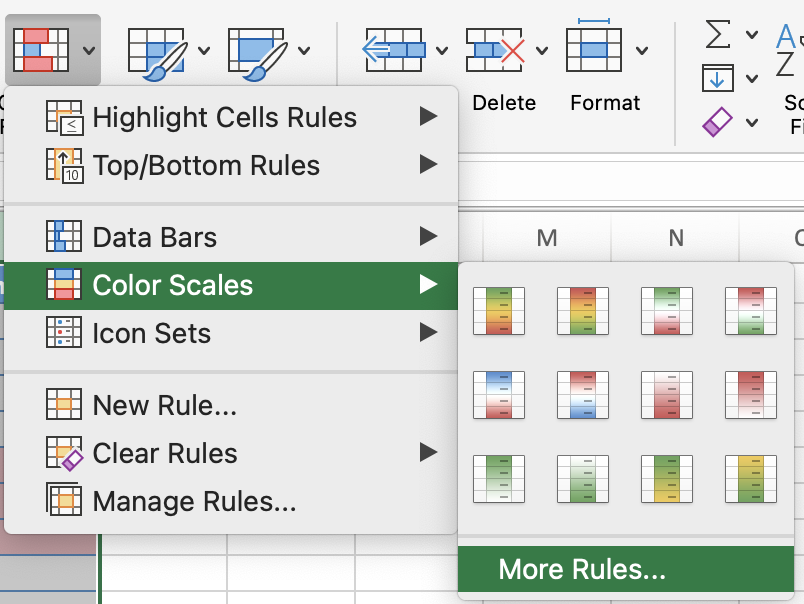
Istället för ett fast tröskelvärde tilldelar färgskalor en färggradient över hela intervallet baserat på relativa värden. De lägsta värdena får en färg, de högsta en annan, och allt däremellan nyanseras proportionellt. Detta gör att avvikare och trender syns direkt utan att man behöver känna till de exakta siffrorna.
Start → Villkorsstyrd formatering → Färgskalor → välj en 2-färgs- eller 3-färgsskala.
Regler för tomma celler
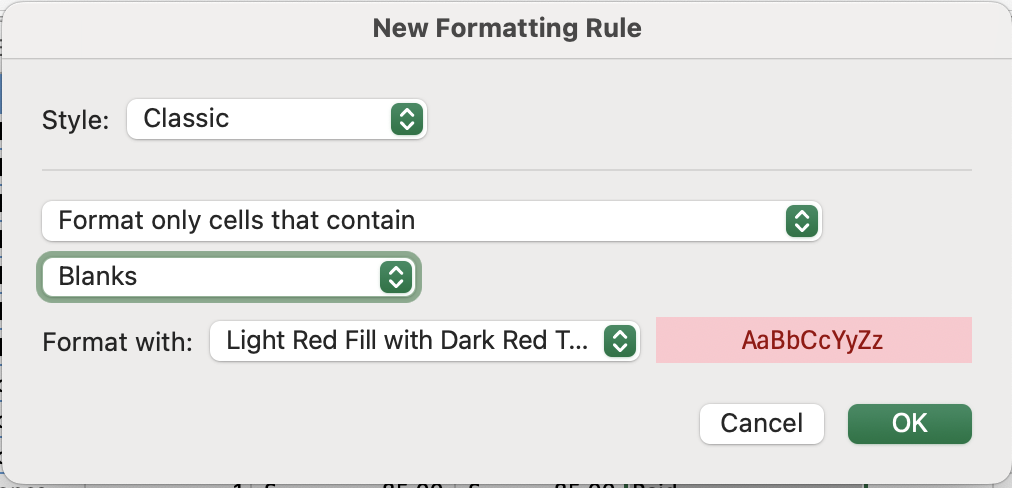
En tom cell i en kolumn som alltid ska ha ett värde — ett datum, ett belopp, en status — är ett datakvalitetsproblem. Det kan göra att formler ger felaktiga resultat, att ANTAL och ANTALV skiljer sig oväntat, eller att rapporter blir ofullständiga. Att markera tomma celler gör dessa luckor synliga direkt istället för att de göms i en stor tabell.
Start → Villkorsstyrd formatering → Ny regel → Formatera endast celler som innehåller → Tomma.
Hantera och redigera regler
När regler har tillämpats kan det ibland vara nödvändigt att redigera, omordna eller ta bort dem. Excel utvärderar flera regler på samma område i prioritetsordning — den första regeln som matchar gäller, om du inte markerar "Stoppa om sant" på en regel för att förhindra att regler med lägre prioritet också tillämpas. Allt detta hanteras via Regelhanteraren.
Start → Villkorsstyrd formatering → Hantera regler.
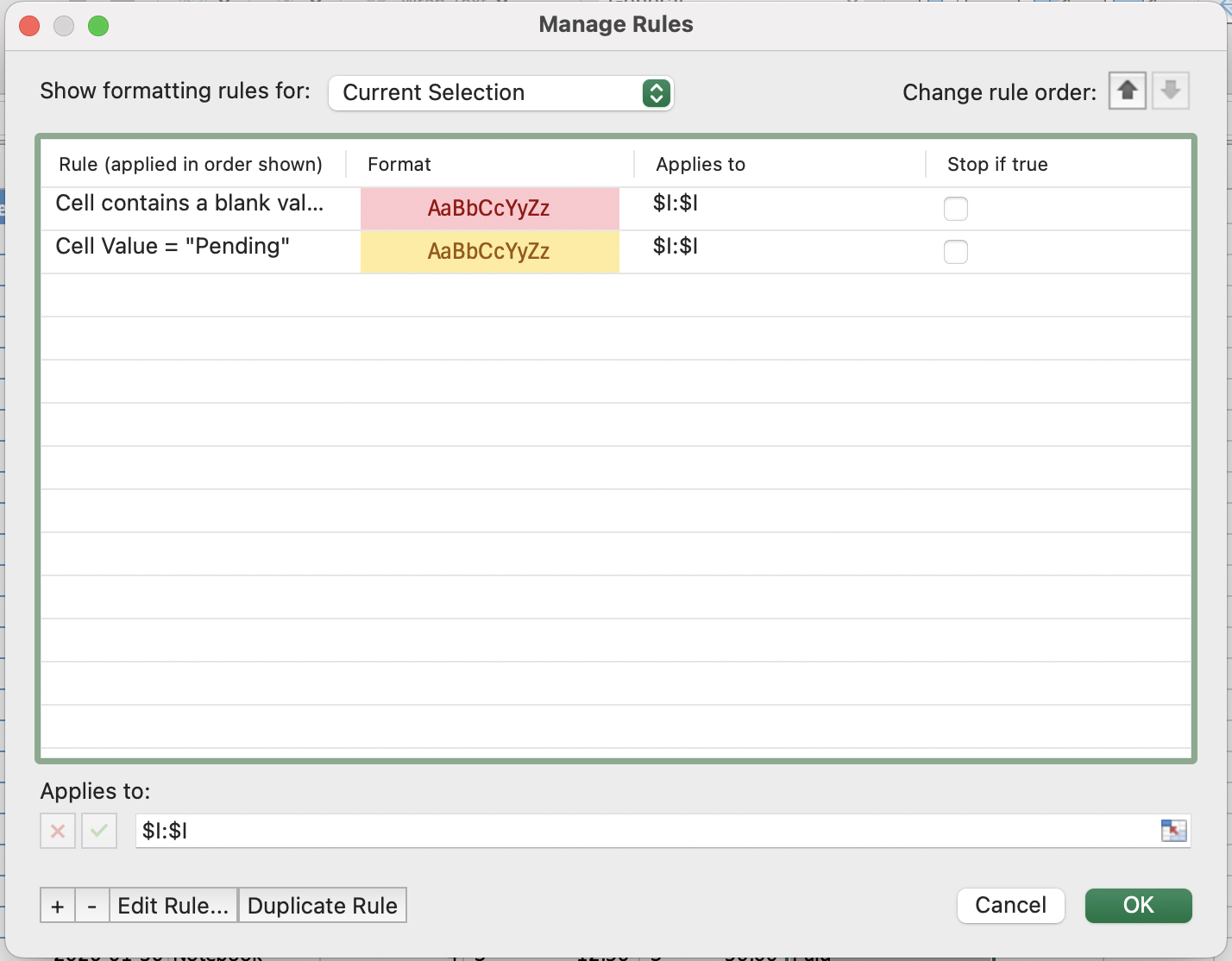

När flera regler gäller för samma cell utvärderar Excel dem uppifrån och ned och tillämpar den första som matchar. Använd pilarna i Regelhanteraren för att ändra ordningen. Om du vill att endast en regel ska gälla, markera Stoppa om sant på regeln med högst prioritet.
Tack för dina kommentarer!
Fråga AI

Fråga AI

Fråga vad du vill eller prova någon av de föreslagna frågorna för att starta vårt samtal
