Layoutkontroll
Svep för att visa menyn
Frys rutor
Frys översta raden: håller rubrikraden synlig när du bläddrar nedåt genom hundratals rader. Det vanligaste frysalternativet.
Visa-fliken → Frys rutor → Frys översta raden
Frys första kolumnen: håller den vänstra kolumnen (t.ex. Order No. eller Client) synlig när du bläddrar åt höger genom breda tabeller.
Visa-fliken → Frys rutor → Frys första kolumnen
Frys anpassade rader och kolumner: markera den cell som ligger direkt under de rader och till höger om de kolumner du vill frysa. Allt ovanför och till vänster om den cellen blir låst.
Klicka på cellen → Visa-fliken → Frys rutor → Frys rutor
För att ta bort frysning, gå till Visa → Frys rutor → Ta bort frysning.
Kanter
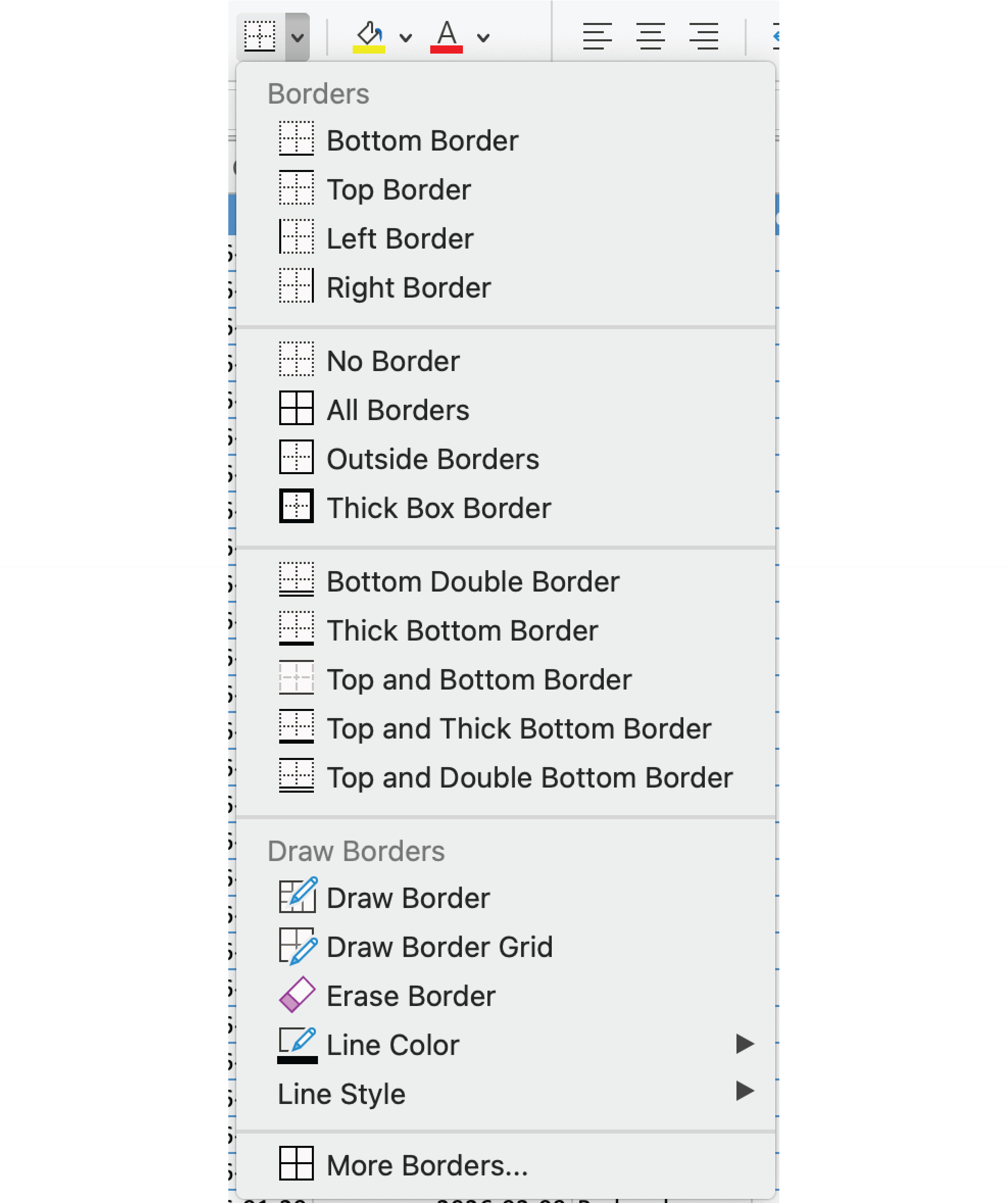
- Alla kanter: Start → Teckensnitt-grupp → Kantlinjer rullgardinsmeny → Alla kanter. Applicerar ett enhetligt rutnät på det markerade området med ett klick;
- Fler kanter: öppnar dialogrutan Formatera celler. Applicera kanter sida vid sida, ställ in anpassade linjestilar och färger, eller ta bort specifika kanter individuellt;
- Rita kant: förvandlar markören till en penna. Klicka eller dra över celler för att lägga till kanter exakt — cell för cell eller över ett område;
- Radera kant: tar bort specifika kantlinjer utan att påverka andra. Användbart för att förenkla ett fullständigt rutnät till en renare layout.
Rensa format
- Klistra in med matchande formatering: Högerklicka → Klistra in → Matcha målets formatering, eller använd
Ctrl+Shift+V. Det inklistrade innehållet ärver kalkylbladets befintliga stil; - Klistra in som vanligt, rensa sedan: klistra in som vanligt, markera sedan de berörda cellerna → Start → Rensa → Rensa format. Tar bort all importerad formatering men behåller data.

Rensa format tar bort färger, ramar, typsnitt och talformat, men aldrig själva datan. Det är säkert att använda även på celler som innehåller formler eller värden.
Tack för dina kommentarer!
Fråga AI

Fråga AI

Fråga vad du vill eller prova någon av de föreslagna frågorna för att starta vårt samtal
Layoutkontroll
Frys rutor
Frys översta raden: håller rubrikraden synlig när du bläddrar nedåt genom hundratals rader. Det vanligaste frysalternativet.
Visa-fliken → Frys rutor → Frys översta raden
Frys första kolumnen: håller den vänstra kolumnen (t.ex. Order No. eller Client) synlig när du bläddrar åt höger genom breda tabeller.
Visa-fliken → Frys rutor → Frys första kolumnen
Frys anpassade rader och kolumner: markera den cell som ligger direkt under de rader och till höger om de kolumner du vill frysa. Allt ovanför och till vänster om den cellen blir låst.
Klicka på cellen → Visa-fliken → Frys rutor → Frys rutor
För att ta bort frysning, gå till Visa → Frys rutor → Ta bort frysning.
Kanter
- Alla kanter: Start → Teckensnitt-grupp → Kantlinjer rullgardinsmeny → Alla kanter. Applicerar ett enhetligt rutnät på det markerade området med ett klick;
- Fler kanter: öppnar dialogrutan Formatera celler. Applicera kanter sida vid sida, ställ in anpassade linjestilar och färger, eller ta bort specifika kanter individuellt;
- Rita kant: förvandlar markören till en penna. Klicka eller dra över celler för att lägga till kanter exakt — cell för cell eller över ett område;
- Radera kant: tar bort specifika kantlinjer utan att påverka andra. Användbart för att förenkla ett fullständigt rutnät till en renare layout.
Rensa format
- Klistra in med matchande formatering: Högerklicka → Klistra in → Matcha målets formatering, eller använd
Ctrl+Shift+V. Det inklistrade innehållet ärver kalkylbladets befintliga stil; - Klistra in som vanligt, rensa sedan: klistra in som vanligt, markera sedan de berörda cellerna → Start → Rensa → Rensa format. Tar bort all importerad formatering men behåller data.
Rensa format tar bort färger, ramar, typsnitt och talformat, men aldrig själva datan. Det är säkert att använda även på celler som innehåller formler eller värden.
Tack för dina kommentarer!
