Skapa och Ansluta Din Första Notebook
Svep för att visa menyn

En Databricks Notebook är ett interaktivt webbaserat dokument som innehåller levande kod, visualiseringar och beskrivande text. För att köra kod måste en notebook "kopplas" till en aktiv beräkningsresurs (kluster).
I detta kapitel kommer du att skapa din första arbetsfil och koppla den till den processorkraft som krävs för att köra kod. I Databricks är en notebook i princip ett skal tills den är ansluten till ett kluster.
Skapa en ny notebook
Det finns två huvudsakliga sätt att skapa en notebook i gränssnittet:
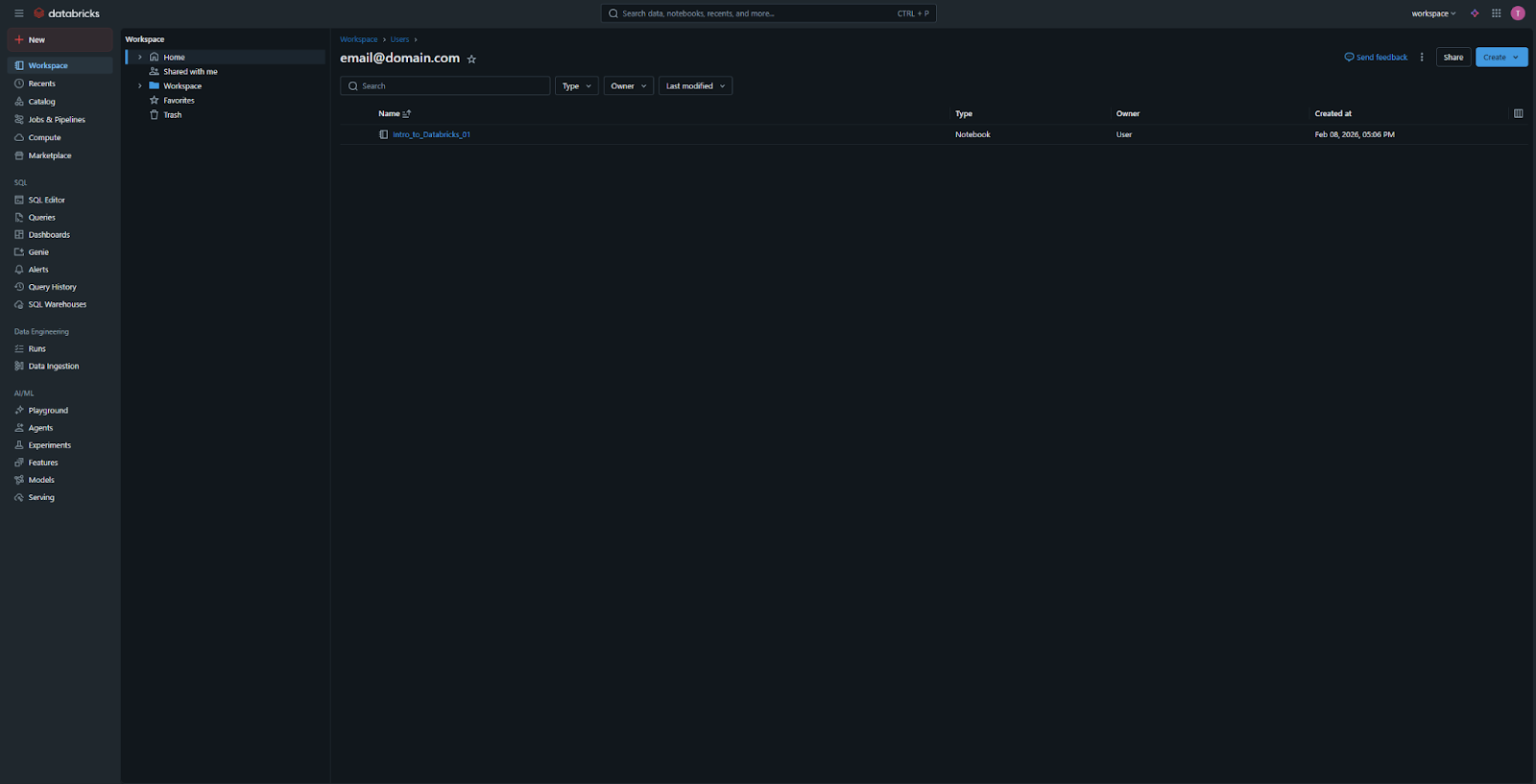
- Knappen "New": klicka på "New"-knappen i sidopanelen och välj "Notebook". Detta är det snabbaste sättet;
- Workspace-menyn: Navigera till fliken Workspace, högerklicka på din användarmapp (eller en specifik projektmapp) och välj Create > Notebook.
Grundläggande notebook-konfiguration
När du skapar en ny notebook ombeds du ange grundläggande information:
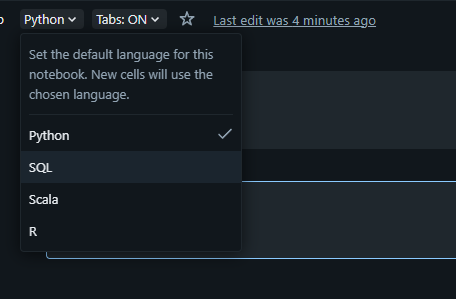
- Namn: ange ett beskrivande namn (t.ex.
01_Intro_to_Notebooks); - Standardspråk: välj huvudspråk för notebooken. Alternativen är SQL, Python, Scala eller R. I denna kurs används främst Python eller SQL. Observera att du kan ändra detta senare eller blanda språk i samma notebook.
Anslutning till beräkningsresurs
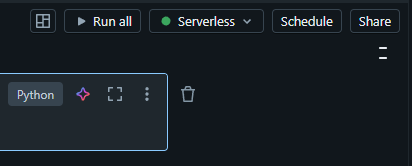
När notebooken öppnas ser du en rullgardinsmeny uppe till höger märkt "Connect" eller med en beräkningsikon.
- Klicka på rullgardinsmenyn för att se en lista över tillgängliga kluster;
- Välj det kluster du skapade i avsnitt 2 (t.ex.
Student_Cluster_1); - Statusindikatorer:
- Om klustret är Terminated kan du starta det direkt från denna meny;
- En grön cirkel indikerar att notebooken är korrekt ansluten och redo att köra kod;
- En grå cirkel betyder att notebooken är frånkopplad och inte kan köra kommandon.
Databricks låter dig även välja och använda deras egen processorkraft istället för ett eget kluster, vilket du gör genom att välja Serverless i klusterrullgardinsmenyn.
Frånkoppling och återanslutning
Du kan byta kluster när som helst. Detta är användbart om du behöver flytta en notebook från ett litet, kostnadseffektivt kluster till ett större och kraftfullare för en specifik uppgift. För att göra detta klickar du bara på beräkningsrullgardinsmenyn igen och väljer "Detach" eller väljer ett annat kluster från listan.
1. Vad måste du göra innan du kan köra någon kod i en Databricks-anteckningsbok?
2. Vilket av följande är INTE ett standardspråksalternativ för en Databricks-anteckningsbok?
3. Om ditt kluster för närvarande är "Avslutat", kan du starta det direkt från anteckningsbokens gränssnitt?
Tack för dina kommentarer!
Fråga AI

Fråga AI

Fråga vad du vill eller prova någon av de föreslagna frågorna för att starta vårt samtal
Skapa och Ansluta Din Första Notebook
En Databricks Notebook är ett interaktivt webbaserat dokument som innehåller levande kod, visualiseringar och beskrivande text. För att köra kod måste en notebook "kopplas" till en aktiv beräkningsresurs (kluster).
I detta kapitel kommer du att skapa din första arbetsfil och koppla den till den processorkraft som krävs för att köra kod. I Databricks är en notebook i princip ett skal tills den är ansluten till ett kluster.
Skapa en ny notebook
Det finns två huvudsakliga sätt att skapa en notebook i gränssnittet:
- Knappen "New": klicka på "New"-knappen i sidopanelen och välj "Notebook". Detta är det snabbaste sättet;
- Workspace-menyn: Navigera till fliken Workspace, högerklicka på din användarmapp (eller en specifik projektmapp) och välj Create > Notebook.
Grundläggande notebook-konfiguration
När du skapar en ny notebook ombeds du ange grundläggande information:
- Namn: ange ett beskrivande namn (t.ex.
01_Intro_to_Notebooks); - Standardspråk: välj huvudspråk för notebooken. Alternativen är SQL, Python, Scala eller R. I denna kurs används främst Python eller SQL. Observera att du kan ändra detta senare eller blanda språk i samma notebook.
Anslutning till beräkningsresurs
När notebooken öppnas ser du en rullgardinsmeny uppe till höger märkt "Connect" eller med en beräkningsikon.
- Klicka på rullgardinsmenyn för att se en lista över tillgängliga kluster;
- Välj det kluster du skapade i avsnitt 2 (t.ex.
Student_Cluster_1); - Statusindikatorer:
- Om klustret är Terminated kan du starta det direkt från denna meny;
- En grön cirkel indikerar att notebooken är korrekt ansluten och redo att köra kod;
- En grå cirkel betyder att notebooken är frånkopplad och inte kan köra kommandon.
Databricks låter dig även välja och använda deras egen processorkraft istället för ett eget kluster, vilket du gör genom att välja Serverless i klusterrullgardinsmenyn.
Frånkoppling och återanslutning
Du kan byta kluster när som helst. Detta är användbart om du behöver flytta en notebook från ett litet, kostnadseffektivt kluster till ett större och kraftfullare för en specifik uppgift. För att göra detta klickar du bara på beräkningsrullgardinsmenyn igen och väljer "Detach" eller väljer ett annat kluster från listan.
Tack för dina kommentarer!
