Calculated Fields and Custom Metrics
Deslize para mostrar o menu
Pivot Tables can calculate totals, averages, and counts automatically. But sometimes you need a custom calculation that doesn't exist in your source data. In this chapter, you'll create calculated fields directly inside a Pivot Table to build your own metrics.
A Calculated Field allows you to create a new formula inside a Pivot Table using existing fields from the dataset. This is useful when:
- You need profit but only have revenue and cost;
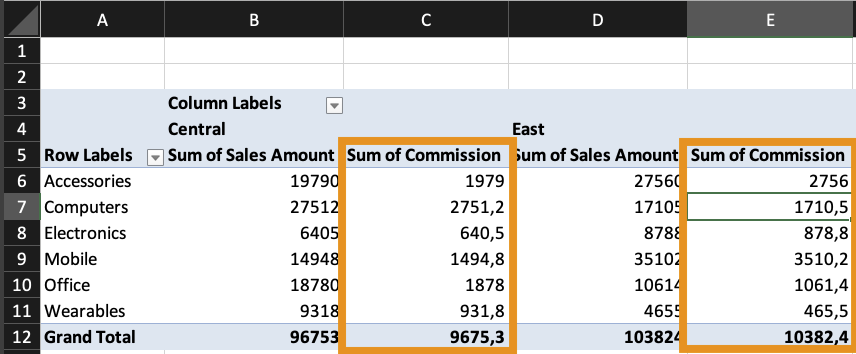
- You need commission based on sales;
- You need percentage-based adjustments;
- You want to simulate business rules.
A calculated field does not change the source data. It exists only inside the Pivot Table.
Creating a Calculated Field
To insert a Calculated Field:
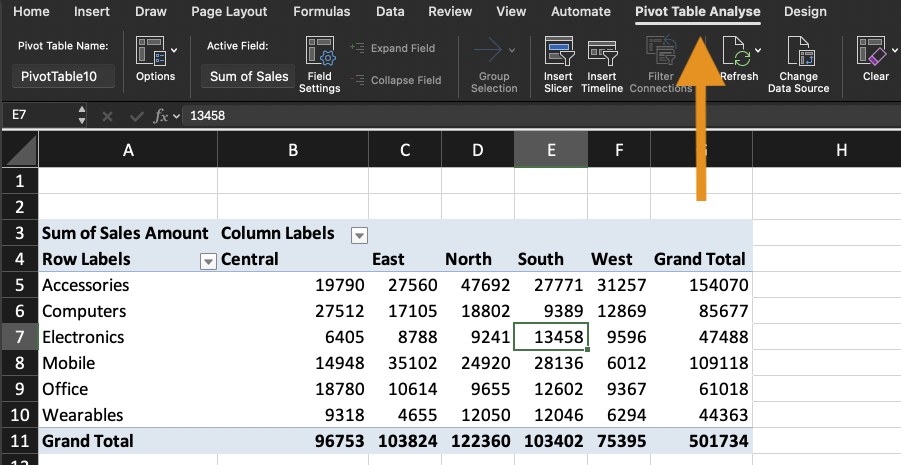
- Click inside the Pivot Table;
- Open the PivotTable Analyze tab;
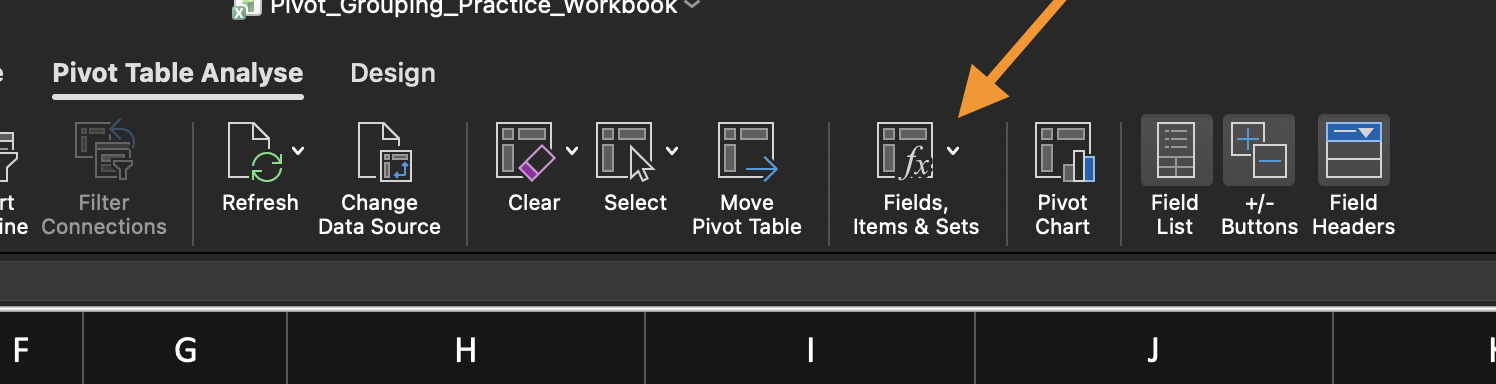
- Click Fields, Items & Sets;
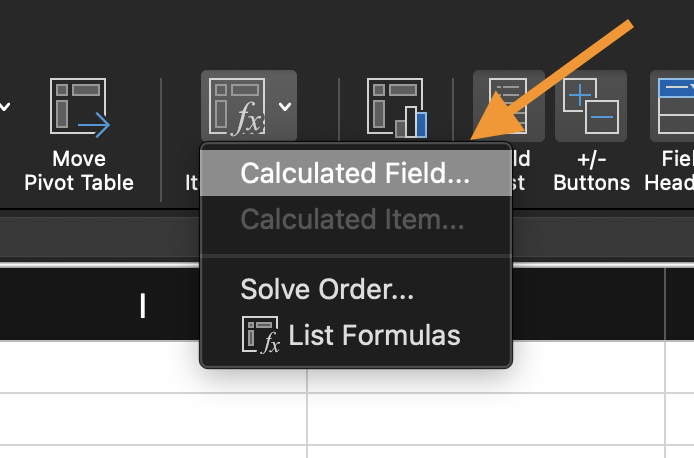
- Select Calculated Field;
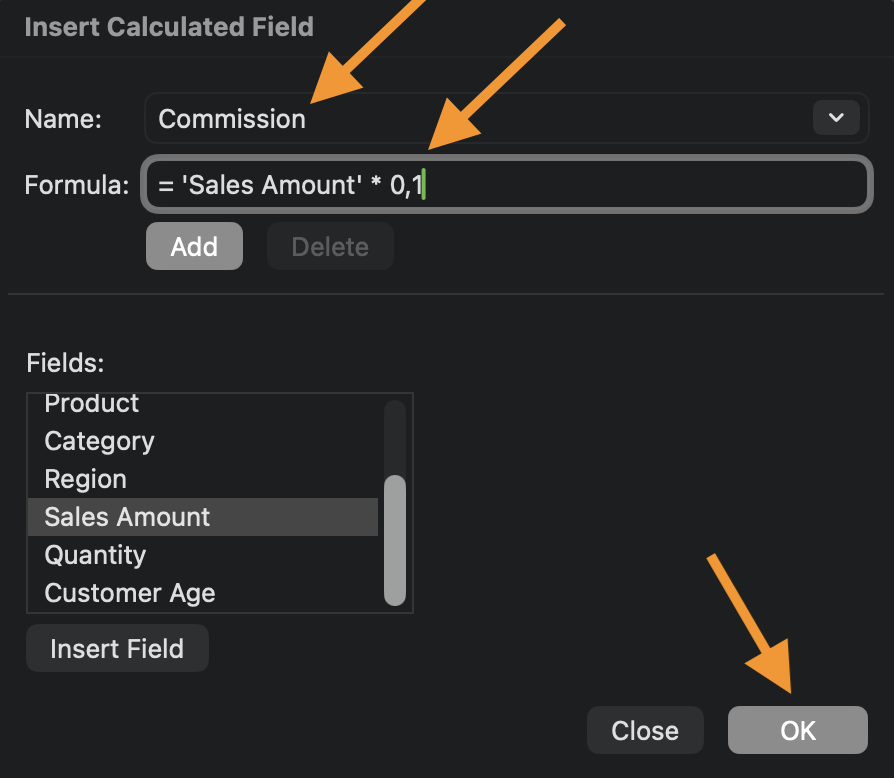
- Enter:
- A name for the new field;
- A formula using existing field names.
- Click Add or OK.
The new field becomes available in the Pivot Table and is added to the Values area.

You can only use field names, not cell references.
Formulas work on aggregated data.
Calculated fields apply the formula to each record before aggregation.
Task
Create a Pivot Table with:
- Rows: Category;
- Values: Sum of Revenue;
- Values: Sum of Cost;
Create a Calculated Field:
- Name: Profit;
- Formula:
= Revenue - Cost.
Create another Calculated Field:
- Name: Profit Margin;
- Formula:
= (Revenue - Cost) / Revenue.
Obrigado pelo seu feedback!
Pergunte à IA

Pergunte à IA

Pergunte o que quiser ou experimente uma das perguntas sugeridas para iniciar nosso bate-papo
Calculated Fields and Custom Metrics
Pivot Tables can calculate totals, averages, and counts automatically. But sometimes you need a custom calculation that doesn't exist in your source data. In this chapter, you'll create calculated fields directly inside a Pivot Table to build your own metrics.
A Calculated Field allows you to create a new formula inside a Pivot Table using existing fields from the dataset. This is useful when:
- You need profit but only have revenue and cost;
- You need commission based on sales;
- You need percentage-based adjustments;
- You want to simulate business rules.
A calculated field does not change the source data. It exists only inside the Pivot Table.
Creating a Calculated Field
To insert a Calculated Field:
- Click inside the Pivot Table;
- Open the PivotTable Analyze tab;
- Click Fields, Items & Sets;
- Select Calculated Field;
- Enter:
- A name for the new field;
- A formula using existing field names.
- Click Add or OK.
The new field becomes available in the Pivot Table and is added to the Values area.
You can only use field names, not cell references.
Formulas work on aggregated data.
Calculated fields apply the formula to each record before aggregation.
Task
Create a Pivot Table with:
- Rows: Category;
- Values: Sum of Revenue;
- Values: Sum of Cost;
Create a Calculated Field:
- Name: Profit;
- Formula:
= Revenue - Cost.
Create another Calculated Field:
- Name: Profit Margin;
- Formula:
= (Revenue - Cost) / Revenue.
Obrigado pelo seu feedback!
