Domínio do Preenchimento Automático
Deslize para mostrar o menu
Uma grande parte do trabalho repetitivo no Excel consiste em estender informações: continuar uma sequência de datas, copiar uma fórmula por uma coluna, repetir um padrão de valores.
Alça de Preenchimento
A alça de preenchimento é o pequeno quadrado no canto inferior direito de qualquer célula ou intervalo selecionado. É o ponto de entrada visual para todas as operações de Preenchimento Automático.
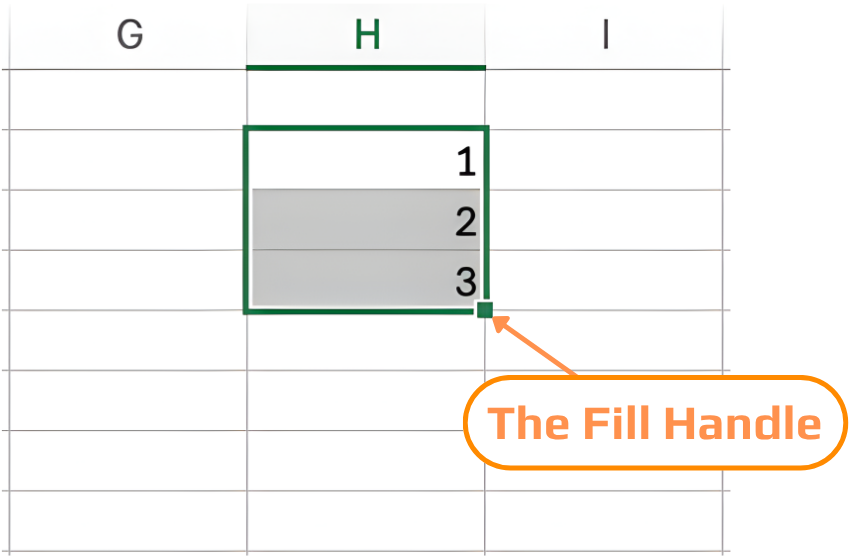
- Clique e arraste: arraste a alça de preenchimento para baixo, para cima, para a esquerda ou para a direita;
- Clique duplo: preenche automaticamente para baixo até igualar o comprimento de uma coluna adjacente preenchida. Não é necessário arrastar.
Preenchimento de Sequências
O Excel reconhece uma ampla variedade de padrões e os continua automaticamente ao arrastar a alça de preenchimento.
1. Números
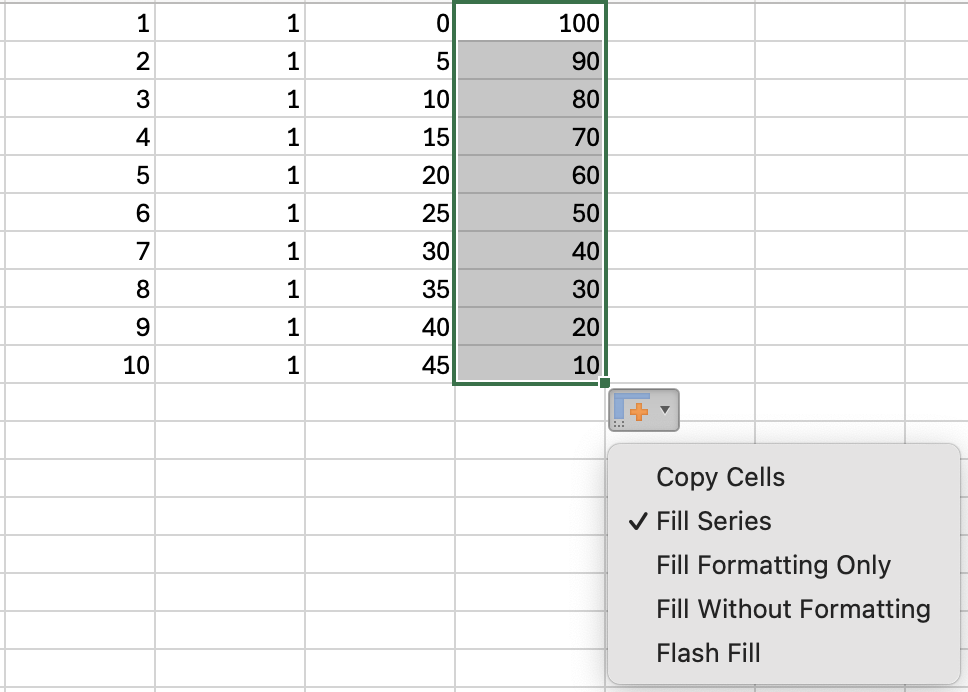
Digite 1 em uma célula e 2 na célula abaixo. Selecione ambas, arraste a alça de preenchimento para baixo → o Excel continua: 3, 4, 5…
Se você arrastar apenas um número, o Excel irá copiá-lo em vez de incrementar. Sempre selecione duas células para definir o tamanho do passo.
Após arrastar a alça de preenchimento, é possível controlar como o Excel completa a sequência utilizando o menu Opções de Auto Preenchimento (o pequeno ícone que aparece). Selecione opções como Preencher Série, Copiar Células ou Preencher Sem Formatação para ajustar o resultado.
2. Datas
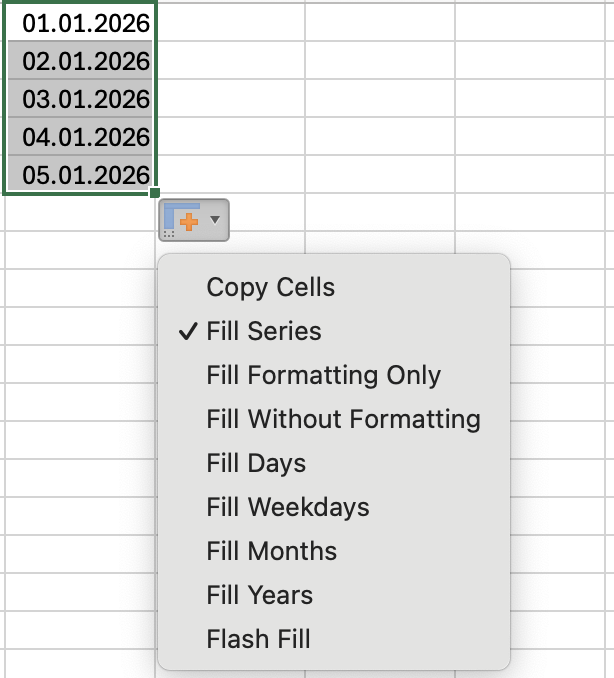
Os formatos de data variam entre regiões (por exemplo, DD/MM/AAAA vs MM/DD/AAAA). Por esse motivo, o Excel pode interpretar suas datas de forma diferente e a alça de preenchimento pode incrementar meses em vez de dias, ou vice-versa.
Para controlar como a sequência será preenchida, utilize o menu Opções de Auto Preenchimento (o pequeno ícone que aparece após arrastar). Nele, é possível escolher explicitamente opções como Preencher Dias, Preencher Dias da Semana, Preencher Meses ou Preencher Anos para garantir o padrão correto.
3. Padrões de texto
O Excel possui reconhecimento integrado para sequências de texto comuns:
Sequências personalizadas (como sua própria lista de regiões ou categorias de produtos) podem ser definidas como Listas Personalizadas — abordadas no Capítulo 3 desta seção.
4. Preenchendo Fórmulas
O Preenchimento Automático é mais poderoso ao copiar fórmulas para baixo em uma coluna. O Excel ajusta as referências de células automaticamente conforme preenche.
Suponha que você queira calcular o Revenue com base em Units e Unit Cost.
- Na primeira linha da coluna Revenue (por exemplo,
G2), insira a fórmula:
=E2*F2
- Pressione Enter;
- Selecione a célula com a fórmula (
G2) e arraste a alça de preenchimento para baixo ou dê um duplo clique na alça de preenchimento.
O Excel ajustará automaticamente a fórmula para cada linha:
=E3*F3
=E4*F4
=E5*F5
e assim por diante.
Adicione uma coluna Order ID usando o Preenchimento Automático:
-
Insira uma nova coluna no início da tabela e nomeie como Order ID.
-
Na primeira linha de dados (por exemplo, A2), insira:
ORD-001
- Na próxima linha (A3), insira:
ORD-002
- Selecione ambas as células (A2:A3) e arraste a alça de preenchimento até a última linha do conjunto de dados.
O Excel continuará automaticamente a sequência:
- ORD-003
- ORD-004
- ORD-005
- …
Obrigado pelo seu feedback!
Pergunte à IA

Pergunte à IA

Pergunte o que quiser ou experimente uma das perguntas sugeridas para iniciar nosso bate-papo
