Como a Colaboração Funciona no Excel
Deslize para mostrar o menu
Os fluxos de trabalho modernos do Excel são baseados em colaboração. Em vez de enviar anexos de pastas de trabalho por e-mail, as equipes agora trabalham em arquivos compartilhados na nuvem.
A colaboração no Excel é comumente utilizada quando vários usuários precisam acessar a mesma pasta de trabalho, relatórios exigem atualizações constantes ou equipes trabalham remotamente. A colaboração baseada em nuvem ajuda a reduzir arquivos duplicados e mantém os dados das pastas de trabalho sincronizados entre os usuários.
Compreendendo Arquivos do Excel Baseados na Nuvem
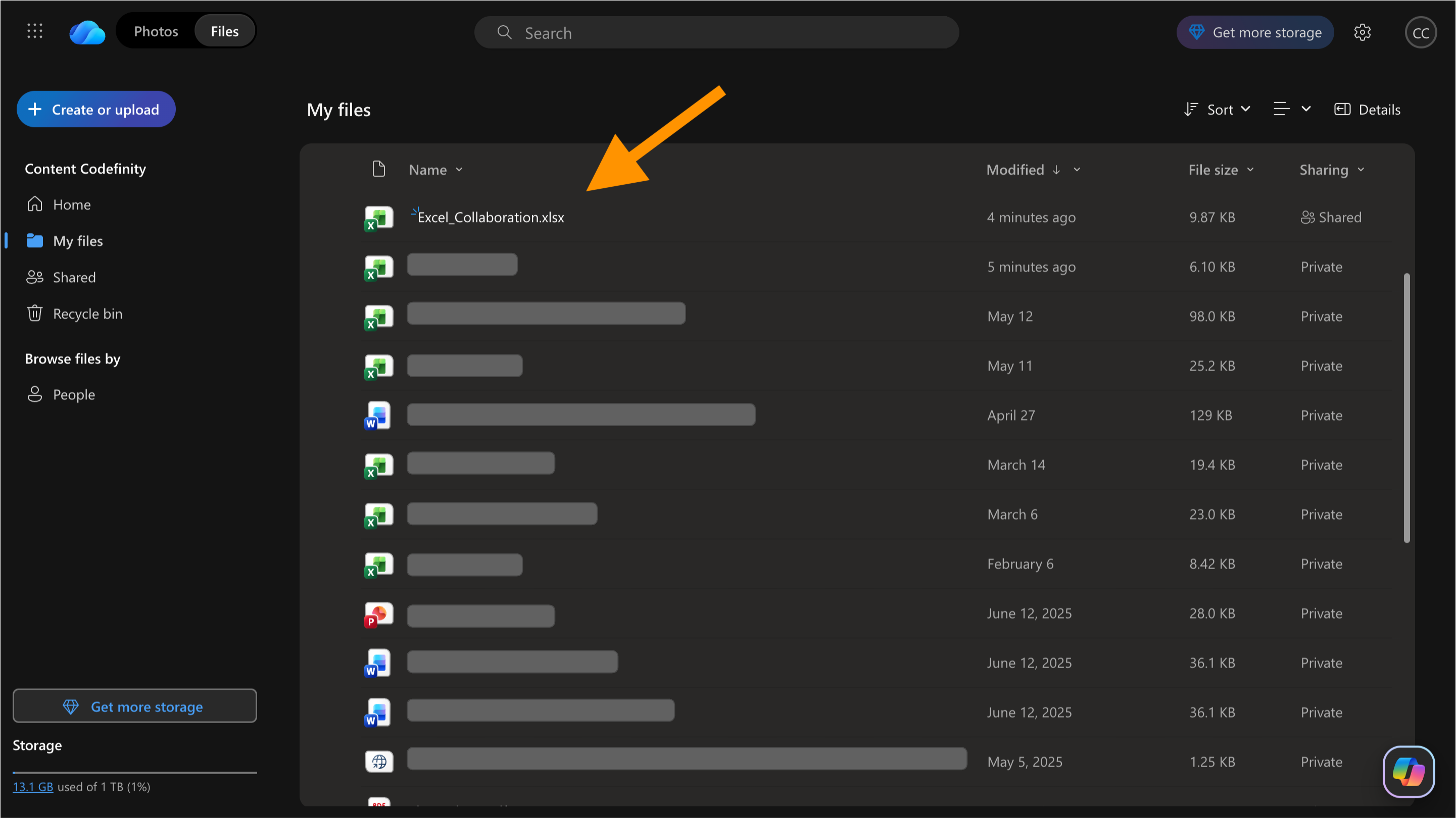
A colaboração no Excel funciona principalmente por meio do Microsoft OneDrive e do SharePoint. Quando uma pasta de trabalho é armazenada na nuvem, vários usuários podem acessar o mesmo arquivo, as alterações são salvas automaticamente e o histórico de versões fica disponível.
Em vez de criar cópias separadas da pasta de trabalho, os colaboradores trabalham em um único arquivo compartilhado. Isso torna o trabalho em equipe mais rápido e reduz a confusão causada por versões desatualizadas.
Compreendendo o AutoSave
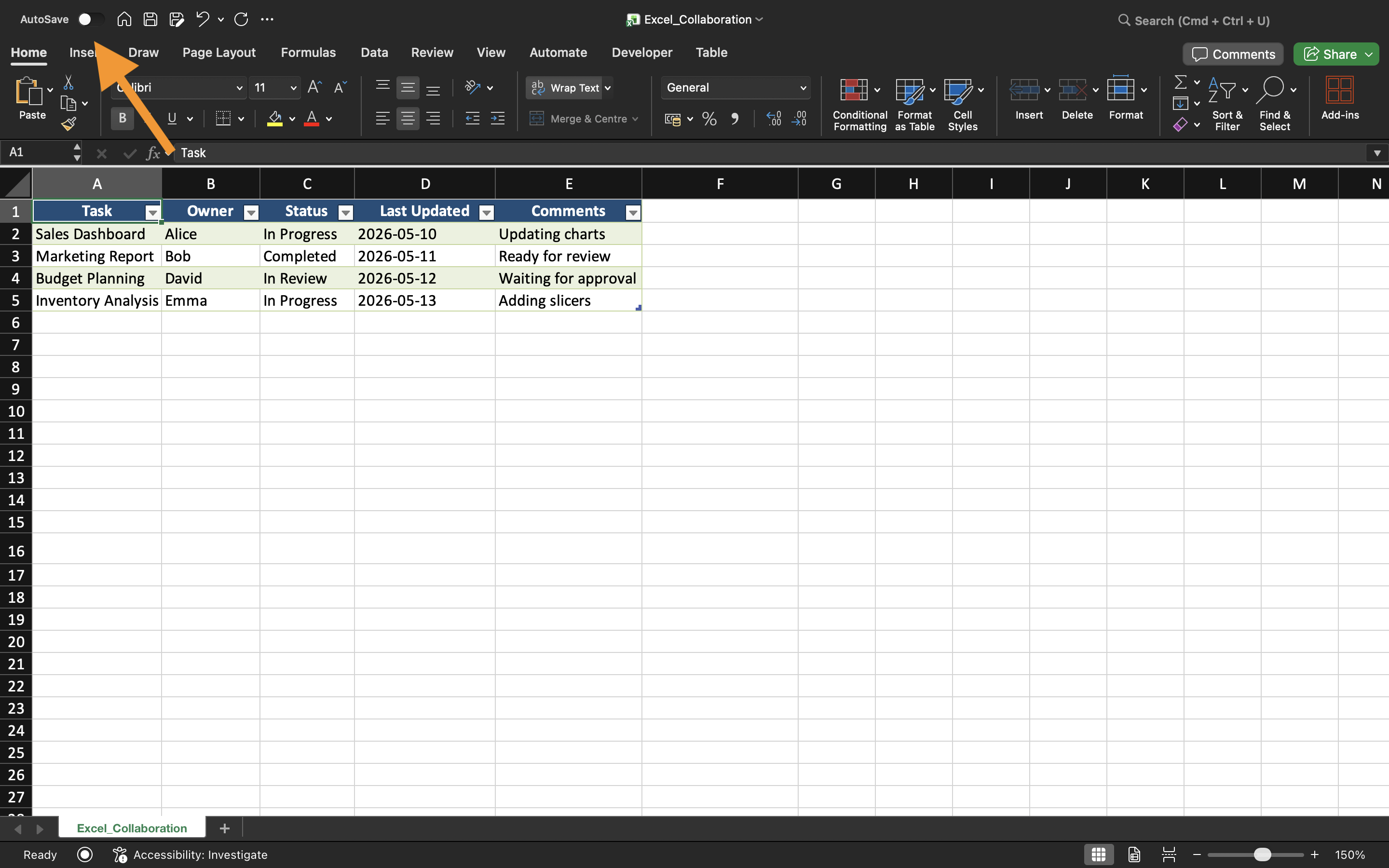
Quando uma pasta de trabalho é armazenada no OneDrive, o Excel ativa automaticamente o AutoSave. Esse recurso salva continuamente as alterações da pasta de trabalho enquanto os usuários trabalham no arquivo.
O AutoSave ajuda a reduzir a perda de dados causada por falhas no aplicativo, atualizações do navegador ou desligamentos inesperados. O botão de alternância do AutoSave aparece próximo ao canto superior esquerdo do Excel.
Como Funcionam as Pastas de Trabalho Compartilhadas
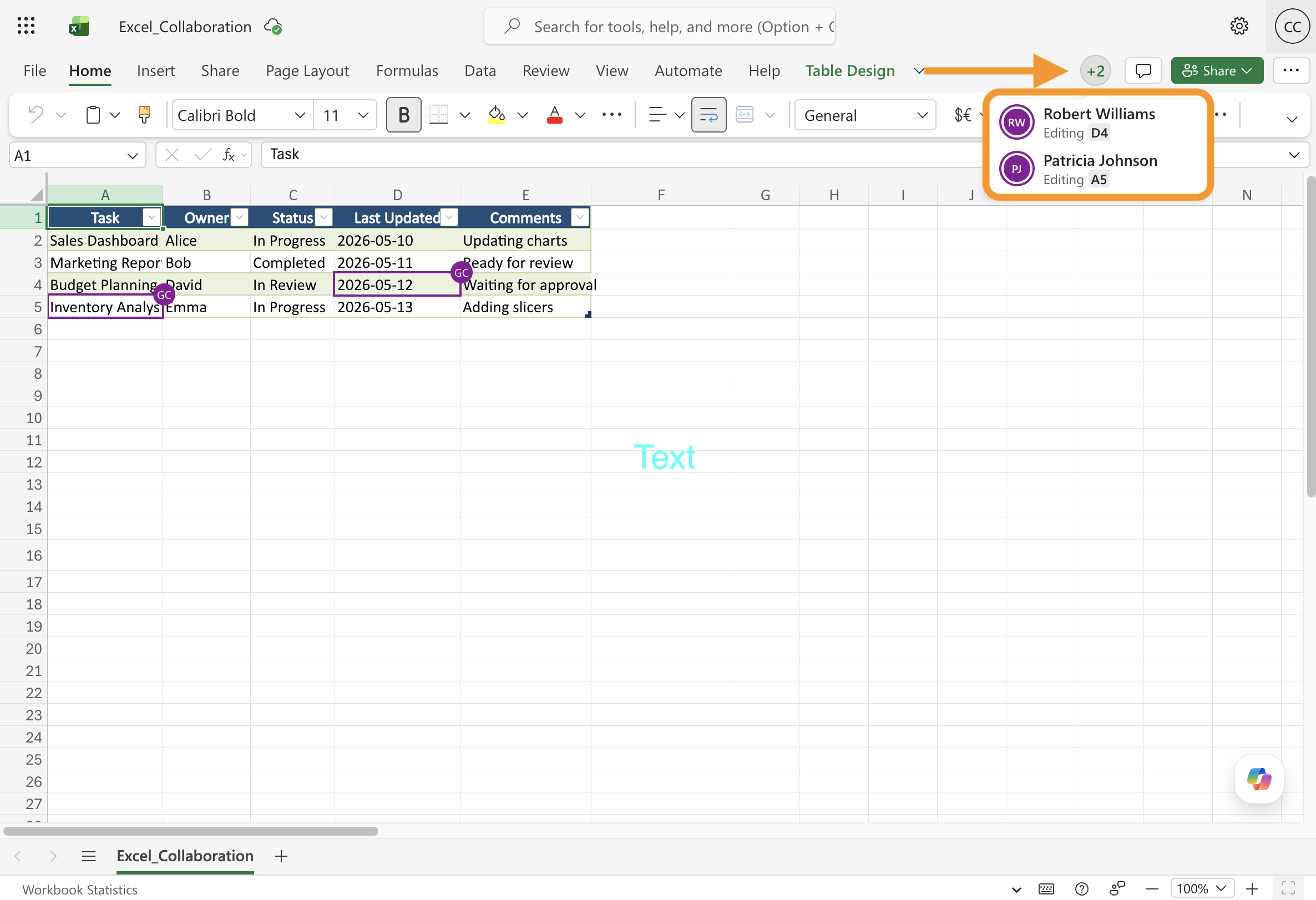
Uma pasta de trabalho compartilhada permite que vários usuários trabalhem no mesmo arquivo do Excel. Dependendo das permissões, os colaboradores podem visualizar o conteúdo da pasta de trabalho, editar planilhas, adicionar comentários ou revisar alterações.
Quando vários usuários editam a pasta de trabalho simultaneamente, o Excel sincroniza as atualizações automaticamente. Isso cria um fluxo de trabalho muito mais eficiente em comparação ao envio manual de anexos de pastas de trabalho.
Benefícios da Colaboração no Excel
A colaboração moderna no Excel aprimora o trabalho em equipe por meio de:
- Redução de cópias duplicadas de pastas de trabalho;
- Simplificação da comunicação;
- Melhoria no acompanhamento de versões;
- Manutenção dos arquivos sincronizados entre as equipes.
Esses fluxos de trabalho são comumente utilizados por equipes de finanças, marketing, operações, vendas e gestão de projetos.
Obrigado pelo seu feedback!
Pergunte à IA

Pergunte à IA

Pergunte o que quiser ou experimente uma das perguntas sugeridas para iniciar nosso bate-papo
