Controlando a Estrutura da Pasta de Trabalho
Deslize para mostrar o menu
Além de proteger o conteúdo das planilhas, o Excel também permite proteger a estrutura do livro de trabalho. Isso ajuda a evitar que colaboradores alterem a organização das planilhas dentro do arquivo.
A proteção da estrutura do livro de trabalho é comumente utilizada em relatórios compartilhados, modelos, dashboards e sistemas operacionais nos quais a organização das planilhas deve permanecer estável.
Compreendendo a Proteção da Estrutura do Livro de Trabalho
A proteção da estrutura do livro de trabalho restringe ações que afetam a organização das planilhas. Uma vez ativada, os usuários podem não conseguir mais adicionar, excluir, renomear, mover, ocultar ou exibir planilhas.
Protegendo a Estrutura do Livro de Trabalho
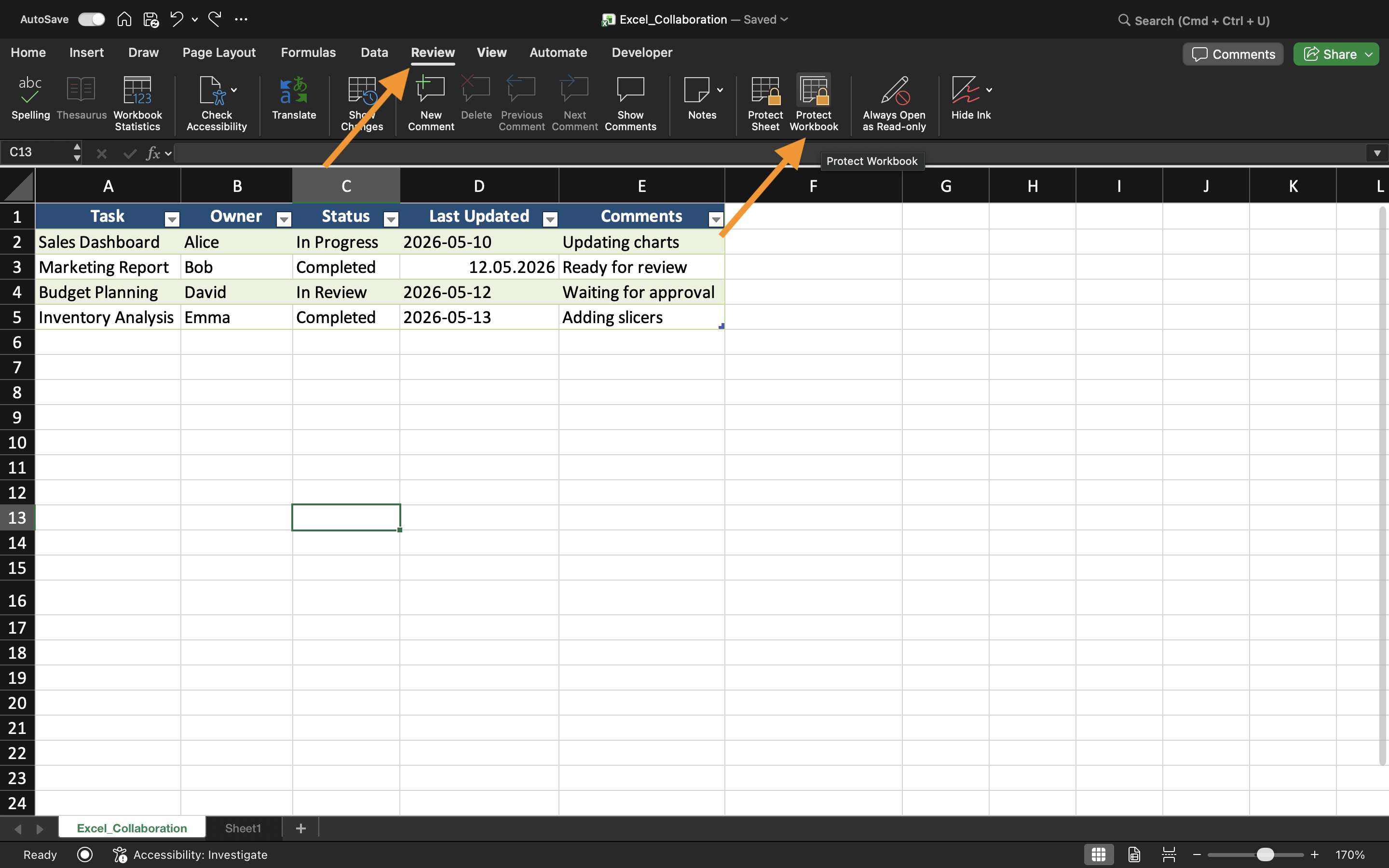
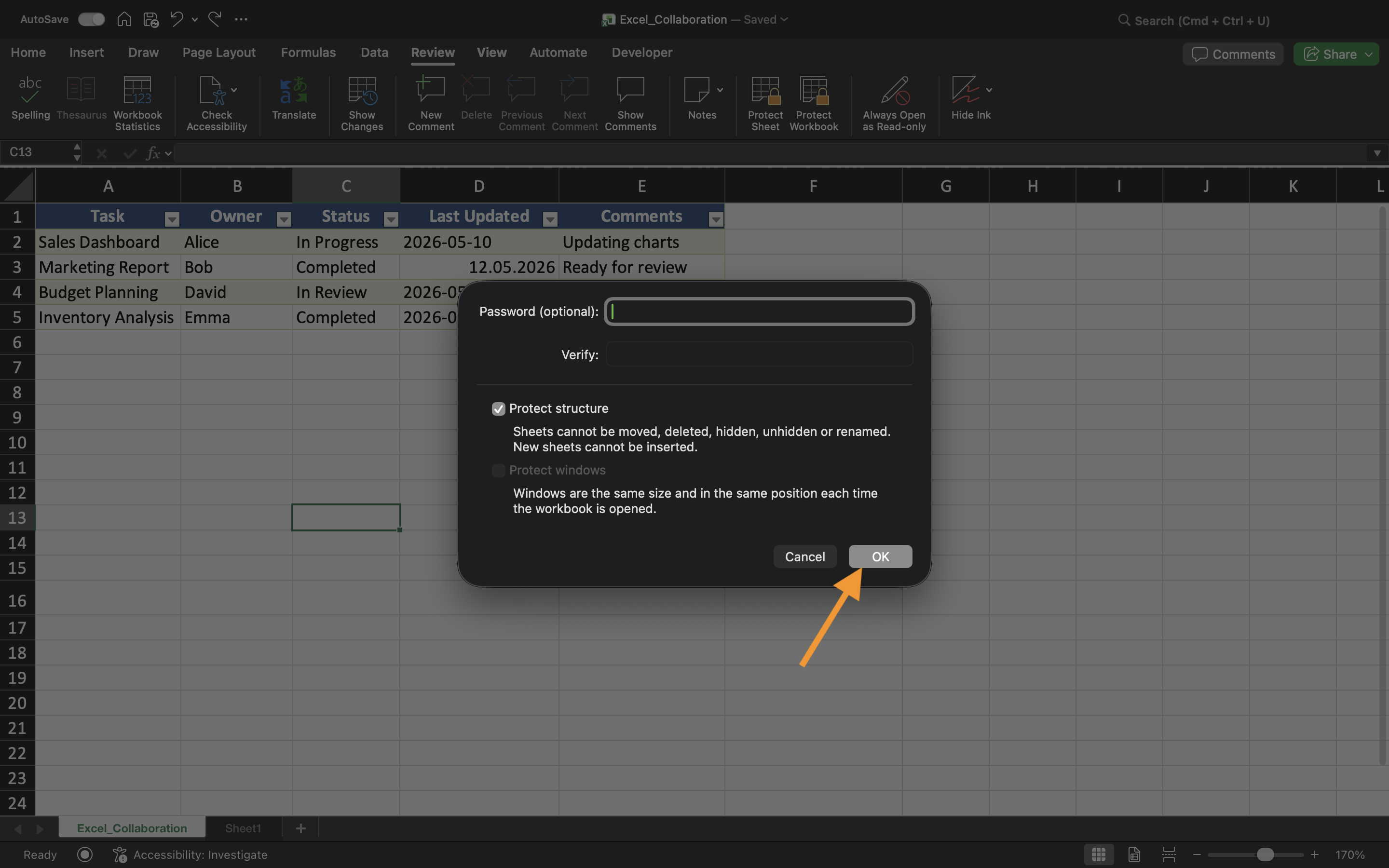
Para proteger a estrutura do livro de trabalho:
- Abra a guia Revisão;
- Selecione Proteger Pasta de Trabalho;
- Ative a proteção de Estrutura;
- Aplique as configurações.
Após a proteção ser ativada, a organização das planilhas fica restrita para os colaboradores.
Isso é especialmente útil quando os livros de trabalho contêm sistemas de relatórios cuidadosamente organizados ou estruturas de planilhas vinculadas.
Ocultando Planilhas
O Excel também permite ocultar planilhas da visualização normal do livro de trabalho. As planilhas ocultas permanecem dentro do livro, mas não ficam imediatamente visíveis para os colaboradores.
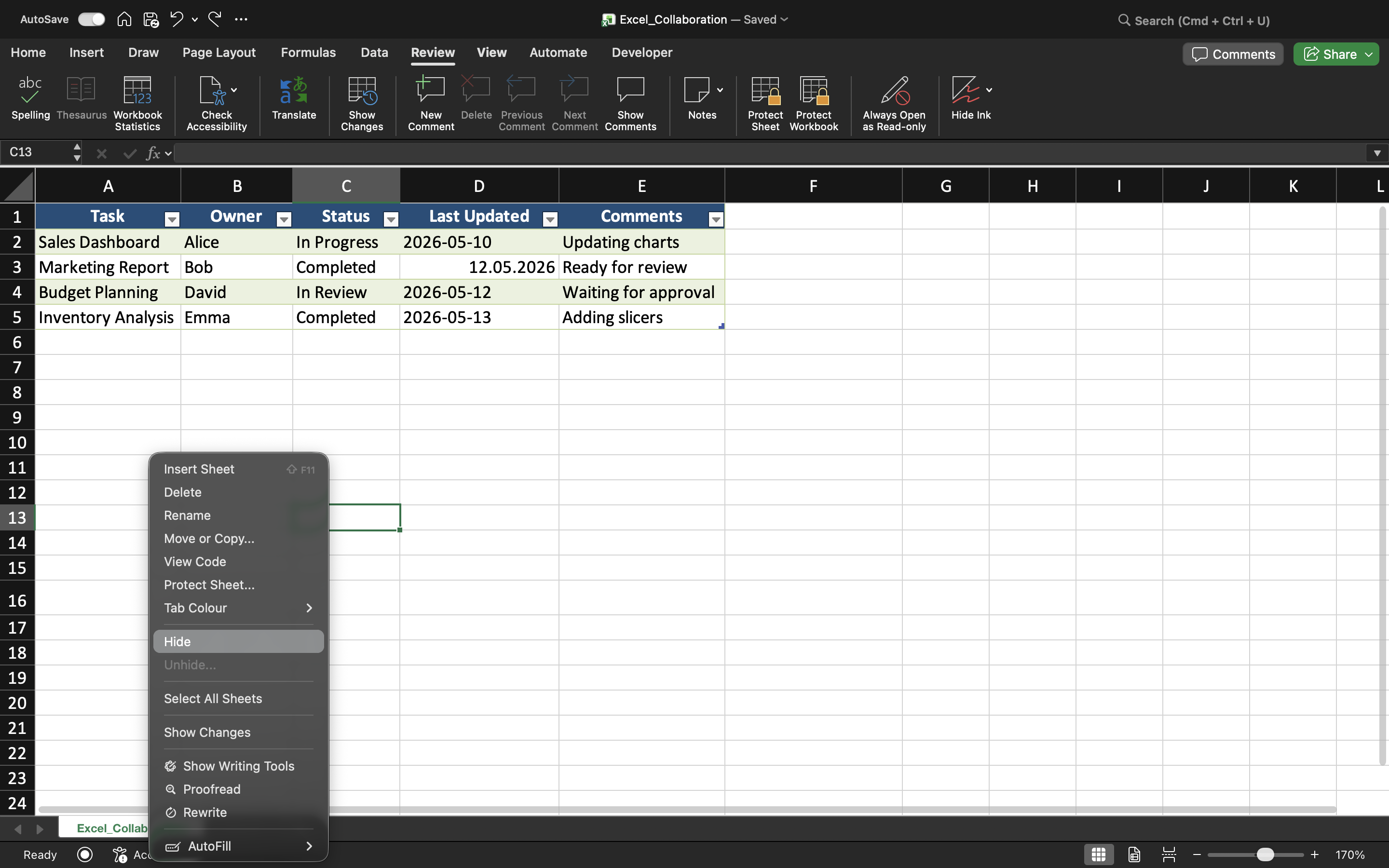
Para ocultar uma planilha:
- Clique com o botão direito na guia da planilha;
- Selecione Ocultar.
Planilhas ocultas são frequentemente usadas para cálculos de apoio, dados arquivados, tabelas auxiliares ou informações administrativas. Isso ajuda a criar interfaces de livros de trabalho mais limpas e organizadas.
Revelando Planilhas
Se a proteção da estrutura da pasta de trabalho estiver desativada, planilhas ocultas podem ser restauradas por meio da opção Reexibir. No entanto, quando a proteção da estrutura da pasta de trabalho está ativa, os colaboradores podem ser impedidos de reexibir as planilhas por conta própria. Isso adiciona uma camada extra de controle organizacional em pastas de trabalho compartilhadas.
Quando a Proteção da Estrutura da Pasta de Trabalho é Útil
A proteção da estrutura da pasta de trabalho é especialmente útil quando equipes colaboram em sistemas de pastas de trabalho complexos ou dashboards com layouts de planilhas cuidadosamente organizados.
Sem proteção estrutural, colaboradores podem reorganizar acidentalmente as abas das planilhas, remover planilhas importantes ou prejudicar a navegação na pasta de trabalho.
Tarefa
A pasta de trabalho contém um sistema de relatórios compartilhado com várias planilhas e abas de cálculo ocultas. O objetivo é proteger a organização da pasta de trabalho e evitar alterações estruturais durante a colaboração.
- Proteger a estrutura da pasta de trabalho;
- Ocultar planilhas selecionadas;
- Tentar renomear ou mover abas de planilhas;
- Verificar se as alterações estruturais estão restritas;
- Testar a reexibição de planilhas antes e depois da proteção.
Obrigado pelo seu feedback!
Pergunte à IA

Pergunte à IA

Pergunte o que quiser ou experimente uma das perguntas sugeridas para iniciar nosso bate-papo
Controlando a Estrutura da Pasta de Trabalho
Além de proteger o conteúdo das planilhas, o Excel também permite proteger a estrutura do livro de trabalho. Isso ajuda a evitar que colaboradores alterem a organização das planilhas dentro do arquivo.
A proteção da estrutura do livro de trabalho é comumente utilizada em relatórios compartilhados, modelos, dashboards e sistemas operacionais nos quais a organização das planilhas deve permanecer estável.
Compreendendo a Proteção da Estrutura do Livro de Trabalho
A proteção da estrutura do livro de trabalho restringe ações que afetam a organização das planilhas. Uma vez ativada, os usuários podem não conseguir mais adicionar, excluir, renomear, mover, ocultar ou exibir planilhas.
Protegendo a Estrutura do Livro de Trabalho
Para proteger a estrutura do livro de trabalho:
- Abra a guia Revisão;
- Selecione Proteger Pasta de Trabalho;
- Ative a proteção de Estrutura;
- Aplique as configurações.
Após a proteção ser ativada, a organização das planilhas fica restrita para os colaboradores.
Isso é especialmente útil quando os livros de trabalho contêm sistemas de relatórios cuidadosamente organizados ou estruturas de planilhas vinculadas.
Ocultando Planilhas
O Excel também permite ocultar planilhas da visualização normal do livro de trabalho. As planilhas ocultas permanecem dentro do livro, mas não ficam imediatamente visíveis para os colaboradores.
Para ocultar uma planilha:
- Clique com o botão direito na guia da planilha;
- Selecione Ocultar.
Planilhas ocultas são frequentemente usadas para cálculos de apoio, dados arquivados, tabelas auxiliares ou informações administrativas. Isso ajuda a criar interfaces de livros de trabalho mais limpas e organizadas.
Revelando Planilhas
Se a proteção da estrutura da pasta de trabalho estiver desativada, planilhas ocultas podem ser restauradas por meio da opção Reexibir. No entanto, quando a proteção da estrutura da pasta de trabalho está ativa, os colaboradores podem ser impedidos de reexibir as planilhas por conta própria. Isso adiciona uma camada extra de controle organizacional em pastas de trabalho compartilhadas.
Quando a Proteção da Estrutura da Pasta de Trabalho é Útil
A proteção da estrutura da pasta de trabalho é especialmente útil quando equipes colaboram em sistemas de pastas de trabalho complexos ou dashboards com layouts de planilhas cuidadosamente organizados.
Sem proteção estrutural, colaboradores podem reorganizar acidentalmente as abas das planilhas, remover planilhas importantes ou prejudicar a navegação na pasta de trabalho.
Tarefa
A pasta de trabalho contém um sistema de relatórios compartilhado com várias planilhas e abas de cálculo ocultas. O objetivo é proteger a organização da pasta de trabalho e evitar alterações estruturais durante a colaboração.
- Proteger a estrutura da pasta de trabalho;
- Ocultar planilhas selecionadas;
- Tentar renomear ou mover abas de planilhas;
- Verificar se as alterações estruturais estão restritas;
- Testar a reexibição de planilhas antes e depois da proteção.
Obrigado pelo seu feedback!
