Filtragem
Deslize para mostrar o menu
Ativando e Desativando Filtros
- Clique em qualquer célula dentro do intervalo → Guia Dados → Filtro, ou pressione
Ctrl+Shift+L(Win)/Control+Shift+L(Mac). Setas suspensas aparecem em cada célula do cabeçalho; - Tabelas criadas com
Ctrl+Ttêm filtros ativados automaticamente na linha de cabeçalho — nenhuma etapa manual é necessária; - Clique em Filtro novamente na faixa de opções, ou pressione
Ctrl+Shift+Luma segunda vez. As setas suspensas são removidas da linha de cabeçalho.
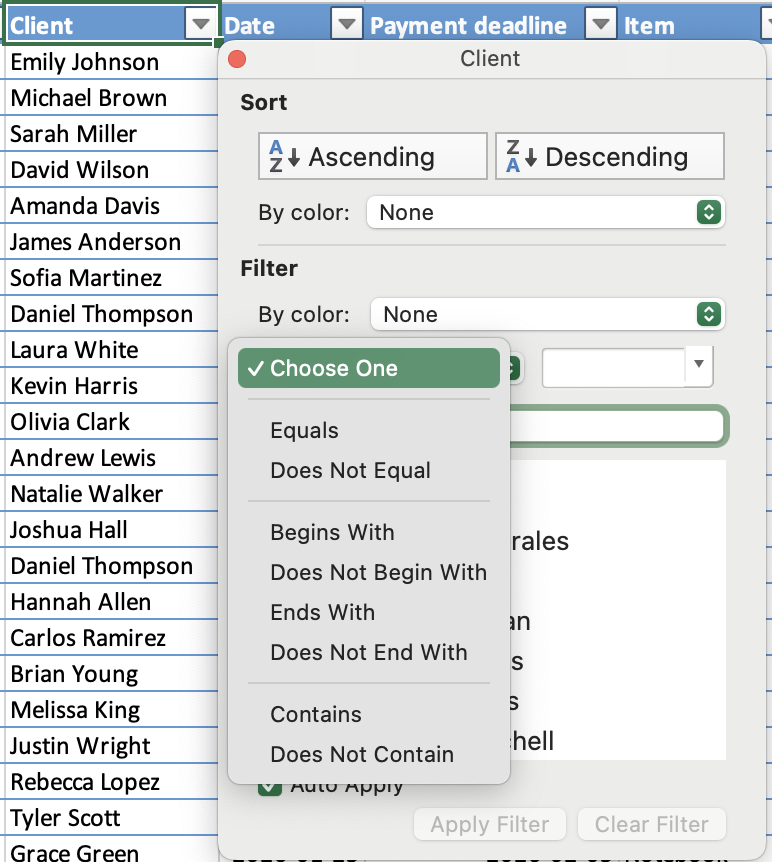
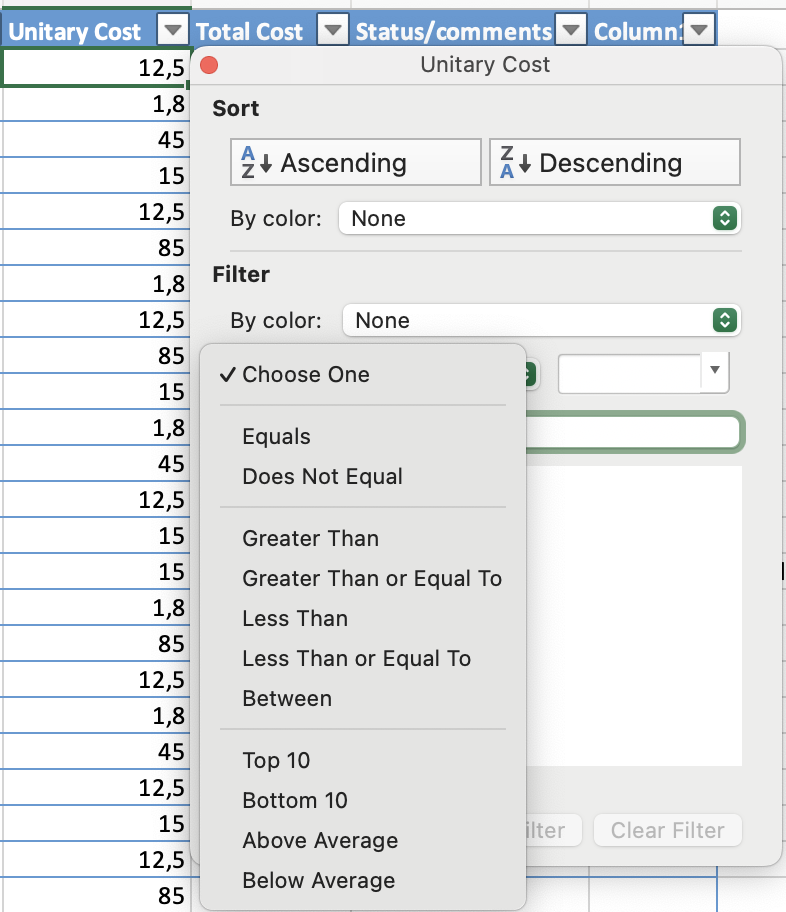
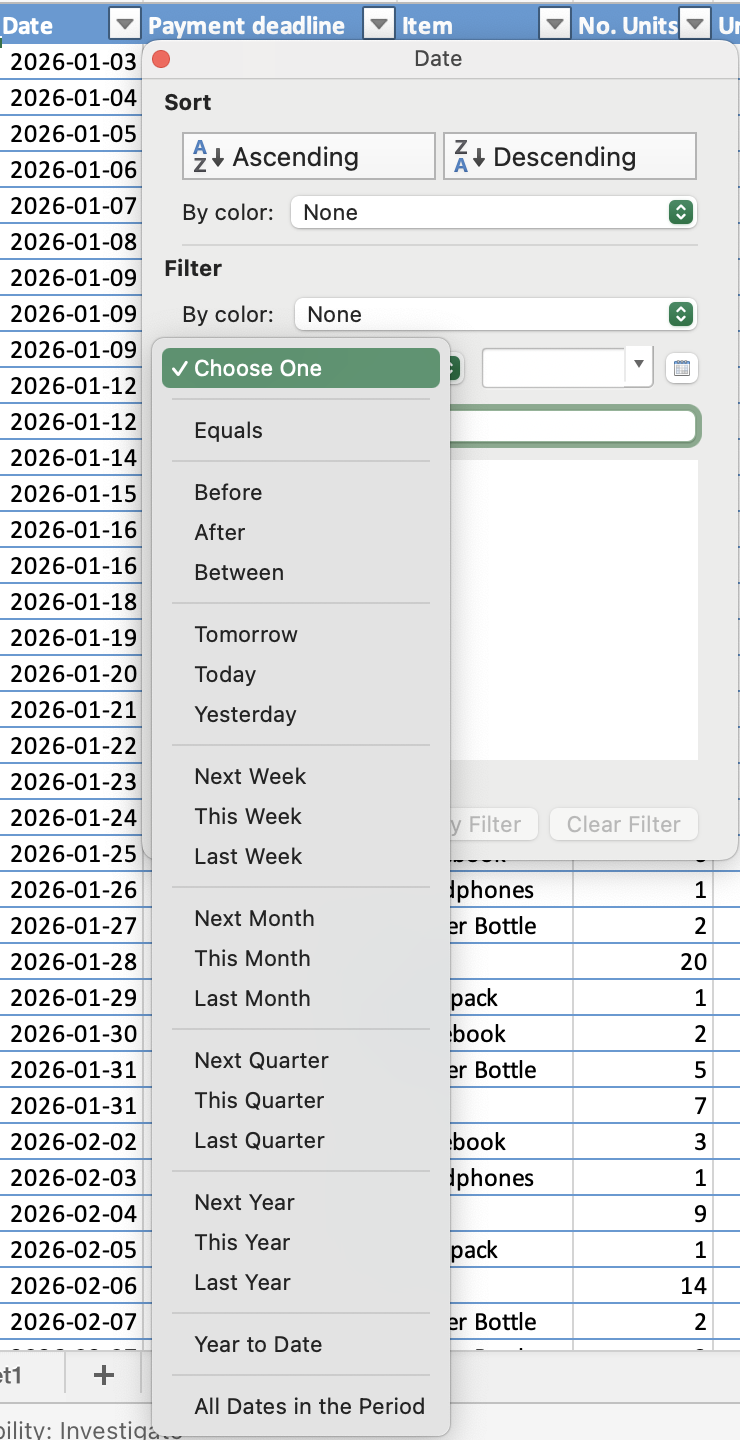
O tipo de filtro depende dos tipos de dados:
- Filtro de texto: filtrar por valores específicos ou condições de texto;
- Filtro de número: filtrar por comparações como maior que, menor que ou entre;
- Filtro de data: filtrar por períodos, como datas específicas, meses ou anos.
Lógica AND / OR em Múltiplos Filtros
- OR: dentro de uma única coluna — uma linha é exibida se corresponder a qualquer valor selecionado;
- AND: entre diferentes colunas — uma linha deve satisfazer todos os filtros ativos para permanecer visível.

Nota
Atalho desativa todos os filtros de uma vez. Pressionar Ctrl+Shift+L para desativar os filtros remove todas as condições de filtro ativas em todas as colunas simultaneamente — não apenas na coluna atual. Se desejar redefinir apenas uma coluna, utilize Limpar Filtro no menu suspenso dessa coluna.
Tudo estava claro?
Obrigado pelo seu feedback!
Seção 1. Capítulo 8
Pergunte à IA

Pergunte à IA

Pergunte o que quiser ou experimente uma das perguntas sugeridas para iniciar nosso bate-papo
Seção 1. Capítulo 8
