Classificação
Deslize para mostrar o menu
A classificação no Excel permite organizar dados rapidamente para encontrar informações com mais facilidade e identificar tendências ou valores discrepantes com eficiência. É possível reordenar linhas com base em texto, números, datas ou até cores, tornando a planilha mais útil para análise.

A classificação reorganiza permanentemente as linhas. Após classificar e salvar, a ordem original é perdida.
O Excel aplica automaticamente a lógica de classificação correta com base no tipo de dado da coluna. O mesmo botão A→Z se comporta de maneira diferente dependendo do conteúdo da coluna:
Se uma coluna numérica estiver formatada como Texto (comum após importar arquivos CSV), a ordenação será feita como texto: 1, 10, 100, 2, 20, 3 — e não em ordem numérica. Corrija o formato da coluna antes de ordenar. Dica rápida: números armazenados como texto ficam alinhados à esquerda nas células.
Ordenação Personalizada
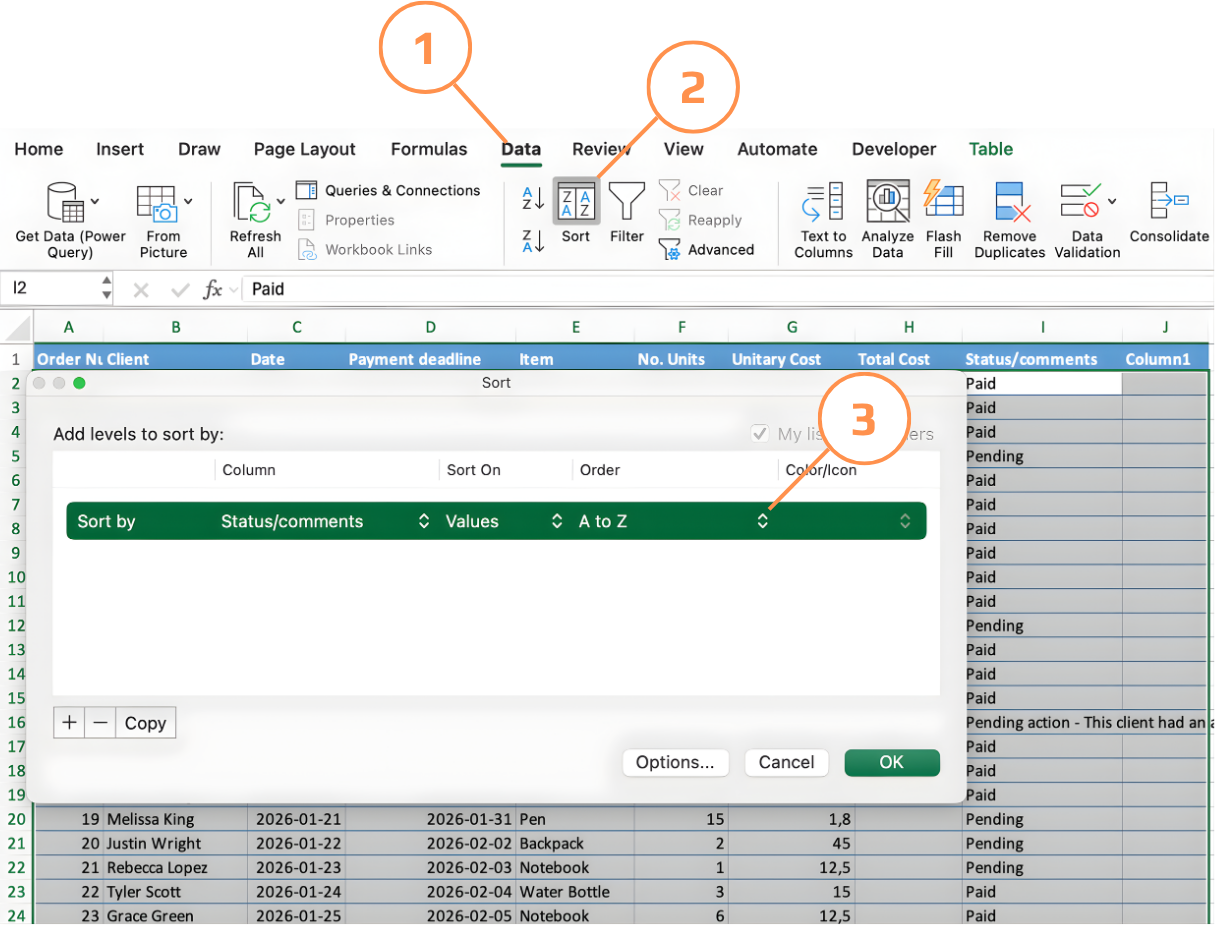
Acessada por Dados → Classificar ou Página Inicial → Classificar e Filtrar → Classificação Personalizada. Suporta múltiplos níveis, ordens personalizadas, classificação por cor ou ícone e confirmação de detecção de cabeçalho.
A ordem alfabética nem sempre reflete a lógica do negócio. Ordenar uma coluna de Status alfabeticamente coloca "Pago" antes de "Pendente" — mas operacionalmente pode ser interessante ver os itens pendentes no topo. Ordens personalizadas permitem definir exatamente a sequência que o Excel deve seguir.
Classificando por uma lista personalizada (Windows):
- Clique em qualquer célula da tabela → Dados → Classificar para abrir a caixa de diálogo Classificar;
- No menu Classificar por, escolha a coluna (ex: Status);
- No menu Ordem, escolha Lista Personalizada;
- Digite a sequência desejada, um item por linha (ex: Pendente → Pago → Cancelado) e clique em Adicionar;
- Clique em OK duas vezes — o Excel reorganiza as linhas conforme a sequência definida, não em ordem alfabética.
Classificando por uma lista personalizada (Mac):
- Primeiro, crie sua lista personalizada: vá em menu Excel → Preferências → Listas Personalizadas. Digite sua sequência, um item por linha (ex: Pendente → Pago → Cancelado) e clique em Adicionar, depois em OK.
- Clique em qualquer célula da tabela → Dados → Classificar para abrir a caixa de diálogo Classificar;
- No menu Classificar por, escolha a coluna (ex: Status).
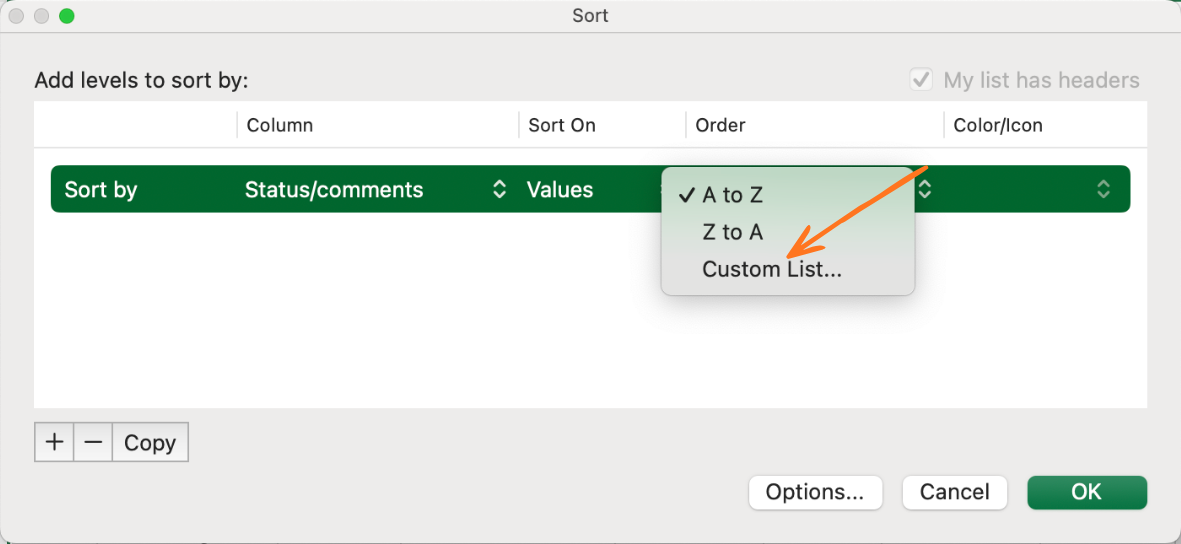
- No menu Ordem, escolha Lista Personalizada — sua lista salva aparecerá aqui;
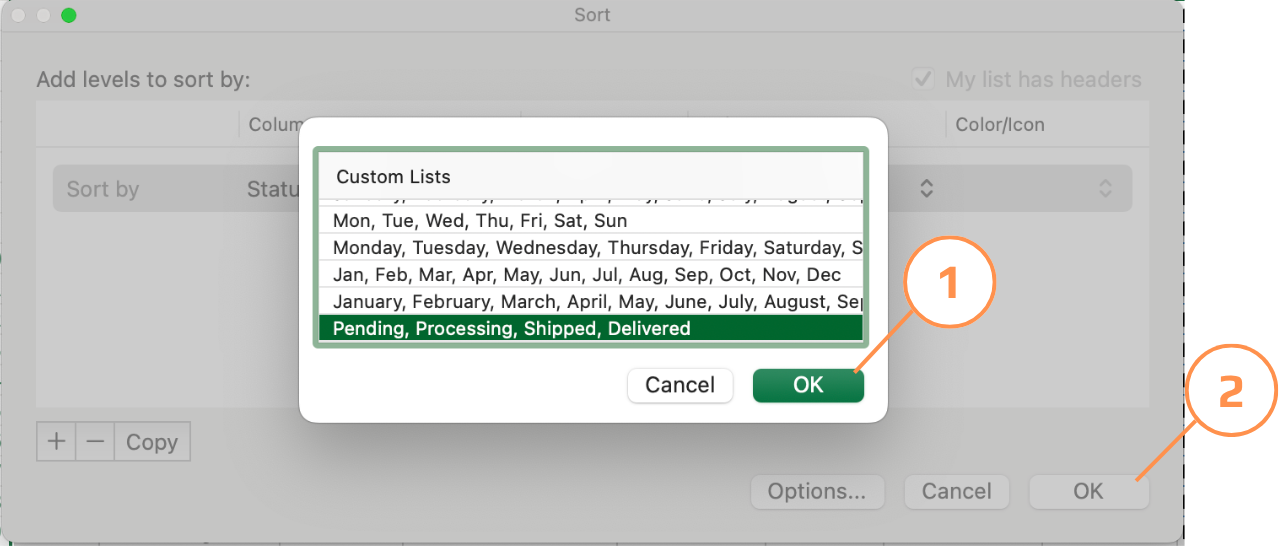
- Selecione sua lista e clique em OK duas vezes — o Excel reorganiza as linhas conforme a sequência definida.
Obrigado pelo seu feedback!
Pergunte à IA

Pergunte à IA

Pergunte o que quiser ou experimente uma das perguntas sugeridas para iniciar nosso bate-papo
Classificação
A classificação no Excel permite organizar dados rapidamente para encontrar informações com mais facilidade e identificar tendências ou valores discrepantes com eficiência. É possível reordenar linhas com base em texto, números, datas ou até cores, tornando a planilha mais útil para análise.
A classificação reorganiza permanentemente as linhas. Após classificar e salvar, a ordem original é perdida.
O Excel aplica automaticamente a lógica de classificação correta com base no tipo de dado da coluna. O mesmo botão A→Z se comporta de maneira diferente dependendo do conteúdo da coluna:
Se uma coluna numérica estiver formatada como Texto (comum após importar arquivos CSV), a ordenação será feita como texto: 1, 10, 100, 2, 20, 3 — e não em ordem numérica. Corrija o formato da coluna antes de ordenar. Dica rápida: números armazenados como texto ficam alinhados à esquerda nas células.
Ordenação Personalizada
Acessada por Dados → Classificar ou Página Inicial → Classificar e Filtrar → Classificação Personalizada. Suporta múltiplos níveis, ordens personalizadas, classificação por cor ou ícone e confirmação de detecção de cabeçalho.
A ordem alfabética nem sempre reflete a lógica do negócio. Ordenar uma coluna de Status alfabeticamente coloca "Pago" antes de "Pendente" — mas operacionalmente pode ser interessante ver os itens pendentes no topo. Ordens personalizadas permitem definir exatamente a sequência que o Excel deve seguir.
Classificando por uma lista personalizada (Windows):
- Clique em qualquer célula da tabela → Dados → Classificar para abrir a caixa de diálogo Classificar;
- No menu Classificar por, escolha a coluna (ex: Status);
- No menu Ordem, escolha Lista Personalizada;
- Digite a sequência desejada, um item por linha (ex: Pendente → Pago → Cancelado) e clique em Adicionar;
- Clique em OK duas vezes — o Excel reorganiza as linhas conforme a sequência definida, não em ordem alfabética.
Classificando por uma lista personalizada (Mac):
- Primeiro, crie sua lista personalizada: vá em menu Excel → Preferências → Listas Personalizadas. Digite sua sequência, um item por linha (ex: Pendente → Pago → Cancelado) e clique em Adicionar, depois em OK.
- Clique em qualquer célula da tabela → Dados → Classificar para abrir a caixa de diálogo Classificar;
- No menu Classificar por, escolha a coluna (ex: Status).
- No menu Ordem, escolha Lista Personalizada — sua lista salva aparecerá aqui;
- Selecione sua lista e clique em OK duas vezes — o Excel reorganiza as linhas conforme a sequência definida.
Obrigado pelo seu feedback!
