Compartilhamento e Colaboração em Notebooks
Deslize para mostrar o menu

Colaboração como pilar central do Databricks Workspace. Permite que vários usuários trabalhem simultaneamente no mesmo notebook, deixem comentários e gerenciem o histórico de versões, de forma semelhante ao funcionamento do Google Docs para documentos de texto.
Databricks foi desenvolvido para eliminar silos entre membros da equipe. Neste capítulo, será abordado como compartilhar notebooks com colegas e utilizar as ferramentas de comunicação integradas para colaborar de forma mais eficiente.
O Botão Compartilhar
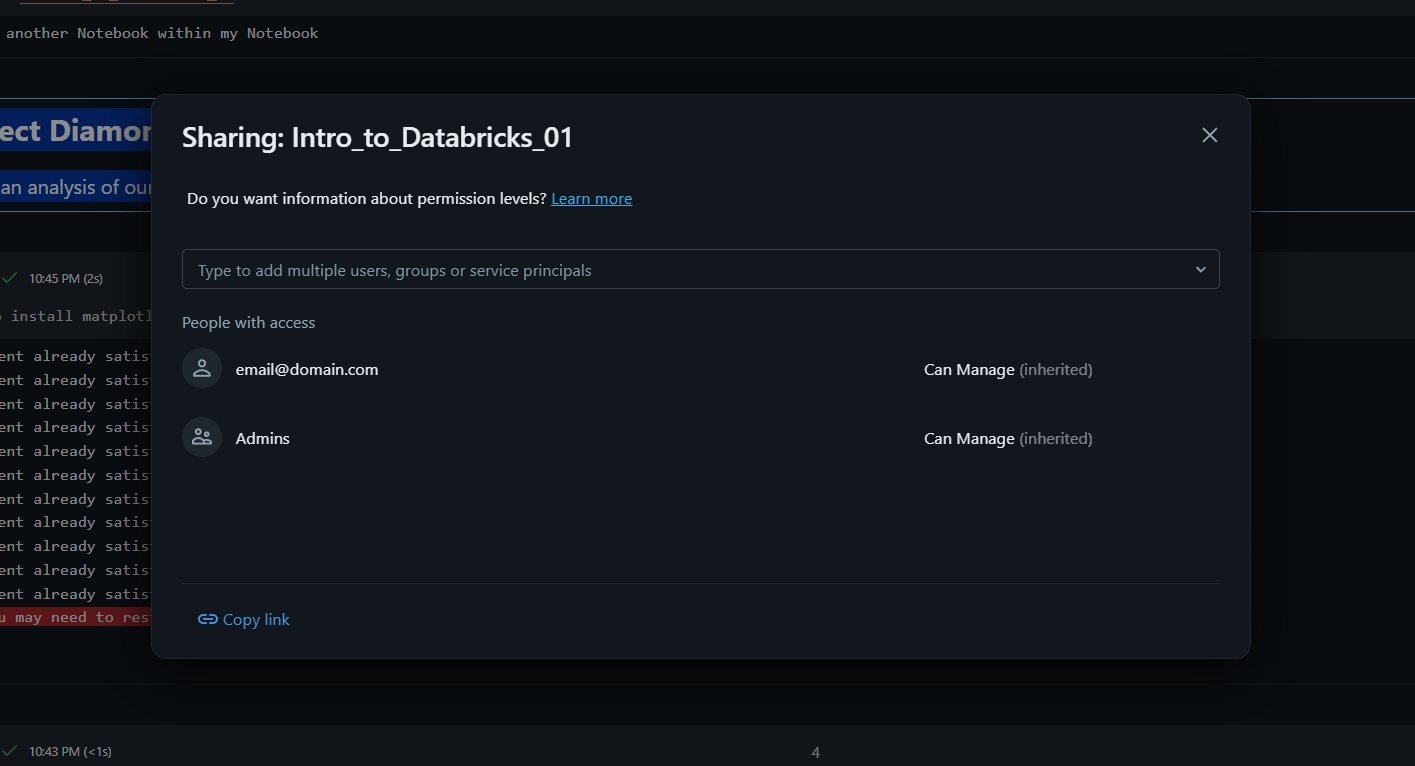
No canto superior direito de qualquer notebook, encontra-se o botão "Compartilhar". É neste local que se gerenciam as permissões de acesso. É possível compartilhar um notebook com usuários individuais ou grupos inteiros. Existem vários níveis de acesso que podem ser concedidos:
- Pode Visualizar: o usuário pode ver o código e os resultados, mas não pode alterar nada;
- Pode Executar: o usuário pode conectar o notebook a um cluster e executar células, mas não pode editar o código;
- Pode Editar: o usuário possui permissões completas para alterar o código e a documentação;
- Pode Gerenciar: o usuário também pode modificar as permissões de compartilhamento para outros.
Coautoria em tempo real
Quando várias pessoas têm o notebook aberto, os ícones de perfil delas aparecem no cabeçalho no canto superior direito. O Databricks oferece suporte à coautoria em tempo real, permitindo visualizar o cursor do colega enquanto ele digita em uma célula. Isso elimina a necessidade de exportar e enviar arquivos por e-mail, garantindo que todos trabalhem sempre na "Fonte Única da Verdade".
Uso de comentários para feedback
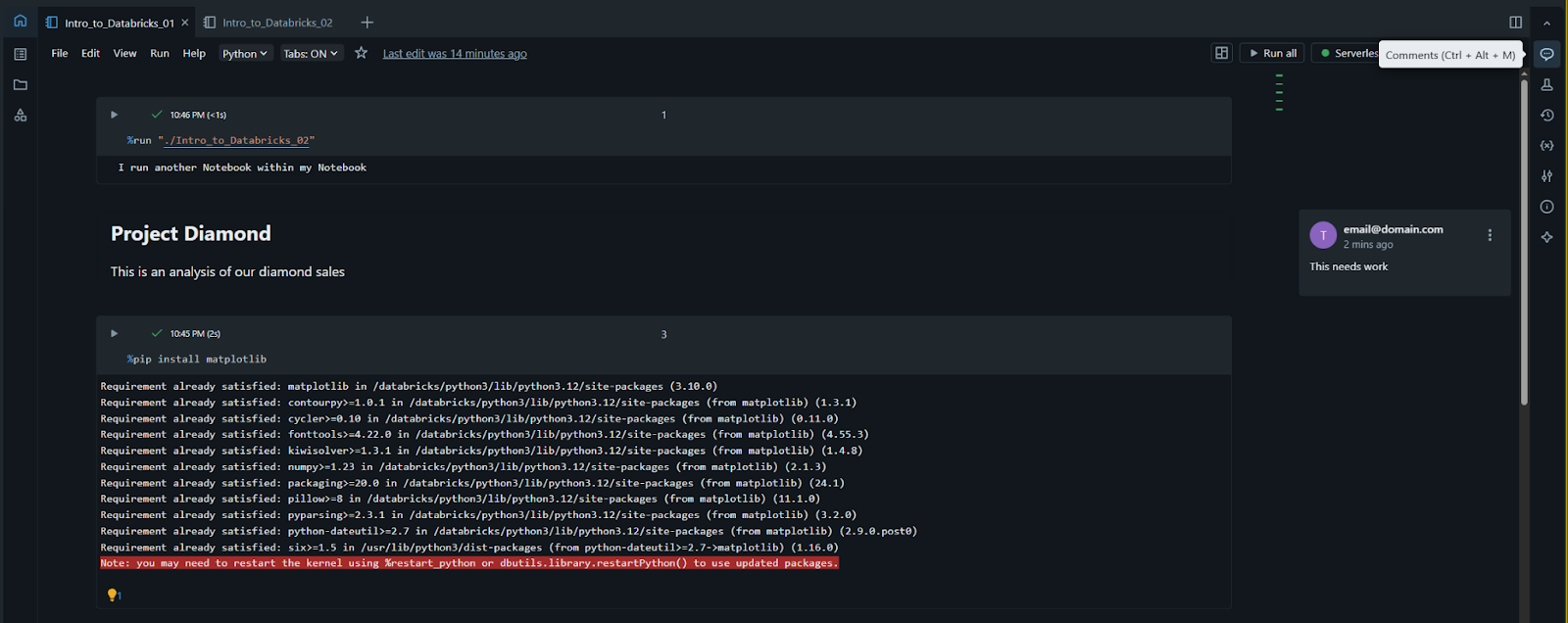
Em vez de explicar as alterações no código em um aplicativo de chat separado, é possível deixar comentários diretamente no notebook:
- Para adicionar um comentário, selecione um trecho de código ou texto e clique no ícone "Comentar" que aparece na margem;
- Colegas podem responder aos seus comentários e, quando a discussão for concluída, é possível clicar em "Resolver" para ocultar o tópico. Isso mantém o ambiente de trabalho organizado e preserva o histórico da conversa.
Histórico de revisões
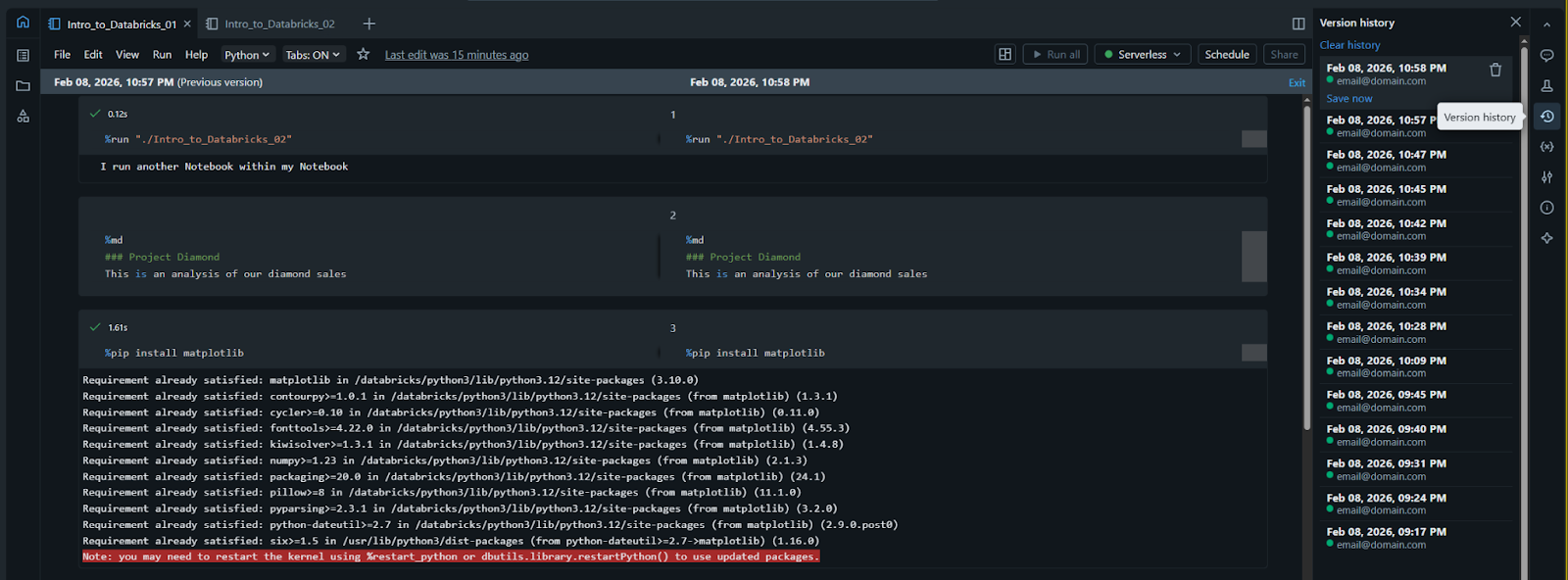
Cada vez que uma alteração é feita, o Databricks a registra automaticamente. Ao clicar no link "Revision History" (localizado no canto superior direito, geralmente abaixo do texto "Last saved"), é possível visualizar uma lista de versões anteriores:
- Comparar versões: permite ver exatamente quais códigos foram adicionados ou removidos entre dois momentos diferentes;
- Restaurar: caso você ou um colega excluam acidentalmente um bloco complexo de código, é possível restaurar o notebook para uma versão anterior com apenas um clique.
Exportando Notebooks
Embora trabalhar dentro da plataforma seja o ideal, às vezes é necessário compartilhar seu trabalho com alguém fora do ambiente Databricks. No menu Arquivo, você pode escolher Exportar seu notebook:
- Arquivo DBC: ideal para mover notebooks para outro workspace do Databricks;
- Arquivo Fonte: exporta como um arquivo padrão
.pyou.sql; - HTML/PDF: ideal para compartilhar um relatório estático com partes interessadas que não precisam executar o código.
1. Qual nível de permissão você deve conceder a um colega se quiser que ele veja seu código, mas NÃO o altere?
2. Qual é o benefício do recurso "Histórico de Revisões"?
Obrigado pelo seu feedback!
Pergunte à IA

Pergunte à IA

Pergunte o que quiser ou experimente uma das perguntas sugeridas para iniciar nosso bate-papo
Compartilhamento e Colaboração em Notebooks
Colaboração como pilar central do Databricks Workspace. Permite que vários usuários trabalhem simultaneamente no mesmo notebook, deixem comentários e gerenciem o histórico de versões, de forma semelhante ao funcionamento do Google Docs para documentos de texto.
Databricks foi desenvolvido para eliminar silos entre membros da equipe. Neste capítulo, será abordado como compartilhar notebooks com colegas e utilizar as ferramentas de comunicação integradas para colaborar de forma mais eficiente.
O Botão Compartilhar
No canto superior direito de qualquer notebook, encontra-se o botão "Compartilhar". É neste local que se gerenciam as permissões de acesso. É possível compartilhar um notebook com usuários individuais ou grupos inteiros. Existem vários níveis de acesso que podem ser concedidos:
- Pode Visualizar: o usuário pode ver o código e os resultados, mas não pode alterar nada;
- Pode Executar: o usuário pode conectar o notebook a um cluster e executar células, mas não pode editar o código;
- Pode Editar: o usuário possui permissões completas para alterar o código e a documentação;
- Pode Gerenciar: o usuário também pode modificar as permissões de compartilhamento para outros.
Coautoria em tempo real
Quando várias pessoas têm o notebook aberto, os ícones de perfil delas aparecem no cabeçalho no canto superior direito. O Databricks oferece suporte à coautoria em tempo real, permitindo visualizar o cursor do colega enquanto ele digita em uma célula. Isso elimina a necessidade de exportar e enviar arquivos por e-mail, garantindo que todos trabalhem sempre na "Fonte Única da Verdade".
Uso de comentários para feedback
Em vez de explicar as alterações no código em um aplicativo de chat separado, é possível deixar comentários diretamente no notebook:
- Para adicionar um comentário, selecione um trecho de código ou texto e clique no ícone "Comentar" que aparece na margem;
- Colegas podem responder aos seus comentários e, quando a discussão for concluída, é possível clicar em "Resolver" para ocultar o tópico. Isso mantém o ambiente de trabalho organizado e preserva o histórico da conversa.
Histórico de revisões
Cada vez que uma alteração é feita, o Databricks a registra automaticamente. Ao clicar no link "Revision History" (localizado no canto superior direito, geralmente abaixo do texto "Last saved"), é possível visualizar uma lista de versões anteriores:
- Comparar versões: permite ver exatamente quais códigos foram adicionados ou removidos entre dois momentos diferentes;
- Restaurar: caso você ou um colega excluam acidentalmente um bloco complexo de código, é possível restaurar o notebook para uma versão anterior com apenas um clique.
Exportando Notebooks
Embora trabalhar dentro da plataforma seja o ideal, às vezes é necessário compartilhar seu trabalho com alguém fora do ambiente Databricks. No menu Arquivo, você pode escolher Exportar seu notebook:
- Arquivo DBC: ideal para mover notebooks para outro workspace do Databricks;
- Arquivo Fonte: exporta como um arquivo padrão
.pyou.sql; - HTML/PDF: ideal para compartilhar um relatório estático com partes interessadas que não precisam executar o código.
Obrigado pelo seu feedback!
