Login e Navegação no Workspace
Deslize para mostrar o menu

O login é o seu ponto de entrada no ambiente Databricks. Uma vez dentro, o Workspace é o seu hub centralizado para acessar todos os notebooks, dados e recursos de computação.
Neste capítulo, você está passando da teoria para a prática. Esta seção irá guiá-lo pelo processo inicial de login e apresentar a interface real do Databricks. Dependendo se você está usando a Community Edition, Azure, AWS ou GCP, sua URL de login será exclusiva para sua organização, mas, ao chegar na página inicial, a experiência se torna unificada.
O Login Inicial
Ao acessar pela primeira vez a URL do seu workspace Databricks, será solicitado que informe suas credenciais. A maioria das organizações utiliza Single Sign-On (SSO), o que significa que você fará login com o e-mail corporativo.

Se você estiver praticando por conta própria, certifique-se de adicionar a URL do seu workspace aos favoritos, pois geralmente segue um padrão como https://dbc-xxxx.xx.cloud.databricks.com ou um formato específico da nuvem correspondente.
Página Inicial (Home)
Após o login, você será recebido pela tela Home. Esta página foi projetada para facilitar o retorno ao trabalho rapidamente.
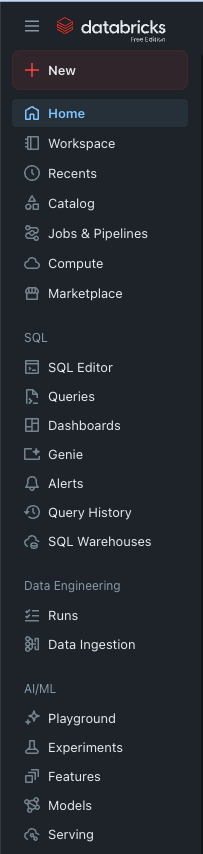
- Barra Lateral Unificada: todos os recursos relacionados ao Databricks são acessados por aqui;
- Configurações do Usuário: ao clicar no canto superior direito, você pode abrir suas configurações pessoais, um menu que permite configurar sua experiência personalizada com o Databricks, além de acessar funções pessoais de desenvolvedor;
- Recentes: no centro da tela, geralmente aparece uma lista dos notebooks e tabelas acessados mais recentemente. Essa lista é personalizada conforme o uso do Databricks.
Dominando a Barra Lateral Unificada
Como visto na seção anterior, a barra lateral é a principal ferramenta. Veja como navegar por ela de forma eficiente:
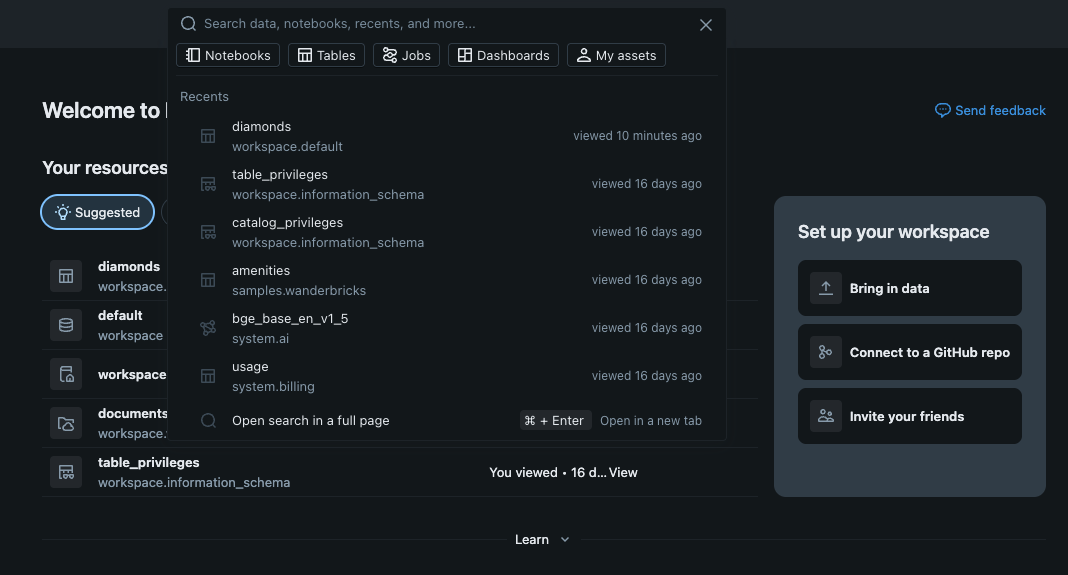
- Barra de Pesquisa: localizada no topo da barra lateral. É a maneira mais rápida de encontrar qualquer coisa. Dica profissional: você pode usar o atalho Cmd + P (Mac) ou Ctrl + P (Windows) para abrir a barra de pesquisa de qualquer lugar no workspace;
- Pastas do Workspace: ao clicar no ícone "Workspace", um menu em formato de árvore será exibido. Aqui você encontrará:
- Users: sua pasta pessoal onde é possível criar trabalhos privados;
- Shared: uma pasta onde os arquivos ficam visíveis para todos no workspace—ideal para colaboração em equipe.
- Catalog & Compute: estas são as duas abas que visitaremos a seguir. Catalog exibe seus dados; Compute mostra sua capacidade de processamento.
Personalizando seu Perfil
Antes de começar a construir, clique no seu endereço de e-mail ou no ícone de perfil no canto.
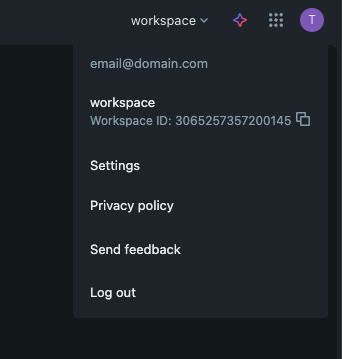
- Configurações do Usuário: aqui é possível alterar o tema de exibição (Modo Escuro vs. Modo Claro) e gerenciar as preferências de idioma;
- Aparência: opção para manter a barra lateral expandida ou "fixada" para exibir apenas ícones ao passar o mouse, proporcionando mais espaço na tela para o código.
1. Qual é a maneira mais rápida de encontrar um notebook ou uma tabela sem precisar clicar em várias pastas?
2. Se você deseja alterar a interface do Databricks para o "Modo Escuro", onde deve procurar?
Obrigado pelo seu feedback!
Pergunte à IA

Pergunte à IA

Pergunte o que quiser ou experimente uma das perguntas sugeridas para iniciar nosso bate-papo
