Introductie tot Power Query voor Snelheid
Veeg om het menu te tonen

Power Query is een gegevens-transformatie-engine die is ingebouwd in Excel. Het maakt verbinding met een gegevensbron, past een reeks transformatiestappen toe die je definieert, en laadt het resultaat in je werkmap als een schone, gestructureerde tabel.
Elke techniek in deze cursus tot nu toe werkt op gegevens die al in Excel staan. Maar gegevens komen zelden schoon en klaar aan — ze komen uit CSV-exporten, database-dumps, webbronnen of andere systemen met inconsistente opmaak, ongewenste kolommen, samengevoegde kopteksten en structurele problemen die moeten worden opgelost voordat enige analyse kan beginnen.
Zonder Power Query betekent het opschonen van geïmporteerde gegevens dat je telkens dezelfde handmatige stappen moet herhalen: kolommen verwijderen, datumnotaties corrigeren, spaties trimmen, namen splitsen, kopteksten hernoemen.
Waar het zich bevindt:
- Excel 2016 en later (Windows): Gegevens → Gegevens ophalen & transformeren;
- Excel 2019 en later (Mac): Gegevens → Gegevens ophalen (beperkt vergeleken met Windows, maar dekt de basis);
- Excel 365: volledige Power Query beschikbaar op beide platforms.
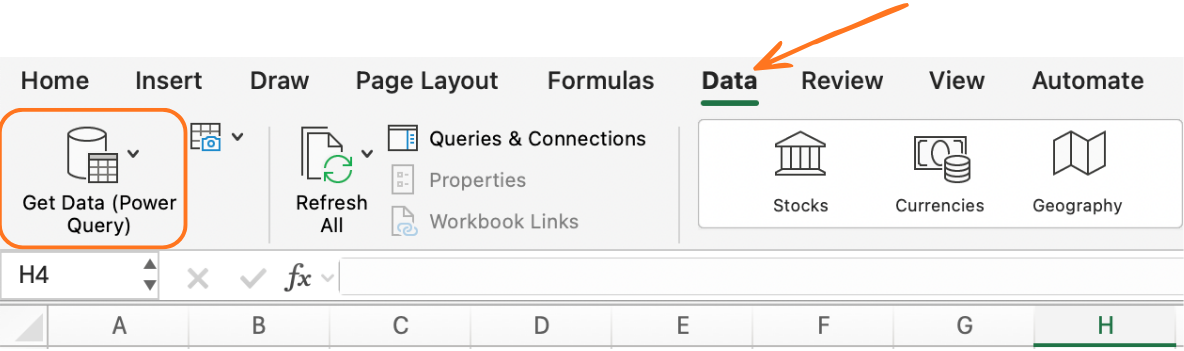
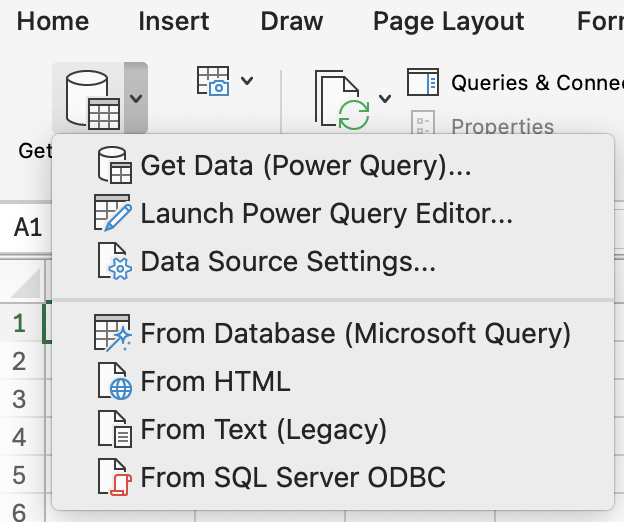
Verbinden met een gegevensbron
Power Query kan verbinding maken met tientallen soorten bronnen. De meest voorkomende voor dagelijkse Excel-gebruikers:
- CSV- of tekstbestand (Uit bestand → Uit tekst/CSV);
- Excel-bestand (Uit werkmap);
- Map met meerdere bestanden (Uit bestand → Uit map);
- Tabel in de huidige werkmap (Uit tabel/bereik);
- Webpagina (Uit andere bronnen → Uit web).
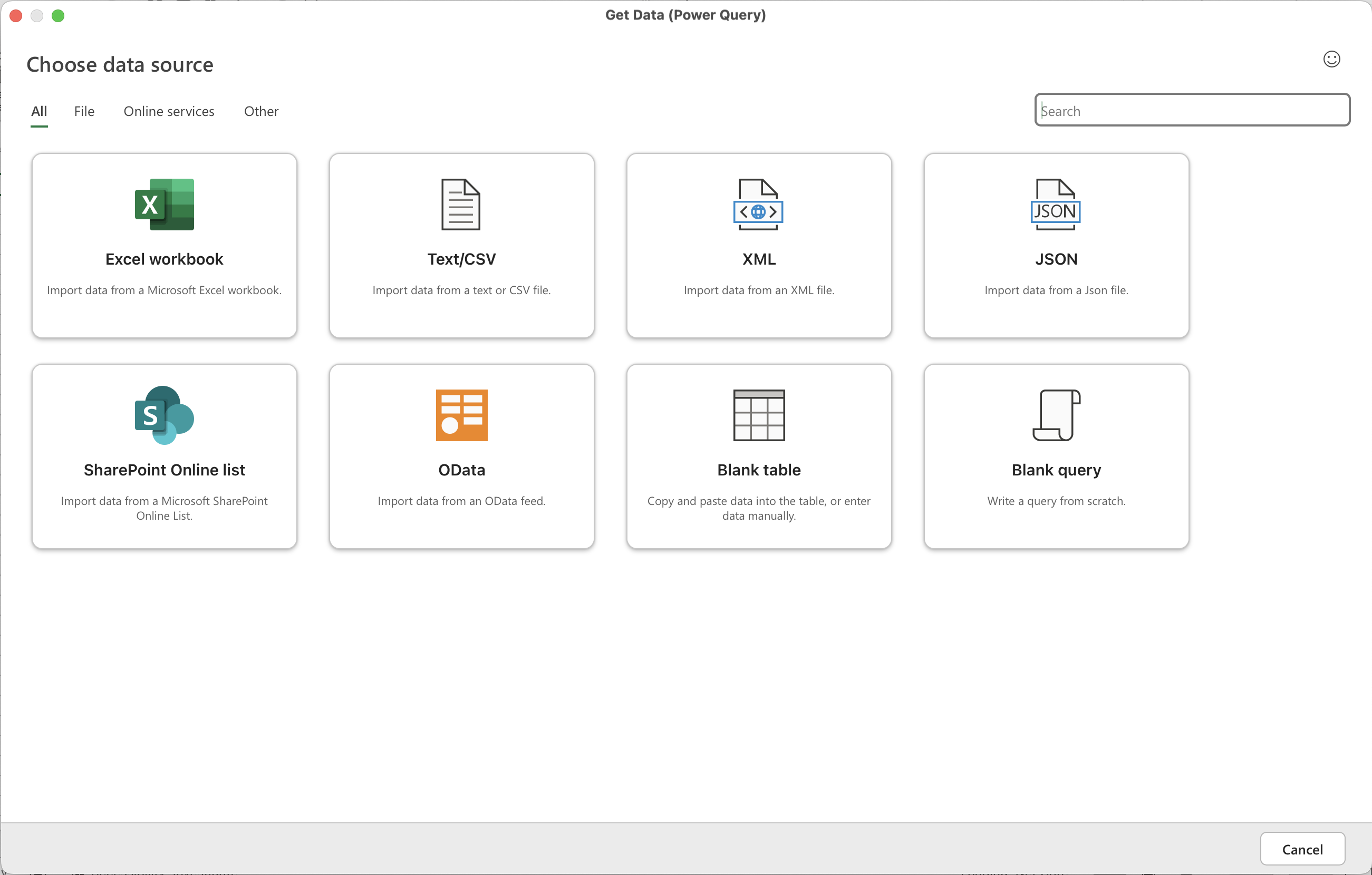
Open een nieuw Excel-werkboek en voer het volgende uit:
- Gegevens → Gegevens ophalen → Uit bestand → Uit tekst/CSV → selecteer
S4_power_query.csv; - In het voorbeeldvenster klik op Gegevens transformeren om de Power Query Editor te openen.
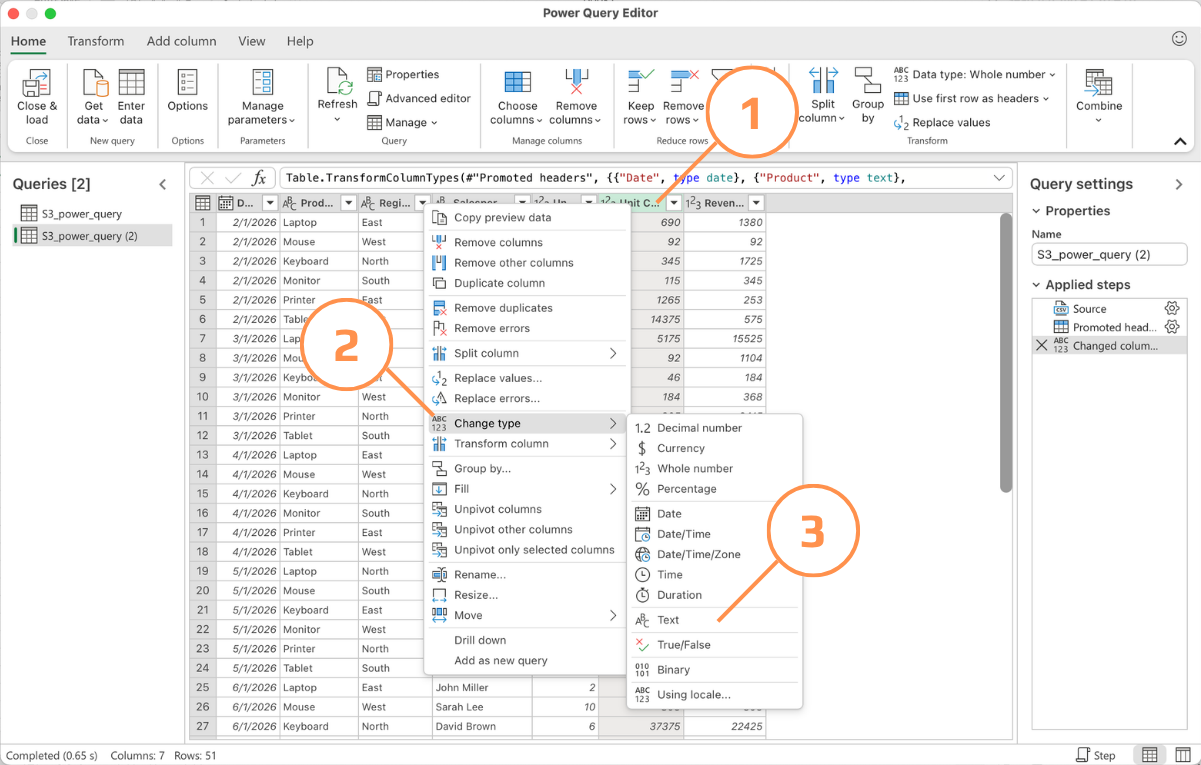
Zoals je ziet, interpreteert Power Query de kolommen met , als tekst in plaats van als numerieke waarde. Om de juiste gegevens te herstellen:
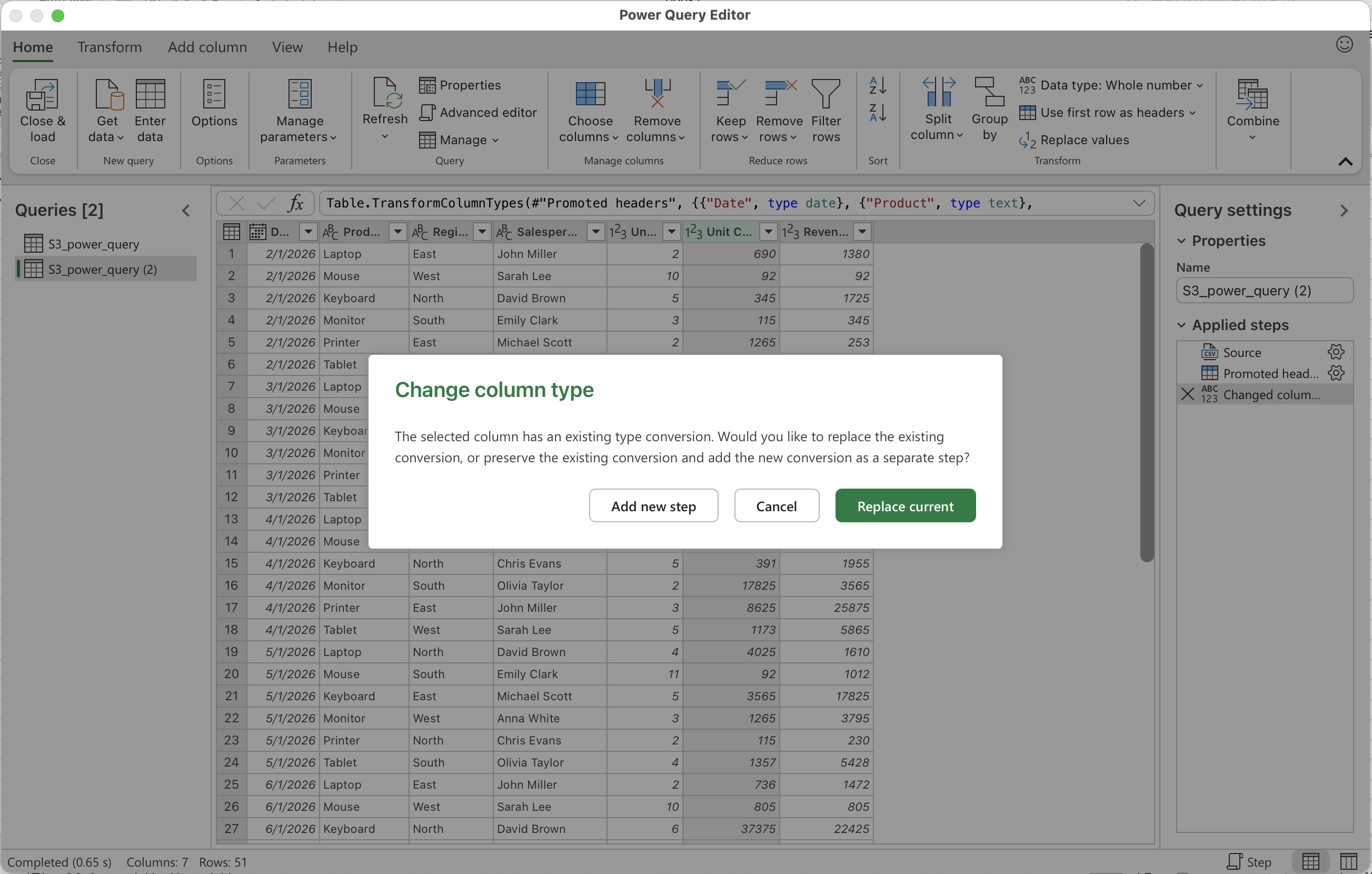
- Klik op de kolom Unit Cost, klik met de rechtermuisknop en selecteer Type wijzigen → Tekst.
- Bevestig in het pop-upvenster Huidige vervangen.
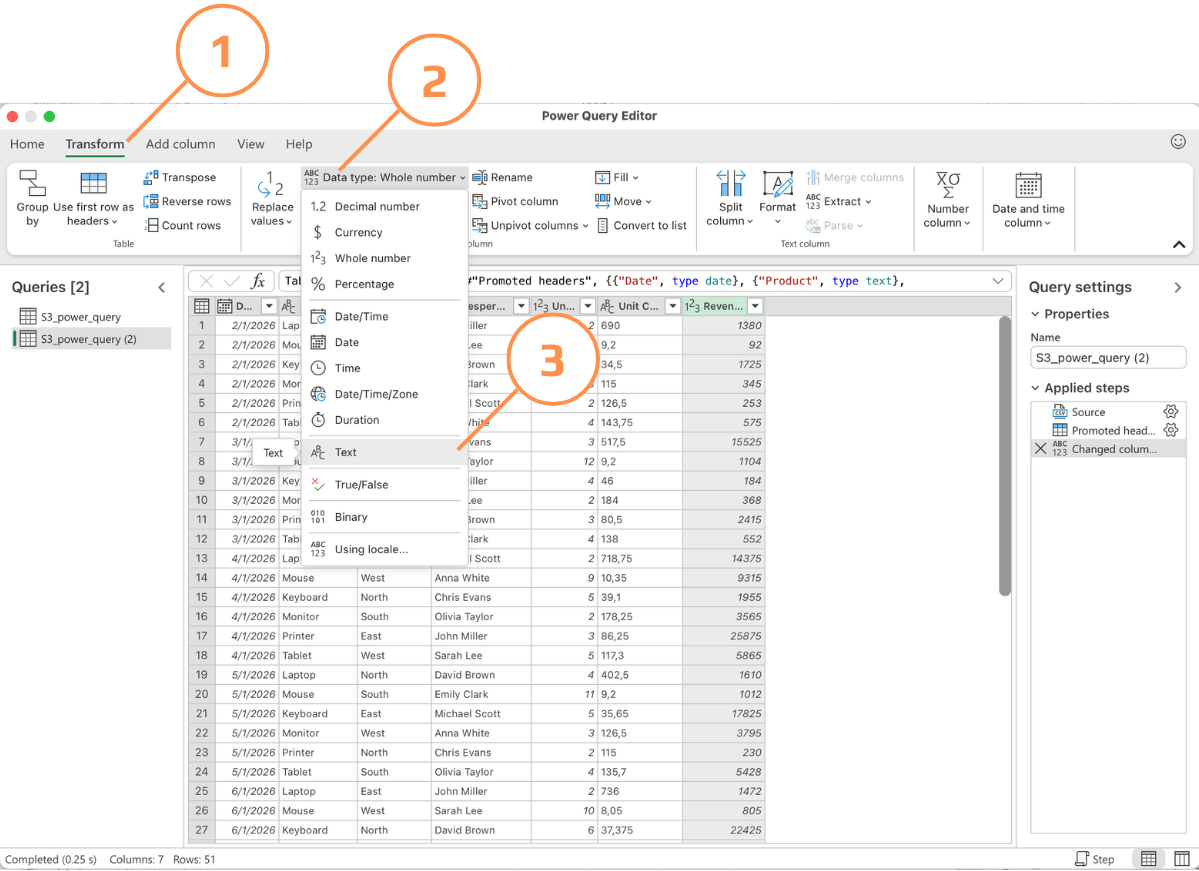
- Herhaal dezelfde stappen voor de kolom Revenue. Als alternatief kun je naar het tabblad Transformeren → Gegevenstype → selecteer Tekst gaan.
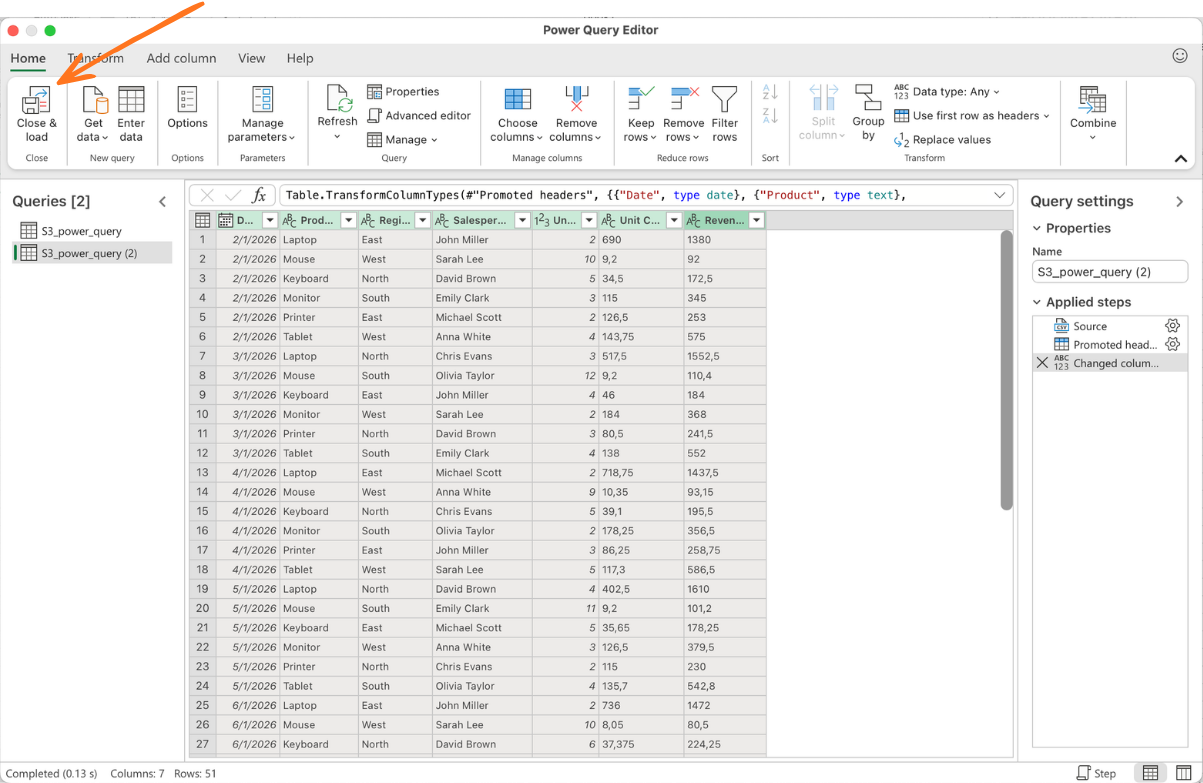
- Wanneer de gegevens klaar zijn om in Excel te laden, klik op Sluiten & Laden.
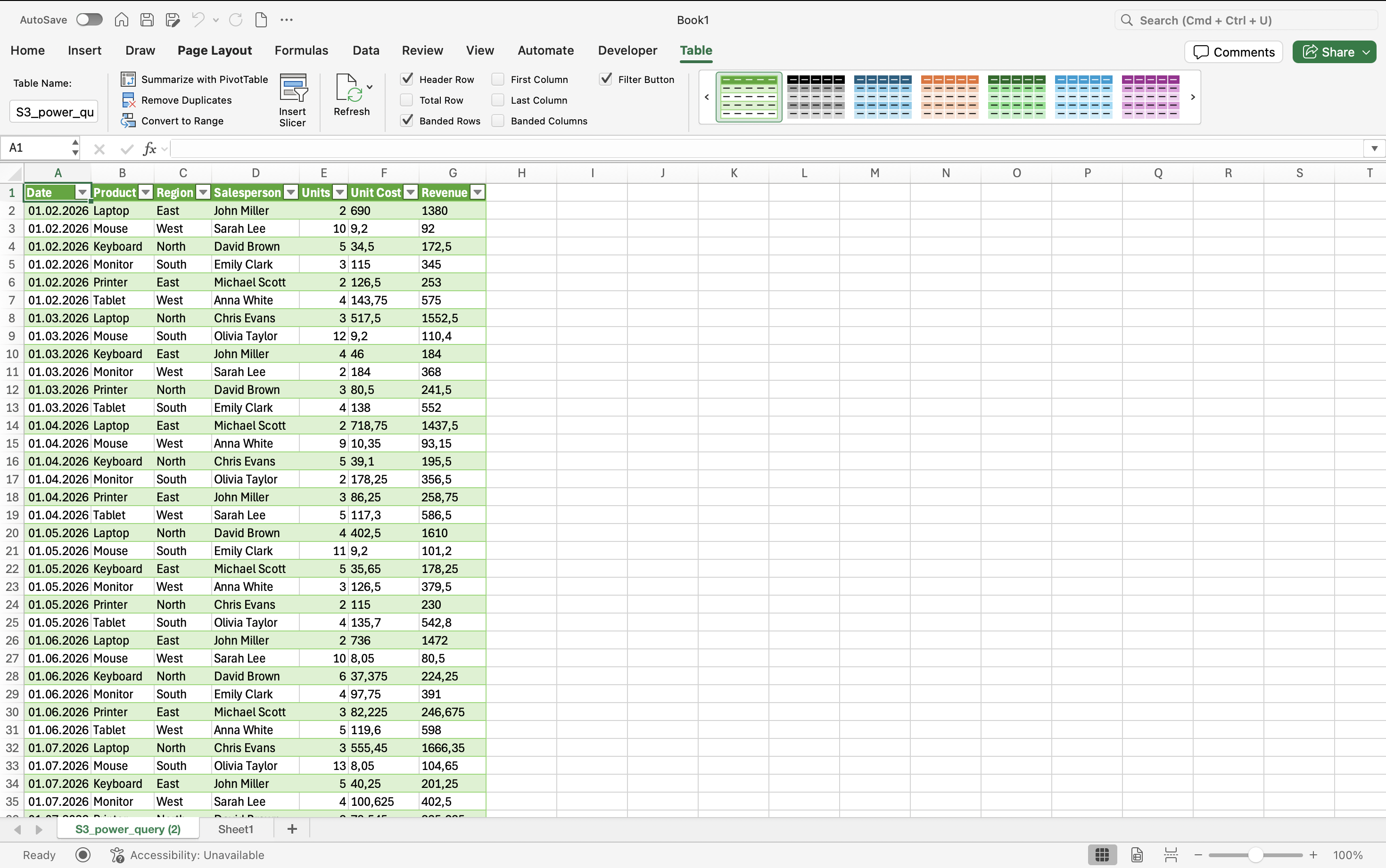
Je krijgt een tabel geïmporteerd uit het CSV-bestand (deze methode werkt ook voor andere gegevensbronnen) met minimale verwerkingsproblemen en correct behouden waarden.
Bedankt voor je feedback!
Vraag AI

Vraag AI

Vraag wat u wilt of probeer een van de voorgestelde vragen om onze chat te starten.
