Ga Naar en Speciale Selectietools
Veeg om het menu te tonen
Ctrl + Arrow en Ctrl + A zijn krachtige sneltoetsen, maar ze werken op basis van de vorm van je gegevens — ze volgen gevulde en lege cellen. Soms is het nodig om te werken met het type gegevens: alle lege cellen vinden, alle formules, alle handmatig ingevoerde waarden. Dat is waarvoor Ga naar speciaal bedoeld is.
Direct naar een willekeurige cel springen
De snelste manier om naar een specifieke cel te navigeren wanneer je het adres al weet.
Venster Ga naar
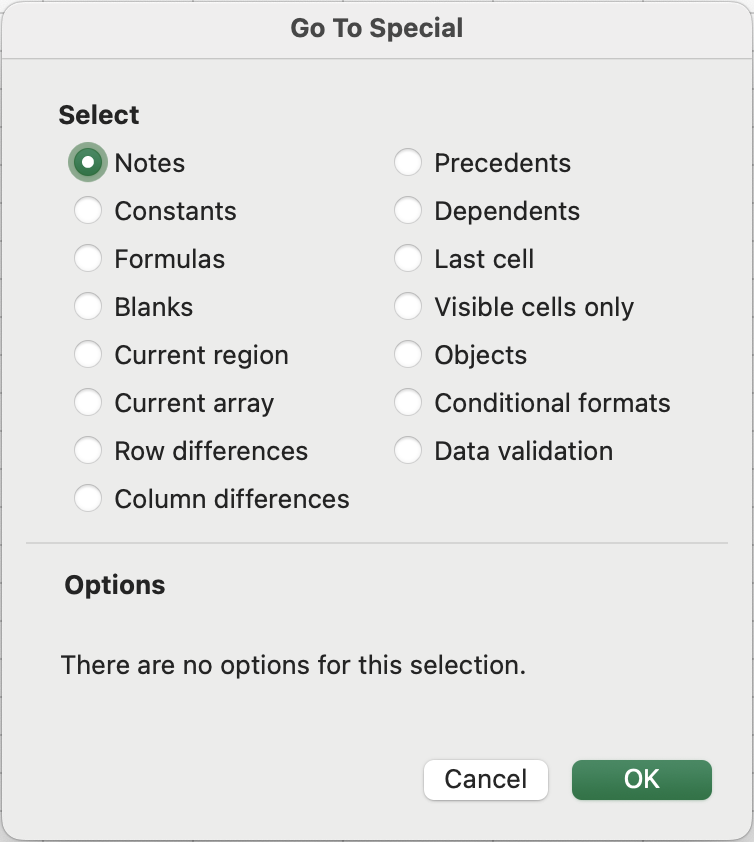
De Meest Nuttige Opties
-
Leegtes: selecteert elke lege cel in de huidige selectie of gebruikte bereik. Dit is de snelste manier om ontbrekende gegevens te vinden;
-
Constanten: selecteert cellen die hardgecodeerde waarden bevatten (getallen, tekst, datums) — maar geen formules. Gebruik dit om te controleren of een kolom alleen ruwe data bevat, of om alleen de waarden opnieuw op te maken zonder formulecellen aan te passen;
-
Formules: het tegenovergestelde van Constanten — selecteert alleen cellen die formules bevatten. Handig voor het controleren van een tabel om zeker te zijn dat er geen onverwachte berekeningen zijn toegevoegd;
-
Fouten (via Formules → Fouten): selecteert alleen cellen die foutwaarden bevatten (
#N/A,#REF!,#DIV/0!, enz.). Onmisbaar om snel kapotte formules te vinden in grote werkbladen; -
Huidige regio: selecteert het aaneengesloten datablock rondom de actieve cel — gelijk aan
Ctrl + Abinnen een gegevensbereik. Handig wanneer je precies wilt bepalen wat "het huidige datablock" is voordat je verder gaat.
- Druk op
Ctrl + G(Windows) ofFn + F5(Mac) om het Ga naar-dialoogvenster te openen. - Klik op de knop Speciaal. Kies Leegtes en druk op OK.
- Excel markeert de lege cellen. Vul de lege cel met de ontbrekende waarde "Emily Clark" in.
Bedankt voor je feedback!
Vraag AI

Vraag AI

Vraag wat u wilt of probeer een van de voorgestelde vragen om onze chat te starten.
