Wachtwoordbeveiliging
Veeg om het menu te tonen
Excel stelt gebruikers in staat om wachtwoordbeveiliging toe te passen op werkmappen om ongeautoriseerde toegang te beperken. Wachtwoorden helpen bij het beschermen van gevoelige bedrijfsbestanden zoals financiële rapporten, personeelsdossiers of vertrouwelijke planningsdocumenten. Wachtwoordbeveiliging voegt een extra controlelaag toe wanneer werkmappen worden gedeeld tussen teams of extern worden opgeslagen.
Inzicht in werkmapwachtwoorden
Excel ondersteunt verschillende soorten wachtwoordbeveiliging. Gebruikers kunnen een wachtwoord vereisen om een werkmap te openen of bewerkingsrechten binnen het bestand beperken.
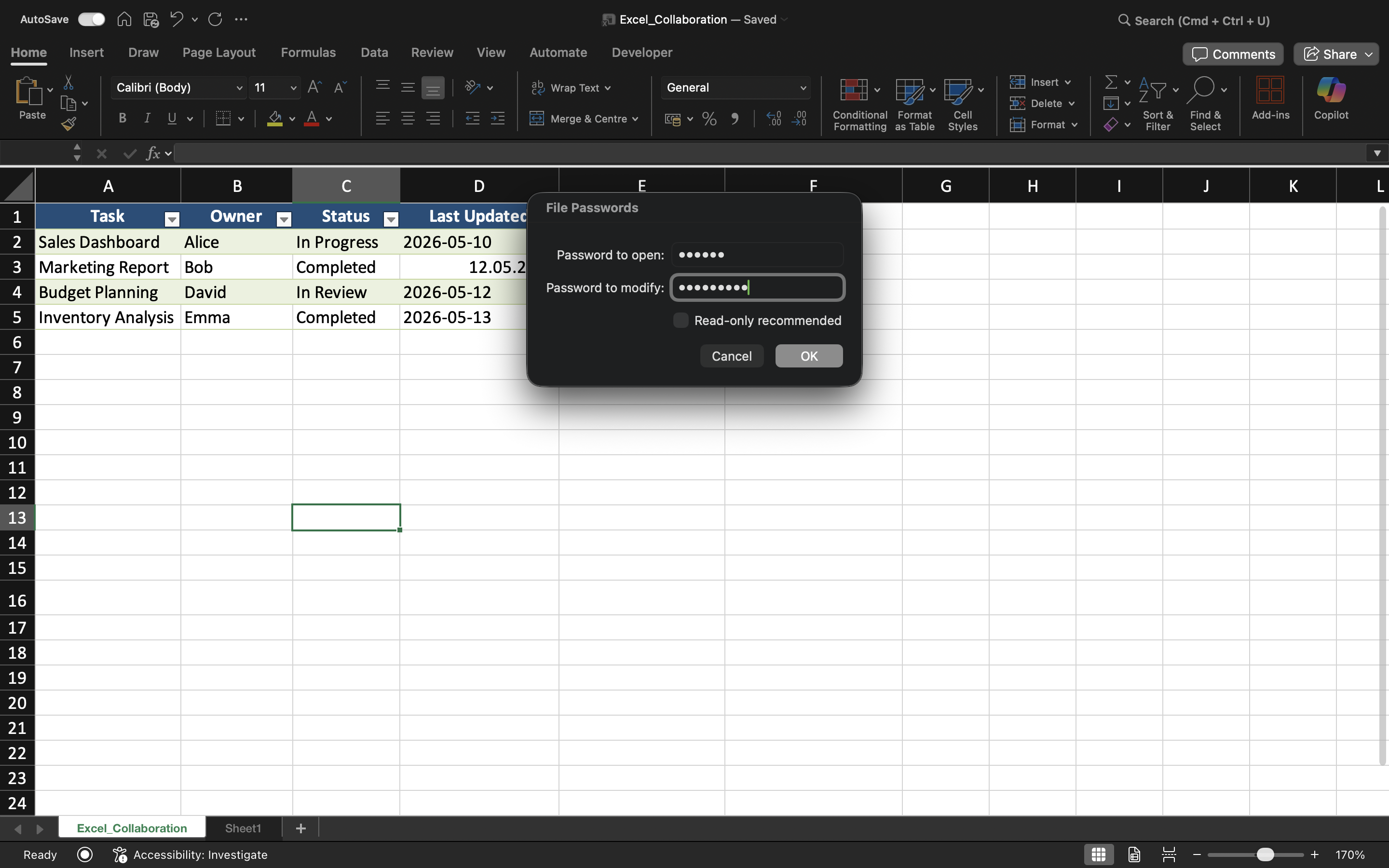
Een werkmapwachtwoord helpt ongeautoriseerde gebruikers te voorkomen dat ze de inhoud van de werkmap kunnen bekijken. Bewerkingsbeperkingen daarentegen stellen gebruikers in staat de werkmap te openen, maar beperken de mogelijkheid tot wijzigen.
Een werkmap beveiligen met een wachtwoord
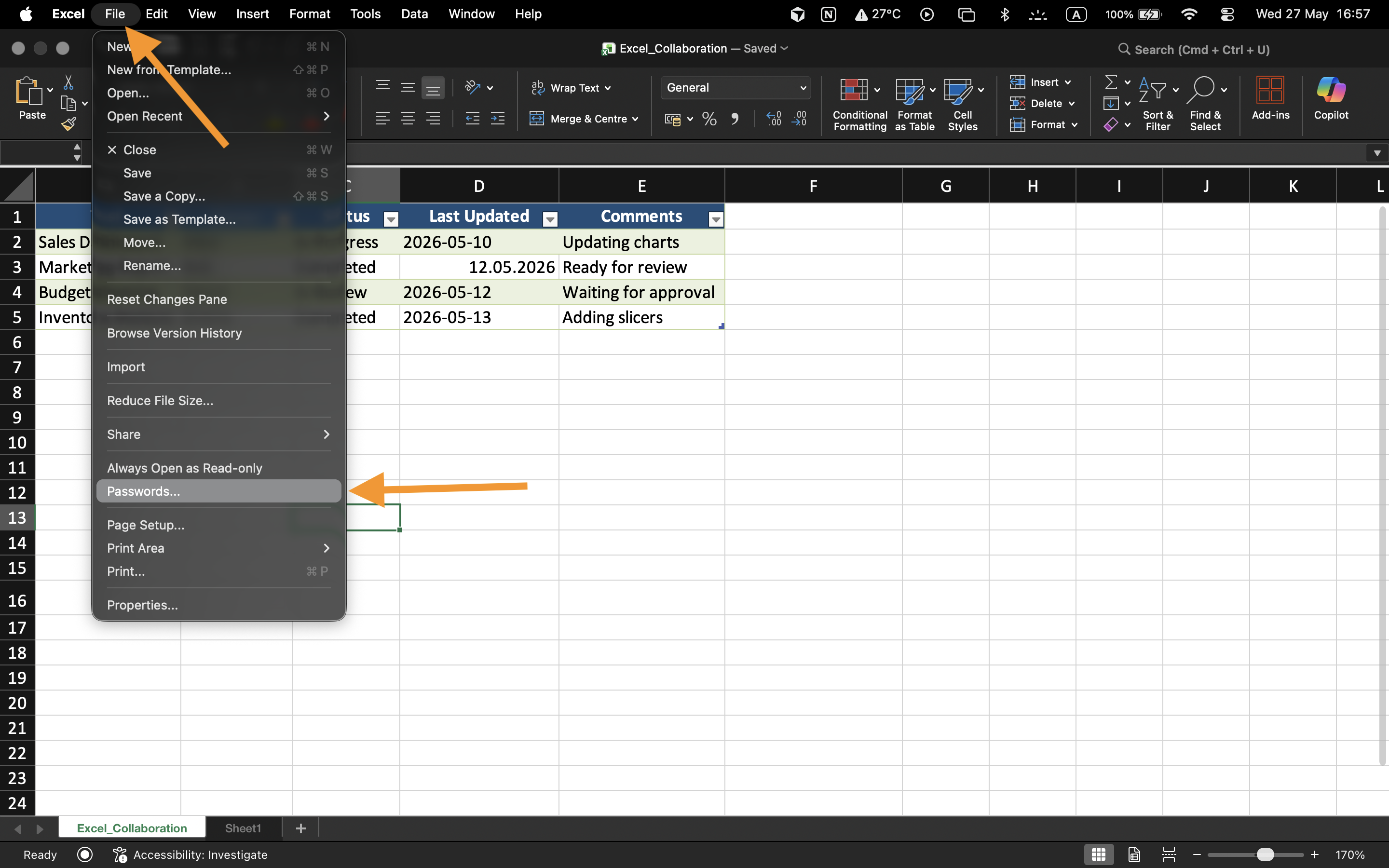
Om wachtwoordbeveiliging toe te passen:
- Open de werkmap;
- Selecteer Bestand → Info;
- Kies Werkmap beveiligen;
- Selecteer Versleutelen met wachtwoord;
- Voer het wachtwoord in en bevestig dit.
Na het opslaan vereist de werkmap het wachtwoord telkens wanneer gebruikers het bestand proberen te openen.
Inzicht in beperkingen van wachtwoorden
Werkmapwachtwoorden verbeteren de bestandsbeveiliging, maar zwakke wachtwoorden kunnen nog steeds kwetsbaar zijn voor ongeautoriseerde toegang.
Voor betere bescherming:
- Gebruik sterke wachtwoorden;
- Vermijd eenvoudige woorden of datums;
- Bewaar wachtwoorden veilig;
- Deel wachtwoorden alleen met bevoegde medewerkers.
Bewerkingsbeperkingen
Excel kan ook het bewerken van werkmappen beschermen zonder volledige toegang tot het bestand te blokkeren. Dit stelt gebruikers in staat de inhoud van de werkmap te bekijken, terwijl wijzigingen worden beperkt.
Dit type bescherming is nuttig voor definitieve rapporten, sjablonen of gedeelde dashboards die niet per ongeluk gewijzigd mogen worden.
Wanneer wachtwoordbeveiliging nuttig is
Wachtwoordbeveiliging wordt vaak gebruikt wanneer werkmappen vertrouwelijke financiële informatie, personeelsgegevens, bedrijfsprognoses of gevoelige operationele rapporten bevatten. Het is vooral belangrijk wanneer bestanden buiten de organisatie worden gedeeld of op externe apparaten worden opgeslagen.
Taak
De werkmap bevat vertrouwelijke salarisinformatie van medewerkers die alleen toegankelijk mag zijn voor bevoegde managers. Het doel is om de werkmap te beveiligen met een wachtwoord en de toegangsbeperkingen te testen.
- Open de instellingen voor werkmapbeveiliging;
- Stel een werkmapwachtwoord in;
- Sla de werkmap op en sluit deze;
- Open het bestand opnieuw en controleer de wachtwoordbeveiliging;
- Test de bewerkingsbeperkingen op de beveiligde werkmap.
Bedankt voor je feedback!
Vraag AI

Vraag AI

Vraag wat u wilt of probeer een van de voorgestelde vragen om onze chat te starten.
