Het Beheren van de Werkmapstructuur
Veeg om het menu te tonen
Naast het beschermen van werkbladinhoud biedt Excel ook de mogelijkheid om de algemene werkmapstructuur te beveiligen. Dit voorkomt dat samenwerkers wijzigingen aanbrengen in de organisatie van werkbladen binnen het bestand.
Bescherming van de werkmapstructuur wordt vaak toegepast in gedeelde rapporten, sjablonen, dashboards en operationele systemen waar de organisatie van werkbladen stabiel moet blijven.
Inzicht in bescherming van werkmapstructuur
Bescherming van de werkmapstructuur beperkt acties die invloed hebben op de organisatie van werkbladen. Zodra deze bescherming is ingeschakeld, kunnen gebruikers mogelijk geen werkbladen meer toevoegen, verwijderen, hernoemen, verplaatsen, verbergen of zichtbaar maken.
Werkmapstructuur beveiligen
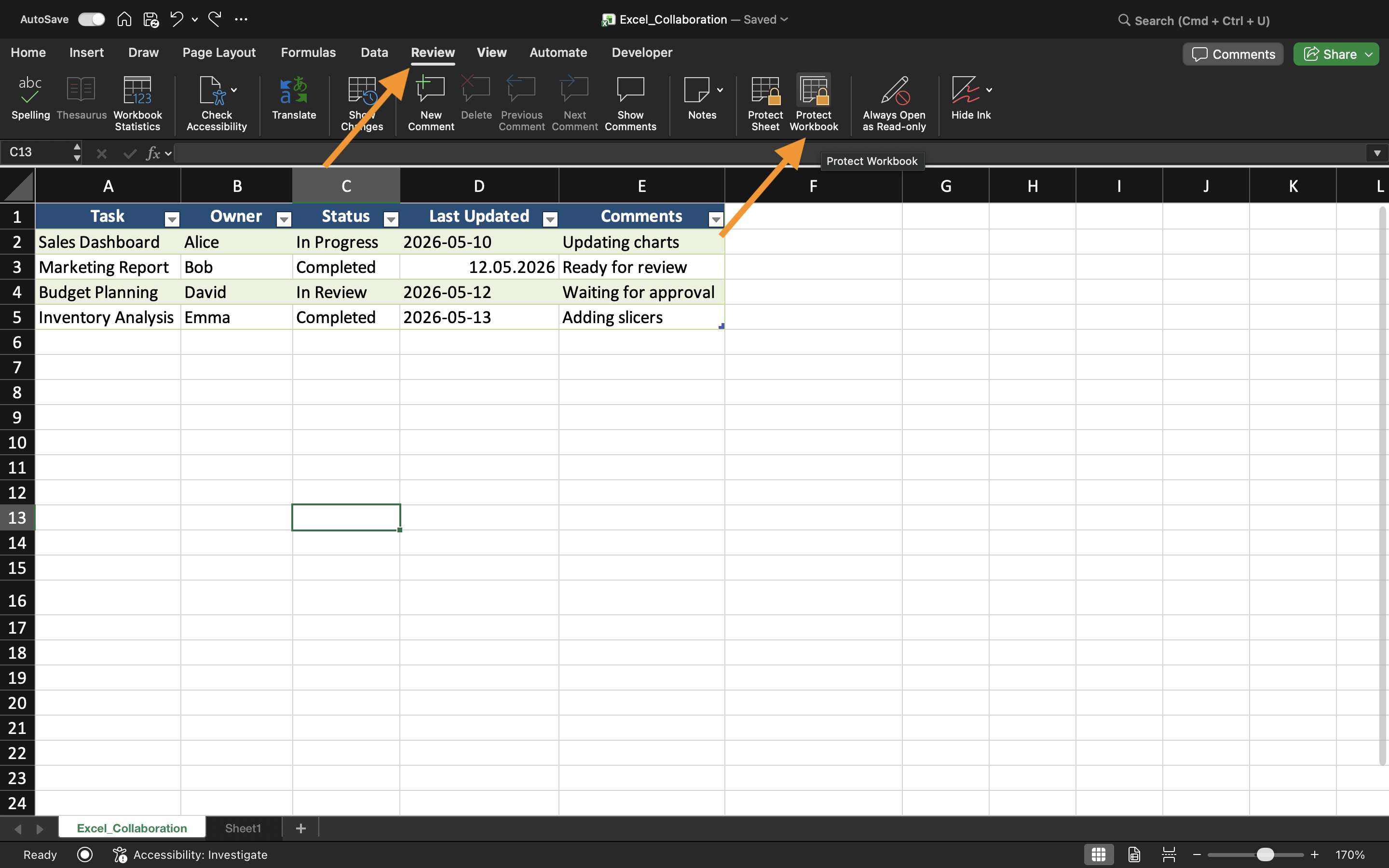
Om de werkmapstructuur te beveiligen:
- Open het tabblad Controleren;
- Selecteer Werkmap beveiligen;
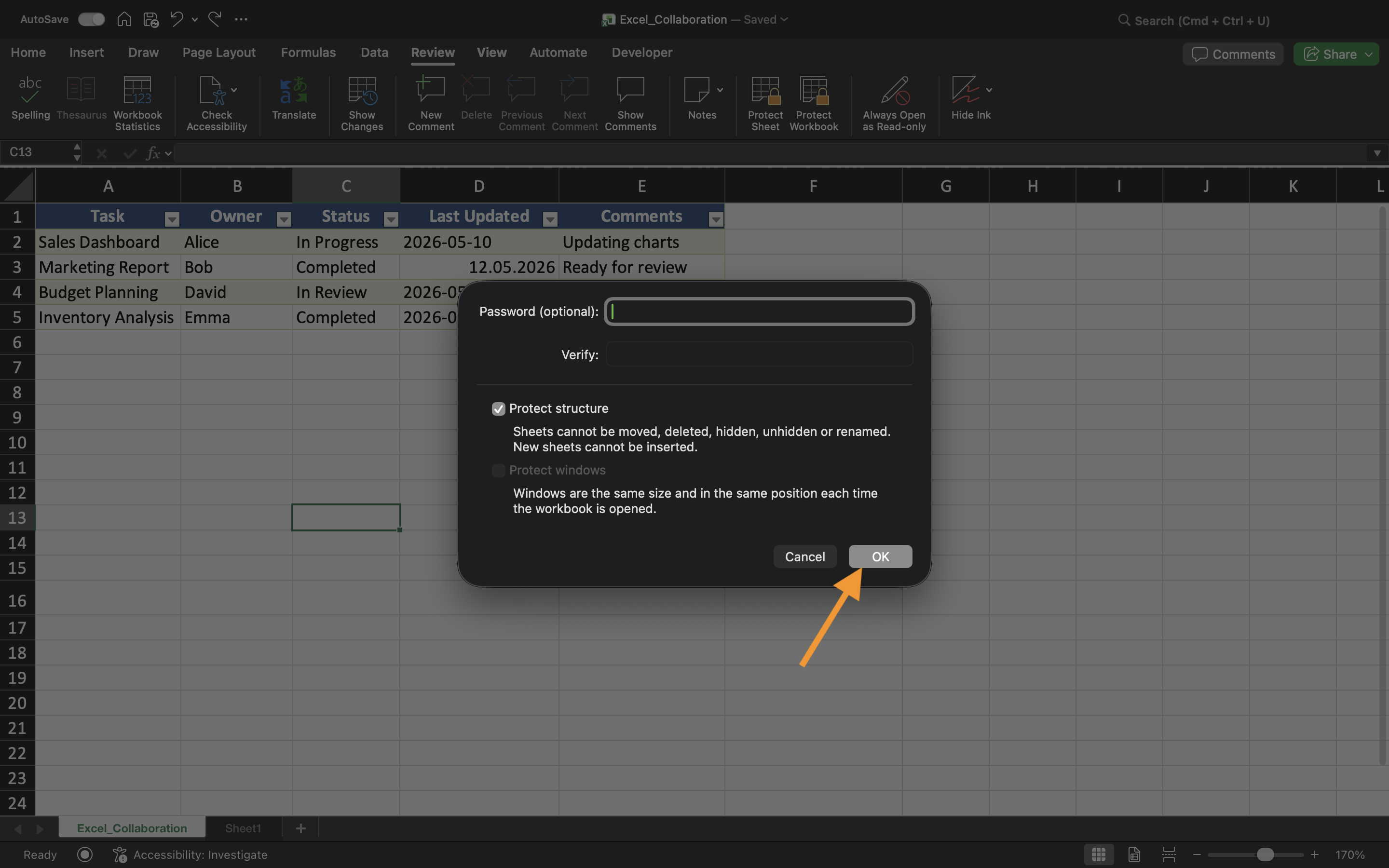
- Schakel de bescherming van de Structuur in;
- Pas de instellingen toe.
Na het inschakelen van de bescherming wordt de organisatie van werkbladen beperkt voor samenwerkers.
Dit is vooral nuttig wanneer werkmappen zorgvuldig georganiseerde rapportagesystemen of gekoppelde werkbladstructuren bevatten.
Werkbladen verbergen
Excel biedt ook de mogelijkheid om werkbladen te verbergen voor de normale weergave van de werkmap. Verborgen bladen blijven in de werkmap aanwezig, maar zijn niet direct zichtbaar voor samenwerkers.
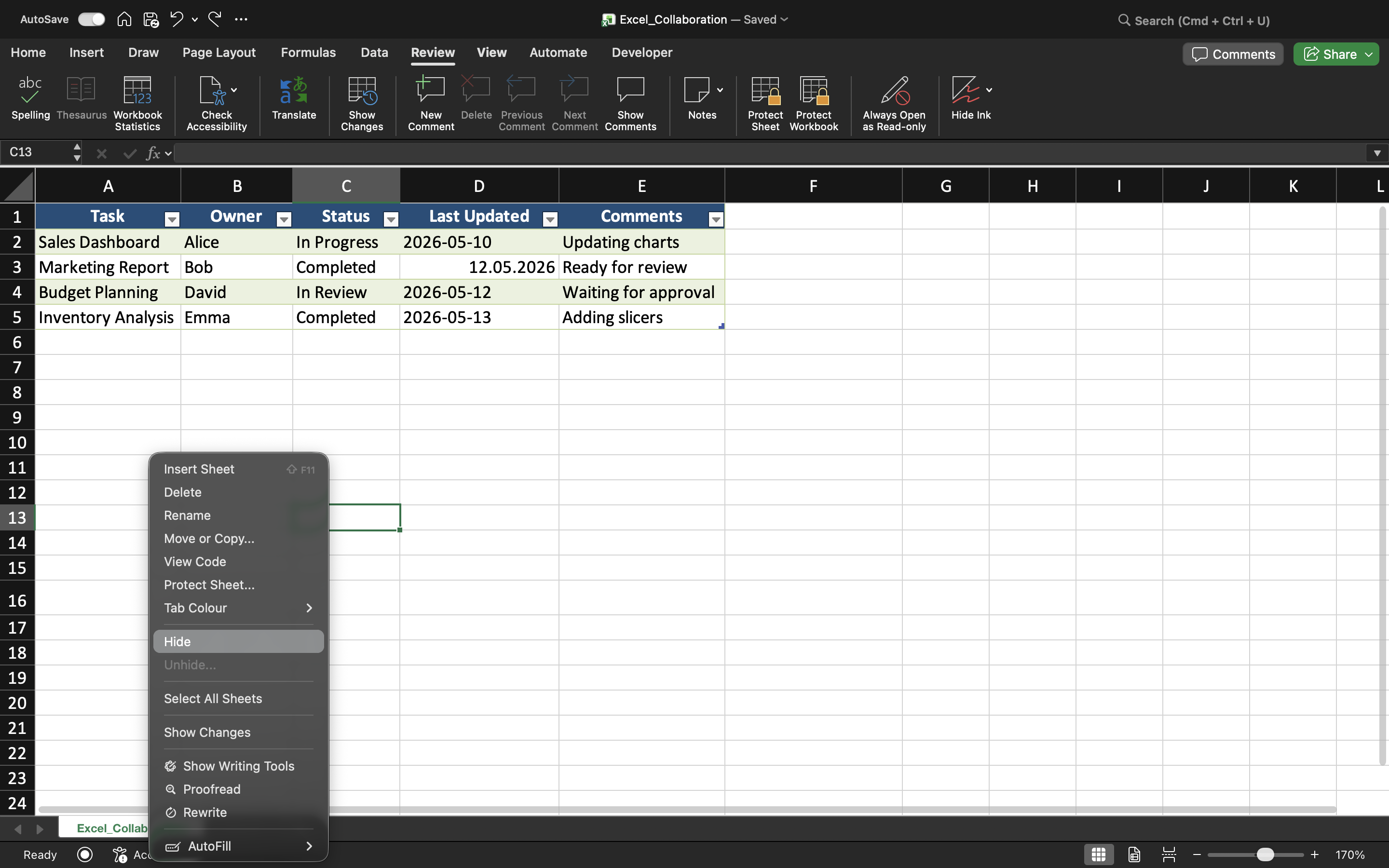
Om een werkblad te verbergen:
- Klik met de rechtermuisknop op het werkbladtabblad;
- Selecteer Verbergen.
Verborgen werkbladen worden vaak gebruikt voor ondersteunende berekeningen, gearchiveerde gegevens, hulpkolommen of administratieve informatie. Dit zorgt voor een overzichtelijker en georganiseerder werkmapinterface.
Werkbladen zichtbaar maken
Als de bescherming van de werkmapstructuur is uitgeschakeld, kunnen verborgen werkbladen worden hersteld via de optie Zichtbaar maken. Wanneer de bescherming van de werkmapstructuur actief is, kunnen samenwerkers echter worden verhinderd om zelf werkbladen zichtbaar te maken. Dit biedt een extra laag van organisatorische controle binnen gedeelde werkmappen.
Wanneer bescherming van de werkmapstructuur nuttig is
Bescherming van de werkmapstructuur is vooral handig wanneer teams samenwerken in complexe werkmapsystemen of dashboards met zorgvuldig georganiseerde werkbladindelingen.
Zonder structurele bescherming kunnen samenwerkers per ongeluk werkbladtabbladen herschikken, belangrijke bladen verwijderen of de navigatie in de werkmap verstoren.
Taak
De werkmap bevat een gedeeld rapportagesysteem met meerdere werkbladen en verborgen berekeningstabbladen. Het doel is om de organisatie van de werkmap te beschermen en structurele wijzigingen tijdens samenwerking te voorkomen.
- Bescherm de werkmapstructuur;
- Verberg geselecteerde werkbladen;
- Probeer werkbladtabbladen te hernoemen of te verplaatsen;
- Controleer of structurele wijzigingen beperkt zijn;
- Test het zichtbaar maken van werkbladen vóór en na bescherming.
Bedankt voor je feedback!
Vraag AI

Vraag AI

Vraag wat u wilt of probeer een van de voorgestelde vragen om onze chat te starten.
