Versiegeschiedenis en Bestandsherstel
Veeg om het menu te tonen
Excel slaat automatisch eerdere versies van werkmappen op wanneer bestanden worden opgeslagen in OneDrive of SharePoint. Hierdoor kunnen gebruikers oudere werkmaptoestanden bekijken, verloren informatie herstellen en bestanden terugzetten na onbedoelde wijzigingen.
Versiegeschiedenis is een van de belangrijkste samenwerkingsfuncties omdat het teams helpt gedeelde werkmappen veilig te beheren over een langere periode.
Inzicht in versiegeschiedenis
Telkens wanneer er wijzigingen worden aangebracht in een cloudgebaseerde werkmap, slaat Excel automatisch historische versies op. Deze versies vormen een tijdlijn van werkmapupdates.
Versiegeschiedenis helpt gebruikers bij:
- Herstellen van oudere werkmaptoestanden;
- Terughalen van verwijderde informatie;
- Bekijken van eerdere werkmapwijzigingen;
- Ongedaan maken van grote bewerkingsfouten.
Dit is vooral nuttig wanneer meerdere samenwerkers in hetzelfde bestand werken.
Versiegeschiedenis openen
Om de geschiedenis van een werkmap te bekijken:
- Open de gedeelde werkmap;
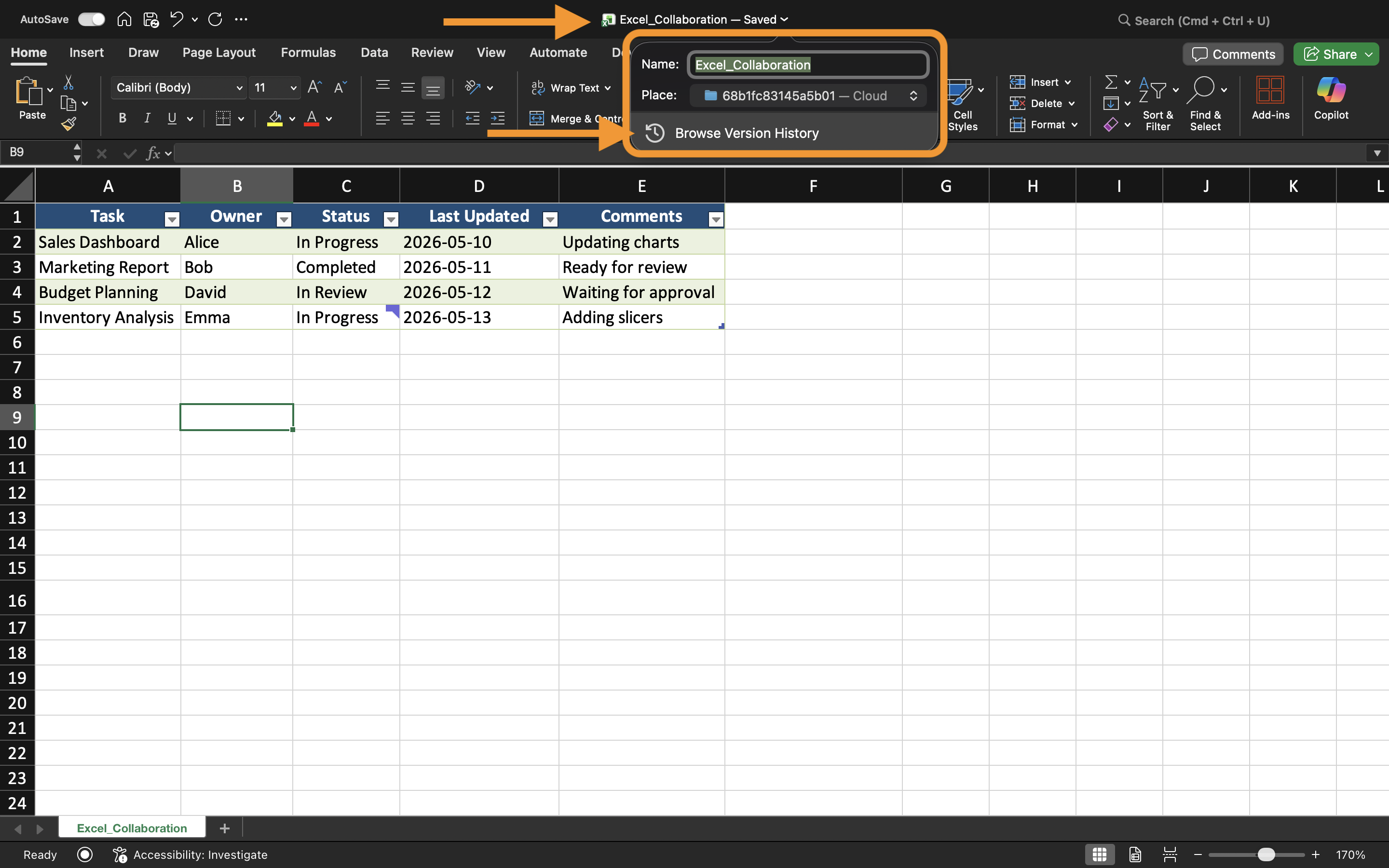
- Selecteer de werkmapnaam bovenaan in Excel;
- Kies Versiegeschiedenis.
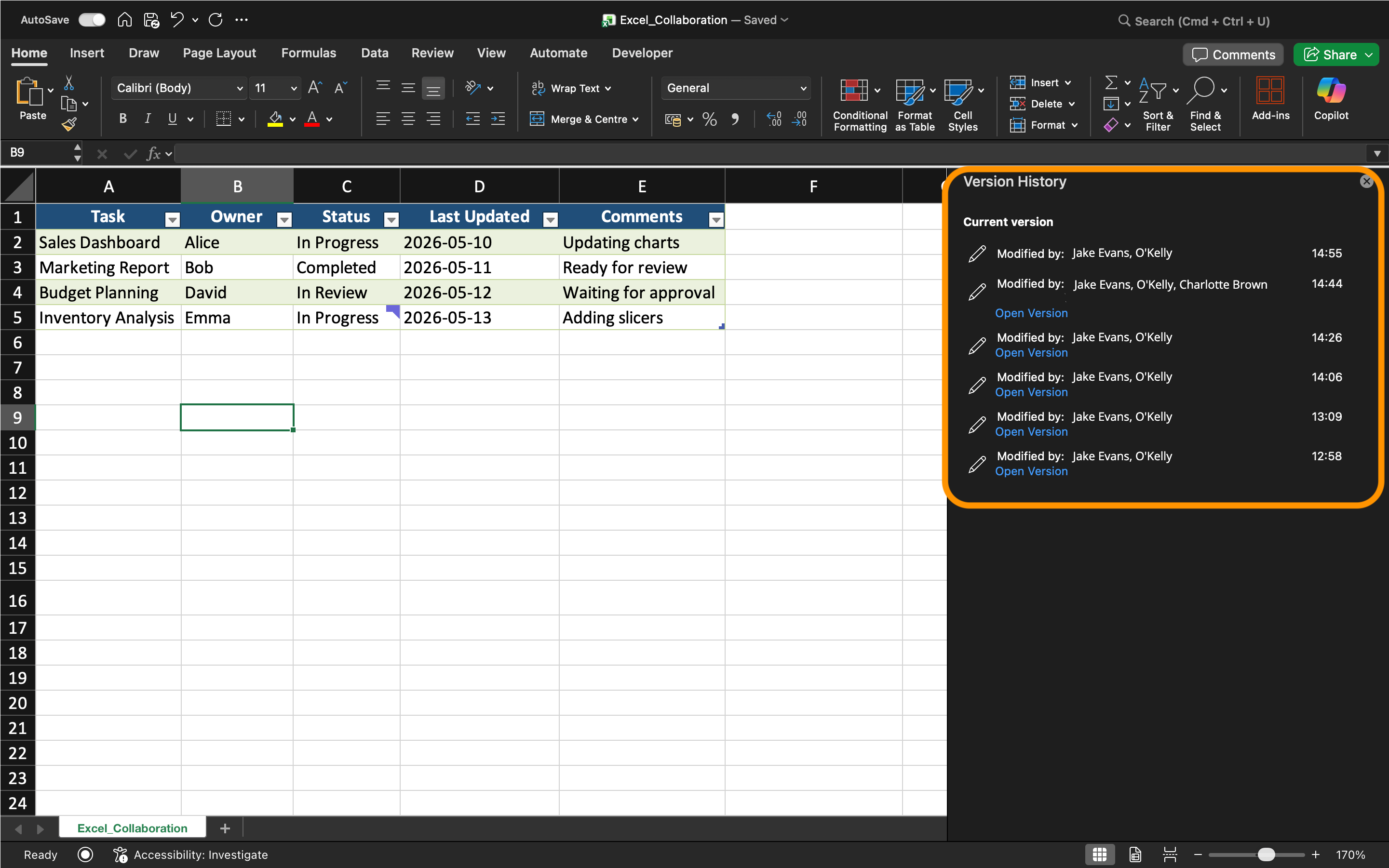
Excel toont een lijst van eerder opgeslagen werkmapversies met tijdstempels en informatie over samenwerkers.
Gebruikers kunnen oudere versies openen zonder direct de huidige werkmap te vervangen.
Oudere versies herstellen
Als werkmapgegevens beschadigd raken of per ongeluk worden verwijderd, kan een oudere versie worden hersteld.
Om een versie te herstellen:
- Open Versiegeschiedenis;
- Selecteer de gewenste werkmapversie;
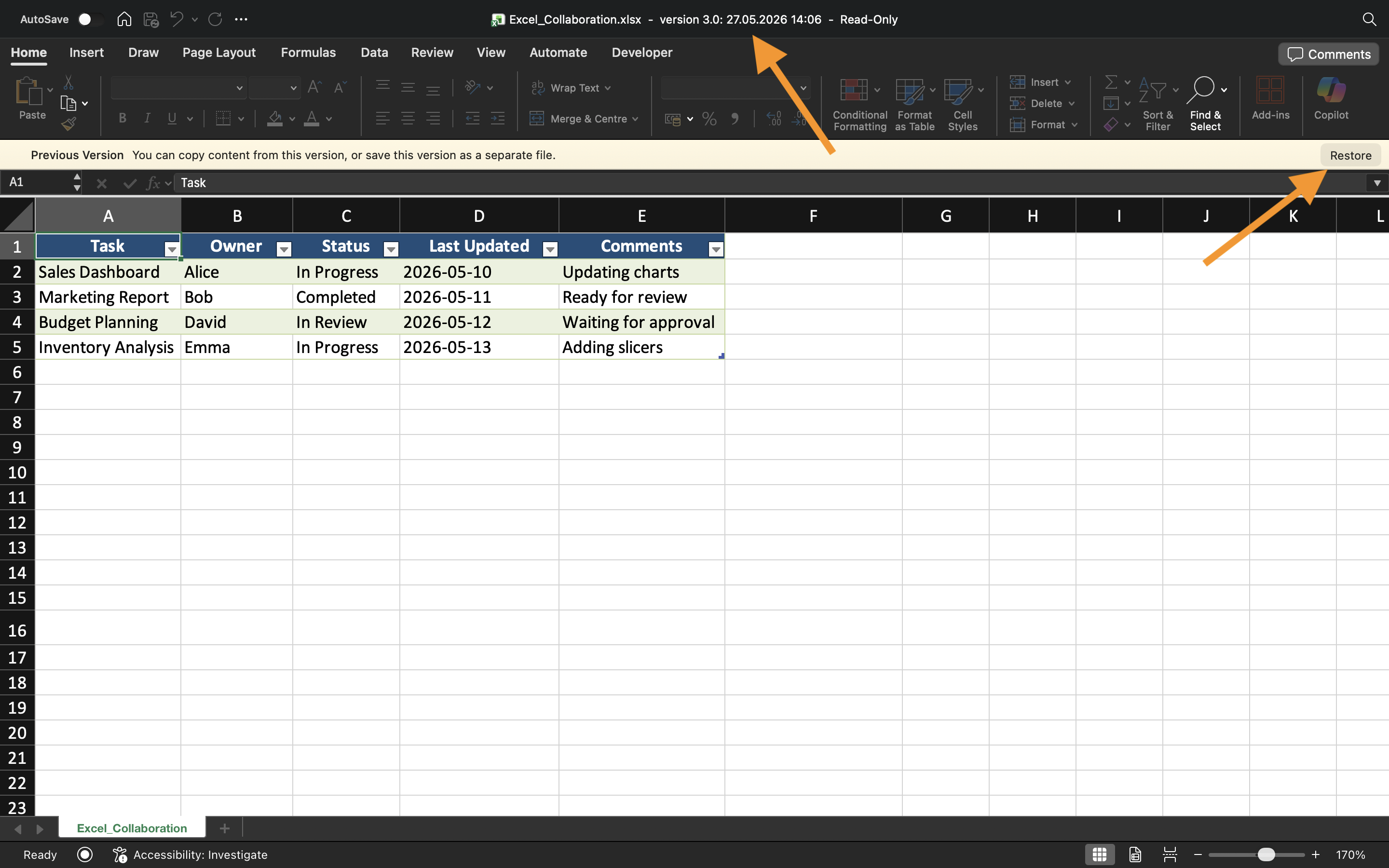
- Bekijk de inhoud van de werkmap;
- Kies Herstellen als de versie correct is.
Excel vervangt vervolgens de huidige werkmaptoestand door de geselecteerde historische versie.
Het herstellen van versies wordt vaak gebruikt na:
- Per ongeluk verwijderen;
- Onjuiste gegevensimport;
- Formulefouten;
- Grote ongewenste wijzigingen.
Niet-opgeslagen werk herstellen
Excel bevat ook AutoHerstel, waarmee niet-opgeslagen wijzigingen in werkmappen kunnen worden hersteld na crashes of onverwachte afsluitingen.
Wanneer Excel onverwacht wordt afgesloten, verschijnen herstelbestanden mogelijk automatisch de volgende keer dat de applicatie wordt geopend.
AutoHerstel verschilt van Versiegeschiedenis:
Taak
Het werkboek bevat een gedeeld operationeel rapport dat per ongeluk is gewijzigd tijdens samenwerking. Het doel is om de werkboekgeschiedenis te bekijken en een eerdere versie van het bestand te herstellen.
- Open het werkboek Versiegeschiedenis;
- Bekijk de beschikbare werkboekversies;
- Open een oudere staat van het werkboek;
- Herstel de geselecteerde werkboekversie;
- Test AutoHerstel door een tijdelijk niet-opgeslagen werkboek opnieuw te openen.
Bedankt voor je feedback!
Vraag AI

Vraag AI

Vraag wat u wilt of probeer een van de voorgestelde vragen om onze chat te starten.
