Snelle Gegevensvorming
Veeg om het menu te tonen
Tekst naar kolommen, scheidingstekenmodus
Wanneer waarden in één cel zijn samengevoegd met een consistent teken — een komma, spatie, streepje, pipe — is Tekst naar kolommen het juiste hulpmiddel. Hiermee wordt de broncel gesplitst in evenveel kolommen als er segmenten zijn, waarbij het scheidingsteken als splitsingspunt wordt gebruikt.
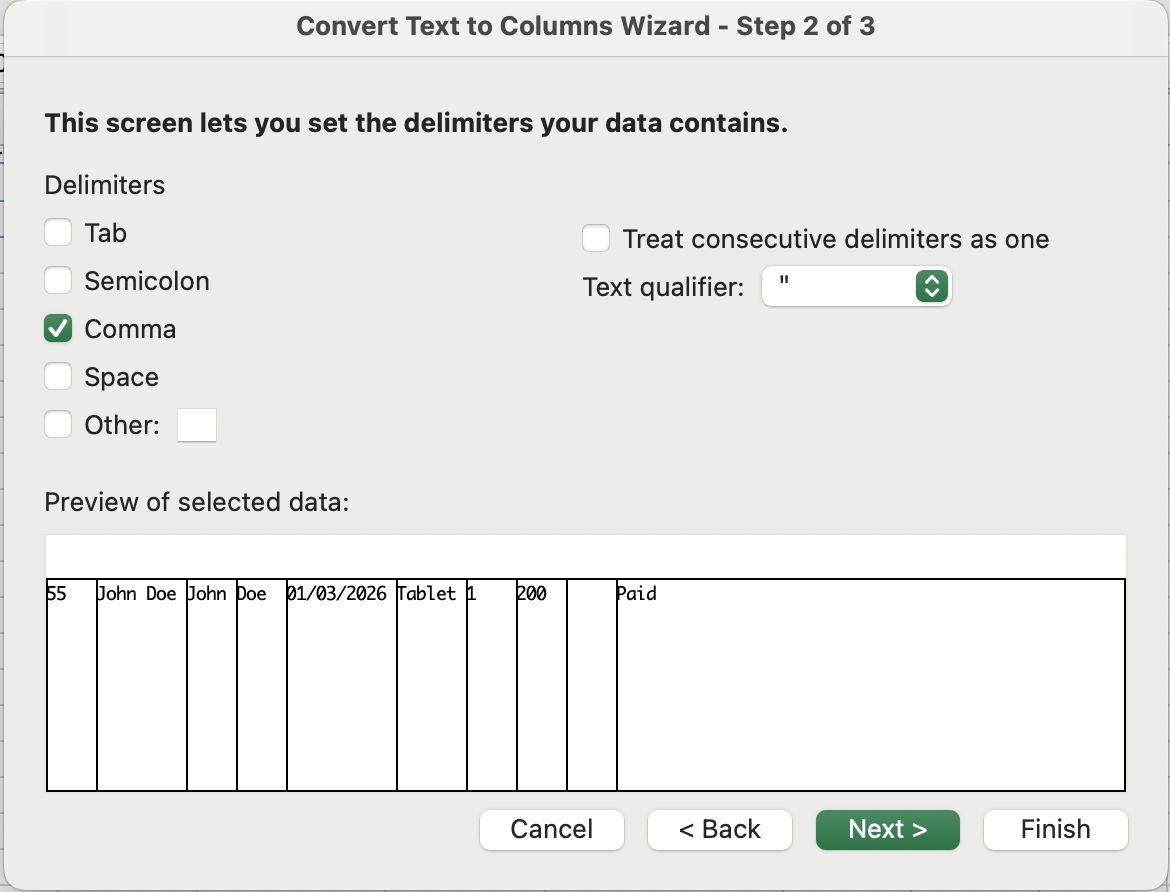
Hoe de splitsing er visueel uitziet — het scheidingsteken markeert elke splitsing:
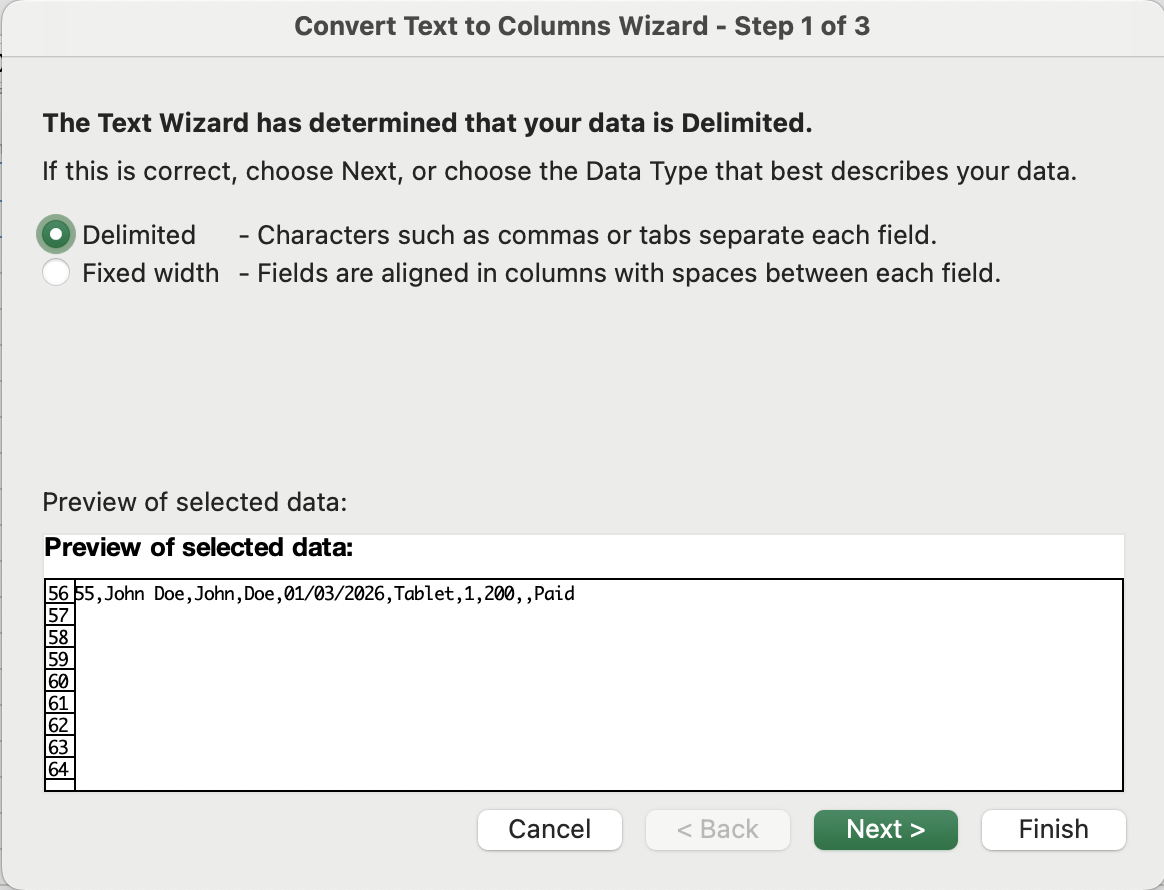
55,John Doe,John,Doe,01/03/2026,Tablet,1,200,,Paid
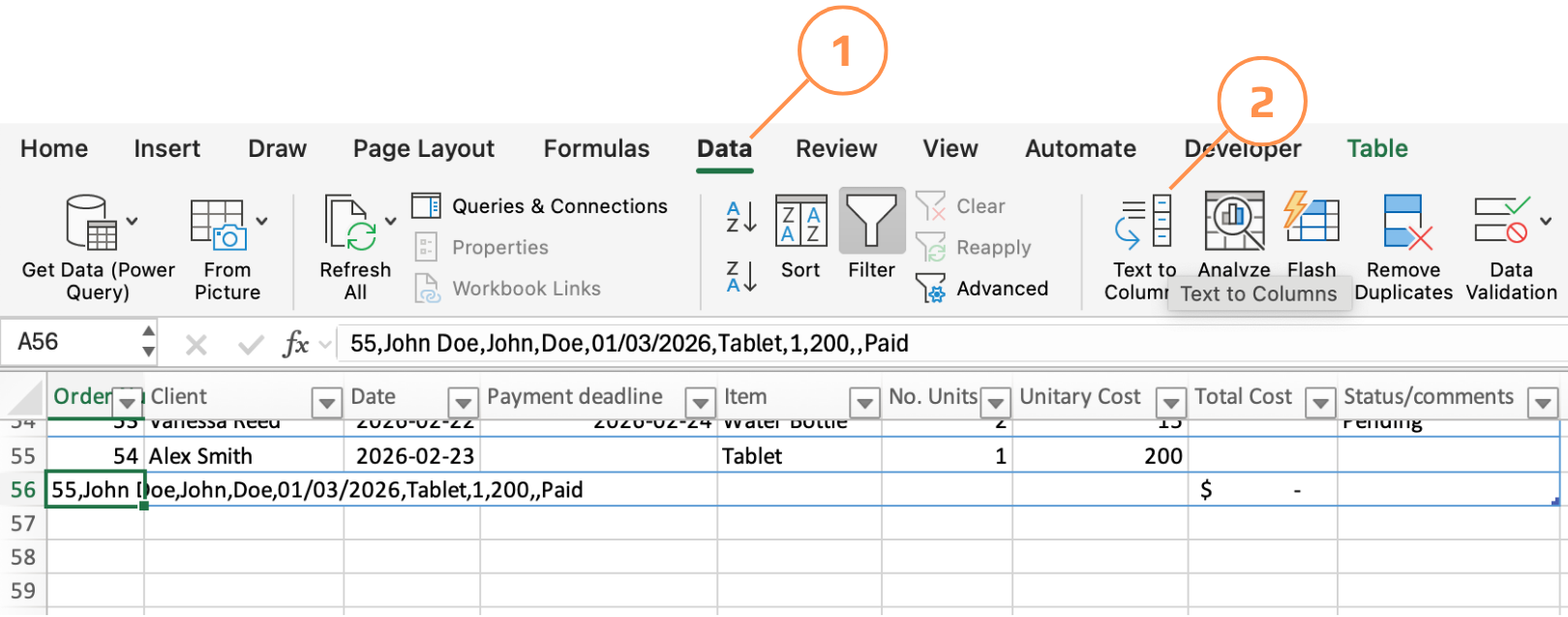
- Selecteer het bronbereik → Gegevens-tab → Tekst naar kolommen → kies Gescheiden → Volgende;
- Vink het scheidingsteken aan (komma, spatie, tab of aangepast) → voorbeeld wordt in realtime bijgewerkt → Volgende;
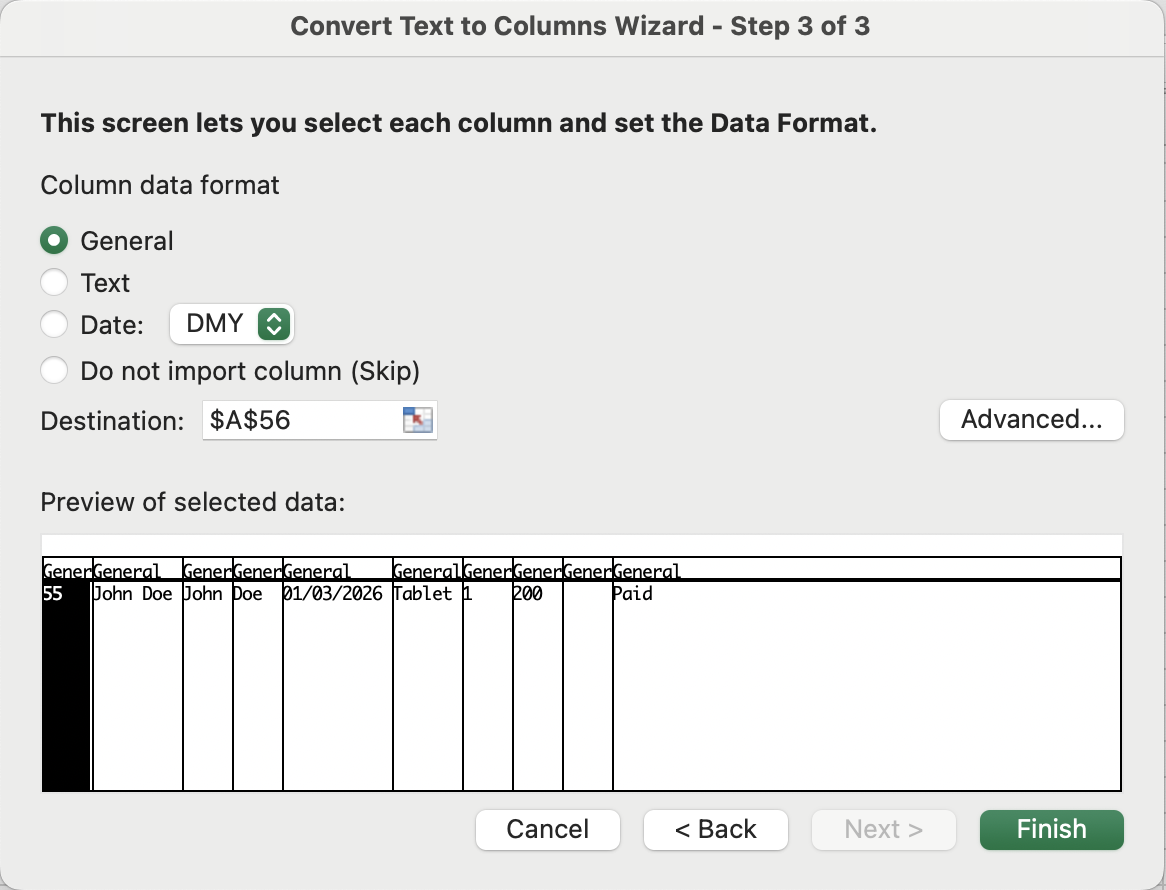
- Optioneel het gegevenstype voor elke resulterende kolom instellen (Tekst, Datum, Algemeen) → Voltooien;
Tekst naar kolommen, vaste breedte
Een Tekst naar kolommen-modus waarbij verticale scheidingslijnen in een voorbeeld worden versleept om kolomgrenzen te definiëren op basis van tekenpositie, niet op basis van een scheidingsteken. De datastructuur moet visueel consistent zijn — elk veld neemt in elke rij hetzelfde aantal tekens in beslag.
De &-operator
De ampersand is de tekstlijm van Excel. Hiermee worden combinaties van celverwijzingen, letterlijke tekstreeksen (tussen aanhalingstekens) en functieresultaten samengevoegd tot één waarde.
=C2 & D2 & "@email.com" →
EmilyJohnson@email.com
Bedankt voor je feedback!
Vraag AI

Vraag AI

Vraag wat u wilt of probeer een van de voorgestelde vragen om onze chat te starten.
