Gegevenstypen en Celinhoud
Veeg om het menu te tonen
Elke nieuwe cel in Excel heeft standaard het Algemeen-formaat — een flexibele standaard die probeert te raden wat je bedoelt.
De vijf typen die je voortdurend gebruikt, en hoe je ze in één oogopslag herkent:
- Algemeen (standaard): geen specifiek formaat toegewezen;
- Tekst: links uitgelijnd — nooit gebruikt in berekeningen;
- Getal: rechts uitgelijnd — gebruikt in berekeningen;
- Valuta: geldwaarden met symbool, getal met financiële opmaak;
- Datum: kalenderdata (opgeslagen als gehele getallen), maakt sorteren, aftrekken en tijdsberekeningen mogelijk.
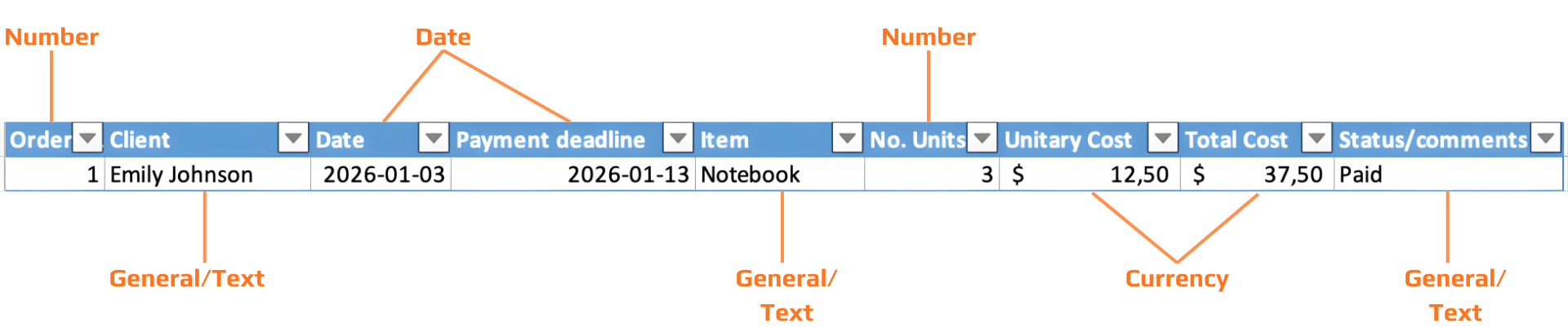

In Excel wordt tekst altijd links uitgelijnd; getallen worden altijd rechts uitgelijnd. Als je een kolom als Getal opmaakt en een cel is links uitgelijnd, wordt de waarde als tekst opgeslagen — niet als getal. Het zal niet correct worden berekend.
Elke datum wordt opgeslagen als een geheel getal — een serienummer dat het aantal dagen sinds 1 januari 1900 telt. Het "datumformaat" is slechts een weergavemasker bovenop dat getal. Daarom kun je datums van elkaar aftrekken, ze chronologisch sorteren en tijdsverschillen berekenen.
Omdat datums getallen zijn, is datumrekenen gewoon aftrekken. =B2-A2 waarbij beide cellen datums bevatten, geeft het aantal dagen ertussen. Geen speciale functie nodig.
Korte datum: 03/01/2026. Lange datum: Sunday, 1 March 2026. Het wijzigen van het weergaveformaat verandert nooit de opgeslagen waarde; je berekeningen blijven intact.
Het ###-symbool
Wanneer een cel ### weergeeft, is de waarde correct maar is de kolom te smal om deze weer te geven. Dit gebeurt meestal bij datums en valutawaarden.
Oplossing: dubbelklik op de kolomrand in de koprij om automatisch aan te passen, of sleep de rand handmatig om te verbreden. De gegevens zelf blijven onaangetast.
Wat kan een cel nog meer bevatten?
Naast getypte waarden kunnen Excel-cellen drie andere soorten inhoud bevatten — elk in te voegen via het tabblad Invoegen, groep Illustraties:
- Afbeelding: een foto of grafisch bestand ingevoegd vanaf je apparaat of online. Zweeft boven het raster — niet aan een enkele cel gebonden, tenzij je "In cel plaatsen" gebruikt (Excel 365);
- Pictogram: een schaalbaar vectorpictogram uit de ingebouwde bibliotheek van Excel. In tegenstelling tot afbeeldingen zijn pictogrammen resolutie-onafhankelijk en kunnen ze van kleur worden veranderd. Invoegen via Invoegen → Pictogrammen;
- Hyperlink: een klikbare link naar een URL, bestand, e-mailadres of locatie binnen dezelfde werkmap. Invoegen met
Ctrl+K. De cel toont weergavetekst; de daadwerkelijke URL staat in het linkdoel. Handig voor het koppelen aan brondocumenten of externe bronnen.
Zoeken en vervangen
Met Zoeken en vervangen kun je in enkele seconden het gehele gegevensbestand corrigeren — en het houdt rekening met je huidige selectie, zodat je het kunt beperken tot één kolom.
Alles vervangen voert direct wijzigingen door binnen het volledige bereik. Gebruik eerst Volgende zoeken om overeenkomsten te controleren voordat je Alles vervangen toepast. Als je een fout maakt, maakt Ctrl+Z / Cmd+Z de volledige Alles vervangen-bewerking in één stap ongedaan.
Taak
-
Juiste gegevensindelingen toepassen
Formatteer elke kolom volgens het doel:- Client → Tekst
- Date → Datum (kort datumformaat)
- No. of Units → Getal
- Unit Cost → Valuta
- Total Cost → Valuta
Na het formatteren, controleren:
- Tekstwaarden zijn links uitgelijnd.
- Getallen en datums zijn rechts uitgelijnd.
-
Zichtbaarheidsproblemen oplossen (
###)- Identificeer kolommen die
###weergeven - Pas de kolombreedte aan met AutoAanpassen (dubbelklik op de kolomrand)
- Identificeer kolommen die
-
Gegevens standaardiseren met Zoeken & Vervangen
In de kolom Status:
- Vervang alle variaties van “Paid” (bijv. “paid.”, “PAID”) door “Paid”
Gebruik:
Ctrl/Cmd + H- Volgende zoeken → daarna Alles vervangen
- Nieuwe kolom toevoegen voor ondersteunende inhoud
Voeg rechts een nieuwe kolom toe met de naam: Receipts.
-
Visuele en linkelementen invoegen
- Voeg in ten minste één rij een afbeelding toe in de kolom Receipts
- Voeg in een andere rij een pictogram toe in de kolom Receipts
- Voeg in de kolom Item een hyperlink toe (
Ctrl/Cmd + K)
Bedankt voor je feedback!
Vraag AI

Vraag AI

Vraag wat u wilt of probeer een van de voorgestelde vragen om onze chat te starten.
Gegevenstypen en Celinhoud
Elke nieuwe cel in Excel heeft standaard het Algemeen-formaat — een flexibele standaard die probeert te raden wat je bedoelt.
De vijf typen die je voortdurend gebruikt, en hoe je ze in één oogopslag herkent:
- Algemeen (standaard): geen specifiek formaat toegewezen;
- Tekst: links uitgelijnd — nooit gebruikt in berekeningen;
- Getal: rechts uitgelijnd — gebruikt in berekeningen;
- Valuta: geldwaarden met symbool, getal met financiële opmaak;
- Datum: kalenderdata (opgeslagen als gehele getallen), maakt sorteren, aftrekken en tijdsberekeningen mogelijk.
In Excel wordt tekst altijd links uitgelijnd; getallen worden altijd rechts uitgelijnd. Als je een kolom als Getal opmaakt en een cel is links uitgelijnd, wordt de waarde als tekst opgeslagen — niet als getal. Het zal niet correct worden berekend.
Elke datum wordt opgeslagen als een geheel getal — een serienummer dat het aantal dagen sinds 1 januari 1900 telt. Het "datumformaat" is slechts een weergavemasker bovenop dat getal. Daarom kun je datums van elkaar aftrekken, ze chronologisch sorteren en tijdsverschillen berekenen.
Omdat datums getallen zijn, is datumrekenen gewoon aftrekken. =B2-A2 waarbij beide cellen datums bevatten, geeft het aantal dagen ertussen. Geen speciale functie nodig.
Korte datum: 03/01/2026. Lange datum: Sunday, 1 March 2026. Het wijzigen van het weergaveformaat verandert nooit de opgeslagen waarde; je berekeningen blijven intact.
Het ###-symbool
Wanneer een cel ### weergeeft, is de waarde correct maar is de kolom te smal om deze weer te geven. Dit gebeurt meestal bij datums en valutawaarden.
Oplossing: dubbelklik op de kolomrand in de koprij om automatisch aan te passen, of sleep de rand handmatig om te verbreden. De gegevens zelf blijven onaangetast.
Wat kan een cel nog meer bevatten?
Naast getypte waarden kunnen Excel-cellen drie andere soorten inhoud bevatten — elk in te voegen via het tabblad Invoegen, groep Illustraties:
- Afbeelding: een foto of grafisch bestand ingevoegd vanaf je apparaat of online. Zweeft boven het raster — niet aan een enkele cel gebonden, tenzij je "In cel plaatsen" gebruikt (Excel 365);
- Pictogram: een schaalbaar vectorpictogram uit de ingebouwde bibliotheek van Excel. In tegenstelling tot afbeeldingen zijn pictogrammen resolutie-onafhankelijk en kunnen ze van kleur worden veranderd. Invoegen via Invoegen → Pictogrammen;
- Hyperlink: een klikbare link naar een URL, bestand, e-mailadres of locatie binnen dezelfde werkmap. Invoegen met
Ctrl+K. De cel toont weergavetekst; de daadwerkelijke URL staat in het linkdoel. Handig voor het koppelen aan brondocumenten of externe bronnen.
Zoeken en vervangen
Met Zoeken en vervangen kun je in enkele seconden het gehele gegevensbestand corrigeren — en het houdt rekening met je huidige selectie, zodat je het kunt beperken tot één kolom.
Alles vervangen voert direct wijzigingen door binnen het volledige bereik. Gebruik eerst Volgende zoeken om overeenkomsten te controleren voordat je Alles vervangen toepast. Als je een fout maakt, maakt Ctrl+Z / Cmd+Z de volledige Alles vervangen-bewerking in één stap ongedaan.
Taak
-
Juiste gegevensindelingen toepassen
Formatteer elke kolom volgens het doel:- Client → Tekst
- Date → Datum (kort datumformaat)
- No. of Units → Getal
- Unit Cost → Valuta
- Total Cost → Valuta
Na het formatteren, controleren:
- Tekstwaarden zijn links uitgelijnd.
- Getallen en datums zijn rechts uitgelijnd.
-
Zichtbaarheidsproblemen oplossen (
###)- Identificeer kolommen die
###weergeven - Pas de kolombreedte aan met AutoAanpassen (dubbelklik op de kolomrand)
- Identificeer kolommen die
-
Gegevens standaardiseren met Zoeken & Vervangen
In de kolom Status:
- Vervang alle variaties van “Paid” (bijv. “paid.”, “PAID”) door “Paid”
Gebruik:
Ctrl/Cmd + H- Volgende zoeken → daarna Alles vervangen
- Nieuwe kolom toevoegen voor ondersteunende inhoud
Voeg rechts een nieuwe kolom toe met de naam: Receipts.
-
Visuele en linkelementen invoegen
- Voeg in ten minste één rij een afbeelding toe in de kolom Receipts
- Voeg in een andere rij een pictogram toe in de kolom Receipts
- Voeg in de kolom Item een hyperlink toe (
Ctrl/Cmd + K)
Bedankt voor je feedback!
