Voorwaardelijke Opmaak
Veeg om het menu te tonen
In plaats van dat je zelf bepaalt welke cellen er op een bepaalde manier uitzien, schrijf je een regel en past Excel de opmaak automatisch toe op elke cel die aan de voorwaarde voldoet, en verwijdert deze zodra dat niet meer het geval is.
Je vindt Voorwaardelijke opmaak op het tabblad Start → groep Stijlen. Het wordt altijd toegepast op een geselecteerd bereik — elke cel in dat bereik wordt onafhankelijk geëvalueerd aan de hand van de regel, en de opmaak wordt alleen toegepast op cellen waar de voorwaarde waar is.
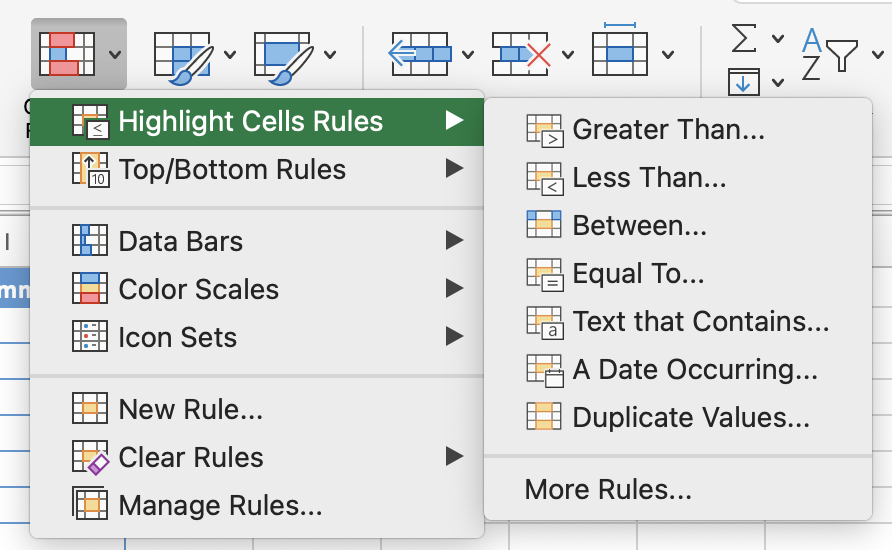
Markeerregels
Je definieert een voorwaarde zoals groter dan, kleiner dan, gelijk aan of bevat specifieke tekst en Excel past de gekozen opmaak toe op elke overeenkomende cel. Cellen die niet aan de voorwaarde voldoen, blijven onaangetast.
Start → Voorwaardelijke opmaak → Cellen markeren op basis van regels → Groter dan / Tekst die bevat / enz.
Kleurschalen
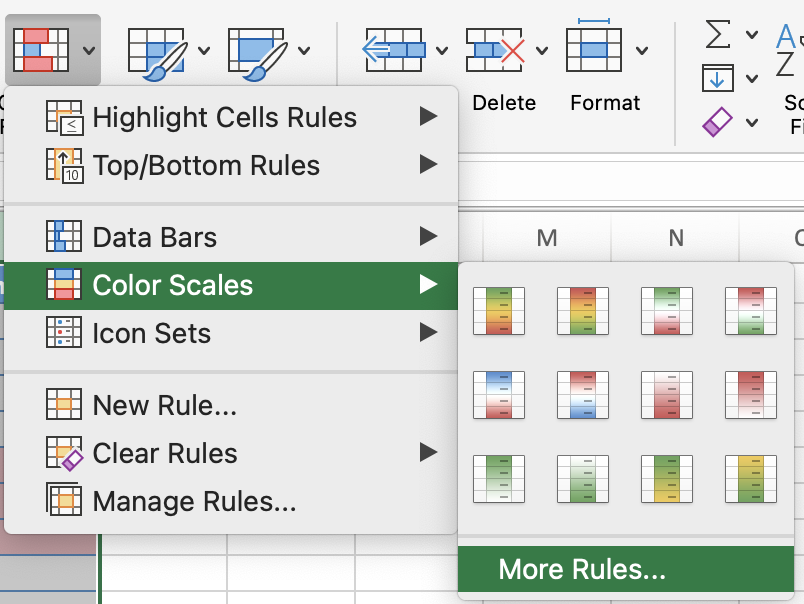
In plaats van een vaste drempelwaarde wijzen kleurschalen een kleurverloop toe over het volledige bereik op basis van relatieve waarde. De laagste waarden krijgen één kleur, de hoogste een andere, en alles daartussen wordt proportioneel ingekleurd. Hierdoor zijn uitschieters en trends in één oogopslag zichtbaar zonder de exacte cijfers te kennen.
Start → Voorwaardelijke opmaak → Kleurschalen → kies een 2-kleurenschaal of 3-kleurenschaal.
Regels voor lege cellen
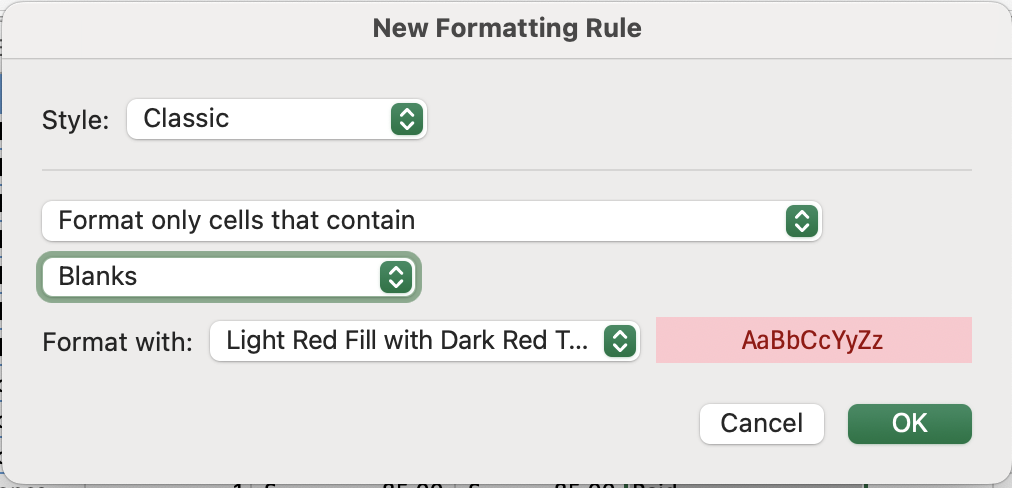
Een lege cel in een kolom die altijd een waarde moet bevatten — een datum, een bedrag, een status — is een probleem voor de datakwaliteit. Dit kan ertoe leiden dat formules onjuiste resultaten geven, dat COUNT en COUNTA onverwacht verschillen, of dat rapportages onvolledig zijn. Het markeren van lege cellen maakt deze hiaten direct zichtbaar in plaats van ze te laten verdwijnen in een grote tabel.
Start → Voorwaardelijke opmaak → Nieuwe regel → Alleen cellen opmaken met → Lege cellen.
Regels beheren en bewerken
Nadat regels zijn toegepast, is het soms nodig om deze te bewerken, te herschikken of te verwijderen. Excel evalueert meerdere regels op hetzelfde bereik in volgorde van prioriteit — de eerste regel die overeenkomt, wordt toegepast, tenzij je "Stop If True" aanvinkt bij een regel om te voorkomen dat regels met een lagere prioriteit ook worden toegepast. Dit alles beheer je via de Regelbeheerder.
Start → Voorwaardelijke opmaak → Regels beheren.
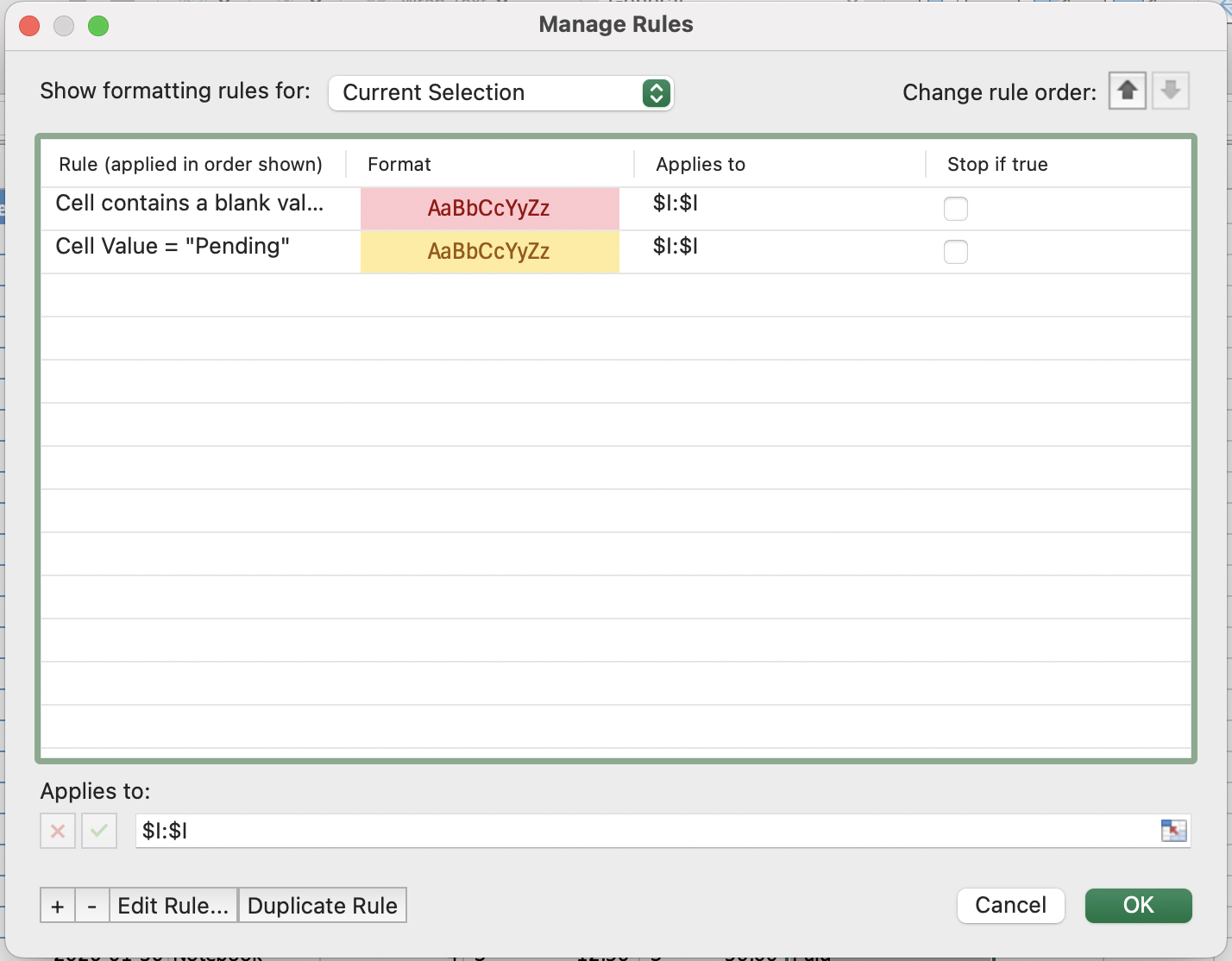

Wanneer meerdere regels van toepassing zijn op dezelfde cel, evalueert Excel deze van boven naar beneden en past de eerste regel toe die overeenkomt. Gebruik de pijltjestoetsen in de Regelbeheerder om ze te herschikken. Als je wilt dat slechts één regel wordt toegepast, vink Stoppen als waar aan bij de regel met de hoogste prioriteit.
Bedankt voor je feedback!
Vraag AI

Vraag AI

Vraag wat u wilt of probeer een van de voorgestelde vragen om onze chat te starten.
Voorwaardelijke Opmaak
In plaats van dat je zelf bepaalt welke cellen er op een bepaalde manier uitzien, schrijf je een regel en past Excel de opmaak automatisch toe op elke cel die aan de voorwaarde voldoet, en verwijdert deze zodra dat niet meer het geval is.
Je vindt Voorwaardelijke opmaak op het tabblad Start → groep Stijlen. Het wordt altijd toegepast op een geselecteerd bereik — elke cel in dat bereik wordt onafhankelijk geëvalueerd aan de hand van de regel, en de opmaak wordt alleen toegepast op cellen waar de voorwaarde waar is.
Markeerregels
Je definieert een voorwaarde zoals groter dan, kleiner dan, gelijk aan of bevat specifieke tekst en Excel past de gekozen opmaak toe op elke overeenkomende cel. Cellen die niet aan de voorwaarde voldoen, blijven onaangetast.
Start → Voorwaardelijke opmaak → Cellen markeren op basis van regels → Groter dan / Tekst die bevat / enz.
Kleurschalen
In plaats van een vaste drempelwaarde wijzen kleurschalen een kleurverloop toe over het volledige bereik op basis van relatieve waarde. De laagste waarden krijgen één kleur, de hoogste een andere, en alles daartussen wordt proportioneel ingekleurd. Hierdoor zijn uitschieters en trends in één oogopslag zichtbaar zonder de exacte cijfers te kennen.
Start → Voorwaardelijke opmaak → Kleurschalen → kies een 2-kleurenschaal of 3-kleurenschaal.
Regels voor lege cellen
Een lege cel in een kolom die altijd een waarde moet bevatten — een datum, een bedrag, een status — is een probleem voor de datakwaliteit. Dit kan ertoe leiden dat formules onjuiste resultaten geven, dat COUNT en COUNTA onverwacht verschillen, of dat rapportages onvolledig zijn. Het markeren van lege cellen maakt deze hiaten direct zichtbaar in plaats van ze te laten verdwijnen in een grote tabel.
Start → Voorwaardelijke opmaak → Nieuwe regel → Alleen cellen opmaken met → Lege cellen.
Regels beheren en bewerken
Nadat regels zijn toegepast, is het soms nodig om deze te bewerken, te herschikken of te verwijderen. Excel evalueert meerdere regels op hetzelfde bereik in volgorde van prioriteit — de eerste regel die overeenkomt, wordt toegepast, tenzij je "Stop If True" aanvinkt bij een regel om te voorkomen dat regels met een lagere prioriteit ook worden toegepast. Dit alles beheer je via de Regelbeheerder.
Start → Voorwaardelijke opmaak → Regels beheren.
Wanneer meerdere regels van toepassing zijn op dezelfde cel, evalueert Excel deze van boven naar beneden en past de eerste regel toe die overeenkomt. Gebruik de pijltjestoetsen in de Regelbeheerder om ze te herschikken. Als je wilt dat slechts één regel wordt toegepast, vink Stoppen als waar aan bij de regel met de hoogste prioriteit.
Bedankt voor je feedback!
