Opmaak
Veeg om het menu te tonen
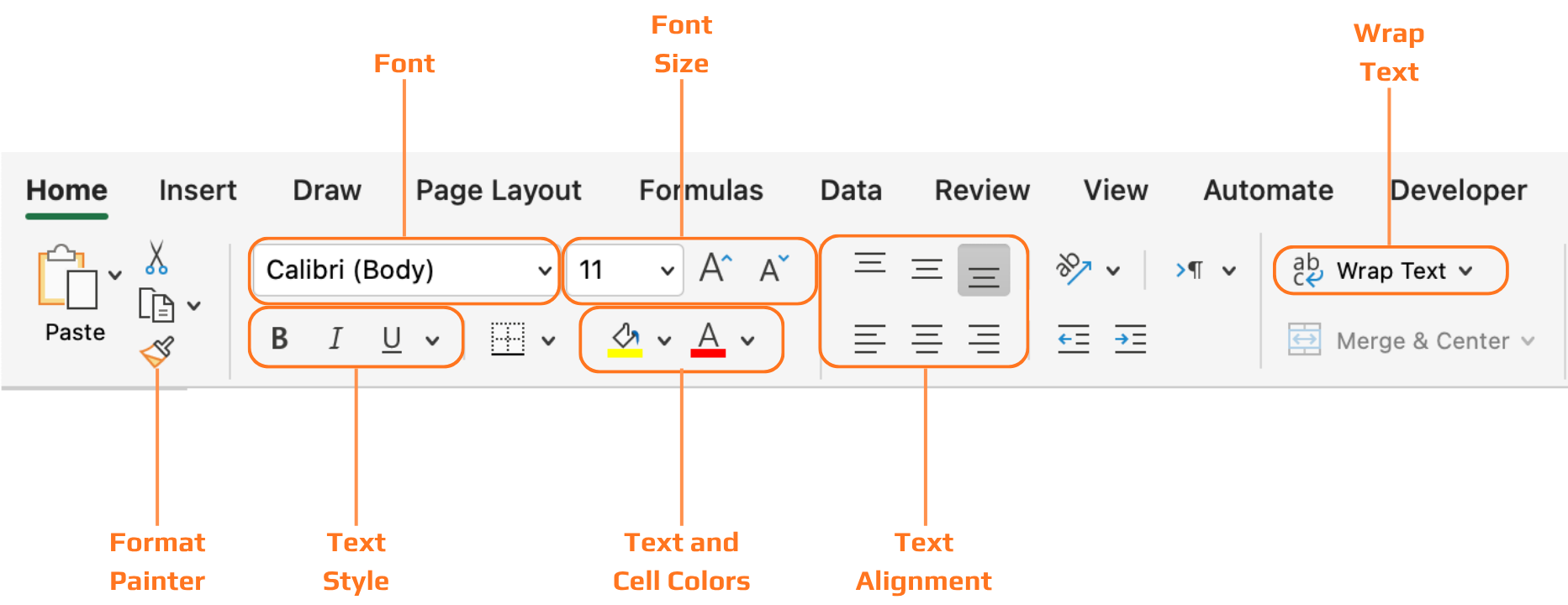
Alle tools die in dit hoofdstuk worden behandeld, bevinden zich op het tabblad Start van het lint, georganiseerd in groepen: Lettertype, Uitlijning, Getal en Stijlen. Je werkt door eerst cellen te selecteren en vervolgens de opmaak toe te passen op wat is geselecteerd.
Kopteksten
Zonder opgemaakte kopteksten is een tabel met gegevens slechts een raster van tekst. De lezer moet moeite doen om te achterhalen wat elke kolom betekent voordat hij de waarden kan lezen. Vetgedrukte tekst en achtergrondkleuring lossen dit direct op — de koprij onderscheidt zich visueel van de gegevensrijen, en het oog weet meteen waar de kolomlabels te vinden zijn.

Wanneer je een bereik omzet naar een Excel-tabel met Ctrl+T, wordt de opmaak van de kopteksten automatisch toegepast — en kun je kiezen uit vooraf ingestelde tabelstijlen op het tabblad Tabelontwerp. Dit is vaak de snelste manier om nette, consistente kopopmaak te krijgen zonder dit handmatig te doen.
Bedankt voor je feedback!
Vraag AI

Vraag AI

Vraag wat u wilt of probeer een van de voorgestelde vragen om onze chat te starten.
Opmaak
Alle tools die in dit hoofdstuk worden behandeld, bevinden zich op het tabblad Start van het lint, georganiseerd in groepen: Lettertype, Uitlijning, Getal en Stijlen. Je werkt door eerst cellen te selecteren en vervolgens de opmaak toe te passen op wat is geselecteerd.
Kopteksten
Zonder opgemaakte kopteksten is een tabel met gegevens slechts een raster van tekst. De lezer moet moeite doen om te achterhalen wat elke kolom betekent voordat hij de waarden kan lezen. Vetgedrukte tekst en achtergrondkleuring lossen dit direct op — de koprij onderscheidt zich visueel van de gegevensrijen, en het oog weet meteen waar de kolomlabels te vinden zijn.
Wanneer je een bereik omzet naar een Excel-tabel met Ctrl+T, wordt de opmaak van de kopteksten automatisch toegepast — en kun je kiezen uit vooraf ingestelde tabelstijlen op het tabblad Tabelontwerp. Dit is vaak de snelste manier om nette, consistente kopopmaak te krijgen zonder dit handmatig te doen.
Bedankt voor je feedback!
