Essentiële Notebooktips en -Trucs
Veeg om het menu te tonen

Efficiëntie in Databricks wordt bereikt door het beheersen van de notebook-interface. Het gebruik van sneltoetsen, technieken voor celbeheer en uitvoeringsopties maakt het mogelijk om grote projecten te navigeren en code aanzienlijk sneller te debuggen.
Om onze sectie over de Notebook-ervaring af te sluiten, richten we ons op de "pro"-functies die je uren handmatig klikken besparen. Het beheersen van deze sneltoetsen en beheertools onderscheidt een beginner van een professionele gebruiker.
Essentiële sneltoetsen
Sneltoetsen zijn de snelste manier van werken. De meeste volgen de standaard Jupyter-conventie. Om deze te gebruiken, moet je cel in Command Mode staan (druk op Esc zodat de rand van de cel blauw wordt).
- A: een nieuwe cel Boven de huidige invoegen;
- B: een nieuwe cel Onder de huidige invoegen;
- D, D: tweemaal op 'D' drukken Verwijdert de huidige cel;
- Z: Ongedaan maken van de laatste celactie (handig als je per ongeluk code hebt verwijderd).
Geavanceerde uitvoeringsopties
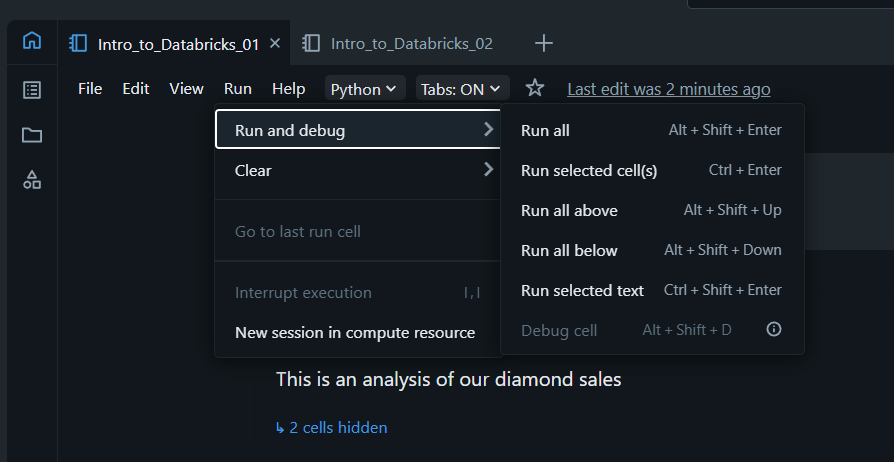
Soms is het uitvoeren van één cel tegelijk te langzaam. Bovenaan het notebook bevindt zich de "Alles uitvoeren"-knop, maar er zijn meer nauwkeurige opties beschikbaar in het cel-dropdownmenu of het "Uitvoeren"-menu:
- Alles hierboven uitvoeren: voert elke cel uit vanaf het begin van het notebook tot aan je huidige positie. Gebruik dit om ervoor te zorgen dat al je variabelen zijn geïnitialiseerd;
- Alles hieronder uitvoeren: voert uit vanaf je huidige positie tot het einde van het document;
- Status en resultaten wissen: hiermee wordt de uitvoer van je scherm gewist en het geheugen van de cluster geleegd van je variabelen. Dit is een "best practice" voordat je een notebook deelt om te garanderen dat de code werkt vanaf een schone start.
Celbeheer en organisatie
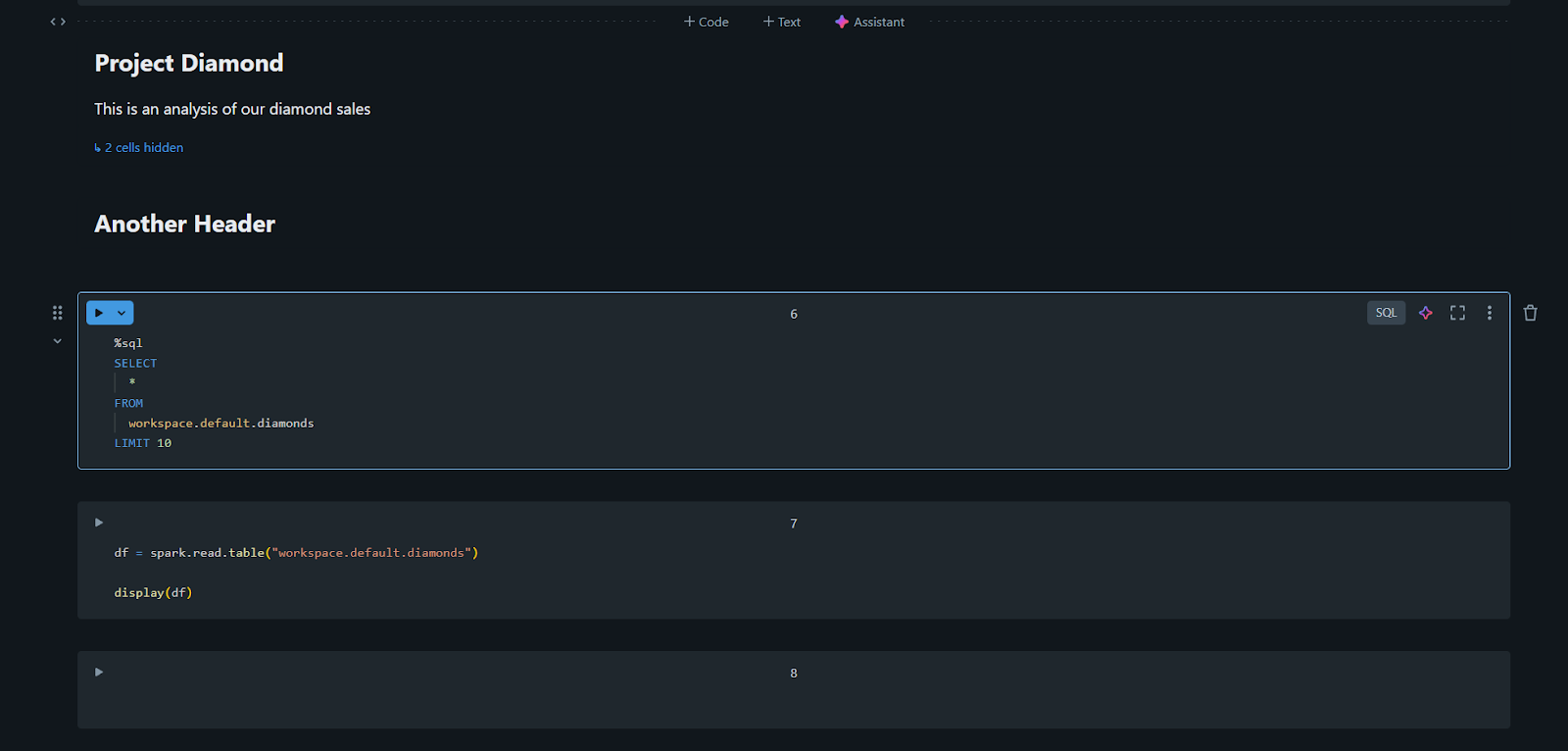
Naarmate je notebooks groter worden, kunnen ze lastig te navigeren zijn. Gebruik Inklapbare koppen om georganiseerd te blijven. Als je een kop aanmaakt met Markdown (bijvoorbeeld # My Header), kun je op het kleine pijltje ernaast klikken om alle onderliggende cellen in te klappen. Hiermee kun je complexe codeblokken "verbergen" en alleen de relevante resultaten of samenvattingen tonen.
Zoeken en vervangen
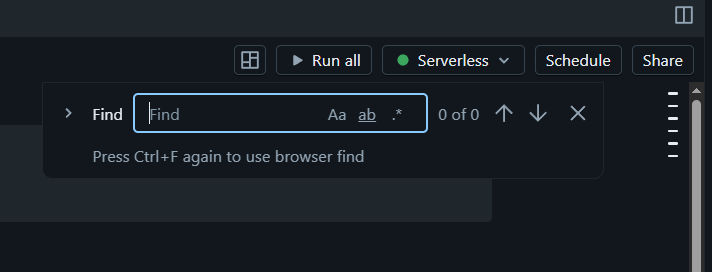
Net als een teksteditor heeft Databricks een ingebouwde zoek- en vervangfunctie. Gebruik Ctrl + F (of Cmd + F op Mac). Dit is vooral handig wanneer je besluit een tabel of variabele te hernoemen en elke cel in het notebook tegelijk wilt bijwerken.
1. Als je per ongeluk een cel verwijdert in een notebook, welke sneltoets (in Command Mode) maakt die actie ongedaan?
2. Waarom zou je het commando "Run All Above" gebruiken?
Bedankt voor je feedback!
Vraag AI

Vraag AI

Vraag wat u wilt of probeer een van de voorgestelde vragen om onze chat te starten.
