Voorbeeldgegevens Importeren Voor Oefening
Veeg om het menu te tonen

Gegevensinvoer is het proces waarbij gegevens van externe bronnen in je Databricks-omgeving worden gebracht. Met de Data Ingestion UI kun je een ruw bestand, zoals een CSV, met slechts een paar klikken omzetten in een gestructureerde tabel in je Catalogus.
Je hebt je Workspace opgezet en je Cluster draait. Nu hebben we iets nodig om mee te werken. In de praktijk kunnen gegevens afkomstig zijn van streaming sensoren of grote cloud databases, maar de meeste dataprojecten beginnen met een eenvoudig bestand. In dit hoofdstuk gebruik je de moderne Data Ingestion-functionaliteit om een CSV-bestand te uploaden en dit om te zetten in een permanente tabel in je Catalogus.

Er zijn verschillende manieren om gegevens in Databricks te laden, waarvan sommige geavanceerder en ingewikkelder zijn dan andere (bijvoorbeeld door eigen endpoints in je cloudprovider in te stellen of te koppelen met applicaties van derden). In dit hoofdstuk behandelen we de meest eenvoudige methode: het uploaden van gegevens vanaf je eigen computer, zodat je snel aan de slag kunt.
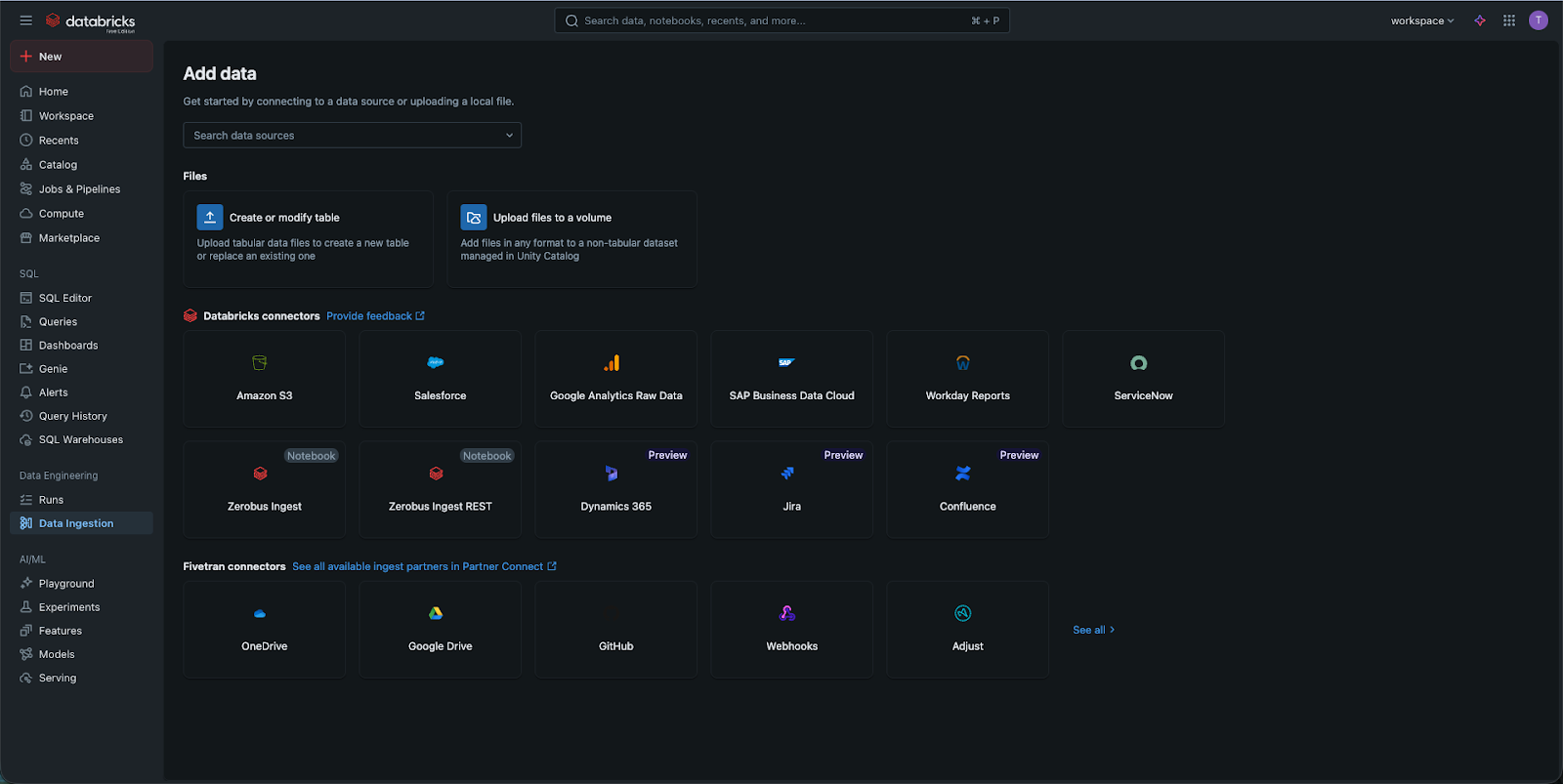
Toegang tot gegevensinvoer
Er zijn twee snelle manieren om deze tool te vinden:
- Klik op de "Nieuw"-knop bovenaan de zijbalk en selecteer "Bestand uploaden".
- Ga alternatief naar het tabblad Catalogus en klik op de knop "Tabel aanmaken" (vaak weergegeven met een plusteken).
Stap 2: Het bestand uploaden
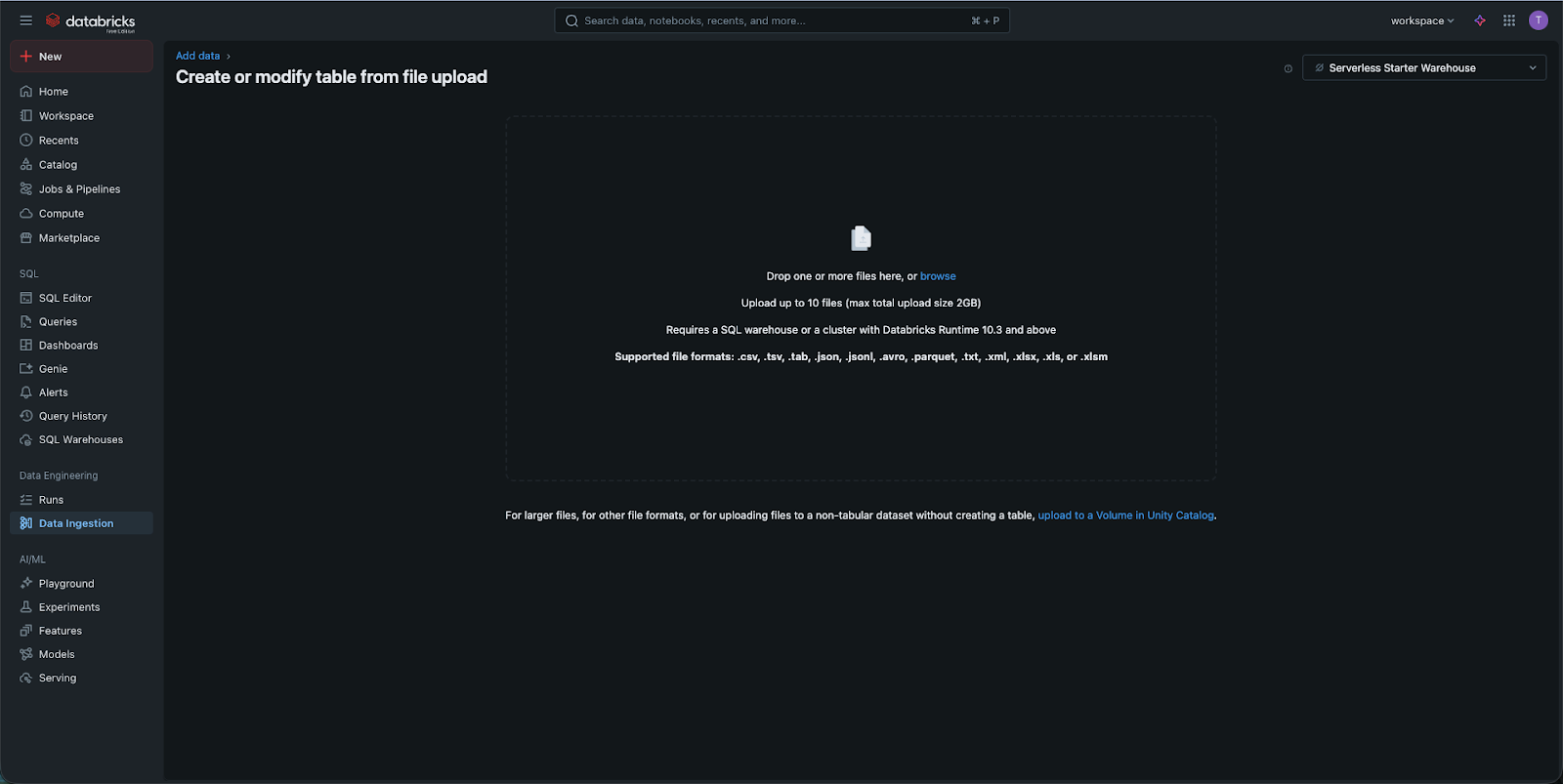
Zodra je in de uploadinterface bent, kun je je bestand slepen en neerzetten of op je computer zoeken.
- Het scenario: voor deze oefening gebruiken we een voorbeeldbestand genaamd
diamonds.csv; - De upload: zodra het bestand is geüpload, slaat Databricks het tijdelijk op in een "staging"-gebied terwijl het wordt voorbereid om naar de Catalogus te worden verplaatst.
Stap 3: De tabel configureren (De preview)
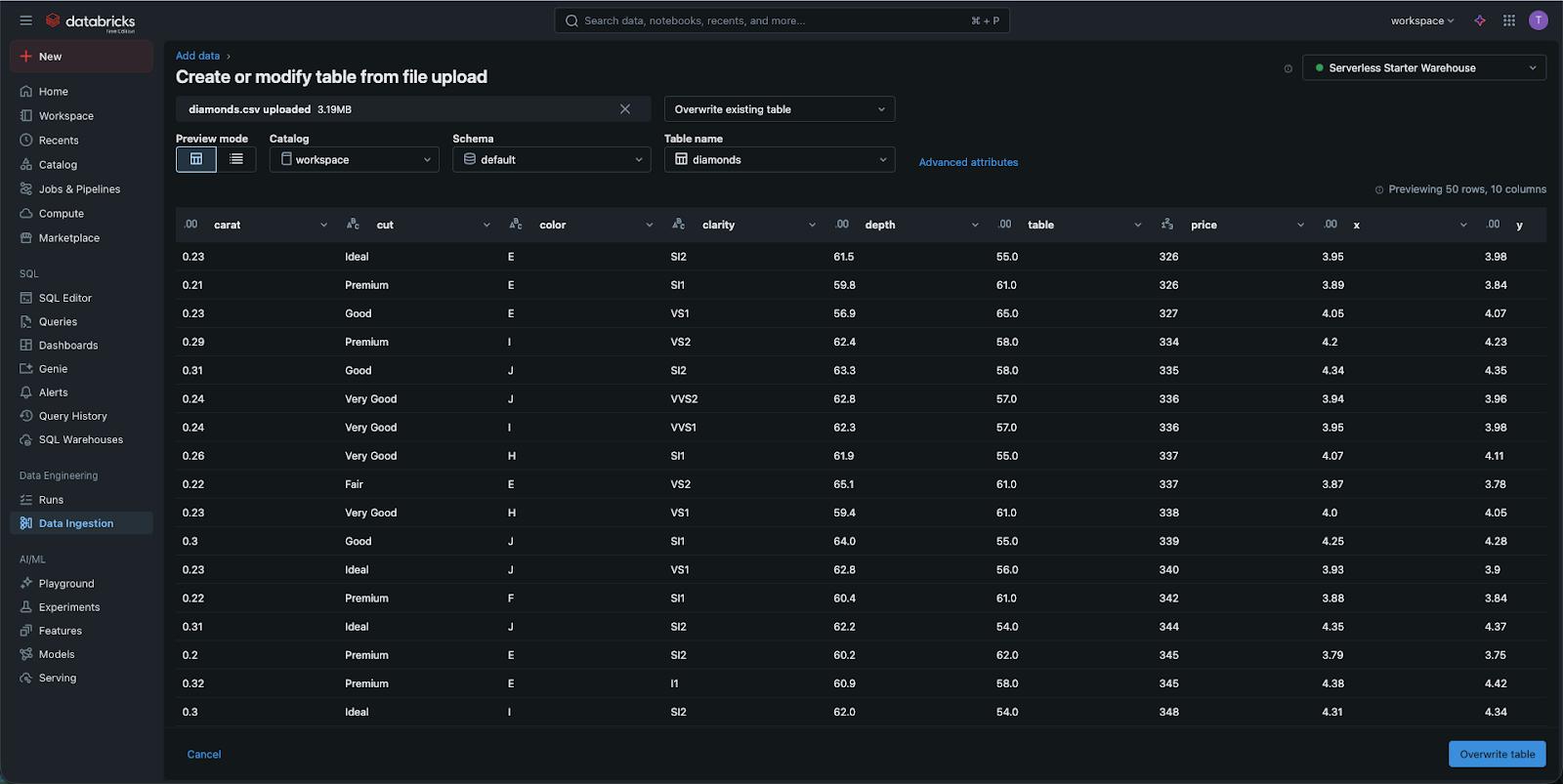
Hier gebeurt de "magie". Databricks toont een voorbeeld van je gegevens.
- Catalogus en schema: je moet kiezen waar de tabel wordt opgeslagen. Voor nu gebruik je de catalogus
workspaceen het schemadefault; - Tabelnaam: geef je tabel een duidelijke naam, zoals
diamonds; - Gegevenstypen: Bekijk de kolommen. Databricks raadt automatisch of een kolom een "String" (tekst), een "Integer" (getal) of een "Timestamp" (datum) is. Als het fout raadt, kun je het gegevenstype hier handmatig aanpassen in de UI.
Stap 4: De tabel aanmaken
Klik op Create Table. Databricks start nu een kleine achtergrondtaak (met behulp van je cluster) om het CSV-bestand te lezen en het op te slaan als een hoogwaardige Delta Table. Na voltooiing word je naar de Table UI gebracht, waar je het schema, voorbeeldgegevens en zelfs de toegangsrechten kunt bekijken.
Gefeliciteerd! Je hebt met succes gegevens van je persoonlijke computer naar de cloud-native Lakehouse verplaatst.
1. Wat maakt Databricks van een CSV-bestand wanneer je deze uploadt via de Data Ingestion UI?
2. Waarom is de "Preview"-stap belangrijk tijdens het data-ingestieproces?
3. Als je later je nieuw aangemaakte tabel wilt terugvinden, welk zijbalktabblad moet je dan bezoeken?
Bedankt voor je feedback!
Vraag AI

Vraag AI

Vraag wat u wilt of probeer een van de voorgestelde vragen om onze chat te starten.
