Lage Din Første Pivottabell
Sveip for å vise menyen
Når dataene dine er klargjort, kan du oppsummere dem ved hjelp av en pivottabell.
En pivottabell opprettes fra et eksisterende datasett. For å sette inn en pivottabell:
- Velg en hvilken som helst celle i datasettet;
- Åpne fanen Sett inn;
- Klikk på Pivottabell;
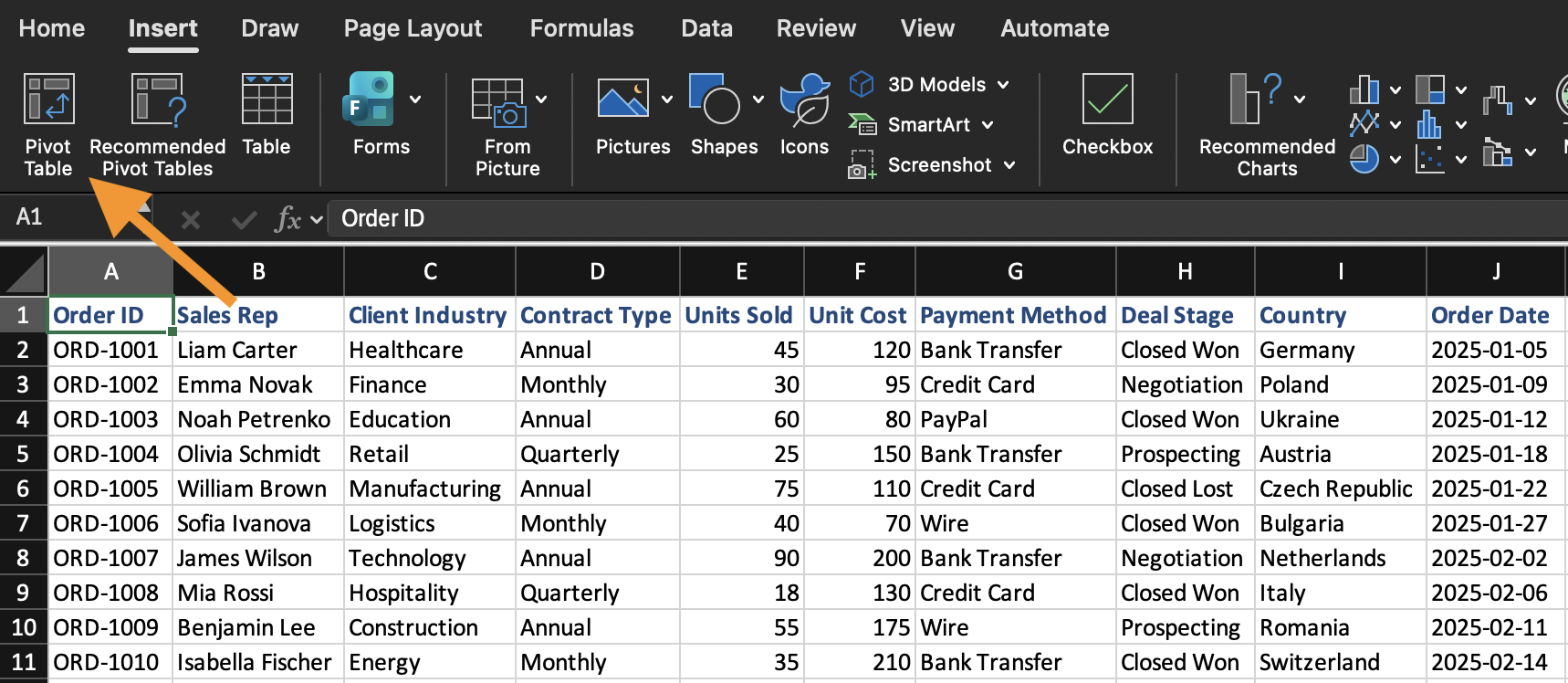
- Bekreft dataområdet;
- Velg å plassere pivottabellen på et nytt regneark.
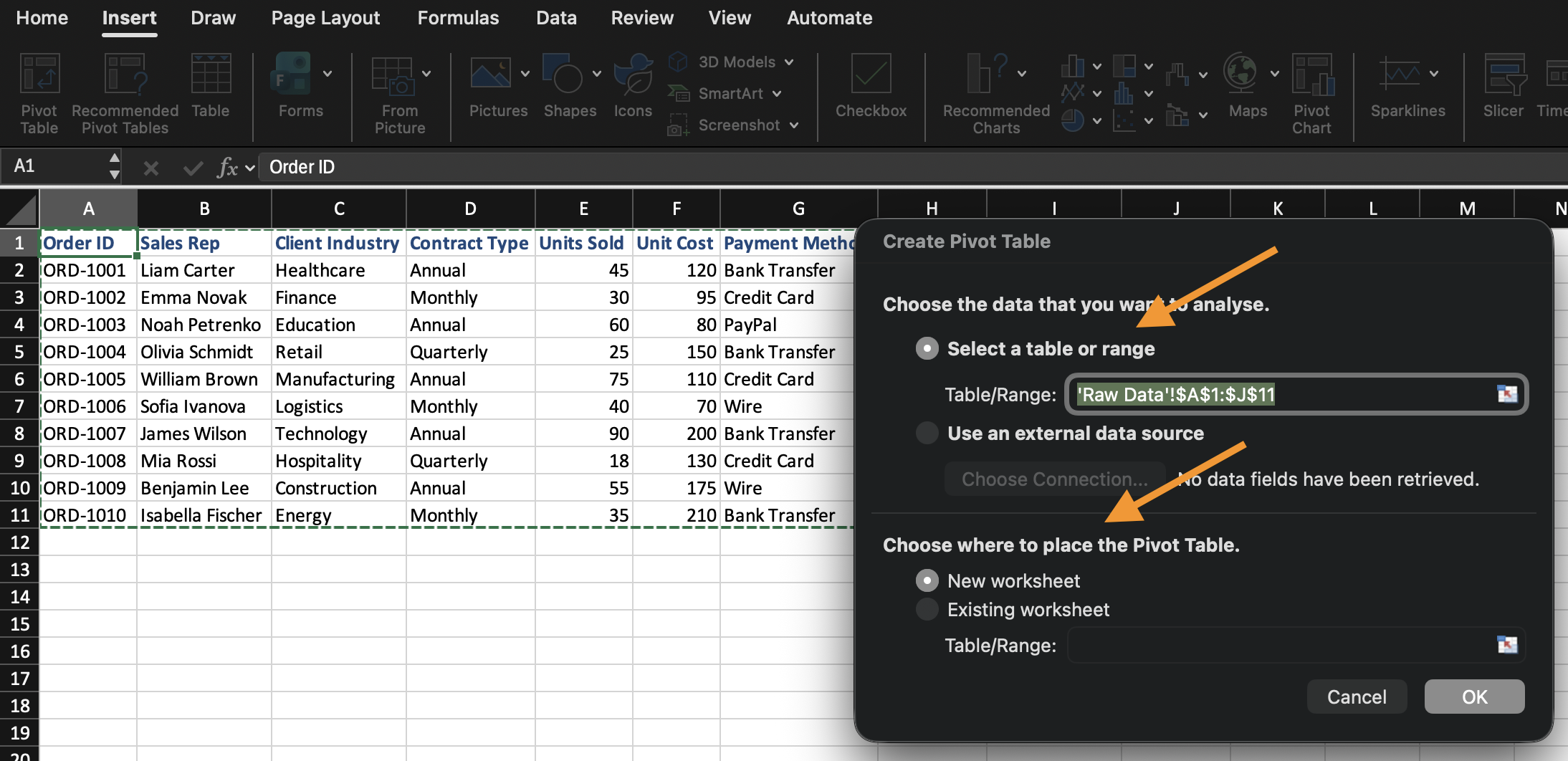
Excel oppretter en tom pivottabell og åpner feltlisten for pivottabellen.
Forstå områder i feltlisten
Feltlisten styrer hvordan pivottabellen bygges opp. Den består av fire separate områder, og hvert område gjør noe forskjellig med feltet du plasserer der:
- Rader: definerer gruppering. Feltet som plasseres her blir etikettene dataene deles inn i (f.eks. hvis du plasserer
Categoryher, får du én rad per kategori); - Kolonner: definerer også gruppering, men øverst i stedet for på siden. Fungerer på samme måte som Rader, bare horisontalt;
- Verdier: definerer beregninger. I stedet for å bare vise feltet, aggregerer Excel det (Sum, Antall, Gjennomsnitt, osv.) basert på gruppering satt i Rader/Kolonner;
- Filter: begrenser hele pivottabellen til et utvalg av data, uten at dette feltet vises i selve tabellen.
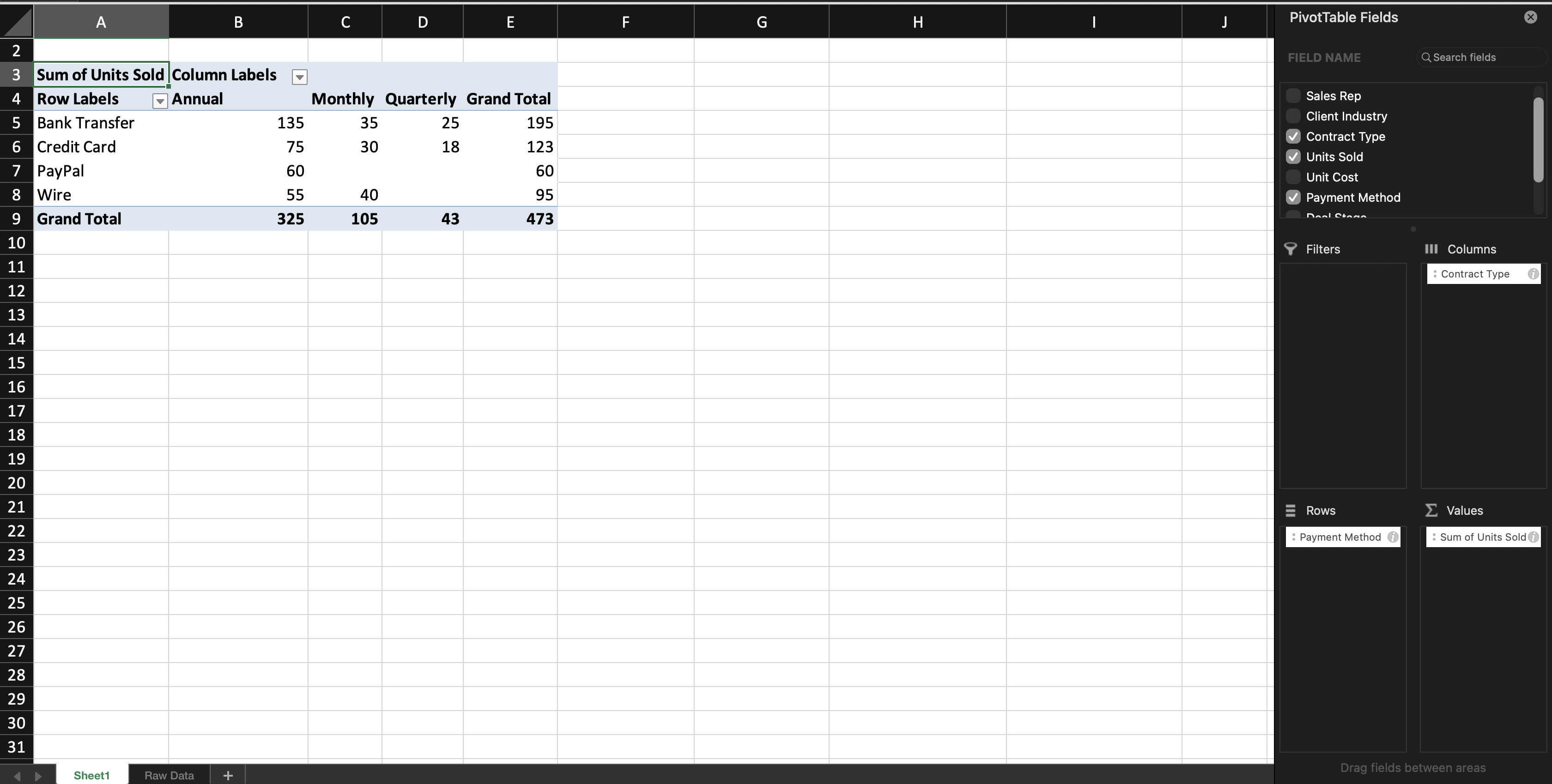
Når du legger til et tekstfelt i Rader (eller Kolonner), grupperer Excel postene etter dette feltet. Når du legger til et numerisk felt i Verdier, beregner Excel som standard en total (Sum) — denne standarden er basert på felttypen: numeriske felt bruker Sum som standard, mens tekstfelt bruker Antall, siden tekstverdier ikke kan summeres. Du vil lære hvordan du endrer denne standarden i neste kapittel.
Du kan endre pivottabellen når som helst ved å flytte felt mellom områder. Kildedataene endres ikke.

Hvis PivotTable-feltlisten lukkes, klikker du hvor som helst inne i pivottabellen, så vises den automatisk igjen.
Oppgave
Opprett din første pivottabell.
Gjør følgende:
- Sett inn en pivottabell fra datasettet;
- Plasser Category i rader;
- Plasser Sales i verdier;
Opprett pivottabellen på et nytt regneark.
Takk for tilbakemeldingene dine!
Spør AI

Spør AI

Spør om hva du vil, eller prøv ett av de foreslåtte spørsmålene for å starte chatten vår
