Lim inn utvalg for hastighet
Sveip for å vise menyen
Standard Ctrl + V limer inn alt: verdier, formler, formatering, kanter, regler for datavalidering. Som regel er det for mye. Du ønsker bare tallene, bare formateringen, eller kanskje du vil multiplisere en hel kolonne med en faktor uten å skrive en formel.
Lim inn utvalg gir deg presis kontroll over hva som limes inn. Det er et av de verktøyene som virker små, helt til du innser hvor mange klønete løsninger det erstatter.
Åpne Lim inn utvalg
Kopier først en celle eller et område med Ctrl + C, deretter:
- Tastatursnarvei:
Ctrl + Alt + V(Win) ellerCtrl + Cmd + V(Mac); - Høyreklikkmeny: Høyreklikk på målet → Lim inn utvalg;
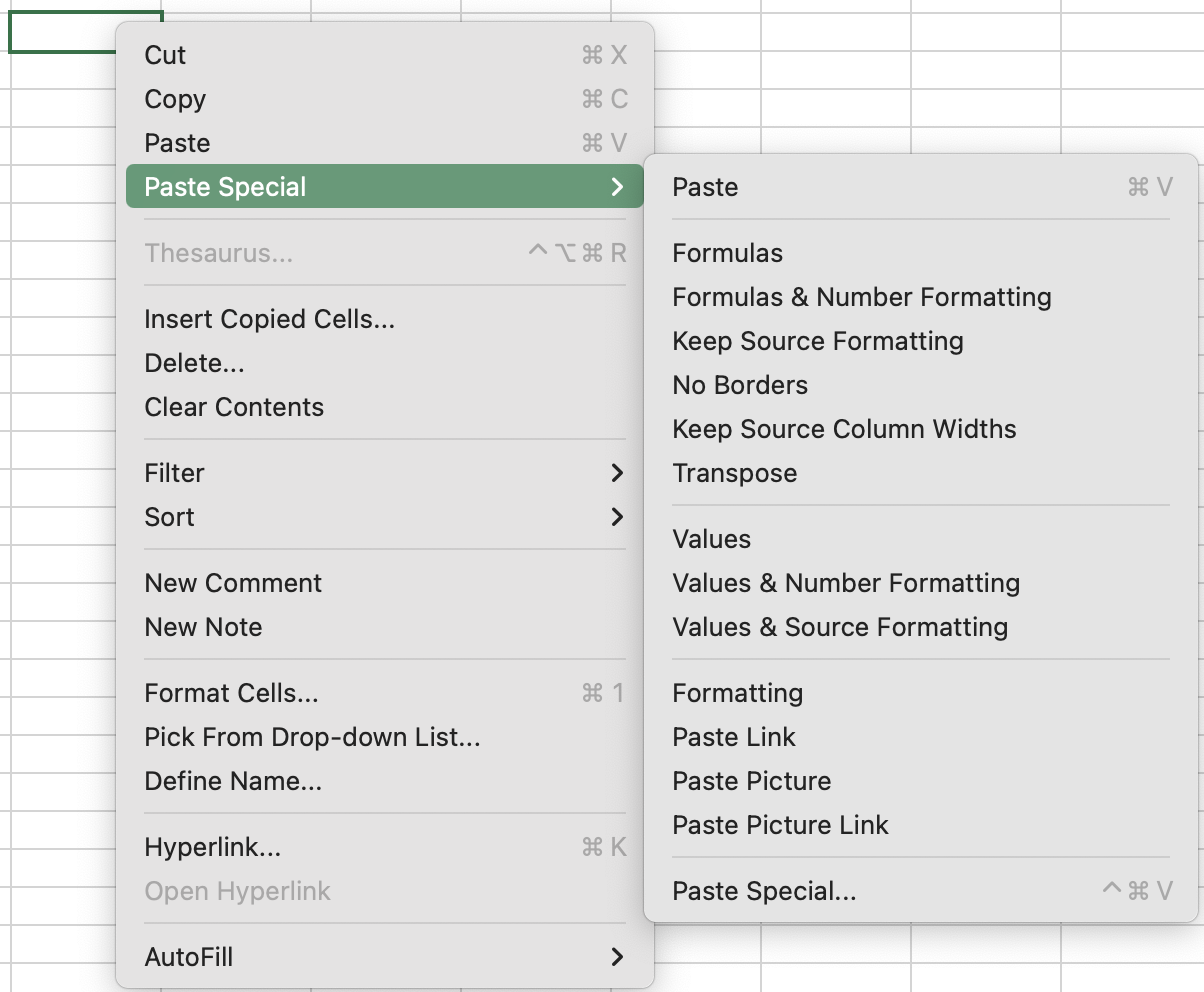
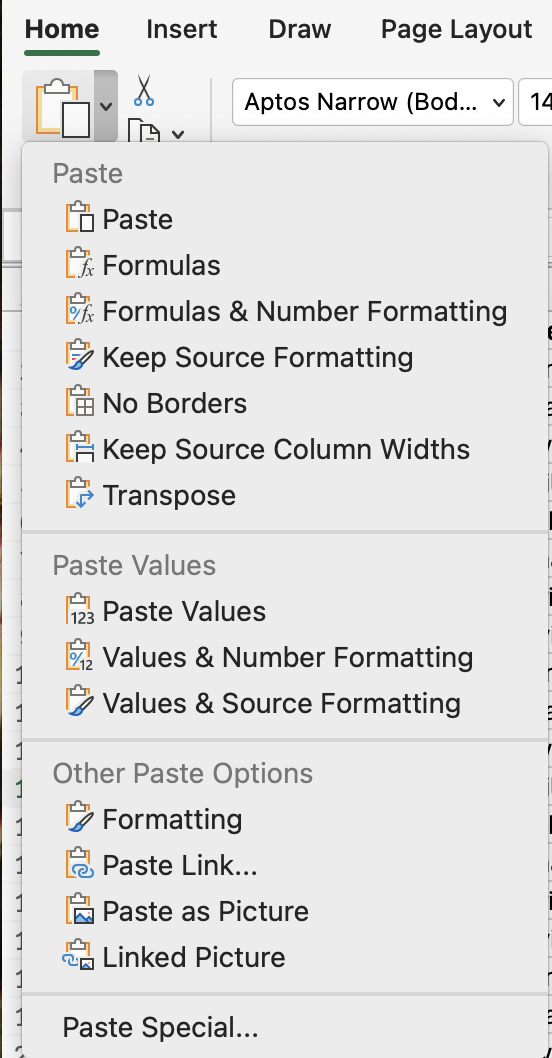
3. Bånd: Hjem → Lim inn-rullegardin → Lim inn utvalg.
Operasjon
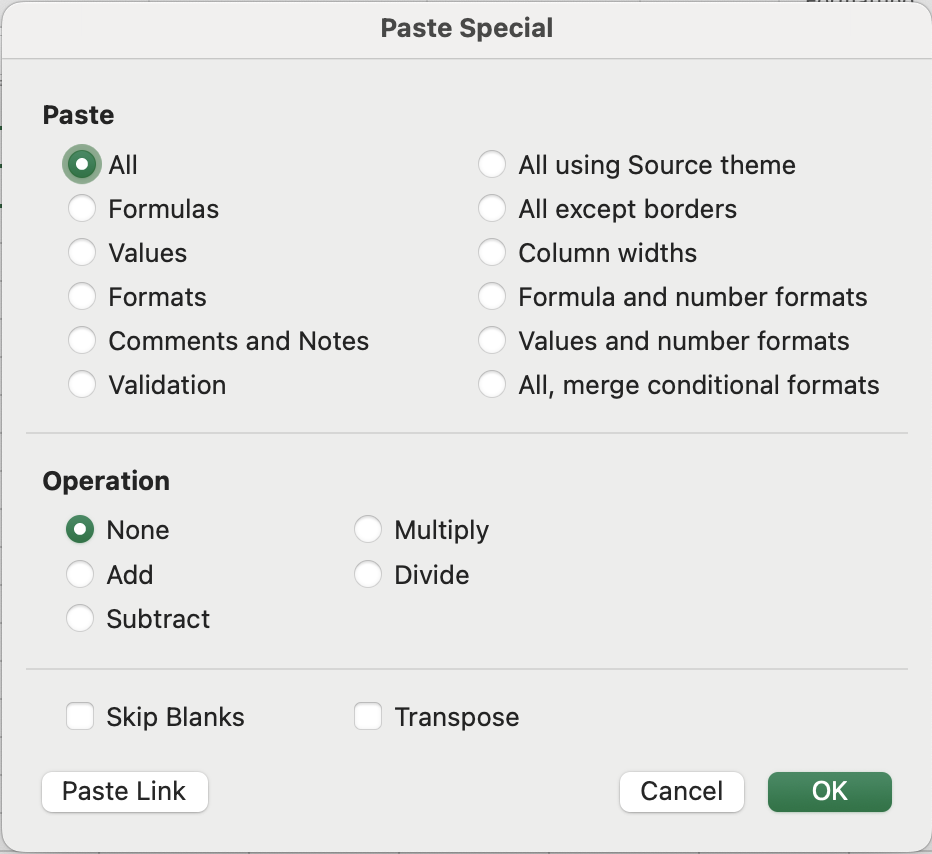
En av de mest undervurderte funksjonene i Lim inn utvalg. I stedet for bare å erstatte målet med det du kopierte, kan Excel utføre en aritmetisk operasjon mellom de to:
- Ingen: standard erstatning (forvalg);
- Legg til: legger til den kopierte verdien til målet;
- Trekk fra: trekker den kopierte verdien fra målet;
- Multipliser: multipliserer målet med den kopierte verdien;
- Divider: dividerer målet med den kopierte verdien.
Andre alternativer
- Hopp over tomme: overskriver ikke målceller når det kopierte området har tomme celler;
- Transponer: roterer dataene — rader blir kolonner, kolonner blir rader.
De mest nyttige Lim inn utvalg-operasjonene
- Lim inn verdier: fjerner formelavhengighet — lim inn som Verdier;
- Lim inn formater: kun formateringen overføres. Verdiene i målcellen forblir uendret;

Formatpensel (malerkost-ikonet) er raskere for engangs, enkel overføring av formatering. Lim inn utvalg → Formater er bedre når du skal bruke et format på flere separate områder, siden den kopierte formateringen forblir på utklippstavlen.
- Lim inn kolonnebredder: for eksempel hvis du nøye har justert kolonnebredder i ett ark og trenger samme oppsett i et annet ark;
- Lim inn med operasjon: denne prosessen ble allerede demonstrert i kapittelet ovenfor;
- Transponer: bytter rader og kolonner. Hvis du har data lagt ut horisontalt over en rad og trenger det i en vertikal kolonne (eller omvendt), gjør Transponer dette i ett steg.
Utfør masseprisøkning med Multipliser
- Skriv inn
1,15i en tom celle (en økning på 15 %). Kopier den. - Velg dataområdet i kolonnen Unit Cost.
- Lim inn utvalg → Multipliser. Bekreft at alle verdier i Unit Cost har økt med 15 %.
- Slett hjelpecellen
1,15.
Takk for tilbakemeldingene dine!
Spør AI

Spør AI

Spør om hva du vil, eller prøv ett av de foreslåtte spørsmålene for å starte chatten vår
Lim inn utvalg for hastighet
Standard Ctrl + V limer inn alt: verdier, formler, formatering, kanter, regler for datavalidering. Som regel er det for mye. Du ønsker bare tallene, bare formateringen, eller kanskje du vil multiplisere en hel kolonne med en faktor uten å skrive en formel.
Lim inn utvalg gir deg presis kontroll over hva som limes inn. Det er et av de verktøyene som virker små, helt til du innser hvor mange klønete løsninger det erstatter.
Åpne Lim inn utvalg
Kopier først en celle eller et område med Ctrl + C, deretter:
- Tastatursnarvei:
Ctrl + Alt + V(Win) ellerCtrl + Cmd + V(Mac); - Høyreklikkmeny: Høyreklikk på målet → Lim inn utvalg;
3. Bånd: Hjem → Lim inn-rullegardin → Lim inn utvalg.
Operasjon
En av de mest undervurderte funksjonene i Lim inn utvalg. I stedet for bare å erstatte målet med det du kopierte, kan Excel utføre en aritmetisk operasjon mellom de to:
- Ingen: standard erstatning (forvalg);
- Legg til: legger til den kopierte verdien til målet;
- Trekk fra: trekker den kopierte verdien fra målet;
- Multipliser: multipliserer målet med den kopierte verdien;
- Divider: dividerer målet med den kopierte verdien.
Andre alternativer
- Hopp over tomme: overskriver ikke målceller når det kopierte området har tomme celler;
- Transponer: roterer dataene — rader blir kolonner, kolonner blir rader.
De mest nyttige Lim inn utvalg-operasjonene
- Lim inn verdier: fjerner formelavhengighet — lim inn som Verdier;
- Lim inn formater: kun formateringen overføres. Verdiene i målcellen forblir uendret;
Formatpensel (malerkost-ikonet) er raskere for engangs, enkel overføring av formatering. Lim inn utvalg → Formater er bedre når du skal bruke et format på flere separate områder, siden den kopierte formateringen forblir på utklippstavlen.
- Lim inn kolonnebredder: for eksempel hvis du nøye har justert kolonnebredder i ett ark og trenger samme oppsett i et annet ark;
- Lim inn med operasjon: denne prosessen ble allerede demonstrert i kapittelet ovenfor;
- Transponer: bytter rader og kolonner. Hvis du har data lagt ut horisontalt over en rad og trenger det i en vertikal kolonne (eller omvendt), gjør Transponer dette i ett steg.
Utfør masseprisøkning med Multipliser
- Skriv inn
1,15i en tom celle (en økning på 15 %). Kopier den. - Velg dataområdet i kolonnen Unit Cost.
- Lim inn utvalg → Multipliser. Bekreft at alle verdier i Unit Cost har økt med 15 %.
- Slett hjelpecellen
1,15.
Takk for tilbakemeldingene dine!
