Dele filer og administrere tilgang
Sveip for å vise menyen
Excel lar brukere dele arbeidsbøker direkte via OneDrive og samarbeide uten å måtte sende filvedlegg manuelt. I stedet for å opprette flere kopier av arbeidsboken, kan team jobbe i den samme delte filen.
Før en arbeidsbok kan deles, må den lagres i OneDrive eller SharePoint. Lokale filer som kun er lagret på en datamaskin, kan ikke bruke moderne samarbeidsfunksjoner.
Åpne delingsvinduet
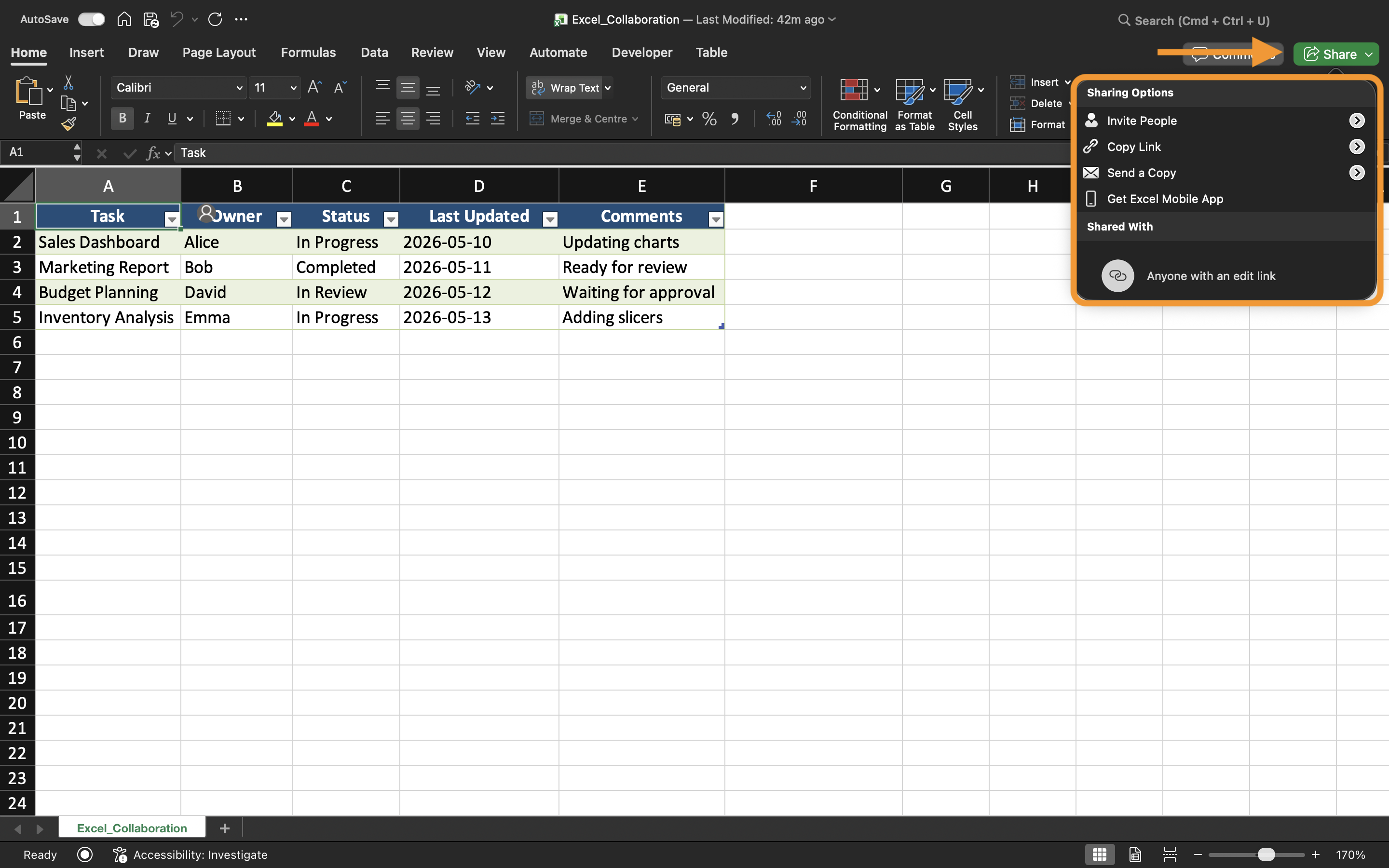
For å dele en arbeidsbok:
- Åpne Excel-arbeidsboken;
- Velg Del-knappen øverst til høyre;
- Velg hvordan filen skal deles.
Excel lar brukere invitere samarbeidspartnere via e-postadresser eller generere delingslenker.
Forstå tillatelsestyper
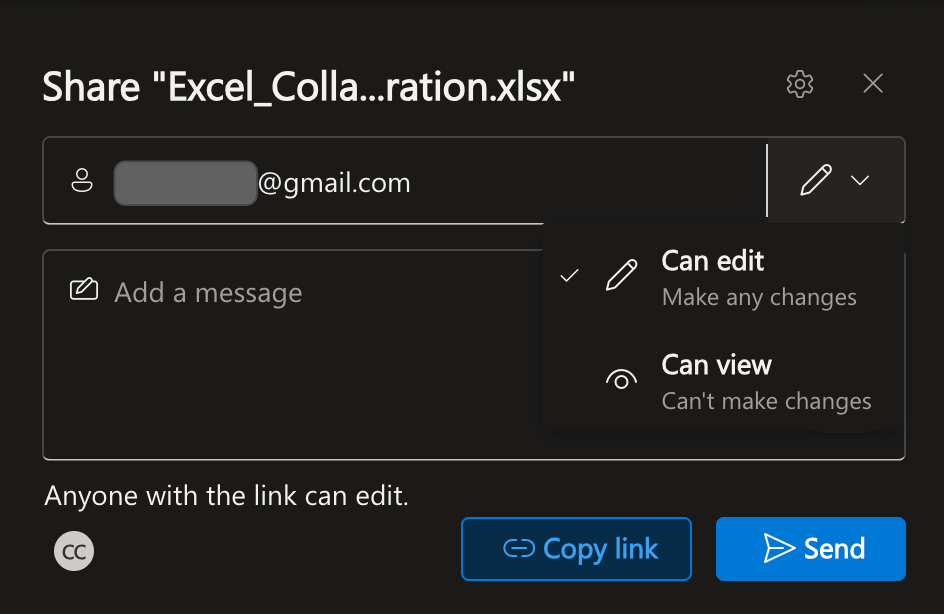
Når en arbeidsbok deles, tilbyr Excel ulike tillatelsesnivåer avhengig av hvordan samarbeidspartnere skal kunne bruke filen.
De to vanligste tillatelsestypene er:
- Kan redigere: brukere kan endre innholdet i arbeidsboken;
- Kan vise: brukere kan kun se arbeidsboken.
Å velge riktig tillatelsestype er viktig når man arbeider med sensitive rapporter eller ferdigstilte filer.
For eksempel kan en økonomisjef gi regnskapsteamet rett til å redigere en arbeidsbok, mens ledelsen kun får tilgang til å vise filen.
Deling via e-postinvitasjoner
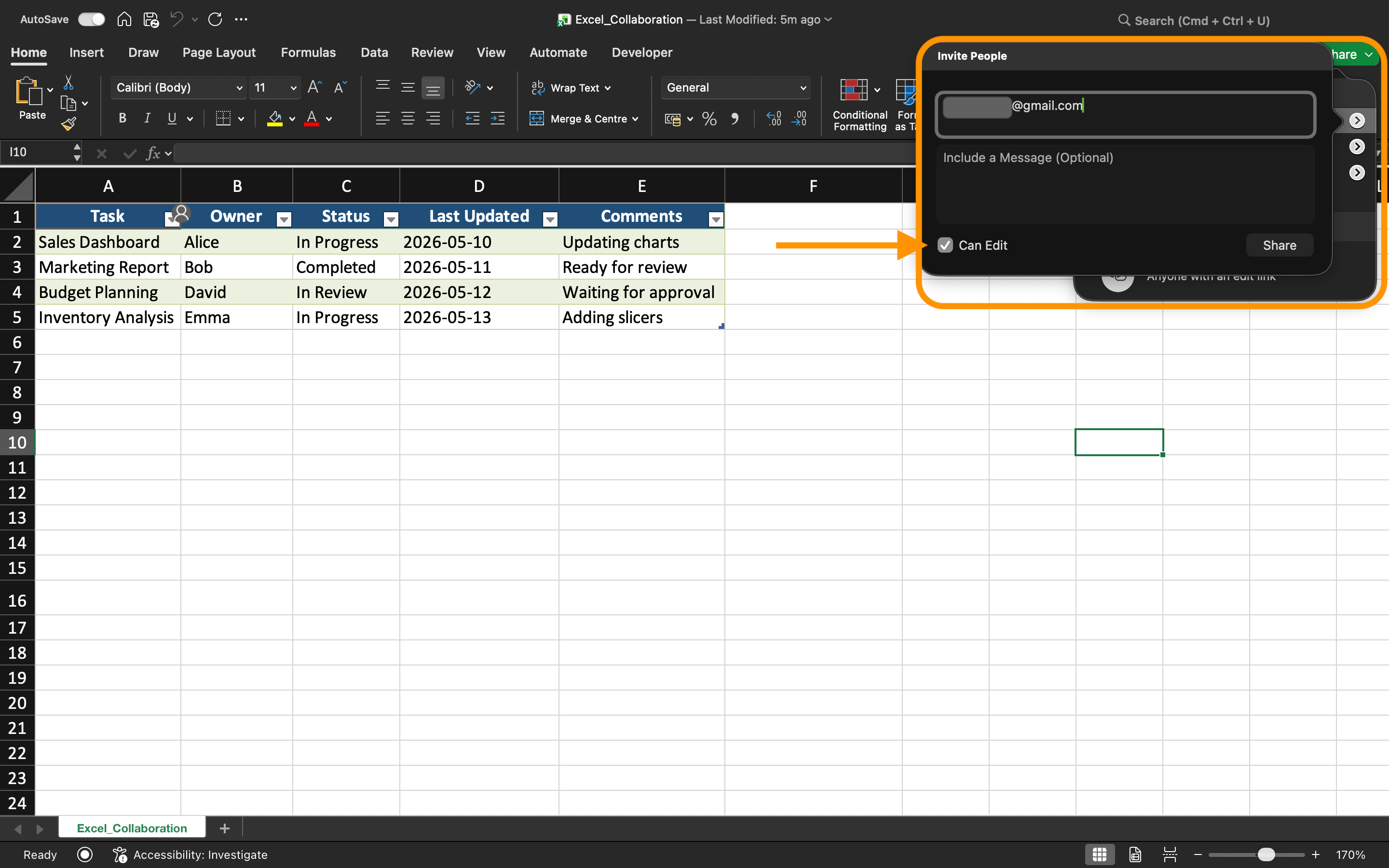
Excel kan sende arbeidsbokinvitasjoner direkte via e-post. Etter at e-postadresser til samarbeidspartnere er lagt inn, mottar brukerne en lenke som åpner den delte arbeidsboken automatisk.
Denne metoden brukes ofte internt i organisasjoner fordi tilgangen er knyttet til bestemte brukerkontoer.
Ved deling gjennom invitasjoner gir Excel også mulighet til å:
- Legge til en kort melding;
- Kontrollere redigeringstillatelser;
- Hindre samarbeidspartnere i å dele filen videre.
Opprette delingslenker
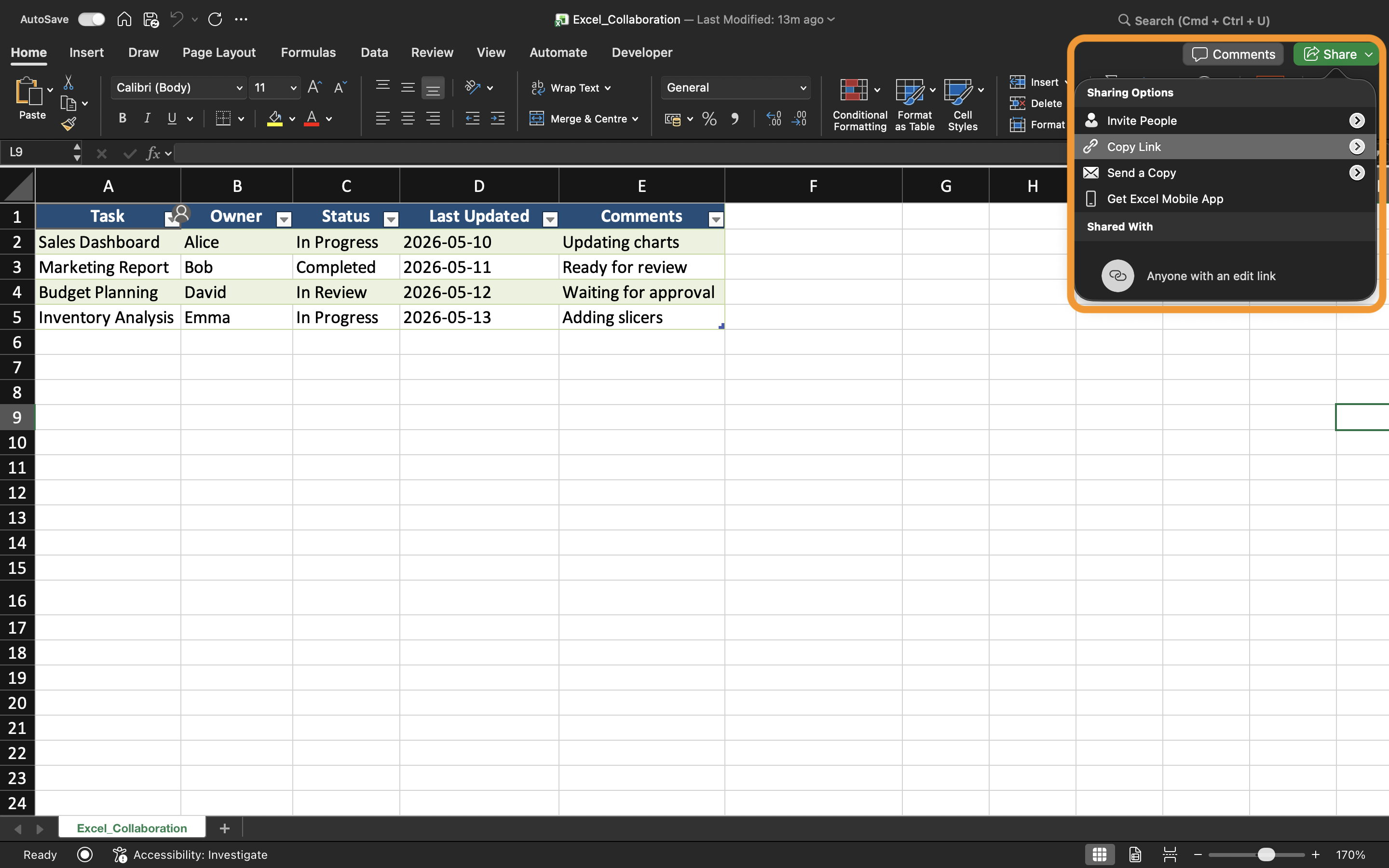
I stedet for å invitere brukere individuelt, kan Excel generere samarbeidslenker.
Vanlige lenketyper inkluderer:
- Kun visningslenker;
- Redigerbare lenker;
- Lenker kun for organisasjonen.
Lenker gjør samarbeid raskere, spesielt når mange brukere trenger tilgang til samme arbeidsbok.
Det er viktig å alltid gjennomgå tillatelsesinnstillingene nøye før lenker sendes eksternt.
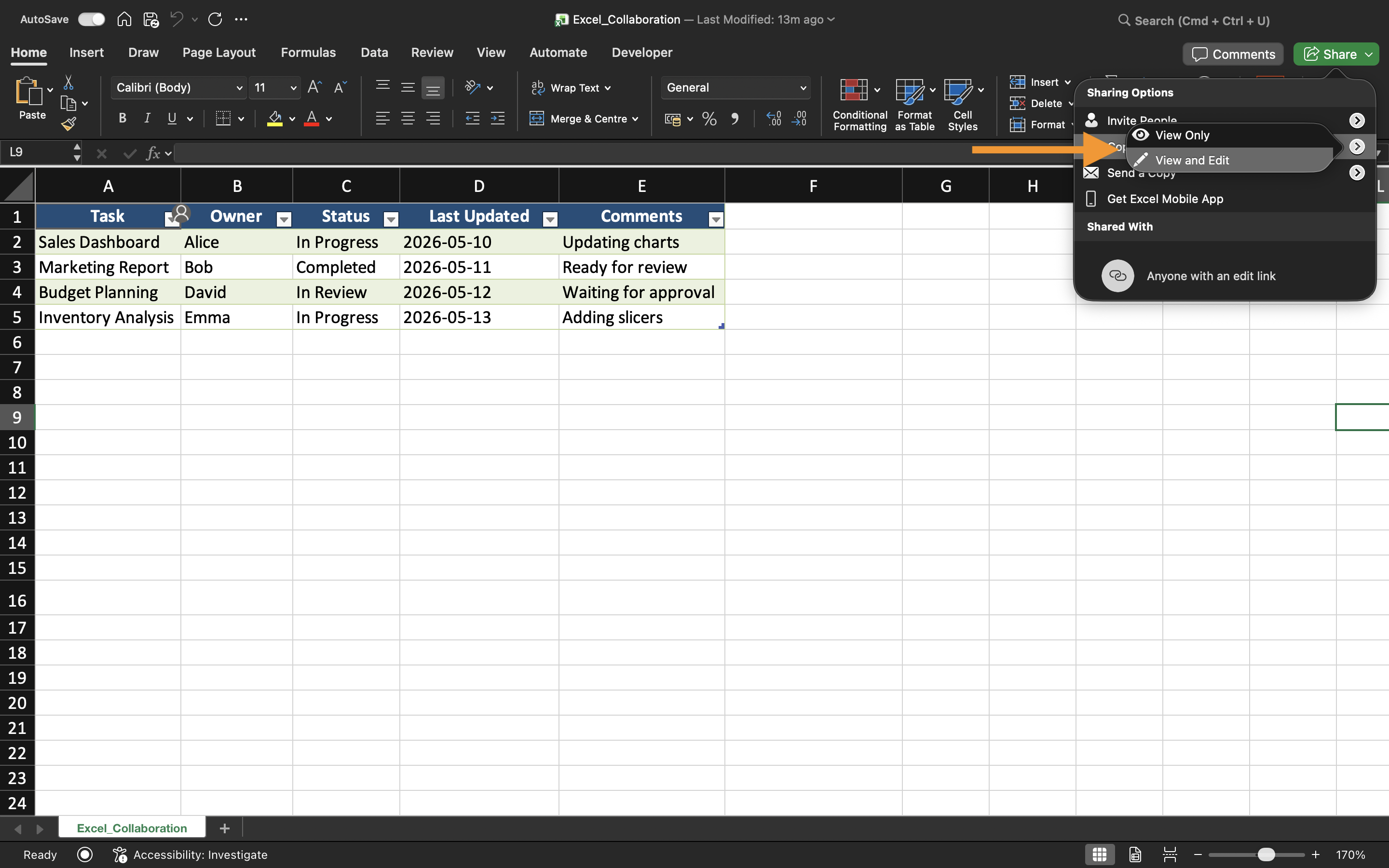
Administrasjon av arbeidsboktilgang
Tilgang til arbeidsboken kan endres når som helst via delingsinnstillingene.
Excel gir brukere mulighet til å:
- Fjerne samarbeidspartnere;
- Endre tillatelser;
- Deaktivere delingslenker;
- Se hvem som har tilgang.
Dette bidrar til bedre sikkerhet og forhindrer uautoriserte endringer i arbeidsboken.
Beste praksis for delte filer
Ved profesjonell deling av Excel-arbeidsbøker:
- Bruk tydelige navn på arbeidsbøker;
- Lagre filer i organiserte mapper;
- Unngå å sende dupliserte vedlegg;
- Begrens redigeringstillatelser når det er mulig;
- Gå jevnlig gjennom tilgang for samarbeidspartnere.
Disse rutinene hjelper team med å opprettholde ryddigere og sikrere samarbeidsprosesser.
Oppgave
Arbeidsboken inneholder en månedlig salgsrapport som brukes av flere avdelingsledere. Målet er å dele arbeidsboken med redigeringstilgang for teammedlemmer og opprette en egen visningslenke for ledelsen.
- Lagre arbeidsboken på OneDrive;
- Åpne delingsvinduet;
- Opprett en delingsinvitasjon med redigeringstillatelser;
- Generer en visningslenke;
- Gå gjennom gjeldende tilgangsinnstillinger for arbeidsboken.
Takk for tilbakemeldingene dine!
Spør AI

Spør AI

Spør om hva du vil, eller prøv ett av de foreslåtte spørsmålene for å starte chatten vår
Dele filer og administrere tilgang
Excel lar brukere dele arbeidsbøker direkte via OneDrive og samarbeide uten å måtte sende filvedlegg manuelt. I stedet for å opprette flere kopier av arbeidsboken, kan team jobbe i den samme delte filen.
Før en arbeidsbok kan deles, må den lagres i OneDrive eller SharePoint. Lokale filer som kun er lagret på en datamaskin, kan ikke bruke moderne samarbeidsfunksjoner.
Åpne delingsvinduet
For å dele en arbeidsbok:
- Åpne Excel-arbeidsboken;
- Velg Del-knappen øverst til høyre;
- Velg hvordan filen skal deles.
Excel lar brukere invitere samarbeidspartnere via e-postadresser eller generere delingslenker.
Forstå tillatelsestyper
Når en arbeidsbok deles, tilbyr Excel ulike tillatelsesnivåer avhengig av hvordan samarbeidspartnere skal kunne bruke filen.
De to vanligste tillatelsestypene er:
- Kan redigere: brukere kan endre innholdet i arbeidsboken;
- Kan vise: brukere kan kun se arbeidsboken.
Å velge riktig tillatelsestype er viktig når man arbeider med sensitive rapporter eller ferdigstilte filer.
For eksempel kan en økonomisjef gi regnskapsteamet rett til å redigere en arbeidsbok, mens ledelsen kun får tilgang til å vise filen.
Deling via e-postinvitasjoner
Excel kan sende arbeidsbokinvitasjoner direkte via e-post. Etter at e-postadresser til samarbeidspartnere er lagt inn, mottar brukerne en lenke som åpner den delte arbeidsboken automatisk.
Denne metoden brukes ofte internt i organisasjoner fordi tilgangen er knyttet til bestemte brukerkontoer.
Ved deling gjennom invitasjoner gir Excel også mulighet til å:
- Legge til en kort melding;
- Kontrollere redigeringstillatelser;
- Hindre samarbeidspartnere i å dele filen videre.
Opprette delingslenker
I stedet for å invitere brukere individuelt, kan Excel generere samarbeidslenker.
Vanlige lenketyper inkluderer:
- Kun visningslenker;
- Redigerbare lenker;
- Lenker kun for organisasjonen.
Lenker gjør samarbeid raskere, spesielt når mange brukere trenger tilgang til samme arbeidsbok.
Det er viktig å alltid gjennomgå tillatelsesinnstillingene nøye før lenker sendes eksternt.
Administrasjon av arbeidsboktilgang
Tilgang til arbeidsboken kan endres når som helst via delingsinnstillingene.
Excel gir brukere mulighet til å:
- Fjerne samarbeidspartnere;
- Endre tillatelser;
- Deaktivere delingslenker;
- Se hvem som har tilgang.
Dette bidrar til bedre sikkerhet og forhindrer uautoriserte endringer i arbeidsboken.
Beste praksis for delte filer
Ved profesjonell deling av Excel-arbeidsbøker:
- Bruk tydelige navn på arbeidsbøker;
- Lagre filer i organiserte mapper;
- Unngå å sende dupliserte vedlegg;
- Begrens redigeringstillatelser når det er mulig;
- Gå jevnlig gjennom tilgang for samarbeidspartnere.
Disse rutinene hjelper team med å opprettholde ryddigere og sikrere samarbeidsprosesser.
Oppgave
Arbeidsboken inneholder en månedlig salgsrapport som brukes av flere avdelingsledere. Målet er å dele arbeidsboken med redigeringstilgang for teammedlemmer og opprette en egen visningslenke for ledelsen.
- Lagre arbeidsboken på OneDrive;
- Åpne delingsvinduet;
- Opprett en delingsinvitasjon med redigeringstillatelser;
- Generer en visningslenke;
- Gå gjennom gjeldende tilgangsinnstillinger for arbeidsboken.
Takk for tilbakemeldingene dine!
