Passordbeskyttelse
Sveip for å vise menyen
Excel gir brukere mulighet til å bruke passordbeskyttelse på arbeidsbøker for å begrense uautorisert tilgang. Passord bidrar til å beskytte sensitive forretningsfiler som økonomirapporter, personalregistre eller konfidensielle planleggingsdokumenter. Passordbeskyttelse gir et ekstra lag med kontroll når arbeidsbøker deles mellom team eller lagres eksternt.
Forståelse av arbeidsbokpassord
Excel støtter ulike typer passordbeskyttelse. Brukere kan kreve passord for å åpne en arbeidsbok eller begrense redigeringstillatelser i filen.
Et arbeidsbokpassord bidrar til å hindre uautoriserte brukere i å få tilgang til innholdet i arbeidsboken. Redigeringsbegrensninger gjør det derimot mulig for brukere å åpne arbeidsboken, men begrenser muligheten til å gjøre endringer.
Beskytte en arbeidsbok med passord
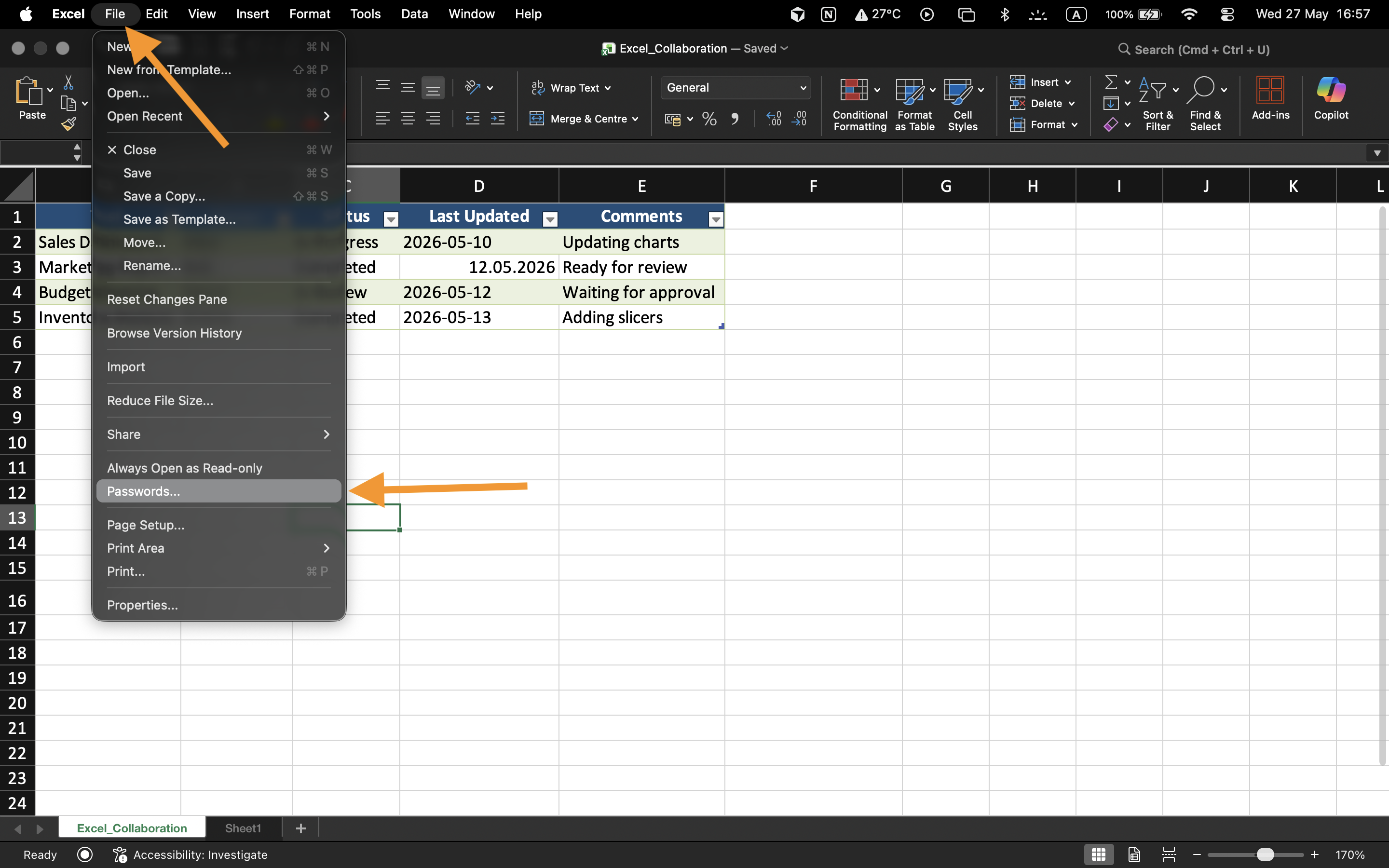
For å bruke passordbeskyttelse:
- Åpne arbeidsboken;
- Velg Fil → Info;
- Velg Beskytt arbeidsbok;
- Velg Krypter med passord;
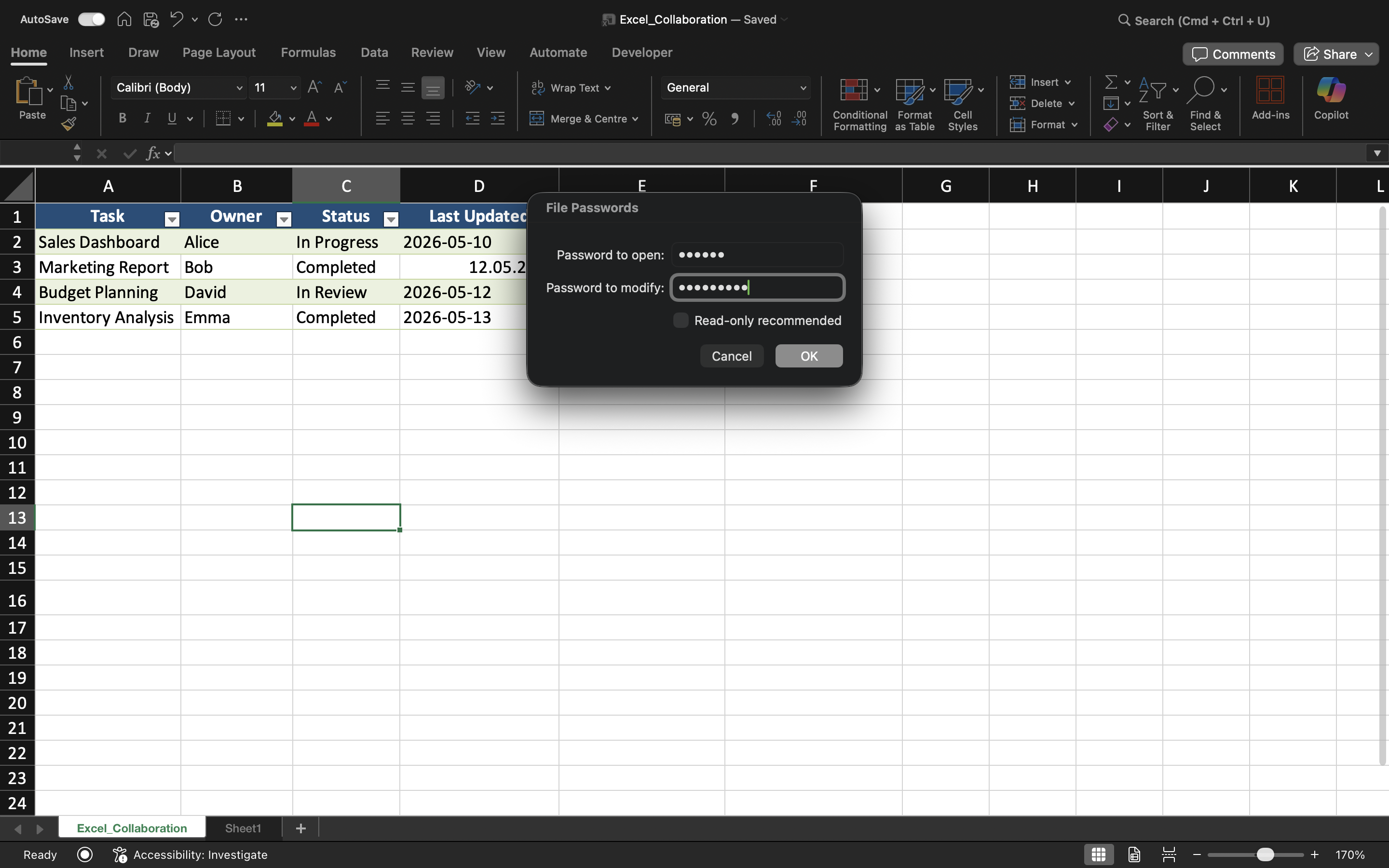
- Skriv inn og bekreft passordet.
Når du har lagret, vil arbeidsboken kreve passord hver gang noen forsøker å åpne filen.
Forståelse av passordbegrensninger
Arbeidsbokpassord forbedrer filbeskyttelsen, men svake passord kan fortsatt være sårbare for uautorisert tilgang.
For bedre beskyttelse:
- Bruk sterke passord;
- Unngå enkle ord eller datoer;
- Oppbevar passord på et sikkert sted;
- Del kun passord med autoriserte samarbeidspartnere.
Redigeringsbegrensninger
Excel kan også beskytte redigering av arbeidsboken uten å blokkere filtilgang helt. Dette gjør det mulig for brukere å se innholdet i arbeidsboken, samtidig som endringer begrenses.
Denne typen beskyttelse er nyttig for ferdigstilte rapporter, maler eller delte dashbord som ikke skal endres ved et uhell.
Når passordbeskyttelse er nyttig
Passordbeskyttelse brukes ofte når arbeidsbøker inneholder konfidensiell økonomisk informasjon, personaldata, forretningsprognoser eller sensitive driftsrapporter. Det er spesielt viktig når filer deles utenfor organisasjonen eller lagres på eksterne enheter.
Oppgave
Arbeidsboken inneholder konfidensiell informasjon om ansattes lønn som kun skal være tilgjengelig for autoriserte ledere. Målet er å beskytte arbeidsboken med passord og teste tilgangsbegrensninger.
- Åpne innstillingene for arbeidsbokbeskyttelse;
- Legg til et arbeidsbokpassord;
- Lagre og lukk arbeidsboken;
- Åpne filen på nytt og verifiser passordbeskyttelsen;
- Test redigeringsbegrensninger på den beskyttede arbeidsboken.
Takk for tilbakemeldingene dine!
Spør AI

Spør AI

Spør om hva du vil, eller prøv ett av de foreslåtte spørsmålene for å starte chatten vår
Passordbeskyttelse
Excel gir brukere mulighet til å bruke passordbeskyttelse på arbeidsbøker for å begrense uautorisert tilgang. Passord bidrar til å beskytte sensitive forretningsfiler som økonomirapporter, personalregistre eller konfidensielle planleggingsdokumenter. Passordbeskyttelse gir et ekstra lag med kontroll når arbeidsbøker deles mellom team eller lagres eksternt.
Forståelse av arbeidsbokpassord
Excel støtter ulike typer passordbeskyttelse. Brukere kan kreve passord for å åpne en arbeidsbok eller begrense redigeringstillatelser i filen.
Et arbeidsbokpassord bidrar til å hindre uautoriserte brukere i å få tilgang til innholdet i arbeidsboken. Redigeringsbegrensninger gjør det derimot mulig for brukere å åpne arbeidsboken, men begrenser muligheten til å gjøre endringer.
Beskytte en arbeidsbok med passord
For å bruke passordbeskyttelse:
- Åpne arbeidsboken;
- Velg Fil → Info;
- Velg Beskytt arbeidsbok;
- Velg Krypter med passord;
- Skriv inn og bekreft passordet.
Når du har lagret, vil arbeidsboken kreve passord hver gang noen forsøker å åpne filen.
Forståelse av passordbegrensninger
Arbeidsbokpassord forbedrer filbeskyttelsen, men svake passord kan fortsatt være sårbare for uautorisert tilgang.
For bedre beskyttelse:
- Bruk sterke passord;
- Unngå enkle ord eller datoer;
- Oppbevar passord på et sikkert sted;
- Del kun passord med autoriserte samarbeidspartnere.
Redigeringsbegrensninger
Excel kan også beskytte redigering av arbeidsboken uten å blokkere filtilgang helt. Dette gjør det mulig for brukere å se innholdet i arbeidsboken, samtidig som endringer begrenses.
Denne typen beskyttelse er nyttig for ferdigstilte rapporter, maler eller delte dashbord som ikke skal endres ved et uhell.
Når passordbeskyttelse er nyttig
Passordbeskyttelse brukes ofte når arbeidsbøker inneholder konfidensiell økonomisk informasjon, personaldata, forretningsprognoser eller sensitive driftsrapporter. Det er spesielt viktig når filer deles utenfor organisasjonen eller lagres på eksterne enheter.
Oppgave
Arbeidsboken inneholder konfidensiell informasjon om ansattes lønn som kun skal være tilgjengelig for autoriserte ledere. Målet er å beskytte arbeidsboken med passord og teste tilgangsbegrensninger.
- Åpne innstillingene for arbeidsbokbeskyttelse;
- Legg til et arbeidsbokpassord;
- Lagre og lukk arbeidsboken;
- Åpne filen på nytt og verifiser passordbeskyttelsen;
- Test redigeringsbegrensninger på den beskyttede arbeidsboken.
Takk for tilbakemeldingene dine!
