Beskytte ark og celler
Sveip for å vise menyen
Excel lar brukere beskytte regneark og låse viktige celler for å forhindre utilsiktede endringer. Dette er spesielt nyttig når delte arbeidsbøker inneholder formler, beregninger, maler eller viktig forretningsdata.
Regnearkbeskyttelse bidrar til å opprettholde nøyaktigheten i arbeidsboken, samtidig som samarbeidspartnere kan samhandle med utvalgte områder av filen.
Forståelse av låste celler
I Excel er alle celler i regnearket teknisk sett merket som Låst som standard. Denne innstillingen blir imidlertid kun aktiv når regnearkbeskyttelse er slått på.
Dette betyr at brukere vanligvis kan redigere låste celler inntil regnearket er beskyttet.
Beskyttede regneark brukes ofte til å:
- Forhindre sletting av formler;
- Begrense redigeringstilgang;
- Beskytte rapporteringsstrukturer;
- Kontrollere områder for brukerinput.
Beskytte et regneark
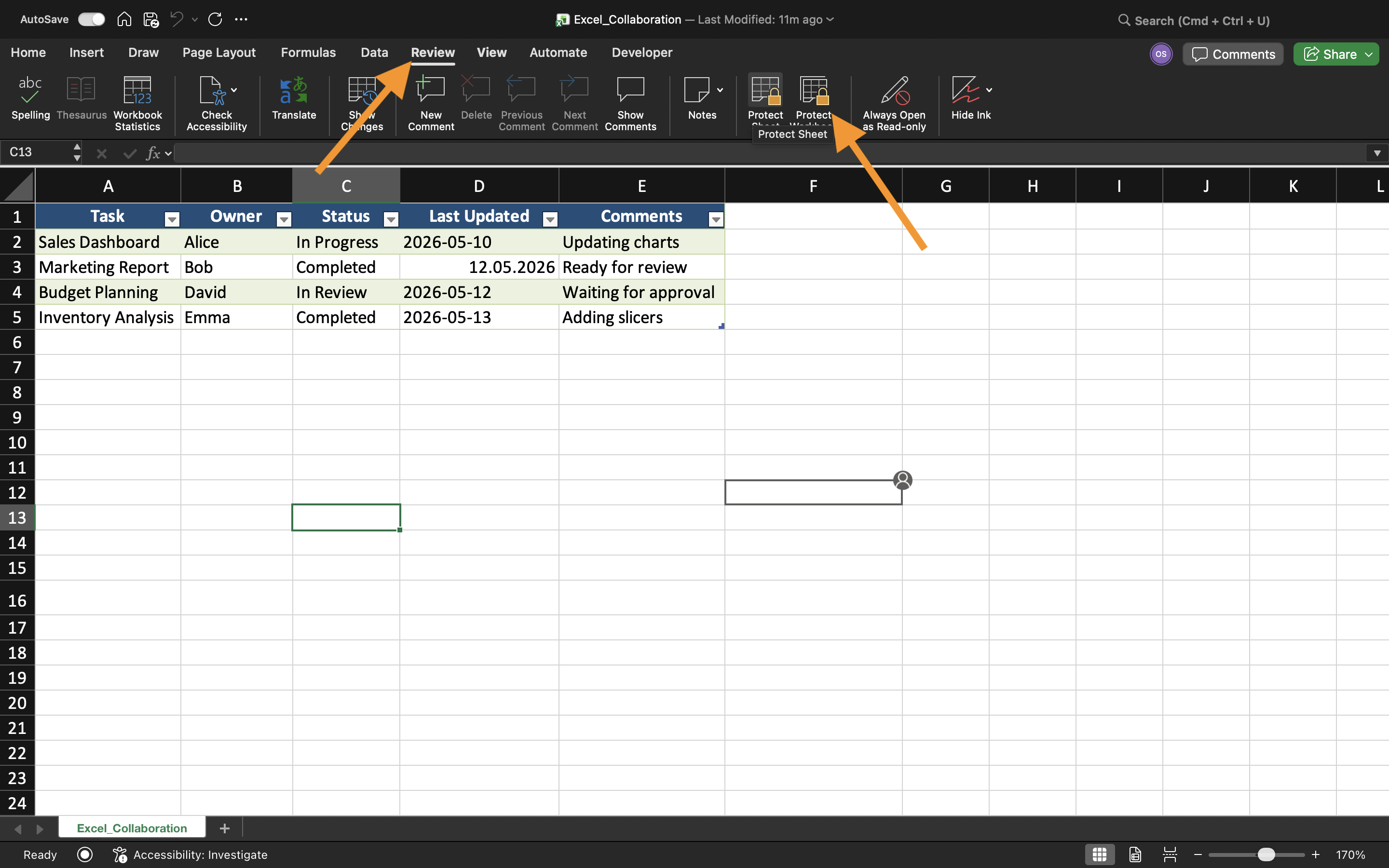
For å beskytte et regneark:
- Åpne regnearket;
- Velg fanen Se gjennom;
- Velg Beskytt ark;
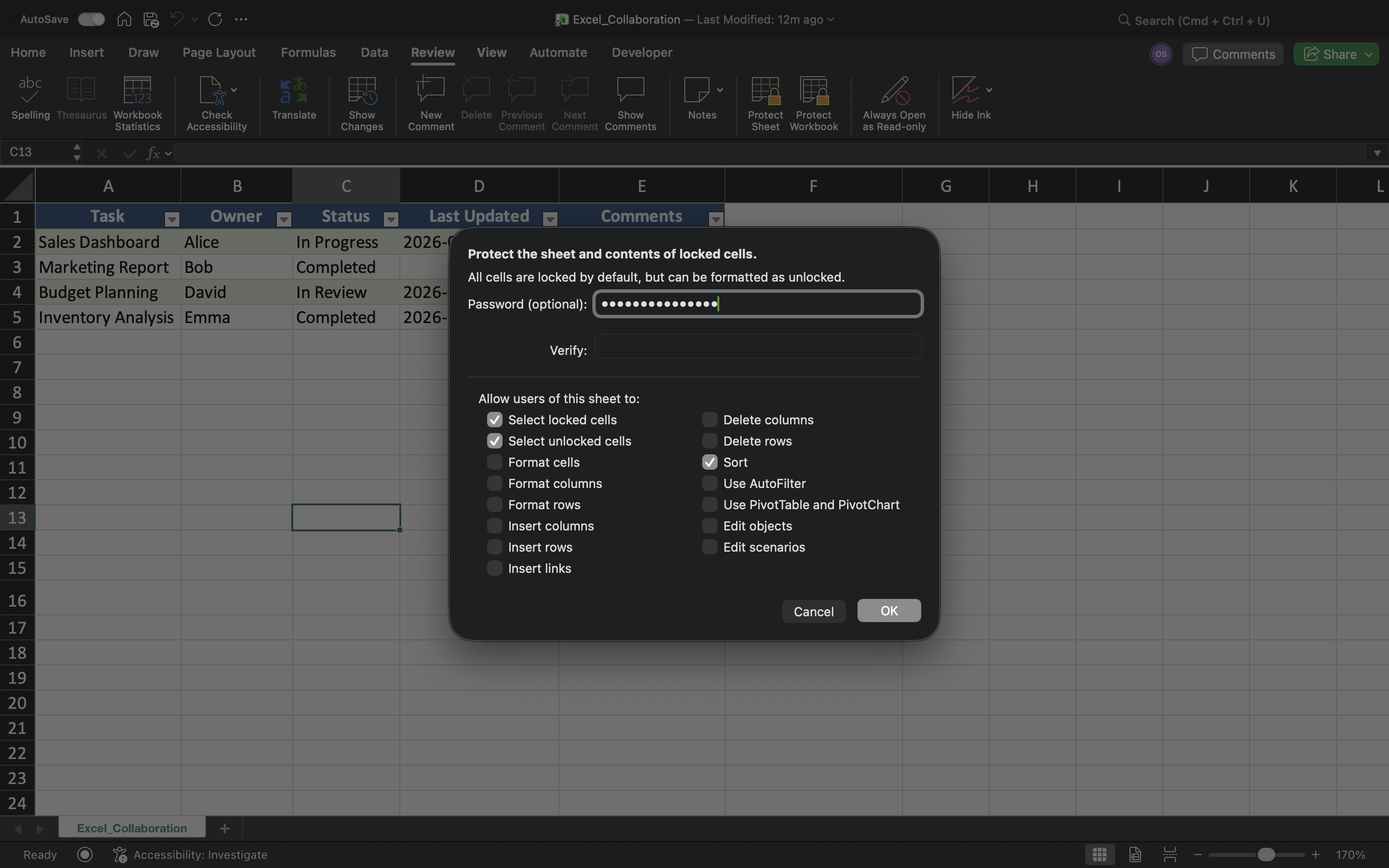
- Konfigurer beskyttelsesinnstillinger;
- Aktiver beskyttelsen.
Excel kan begrense handlinger som å redigere celler, slette rader, sette inn kolonner eller endre formatering av regnearket.
Tillate redigerbare inntastingsområder
Selv om regnearkbeskyttelse begrenser redigering, kan enkelte celler fortsatt være redigerbare.
For å opprette redigerbare områder:
- Velg inntastingscellene;
- Åpne Formater celler;
- Deaktiver innstillingen Låst;
- Beskytt regnearket.
Beskytte formler
En av hovedgrunnene til regnearkbeskyttelse er å forhindre utilsiktede endringer i formler.
Uten beskyttelse kan samarbeidspartnere ved et uhell:
- Slette formler;
- Overskrive beregninger;
- Ødelegge regnearklogikk;
- Endre viktige referanser.
Begrensninger ved beskyttelse
Regnearkbeskyttelse øker arbeidsbokas sikkerhet, men er ikke ment som avansert sikkerhetskryptering. Erfarne brukere kan fortsatt omgå svake beskyttelsesmetoder.
Derfor bør regnearkbeskyttelse hovedsakelig betraktes som et verktøy for å forhindre utilsiktede endringer, og ikke som full beskyttelse av sensitiv forretningsdata.
Oppgave
Arbeidsboken inneholder en delt utgiftsoversikt som brukes av flere ansatte. Målet er å beskytte formler og regnearkstruktur, samtidig som brukere kun kan redigere utvalgte inntastingsområder.
- Beskytt regnearket ved å bruke Beskytt ark;
- Lås formelceller;
- Opprett redigerbare inntastingsområder;
- Test redigeringsbegrensninger;
- Kontroller at beskyttede celler ikke kan endres.
Takk for tilbakemeldingene dine!
Spør AI

Spør AI

Spør om hva du vil, eller prøv ett av de foreslåtte spørsmålene for å starte chatten vår
