Getting Started with Canva AI
Sveip for å vise menyen
Canva bundles a set of AI features directly into its editor, so you do not need a separate app to generate an image, rewrite a caption, or remove a background. These tools sit inside the same workspace you already use for templates, text, and layouts.

Canva AI is the collective name for Canva's generative and assistive features — including Magic Media, Magic Write, Magic Edit, Magic Eraser, Magic Design, and Magic Switch — built into the Canva editor and mobile app.
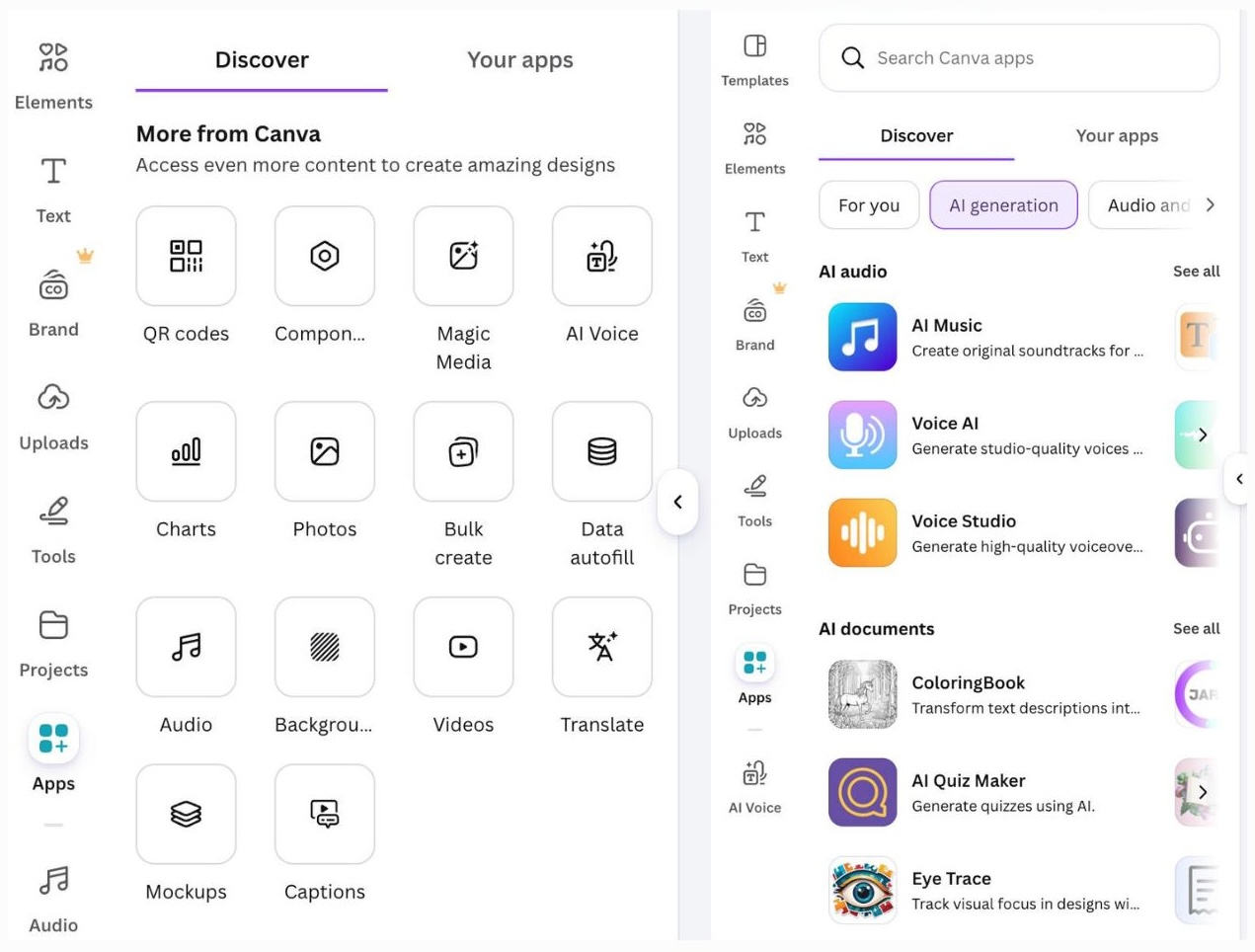
Most AI tools live in two places: the Apps panel on the left sidebar, and a floating Magic Studio button that appears when you select an element on the canvas. Free accounts get a limited number of AI credits per month; Canva Pro includes a much larger allowance.
To reach the AI tools:
- Open any design, or start a blank one;
- Click Apps in the left sidebar and scroll to the AI section;
- Or select an image, text box, or the whole page and look for the Magic Studio icon that pops up above your selection.

AI credits reset monthly and are separate from your storage or export limits. Running out of credits does not affect any other Canva feature.
Every AI tool in Canva works on top of a normal design, so anything it produces — an image, a paragraph, a resized layout — lands as an editable element you can move, restyle, or delete like any other object on the page.
Takk for tilbakemeldingene dine!
Spør AI

Spør AI

Spør om hva du vil, eller prøv ett av de foreslåtte spørsmålene for å starte chatten vår
