Datatyper og celleinnhold
Sveip for å vise menyen
Hver ny celle i Excel har som standard Generell format — et fleksibelt standardvalg som prøver å tolke innholdet.
De fem typene du vil bruke ofte, og hvordan du kjenner dem igjen:
- Generell (standard): ingen spesifikk formatering;
- Tekst: venstrejustert — brukes aldri i utregninger;
- Tall: høyrejustert — brukes i utregninger;
- Valuta: pengeverdi med symbol, tall med økonomisk formatering;
- Dato: kalenderdatoer (lagret som heltall), muliggjør sortering, subtraksjon og tidsberegning.
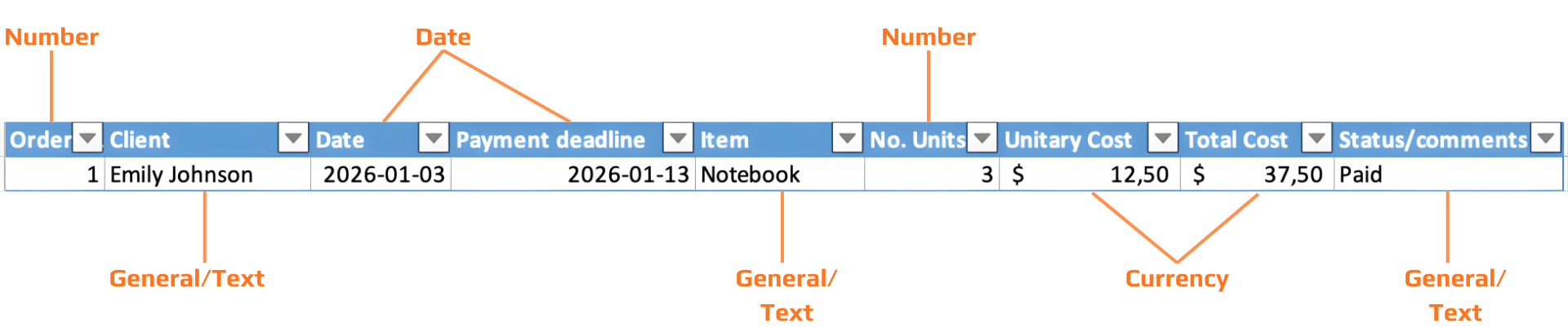

I Excel justeres tekst alltid til venstre; tall justeres alltid til høyre. Hvis du formaterer en kolonne som Tall og en celle er venstrejustert, lagres verdien som tekst — ikke som et tall. Den vil ikke beregnes riktig.
Hver dato lagres som et heltall — et serienummer som teller dager siden 1. januar 1900. "Datoformatet" er bare en visningsmaske over dette heltallet. Dette er grunnen til at du kan trekke fra datoer, sortere dem kronologisk og beregne tidsforskjeller.
Fordi datoer er tall, er datoregnskap bare subtraksjon. =B2-A2 der begge cellene inneholder datoer gir deg antall dager mellom dem. Ingen spesiell funksjon er nødvendig.
Kort dato: 03/01/2026. Lang dato: Sunday, 1 March 2026. Å endre visningsformatet endrer aldri den lagrede verdien, beregningene dine forblir uendret.
Symbolet ###
Når en celle viser ###, er verdien riktig, men kolonnen er for smal til å vise den. Dette skjer oftest med datoer og valutaverdier.
Løsning: dobbeltklikk på kolonnegrensen i topptekstraden for å tilpasse automatisk, eller dra grensen for å gjøre kolonnen bredere manuelt. Selve dataene forblir uendret.
Hva annet kan en celle inneholde?
I tillegg til inntastede verdier kan Excel-celler inneholde tre andre typer innhold — hver settes inn fra fanen Sett inn, Illustrasjoner-gruppen:
- Bilde: et foto eller grafikk satt inn fra enheten din eller nettet. Flyter over rutenettet — ikke bundet til én celle med mindre du bruker "Plasser i celle" (Excel 365);
- Ikon: et skalerbart vektorikon fra Excels innebygde bibliotek. I motsetning til bilder er ikoner oppløsningsuavhengige og kan endre farge. Sett inn via Sett inn → Ikoner;
- Hyperkobling: en klikkbar lenke til en URL, fil, e-postadresse eller plassering i samme arbeidsbok. Sett inn med
Ctrl+K. Cellen viser visningstekst; selve URL-en ligger i lenkemålet. Nyttig for å lenke til kildedokumenter eller eksterne ressurser.
Finn og erstatt
Finn og erstatt lar deg korrigere hele datasettet på sekunder — og det tar hensyn til ditt nåværende utvalg, slik at du kan begrense det til én enkelt kolonne.
Erstatt alle gjør endringer umiddelbart i hele utvalget. Bruk Finn neste først for å kontrollere treff før du gjennomfører Erstatt alle. Hvis du gjør en feil, kan Ctrl+Z / Cmd+Z angre hele Erstatt alle-operasjonen i ett steg.
Oppgave
-
Bruk riktige dataformater
Formater hver kolonne etter formålet:- Client → Tekst
- Date → Dato (kort datoformat)
- No. of Units → Tall
- Unit Cost → Valuta
- Total Cost → Valuta
Etter formatering, bekreft:
- Tekstverdier er venstrejustert.
- Tall og datoer er høyrejustert.
-
Fiks synlighetsproblemer (
###)- Identifiser kolonner som viser
### - Juster bredden med AutoTilpass (dobbeltklikk kolonnegrensen)
- Identifiser kolonner som viser
-
Standardiser data ved å bruke Finn og erstatt
I kolonnen Status:
- Erstatt alle varianter av “Paid” (f.eks. “paid.”, “PAID”) med “Paid”
Bruk:
Ctrl/Cmd + H- Finn neste → deretter Erstatt alle
- Legg til en ny kolonne for støttende innhold
Sett inn en ny kolonne til høyre kalt: Receipts.
-
Sett inn visuelle elementer og lenker
- I minst én rad: sett inn et bilde i kolonnen Receipts
- I en annen rad: sett inn et ikon i kolonnen Receipts
- I kolonnen Item: legg til en hyperkobling (
Ctrl/Cmd + K)
Takk for tilbakemeldingene dine!
Spør AI

Spør AI

Spør om hva du vil, eller prøv ett av de foreslåtte spørsmålene for å starte chatten vår
