Filtrering
Sveip for å vise menyen
Slå filtre på og av
- Klikk på en hvilken som helst celle i området → Data-fanen → Filter, eller trykk
Ctrl+Shift+L(Win)/Control+Shift+L(Mac). Nedtrekksikoner vises i hver overskriftscelle; - Tabeller opprettet med
Ctrl+Thar filtre aktivert automatisk i overskriftsraden — ingen manuell handling nødvendig; - Klikk på Filter igjen i båndet, eller trykk
Ctrl+Shift+Len gang til. Nedtrekksikonene fjernes fra overskriftsraden.
Filtertype avhenger av datatyper:
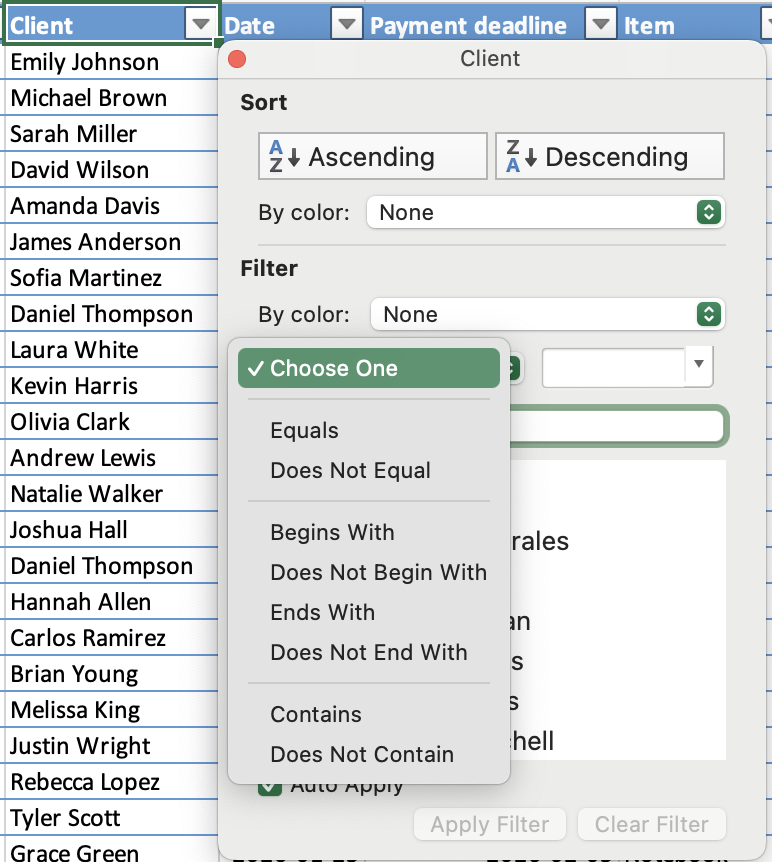
- Tekstfilter: filtrering etter spesifikke verdier eller tekstbetingelser;
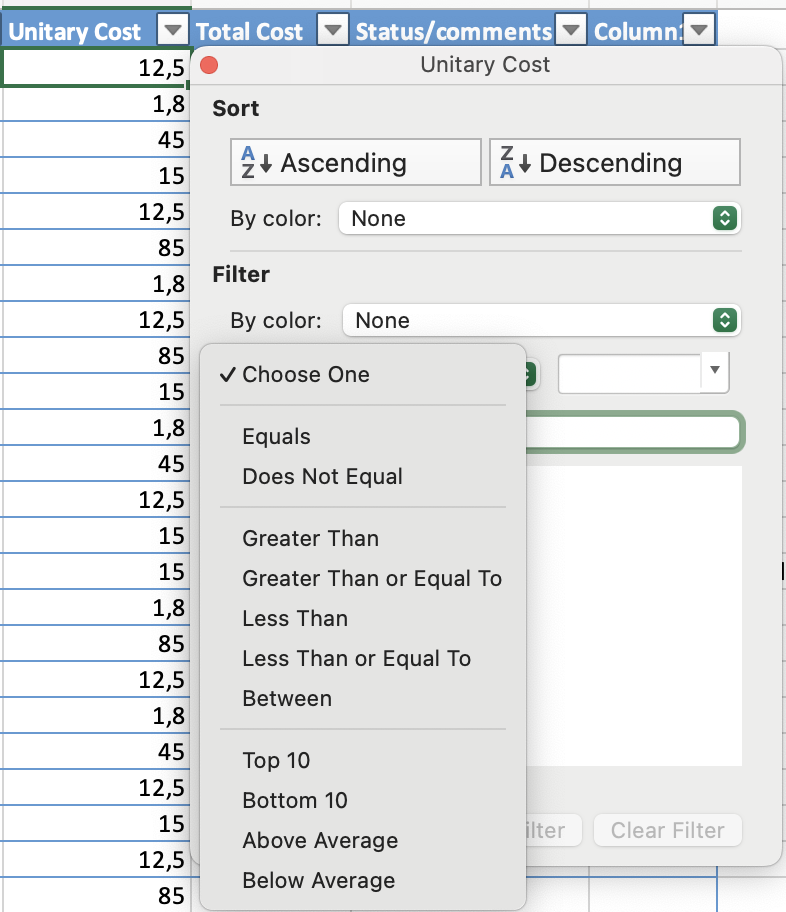
- Tallfilter: filtrering etter sammenligninger som større enn, mindre enn eller mellom;
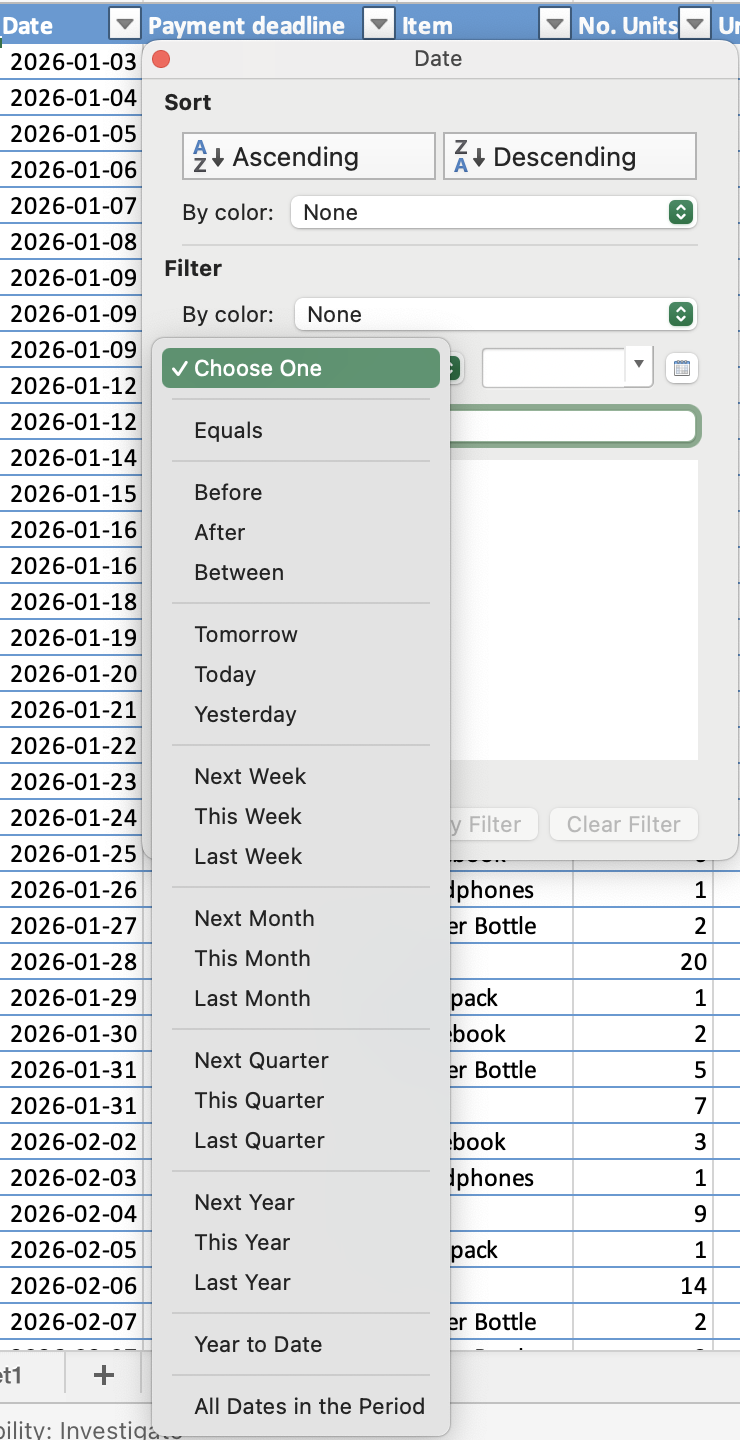
- Dato-filter: filtrering etter perioder, som bestemte datoer, måneder eller år.
OG / ELLER-logikk på tvers av flere filtre
- ELLER: innenfor én kolonne — en rad vises hvis den samsvarer med en av de valgte verdiene;
- OG: på tvers av ulike kolonner — en rad må oppfylle alle aktive filtre for å forbli synlig.

Merknad
Snarvei slår av alle filtre samtidig. Ved å trykke Ctrl+Shift+L for å slå av filtre fjernes alle aktive filterbetingelser i alle kolonner samtidig — ikke bare den nåværende kolonnen. Hvis du kun vil tilbakestille én kolonne, bruk Fjern filter fra rullegardinmenyen til den kolonnen i stedet.
Alt var klart?
Takk for tilbakemeldingene dine!
Seksjon 1. Kapittel 8
Spør AI

Spør AI

Spør om hva du vil, eller prøv ett av de foreslåtte spørsmålene for å starte chatten vår
Seksjon 1. Kapittel 8
