Tabeller
Sveip for å vise menyen
Områder er kraftige, men de er statiske. Når dataene dine stadig vokser – nye rader, nye kunder, nye transaksjoner – trenger du noe smartere. Det er her Tabeller kommer inn.
Viktige punkter
- En Tabell gjør et område om til et strukturert, voksende datasett;
- Trykk Ctrl / Cmd + T for å konvertere et hvilket som helst område til en Tabell;
- Tabeller legger til filtre, strukturerte referanser og automatisk utvidelse;
- Hver kolonne = én datatype. Hver rad = én post. Ingen tomme rader inni.
Hva er en Tabell?
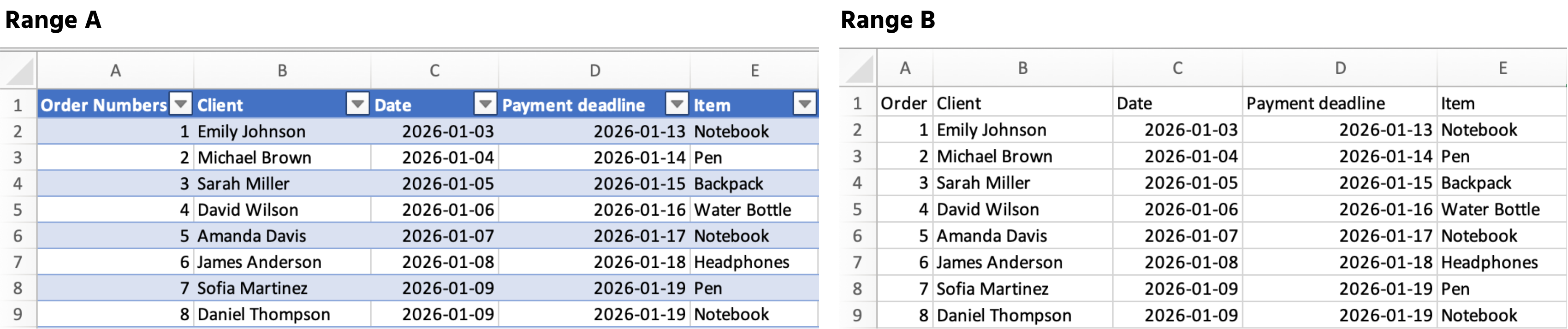
En Tabell er et strukturert område som forteller Excel: "dette er et voksende datasett, behandle det som ett."
Når du konverterer et område til en Tabell, gjør Excel automatisk følgende:
- Legger til filtre og sorteringsknapper i overskriftene;
- Utvider formler og formatering til hver ny rad;
- Bruker strukturerte referanser som
Sales[Total_Cost]i stedet forK2:K54.
Hvordan opprette en tabell
- Klikk hvor som helst inne i dataene dine;
- Trykk Ctrl + T (Windows) eller Cmd + T (Mac);
- Bekreft at dataene dine har overskrifter → klikk OK.
Alt var klart?
Takk for tilbakemeldingene dine!
Seksjon 1. Kapittel 2
Spør AI

Spør AI

Spør om hva du vil, eller prøv ett av de foreslåtte spørsmålene for å starte chatten vår
Seksjon 1. Kapittel 2
