Formatering
Sveip for å vise menyen
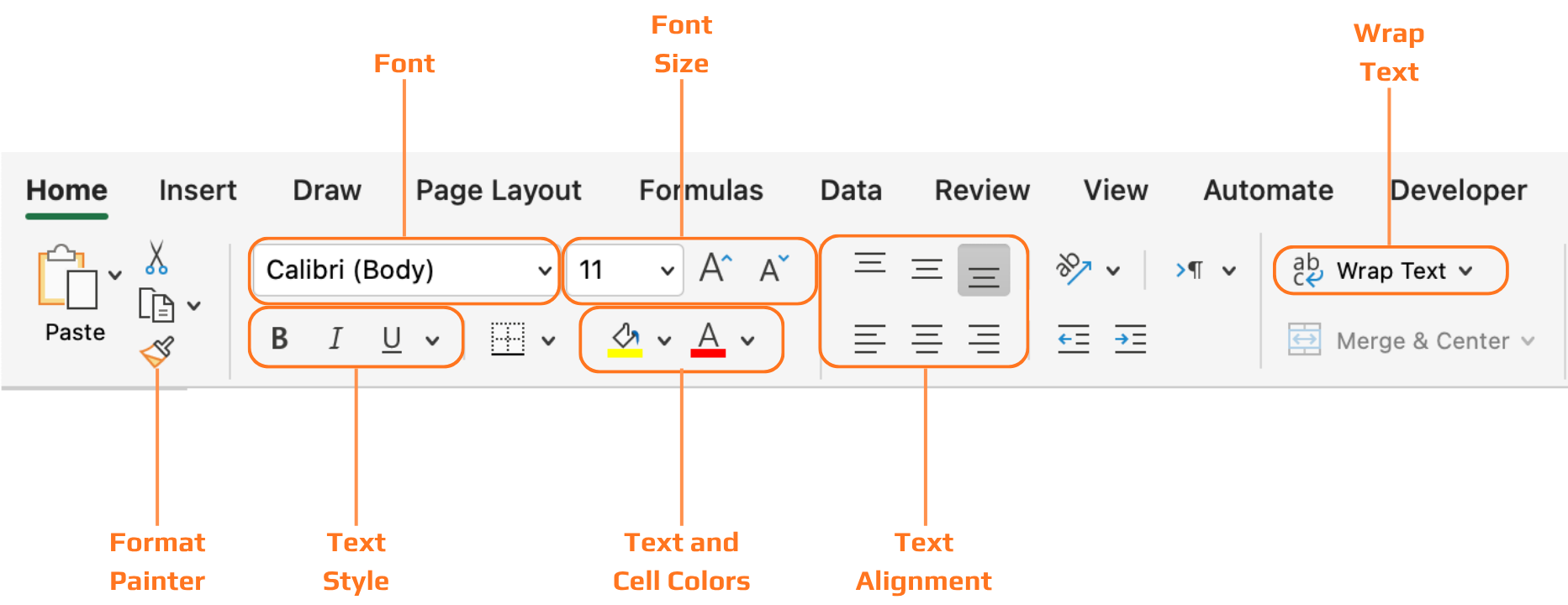
Alle verktøyene som dekkes i dette kapittelet finnes på Hjem-fanen i båndet, organisert i grupper: Skrift, Justering, Tall og Stiler. Du arbeider ved å først velge celler, deretter bruke formatering på det som er valgt.
Overskrifter
Uten formaterte overskrifter er en datatabell bare et rutenett med tekst. Leseren må jobbe for å finne ut hva hver kolonne betyr før de kan begynne å lese verdiene. Fet skrift og bakgrunnsskygge løser dette umiddelbart — overskriftsraden skiller seg visuelt fra dataradene, og blikket finner raskt kolonneetikettene.

Når du konverterer et område til en Excel-tabell med Ctrl+T, blir overskriftsformatering brukt automatisk — og du kan velge blant forhåndsdefinerte tabellstiler på fanen Tabellutforming. Dette er ofte den raskeste måten å få ren og konsekvent overskriftsformatering uten å gjøre det manuelt.
Takk for tilbakemeldingene dine!
Spør AI

Spør AI

Spør om hva du vil, eller prøv ett av de foreslåtte spørsmålene for å starte chatten vår
Formatering
Alle verktøyene som dekkes i dette kapittelet finnes på Hjem-fanen i båndet, organisert i grupper: Skrift, Justering, Tall og Stiler. Du arbeider ved å først velge celler, deretter bruke formatering på det som er valgt.
Overskrifter
Uten formaterte overskrifter er en datatabell bare et rutenett med tekst. Leseren må jobbe for å finne ut hva hver kolonne betyr før de kan begynne å lese verdiene. Fet skrift og bakgrunnsskygge løser dette umiddelbart — overskriftsraden skiller seg visuelt fra dataradene, og blikket finner raskt kolonneetikettene.
Når du konverterer et område til en Excel-tabell med Ctrl+T, blir overskriftsformatering brukt automatisk — og du kan velge blant forhåndsdefinerte tabellstiler på fanen Tabellutforming. Dette er ofte den raskeste måten å få ren og konsekvent overskriftsformatering uten å gjøre det manuelt.
Takk for tilbakemeldingene dine!
